
Summary
GibbsCAM 2024 adds a Mill Cutoff process for separating a part from bar stock. It also improves Contour Ramp Down output and the interaction between Pocket and Contour operations that both use Material Only.
Table of Contents
- What Changed in GibbsCAM 2024
- Before You Begin
- Mill Cutoff for MTM
- Smoother Contour Ramp Down
- Pocket and Contour Material Only
- Best Practices
- Troubleshooting
- Related Articles
What Changed in GibbsCAM 2024
Important: Mill Cutoff behavior depends on the active MTM machine definition, tool orientation, machine capabilities, and post processor. Validate the complete motion before production use.
Before You Begin
• Use GibbsCAM 2024 with the required Mill or MTM options, approved machine definition, and validated post processor.
• Work from a backup when recalculating a job created in an earlier GibbsCAM version.
• Confirm bar stock, coordinate systems, tool assignments, operation order, fixtures, and clearance after separation.
• Save baseline toolpaths, simulation results, and posted output before changing or recalculating operations.
Mill Cutoff for MTM
Mill Cutoff is a new Mill process for separating a completed workpiece from bar stock. Depending on the machine configuration, the operation can use an end mill held perpendicular to the work or a side mill or slitting saw held parallel to it.
The available motion choices depend on the active machine configuration. Treat the machine definition, tool orientation, and post processor as part of the setup—not as interchangeable defaults.
1. Drag a compatible Mill tool to an empty process tile, then select Mill Cutoff from the Mill process flyout.
2. Choose the cutting style that matches the physical tool and spindle orientation: End Mill for a perpendicular spindle, or Saw/Slot Mill for a side mill or slitting saw with a parallel spindle.
3. Select only motion options supported by the active machine. Define the tool, feeds, speeds, start and end data, depth, direction, coolant, stock use, machining coordinate system, and retraction behavior as applicable.
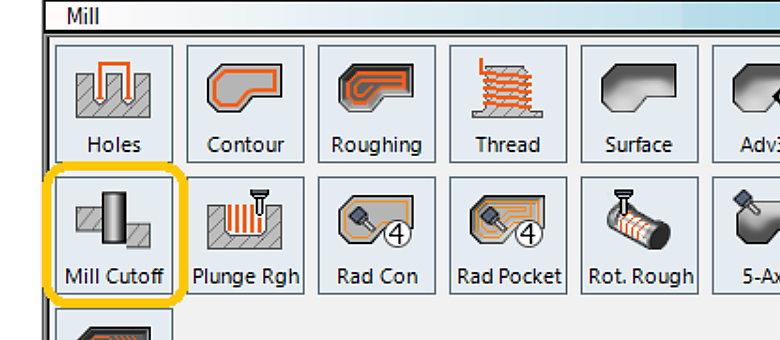
Figure 1 Select Mill Cutoff from the Mill process flyout
Source: What's New in GibbsCAM 2024, p. 7
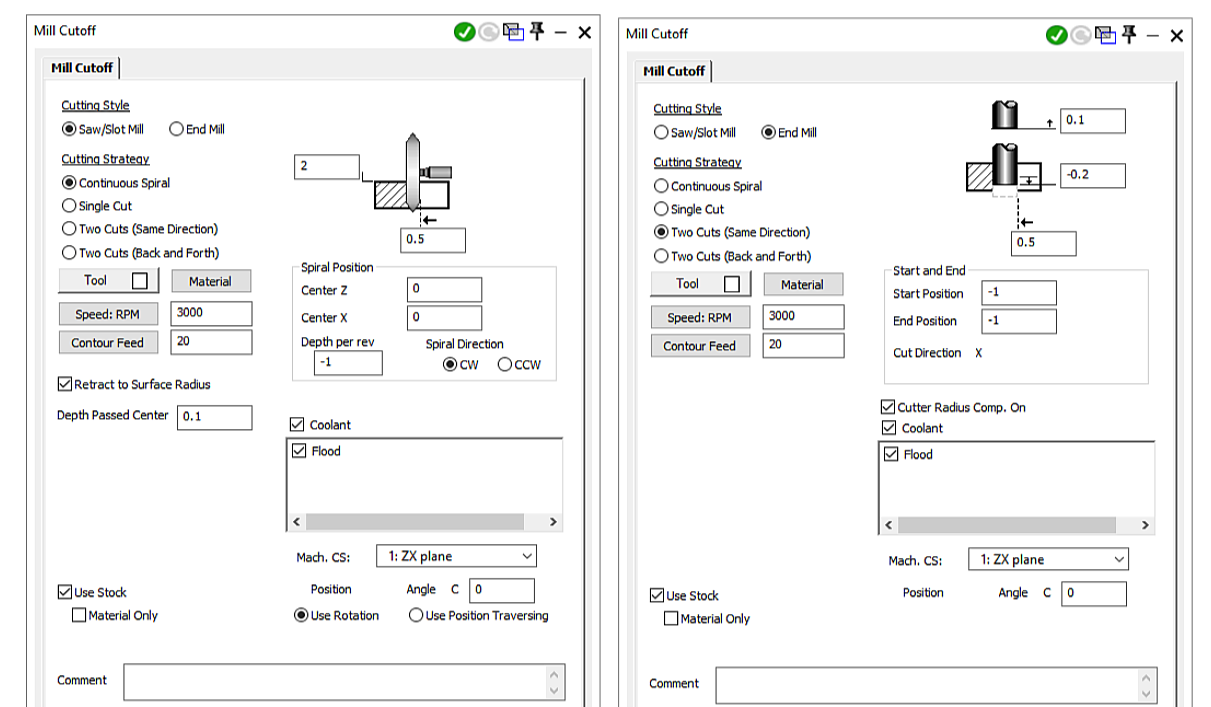
Figure 2 Configure the supported Saw or Slot Mill or End Mill style
Source: What's New in GibbsCAM 2024, p. 7
4. Calculate the operation and inspect approach, cutting motion, breakthrough, separation, and retract. Confirm clearance from the finished part, remaining stock, spindles, fixtures, and nearby tooling.
Smoother Contour Ramp Down
GibbsCAM 2024 improves the toolpath created by the existing Ramp Down option in Mill Contour. When possible, the calculated path now forms smooth, continuous descending contours instead of using repeated entries and exits.
There is no new user-interface control for this improvement. The difference appears after the operation is recalculated in GibbsCAM 2024.
1. Open Mill > Contour, confirm the Offset Contour settings, and enable Ramp Down.
2. Recalculate the operation in GibbsCAM 2024. The output should use smooth, continuous descending contours where the geometry and settings permit.
3. Inspect entries, exits, wall engagement, floor clearance, and retract motion. Multiple entries may remain valid when geometry, containment, leads, or linking limits interrupt the descent.
Pocket and Contour Material Only
GibbsCAM 2024 improves Material Only output when a Contour operation follows a Pocket operation in the same process list and both operations have Material Only enabled. The improvement is intended to make the resulting contour toolpath more precise and reliable.
There is no new checkbox or dialog for this change. Operation order and recalculation state are essential because the Contour operation depends on the material state produced by the preceding Pocket operation.
1. Place the Pocket process before the Contour process in the same process list.
2. Enable Material Only in both operations, then recalculate the Pocket first and the dependent Contour second.
3. Confirm that the Contour addresses the intended remaining material without unnecessary air cutting. Simulate from the correct starting stock and inspect the material state between operations.
Expected Result
• Mill Cutoff separates the part with the selected milling tool and safe, reachable machine motion.
• Ramp Down forms continuous descending contours wherever geometry and process settings allow.
• The Pocket establishes the material state and the following Contour targets the intended remaining material.
• Simulation and posted output agree with the approved setup and machine limits.
Best Practices
• Preserve the original job before recalculating legacy operations.
• Recalculate dependent Pocket and Contour operations together and in process-list order.
• Compare proven and recalculated paths when the job has already run in production.
• Qualify the machine definition and post before standardizing Mill Cutoff across similar jobs.
Troubleshooting
• Problem: Mill Cutoff is not available in the Mill process flyout.
Cause
• The job is not open in GibbsCAM 2024 or later.
• The selected tool, license, or machine definition does not expose the process.
Resolution
Confirm the GibbsCAM build, drag a compatible Mill tool to an empty process tile, and verify the intended license and machine definition. Record those details before contacting CAMCO if the process remains unavailable.
• Problem: The required Mill Cutoff style or machine motion is unavailable or unexpected.
Cause
• The tool does not match the selected End Mill or Saw/Slot Mill style.
• The active machine configuration cannot support the requested spindle orientation or motion.
Resolution
Verify the physical tool, cutting style, coordinate system, spindle assignment, and machine definition. Do not substitute unsupported motion; have CAMCO review the MDD and post requirements when needed.
• Problem: Ramp Down still creates several entries and exits.
Cause
• The operation was not recalculated in GibbsCAM 2024.
• Geometry, containment, depth, leads, offsets, or linking limits prevent a continuous descent.
Resolution
Recalculate the operation, then review the contour chain and process settings. Test a controlled copy with simplified geometry or settings to identify the constraint, and retain multiple entries when they are required for safe motion.
• Problem: The Contour does not follow the Pocket material state.
Cause
• The operations are in the wrong order or are not in the same process list.
• Material Only is not active in both operations, or one operation contains stale toolpath.
Resolution
Place Pocket before Contour, enable Material Only in both, and recalculate them in order. Simulate from the intended starting stock and verify the material state between operations.
• Problem: Simulation is correct but posted Mill Cutoff motion is unexpected.
Cause
• The job was posted with an unapproved or different post revision.
• The post or machine definition interprets spindle, rotary, or coordinate data differently than expected.
Resolution
Stop the release. Repost the verified job with the approved post, compare the output with the simulated setup, and provide CAMCO the job, MDD, post name and revision, GibbsCAM build, and expected motion.
Related Articles
• VoluMill Cutting Air When Using Material Only
• Using Facet Bodies for Toolpath in GibbsCAM
• How to Machine Open Shapes in GibbsCAM
• Recommended Simulation Settings
Explore More from CAMCO
Visit the CAMCO website to learn more about:
• Downloads and Helpful Resources
Keywords
GibbsCAM 2024, milling, MTM, Mill Cutoff, cutoff, bar stock, end mill, side mill, slitting saw, Ramp Down, contour, pocket, Material Only, remaining material, machine definition, post processor