
Summary
GibbsCAM 2024 adds an Engraving mode to Mill Contour. With outline-font geometry and a suitable taper-tipped tool, the mode improves engraving quality, crispness, and control compared with conventional offset contouring or pocketing.
Table of Contents
What Changed in GibbsCAM 2024
Before You Begin
• Use GibbsCAM 2024 with the required Mill capability available in the active configuration.
• Prepare usable outline-font curves rather than raster artwork or unconverted text.
• Repair unintended gaps, overlaps, self-intersections, duplicate entities, and extremely short segments.
• Confirm the engraving plane, geometry scale, machining coordinate system, Z reference, tool definition, and holder clearance.
• Work from a backup and save a baseline before changing geometry or process settings.
Procedure
Step 1 - Prepare the Outline Geometry
1. Create or import the text as outline curves. Confirm the character size, orientation, spacing, and location on the part.
2. Inspect outer boundaries and inner counters in letters such as A, B, D, O, P, and R.
3. Repair open endpoints, overlaps, self-intersections, duplicate entities, and unnecessary short segments, then retain a copy of the original geometry.
Step 2 - Select the Engraving Mode
1. Create a Mill Contour process using the intended engraving tool.
2. Open the upper-left process-mode menu and select Engraving instead of Offset Contour.
3. If Engraving is unavailable, confirm the GibbsCAM build, Mill capability, active tool, and process type before continuing.
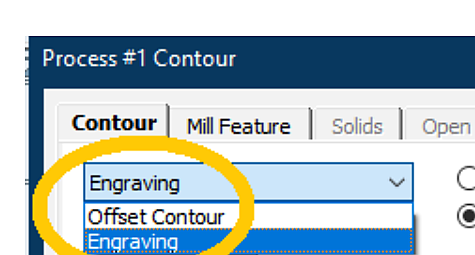
Figure 1 Select Engraving from the Mill Contour mode menu
Source: What's New in GibbsCAM 2024, p. 9
Step 3 - Define the Tool and Operation
1. Choose a taper-tipped engraving tool that can enter the narrowest required character detail without exceeding the available depth or contacting adjacent geometry.
2. Verify the tool definition, tip condition, reach, holder clearance, spindle direction, speed, and feed against approved tool data and shop standards.
3. Select the complete outline-font geometry, including outer boundaries and required inner counters.
4. Set the applicable process values from the drawing, tool data, material requirements, machine limits, and approved shop practice.
Step 4 - Calculate and Inspect the Toolpath
1. Calculate the operation and inspect the toolpath in top, side, and isometric views.
2. Confirm that every required character boundary is included and that narrow regions remain controlled.
3. With a tapered tool, verify that depth changes as the available outline width changes and that the result preserves the intended character shape.
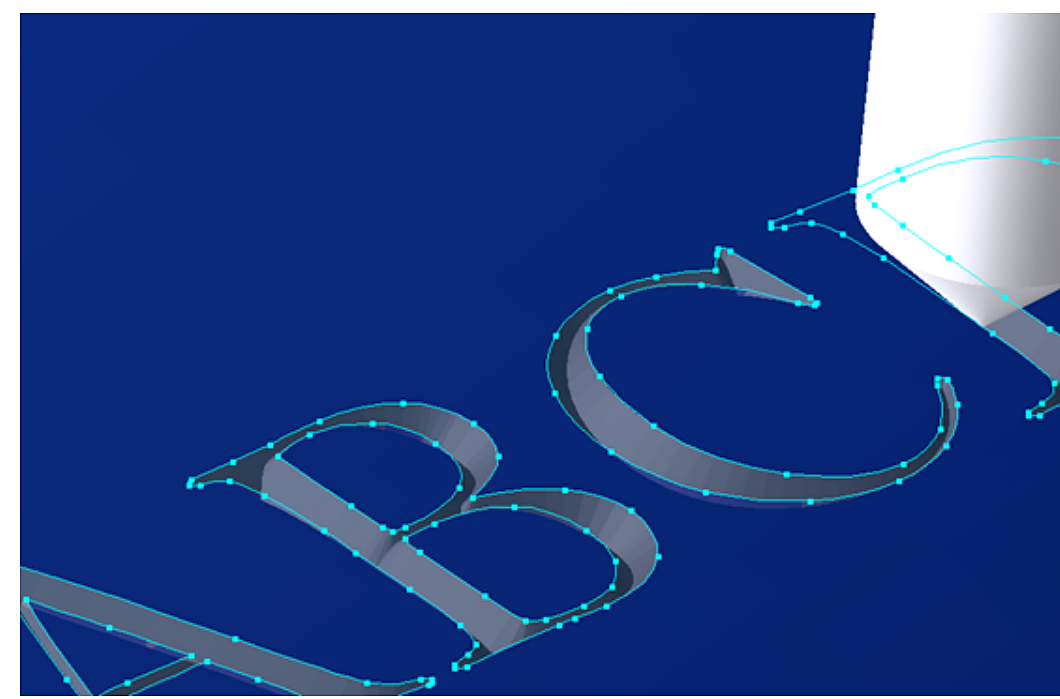
Figure 2 Inspect the variable-depth result across narrow and wide character regions
Source: What's New in GibbsCAM 2024, p. 9
Step 5 - Simulate and Validate
1. Simulate from the intended starting stock and inspect all characters, inner counters, tight corners, maximum depth, retracts, and clearances.
2. Review posted output for the correct tool, spindle direction, work offset, coordinate system, feeds, speeds, coolant, and Z motion.
3. Complete the approved prove-out process before releasing the operation for production.
Expected Result
• The operation follows the complete outline-font geometry without missing or duplicating boundaries.
• Narrow and wide areas produce the intended variable-depth appearance for the selected tapered tool.
• Inner counters and tight corners remain legible without unintended gouges or excess material removal.
• Simulation and posted output agree with the verified tool, coordinate system, and process settings.
Best Practices
• Use clean, closed outline geometry and remove duplicate or overlapping entities before calculation.
• Choose a tool that can enter the narrowest important region while producing the required engraved width.
• Test the smallest characters and tightest counters on comparable material before machining the production part.
• Recalculate and revalidate after changes to geometry, scale, tool, coordinate system, or process values.
Troubleshooting
• Problem: Engraving is not available in the Contour mode menu.
Cause
• The job is not open in GibbsCAM 2024 or later.
• The active process, tool, license, or product configuration does not expose the required Mill capability.
Resolution
Confirm the GibbsCAM build and create a Mill Contour process with the intended tool. Verify the active product configuration and license, and record those details before contacting CAMCO if the option remains unavailable.
• Problem: The operation does not calculate or omits part of a character.
Cause
• The outline contains open endpoints, overlaps, self-intersections, duplicates, or extremely short segments.
• A required outer boundary or inner counter was not selected.
Resolution
Repair the geometry, reselect all required boundaries, and verify the tool and process values. Recalculate one character at a time if necessary to isolate invalid geometry.
• Problem: The depth variation is unexpected.
Cause
• The character widths do not suit the selected tool geometry.
• The tool definition, geometry scale, engraving plane, Z reference, or calculated toolpath is incorrect or stale.
Resolution
Verify the scale, plane, Z reference, and tool definition, then recalculate. Compare the narrowest and widest regions in multiple views before posting.
• Problem: Small letters or inner counters lose detail.
Cause
• The tool cannot reproduce the required detail or the characters are too small for the setup.
• The outline contains tight intersections, overlaps, or excessive nodes.
Resolution
Use a suitable engraving tool or enlarge and simplify the artwork while preserving design intent. Repair the geometry and test the smallest character on comparable material.
• Problem: Simulation and posted output do not agree.
Cause
• The approved machine definition or production post is not active.
• The tool, offsets, coordinates, geometry, or operation changed after simulation.
Resolution
Stop the release. Recalculate and simulate, then repost with the approved machine definition and post. Compare the tool call, offsets, cutting data, coordinates, and Z motion with the verified job.
Related Articles
• Creating Solid Model from 2D Geometry
• Geometry Does Not Connect or Disconnect Properly
• How to Machine Open Shapes in GibbsCAM
• Importing Images for Toolpath Creation
Explore More from CAMCO
Visit the CAMCO website to learn more about:
• Downloads and Helpful Resources
Keywords
GibbsCAM 2024, variable-depth engraving, outline fonts, Mill Contour, Engraving mode, tapered engraving tool, lettering, inner counters, toolpath