
Summary
GibbsCAM 2024 extends Generic Probing to rotary parts with a new Rotary Axis process. The cycle can return a Measurement result or apply a correction through Set Work Fixture Offset when the machine, controller, probe system, MDD, and post are qualified for that workflow.
Table of Contents
What Changed in GibbsCAM 2024
Important: A post that supports earlier probing cycles may not support Rotary Axis probing. GibbsCAM 2023 and earlier probing posts require modification for this cycle.
Before You Begin
• Use GibbsCAM 2024 with Generic Probing support, a calibrated probe, and a rotary-capable production machine definition.
• Enable GibbsCAM Generic Probing Support in Plug-Ins > Plug-In Manager when the interface is unavailable.
• Confirm the rotary axis, centerline, direction, limits, part position, Mach CS, workholding, and probe clearances.
• Use a post explicitly validated for the GibbsCAM 2024 Rotary Axis probing orders and target controller.
• Test on a controlled part under the shop's probing calibration and prove-out procedures.
Procedure
Step 1 - Qualify the Setup and Post
1. Open the part with the production rotary machine definition and confirm the axis, centerline, limits, coordinate systems, and part orientation.
2. Load the calibrated probe definition and verify the stylus, tip, holder, reach, and clearances.
3. Record the post name and revision, then confirm support for the GibbsCAM 2024 Rotary Axis probing cycle and target controller.
Step 2 - Create the Rotary Axis Process
1. If needed, enable GibbsCAM Generic Probing Support in Plug-In Manager and restart GibbsCAM.
2. Drag a compatible Probing tool to an empty process tile, then select Rotary Axis from the Probing flyout.
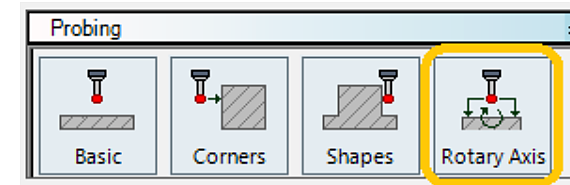
Figure 1 Select Rotary Axis from the Probing process flyout
Source: What's New in GibbsCAM 2024, p. 10
Step 3 - Define the Probing Motion
1. Select the Mach CS that represents the probing setup and verify its relationship to the rotary axis and workholding.
2. Set feed, touch time, contact pattern, clearances, distance between points, and X or Y offsets from the approved probe and controller procedure.
3. Use Two Touch and Probe Around H or V only when they match the validated contact sequence.
4. Confirm that all linear and rotary motion clears the part, probe, holder, fixture, and rotary components.
Step 4 - Choose the Result
1. Select Set Work Fixture Offset only when the qualified post and controller should apply the measured rotary correction to the intended WFO Index.
2. Select Measurement when the workflow should obtain or evaluate the rotary result without deliberately selecting a work-fixture update.
3. Set Angular Tol. and its response according to the drawing, controller capability, and approved shop limits. Do not copy the example values from the release-note image.
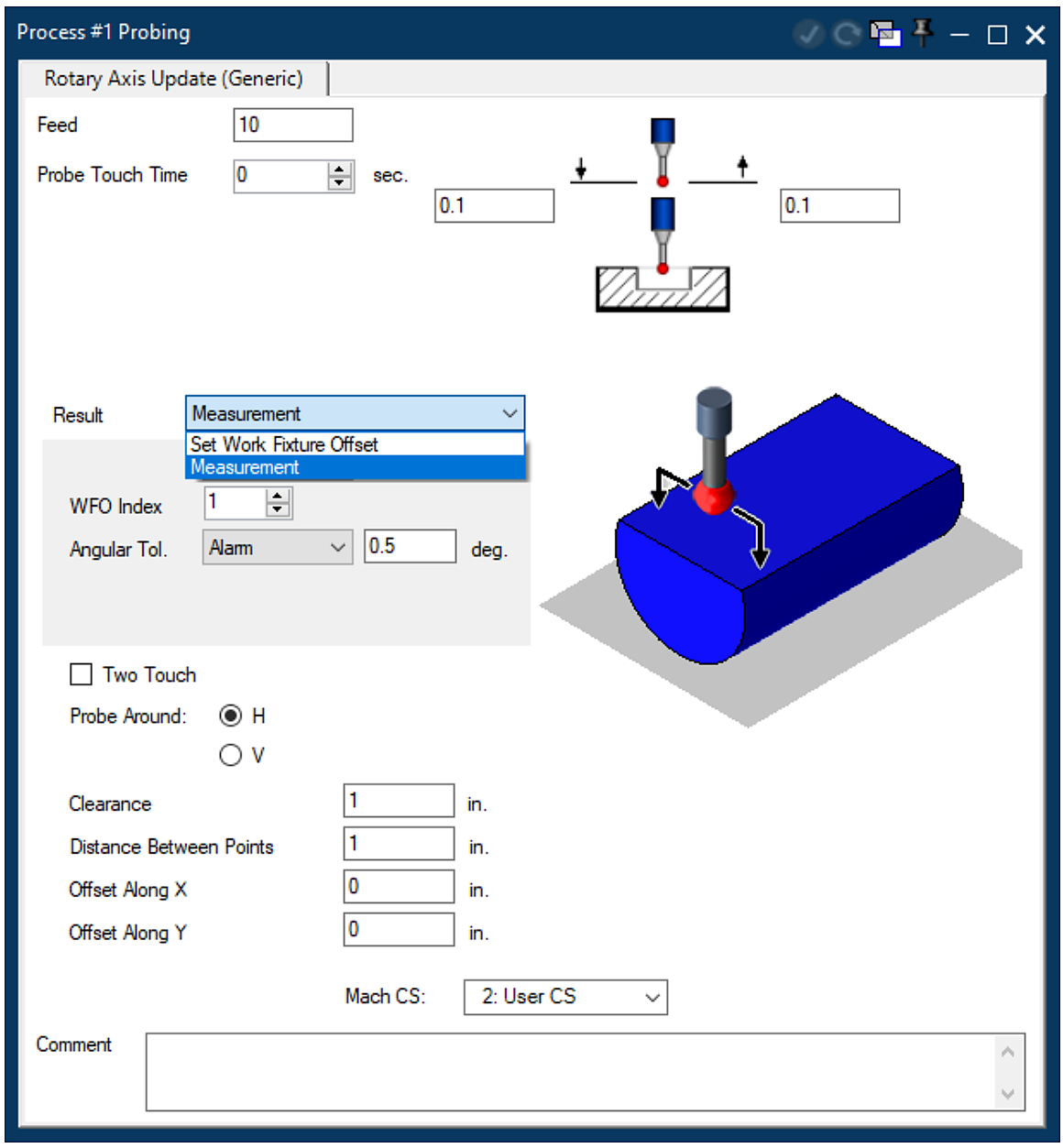
Figure 2 Configure the motion and choose the intended Result behavior
Source: What's New in GibbsCAM 2024, p. 10
Step 5 - Simulate, Post, and Prove Out
1. Calculate the operation and inspect approach, probe contacts, retracts, linear clearances, and rotary motion in Machine Simulation.
2. Post with the approved production post and compare the cycle call, rotary axis, coordinates, WFO index, angular tolerance, result behavior, and reset commands with the controller and probe documentation.
3. During prove-out, record work offsets before and after Set Work Fixture Offset, or verify the expected display, variable, report, or alarm for Measurement.
4. Release the cycle only after machine behavior agrees with the approved GibbsCAM operation and posted output.
Expected Result
• Rotary Axis opens from the Probing flyout and generates safe contact and retract motion.
• The posted output uses the approved controller-specific probing cycle and correct rotary reference.
• Set Work Fixture Offset updates only the intended offset, or Measurement returns the intended result without an unintended offset change.
• Machine prove-out agrees with the verified setup, probe procedure, MDD, and post revision.
Best Practices
• Qualify the cycle on a controlled part before adding it to a production sequence.
• Record the machine, controller, probe package, MDD, post name and revision, and GibbsCAM build with every approved example.
• Record work offsets before and after each initial test and use the smallest practical offset privileges.
• Revalidate after changes to the probe, stylus, rotary setup, coordinate system, MDD, post, controller software, or Result behavior.
Troubleshooting
• Problem: Rotary Axis is not available in the Probing flyout.
Cause
• The job is not open in GibbsCAM 2024 or later.
• Generic Probing Support, the required license, or a compatible Probing tool is unavailable.
Resolution
Confirm the GibbsCAM build and license, enable GibbsCAM Generic Probing Support, restart if required, and create the process with a compatible Probing tool.
• Problem: The post does not output a supported rotary probing cycle.
Cause
• The post predates GibbsCAM 2024 Rotary Axis probing support.
• The wrong machine definition, controller target, or post revision is active.
Resolution
Stop the release. Verify the machine, controller, MDD, post name, and revision, then have CAMCO confirm or modify the post before machine use.
• Problem: Set Work Fixture Offset targets the wrong offset or correction.
Cause
• The WFO Index does not map to the intended controller offset.
• The Result, Mach CS, rotary direction, setup orientation, or post behavior is incorrect.
Resolution
Restore the verified offset, review the Result, WFO Index, Mach CS, rotary direction, and posted cycle, then repeat the controlled prove-out. Do not continue until the mapping is confirmed.
• Problem: Measurement does not report or alarm as expected.
Cause
• Angular Tol. or its response does not match the approved workflow.
• The post maps the result to the wrong controller variable, message, report, or alarm.
Resolution
Verify Result and Angular Tol., inspect the posted cycle, and confirm the expected controller-side display, variable, report, or alarm before production use.
• Problem: Probe motion uses the wrong location or unsafe clearance.
Cause
• The Mach CS, rotary position, axis direction, or part setup is incorrect.
• Clearance, point spacing, offsets, contact pattern, or the modeled probe and fixture are incomplete.
Resolution
Stop the cycle. Correct the setup, reference, contact location, and clearances, then recalculate, simulate, repost, and repeat the controlled prove-out.
Related Articles
• How to Enable Probing in GibbsCAM
• What Options are on my GibbsCAM License?
• How to Update Your GibbsCAM License
Explore More from CAMCO
Visit the CAMCO website to learn more about:
• Downloads and Helpful Resources
Keywords
GibbsCAM 2024, Rotary Axis probing, Generic Probing, probe, Set Work Fixture Offset, WFO Index, Measurement, Angular Tol., probing post, rotary MDD