
Summary
GibbsCAM 2024 adds three related productivity tools: Taper Angle Color and Curvature Color, ALT-based virtual points and coordinate interrogation, and Visible Edge Selection. These tools improve model review without changing the model itself.
Table of Contents
What Changed in GibbsCAM 2024
Important: Interpret a color map with its current legend and settings, and verify every coordinate or edge selection before using it in a modeling or machining command.
Before You Begin
• Use GibbsCAM 2024 or later and open the model or geometry to review.
• Show the floating Task Bar and the required solid, surface, wireframe, or visible cubic-stock data.
• Enable Edge Selection when virtual points on solid edges are required.
• Open the destination dialog before using ALT+Click or ALT+SHIFT+Click to populate coordinate fields.
Procedure
Step 1 - Display Taper or Curvature
1. On the floating Task Bar, open Color Mode.
2. Select Taper Angle Color or Curvature Color. The model is colored by value and a legend appears near the pointer unless it is pinned.
3. Rotate and zoom the model, then compare the model colors with the active legend.
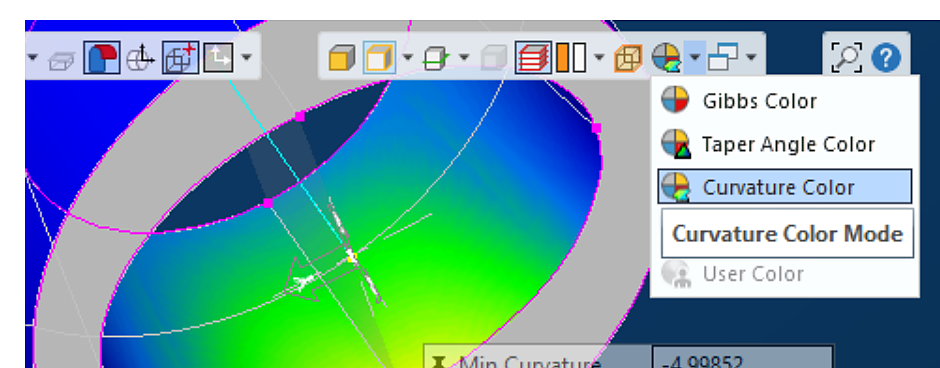
Figure 1 Select Taper Angle Color or Curvature Color from Color Mode
Source: What's New in GibbsCAM 2024, p. 12
Step 2 - Refine the Color Display
1. For Taper Angle Color, right-click the dialog title bar and choose either 0 to 90 degrees or -90 to +90 degrees.
2. For Curvature Color, right-click the dialog title bar and choose the curvature calculation and whether to display negative values.
3. Right-click the color spectrum to open Color Ramp Editor and adjust the ramp when needed.
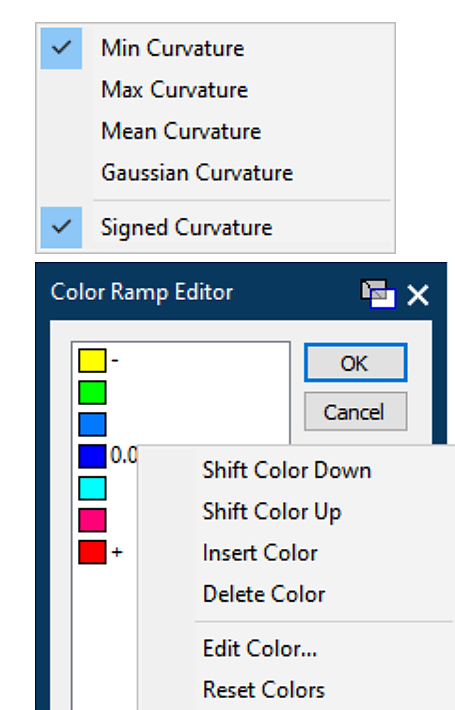
Figure 2 Configure curvature calculation and color-ramp settings
Source: What's New in GibbsCAM 2024, p. 13
Step 3 - Display and Reuse Virtual Points
1. Hold ALT while hovering over supported geometry to display available virtual points, including line midpoints, arc or circle centers, solid-edge vertices, and visible cubic-stock points.
2. With a destination dialog open, use ALT+Click to place a coordinate in one text field or ALT+SHIFT+Click to place coordinates in multiple fields.
3. Verify the populated values and active coordinate system before applying the command.
4. When the Dimension palette is open, use virtual points to preview and create dimensions.
Step 4 - Select Only Visible Solid Edges
1. Set the solid selection mode to Edge Selection, then choose Visible Edge Selection.
2. Rotate the model until the required edge is visible from the current view.
3. Select the edge and review the highlighted set before continuing. Edges behind the solid body are excluded while this mode is active.

Figure 3 Visible Edge Selection excludes edges behind the solid body
Source: What's New in GibbsCAM 2024, p. 14
Step 5 - Verify the Result
1. Confirm the legend, range, curvature method, signed setting, and color ramp used for any captured analysis.
2. Confirm every transferred coordinate or selected edge in the intended coordinate system and view.
3. Return to the standard color or full Edge Selection mode when the analysis or visible-only selection is complete.
Expected Result
• The model displays taper or curvature values with an interpretable legend.
• ALT reveals usable temporary reference points on supported geometry.
• ALT+Click or ALT+SHIFT+Click places the intended coordinate data in the active dialog.
• Visible Edge Selection limits edge selection to edges visible from the current view.
Best Practices
• Record the color-map settings with screenshots or review notes.
• Zoom in before using a virtual point in a crowded area.
• Rotate the model to make the target edge clearly visible before selecting it.
• Treat these tools as analysis and selection aids; complete normal toolpath, simulation, and inspection checks.
Troubleshooting
• Problem: Taper Angle Color or Curvature Color is unavailable.
Cause
• The job is not open in GibbsCAM 2024 or later.
• The floating Task Bar or Color Mode menu is not visible.
Resolution
Confirm the GibbsCAM version, show the floating Task Bar, and open Color Mode. If the commands remain unavailable, record the GibbsCAM build and workspace details for CAMCO support.
• Problem: The color map is difficult to interpret.
Cause
• The active range, curvature calculation, signed-value setting, or color ramp does not match the review objective.
• The legend is hidden, unpinned, or being read with settings from an earlier view.
Resolution
Show or pin the legend, confirm the active settings, and reset or adjust the color ramp. Interpret the colors only against the current legend.
• Problem: ALT does not show the expected virtual point.
Cause
• The pointer is not close enough to supported geometry.
• Edge Selection is not enabled for a solid-edge midpoint, or the cubic stock is not visible.
Resolution
Zoom in, move the pointer over the intended geometry, and hold ALT. Enable Edge Selection for solid-edge points and show cubic stock when its points are required.
• Problem: ALT+Click places an unexpected coordinate or fills the wrong fields.
Cause
• The wrong virtual point, coordinate system, or destination field was active.
• ALT+Click and ALT+SHIFT+Click were used for the wrong single-field or multiple-field task.
Resolution
Clear the value, confirm the active coordinate system and destination fields, then redisplay the point. Use ALT+Click for one field or ALT+SHIFT+Click for multiple fields and verify every value.
• Problem: Visible Edge Selection does not select the intended edge.
Cause
• The mode is not active, or the required edge is behind the solid from the current view.
• The body is hidden or obscured by other model data.
Resolution
Activate Visible Edge Selection, show the correct body, and rotate the model until the edge is visible. Use full Edge Selection only when an obstructed edge must be selected.
Related Articles
• How to Use Unstitch Solid to Defeature a Solid Model
• Creating Solid Model from 2D Geometry
• Extracting Geometry from Solids
Explore More from CAMCO
Visit the CAMCO website to learn more about:
• Downloads and Helpful Resources
Keywords
GibbsCAM 2024, Taper Angle Color, Curvature Color, Color Ramp Editor, virtual points, ALT+Click, ALT+SHIFT+Click, Visible Edge Selection, model analysis, solid edge