
Summary
GibbsCAM 2024 can retain feeds and speeds with a tool, expose the same data from a process, import supported tool assemblies through the CoroPlus Tool Library, and calculate Mill Form Tool contact from real, monotonic, or nominal geometry.
Table of Contents
What Changed in GibbsCAM 2024
Important: Imported cutting values and simplified form-tool parameters are starting points. Confirm them against the tool manufacturer's data, shop standards, machine limits, and the intended material before machining.
Before You Begin
• Use GibbsCAM 2024 or later with the required tooling and milling options.
• For CoroPlus, provide internet access and a valid, active Coromant or CoroPlus account containing the required tools, holders, and cutting data.
• Confirm that the CoroPlus Tool Library plug-in is installed and available in GibbsCAM.
• Obtain current tool geometry and programming values from the manufacturer, especially for form tools and high-feed cutters.
Procedure
Step 1 - Review Attached Cutting Data
1. Open the Tool dialog. A checkmark on Cutting Data indicates that feeds and speeds are attached to the tool.
2. Open a process that uses the tool. A checkmark on its Tool button indicates that the process can access the attached data.
3. Click either checked button and verify the values, units, cutter, grade, work material, and application before accepting changes.
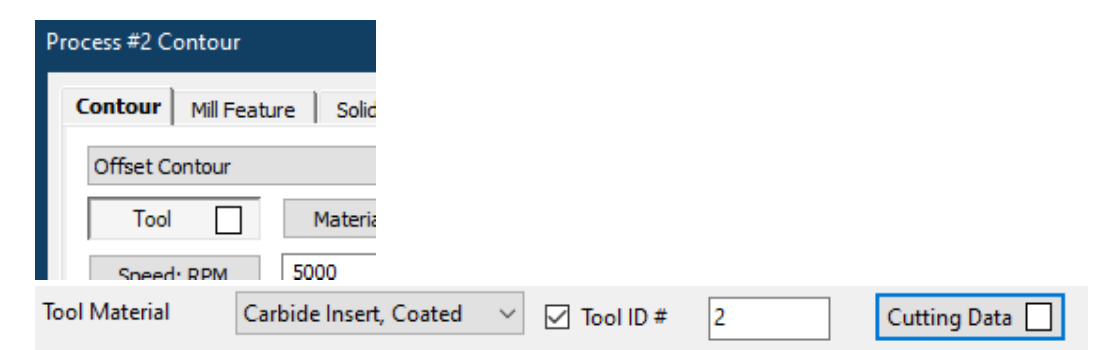
Figure 1 Checked Tool and Cutting Data buttons indicate attached feeds and speeds
Source: What's New in GibbsCAM 2024, p. 16
Step 2 - Open the CoroPlus Importer
1. Open Plug-Ins > Main Tools > CoroPlus Tool Library, or double-click a process tile and choose CoroPlus Tool Importer from the process flyout.
2. Complete the CoroPlus sign-in or connection prompt and confirm that the account displays the required catalog content.
3. Locate the tool or assembly and select the available cutter, holder, and cutting-data content.
Step 3 - Import and Verify the Assembly
1. Review the selected assembly, then choose Send to GibbsCAM.
2. In GibbsCAM, confirm the tool type, dimensions, holder, orientation, units, tool number, offsets, and attached cutting data.
3. Correct or reimport incomplete data before using the tool in an operation.
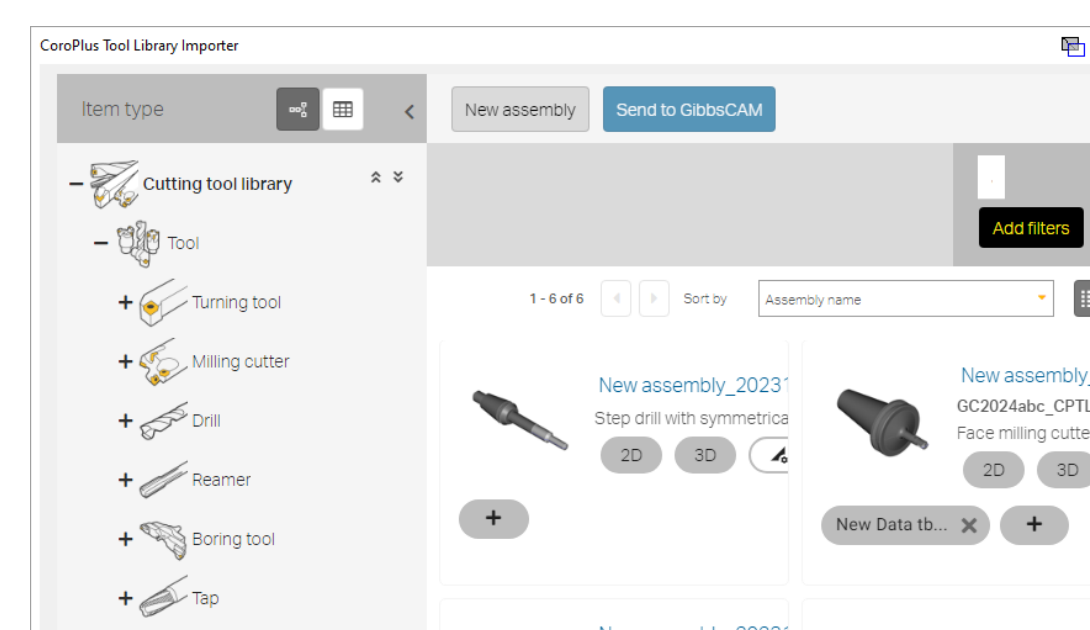
Figure 2 Review the required CoroPlus content before sending the assembly to GibbsCAM
Source: What's New in GibbsCAM 2024, p. 17
Step 4 - Choose a Mill Form Tool Profile
1. Open the Tools dialog and select a 2D Form or 3D Form Mill tool.
2. Open Generate toolpath from and choose the profile that matches the manufacturer's programming guidance:
• Real profile uses the actual cutter form. It is the most accurate and most computation-intensive option.
• Monotonic profile prevents undercutting when the tool narrows and uses the widest contact radius below the geometry depth.
• Nominal parameters calculates contact as a bullnose mill using Nominal Diameter and Virtual Corner Radius while rendering the actual tool profile.
3. When using Nominal parameters, enter the manufacturer-supplied nominal diameter and programming radius.
4. Apply the tool changes and regenerate every affected operation.
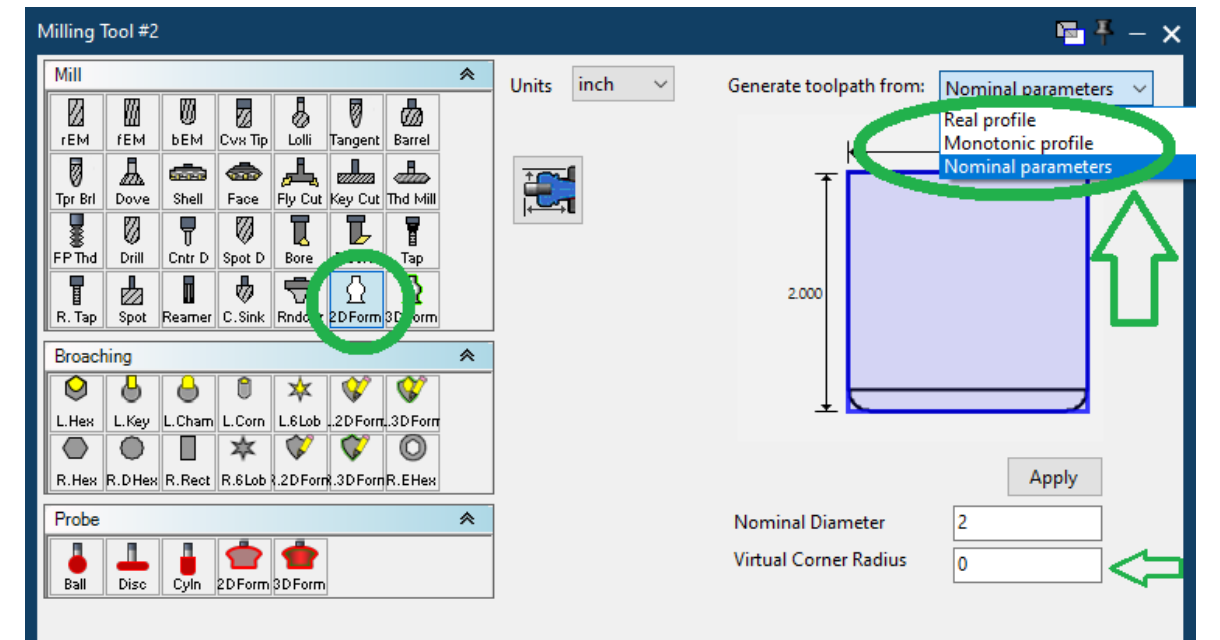
Figure 3 Choose the documented contact-calculation profile for the form tool
Source: What's New in GibbsCAM 2024, p. 18
Note: These choices affect contact-point calculation. Material Only and Rendering use the real tool profile whenever possible.
Step 5 - Verify the Result
1. Regenerate the operation and review warnings, calculated feeds and speeds, and any change in calculation time or contact behavior.
2. Render or simulate the operation and confirm cutter, holder, shank, stock, and workholding clearance.
3. Review the posted output and complete the normal shop prove-out before production use.
Expected Result
• Tools with attached cutting data expose the values from the Tool dialog and from processes that use the tool.
• A reviewed CoroPlus assembly appears in GibbsCAM with the intended tool, holder, and available cutting data.
• Each 2D Form or 3D Form tool uses the selected Real, Monotonic, or Nominal contact model.
• Simulation and posted output agree with the approved tool definition and application data.
Best Practices
• Record the manufacturer's tool ID, assembly revision, material application, and date in controlled tool or process lists.
• Treat imported feeds and speeds as application data requiring review, not automatic production approval.
• Verify units immediately after import and before changing a diameter, radius, feed, or speed.
• Use Real profile as the accuracy baseline when comparing Monotonic profile or Nominal parameters.
• Use Nominal parameters only with values supplied for the specific cutter and application.
Troubleshooting
• Problem: The Cutting Data or process Tool button has no checkmark.
Cause
• The tool has no feeds and speeds attached.
• The process is using a different tool than expected.
Resolution
Confirm the assigned tool. Import or select the intended tool with supported cutting data, then reopen the dialogs and verify the indicator before regenerating.
• Problem: The CoroPlus Tool Library command is missing.
Cause
• The plug-in is not installed, enabled, or available for the current GibbsCAM configuration.
• The command is being sought in a different menu or flyout.
Resolution
Check Plug-Ins > Main Tools and the process flyout. Confirm the plug-in installation and seat configuration, then contact CAMCO if the command remains unavailable.
• Problem: CoroPlus does not connect or show the required content.
Cause
• Internet access is unavailable or blocked.
• The account is inactive, signed out, or does not contain the requested tool, holder, or cutting data.
Resolution
Confirm network access and sign in with the intended active account. Refer account, credential, regional catalog, and content issues to the CoroPlus administrator or provider.
• Problem: The imported assembly is incomplete or uses unexpected units.
Cause
• The selected CoroPlus item did not include the missing component or data set.
• An incomplete assembly was sent, or the imported units or tool type were interpreted incorrectly.
Resolution
Return to the importer, confirm the complete assembly, and reimport if necessary. Compare every dimension, unit, holder component, and cutting value with the manufacturer's record before use.
• Problem: A Mill Form Tool calculates slowly or produces an unexpected contact path.
Cause
• Real profile is selected and the detailed form requires more computation.
• The selected profile, tool geometry, Nominal Diameter, or Virtual Corner Radius does not match the manufacturer's programming model.
Resolution
Confirm the tool definition and Generate toolpath from choice. Compare with Real profile, and use Monotonic profile or Nominal parameters only when its documented behavior matches the cutter and application.
Related Articles
• How to Save and Load Process or Tool Lists
Explore More from CAMCO
Visit the CAMCO website to learn more about:
• Downloads and Helpful Resources
Keywords
GibbsCAM 2024, Cutting Data, feeds and speeds, CoroPlus Tool Library, CPTL, tool importer, Mill Form Tool, 2D Form, 3D Form, Real profile, Monotonic profile, Nominal parameters, Virtual Corner Radius, high-feed mill