
Summary
GibbsCAM 2024 lets an updated post expose standard and custom inputs on the Post dialog's Configuration tab. The Workfixtures tab also adds Restrict WFOs, which controls which workfixture offsets remain available for the current posting workflow.
Table of Contents
What Changed in GibbsCAM 2024
Important: Both controls are post-dependent. Labels, choices, WFO names, and output effects vary with the active post, machine definition, and setup.
Before You Begin
• Use GibbsCAM 2024 or later with the approved machine definition and post processor.
• Confirm that the post was updated for GibbsCAM 2024 when Configuration inputs are required.
• Know which post options, values, and workfixture offsets the shop has approved for the target control.
• Save the part and create a baseline output file before changing inputs or WFO restrictions.
Procedure
Step 1 - Confirm the Active Post
1. Open the Post dialog and verify the active machine, control, post name, and post revision.
2. If the post is legacy or has not been updated for GibbsCAM 2024, obtain a supported post before relying on Configuration inputs.
Step 2 - Set and Test Configuration Inputs
1. Select the Configuration tab and review the checkboxes, lists, and value fields supplied by the active post.
2. Enter only approved selections or values, then post a controlled test file.
3. Compare the result with the baseline and confirm the blocks, codes, comments, or formatting changed by each input.
4. Restore the approved setting and contact the post developer or CAMCO when an input has no documented effect or produces unexpected output.
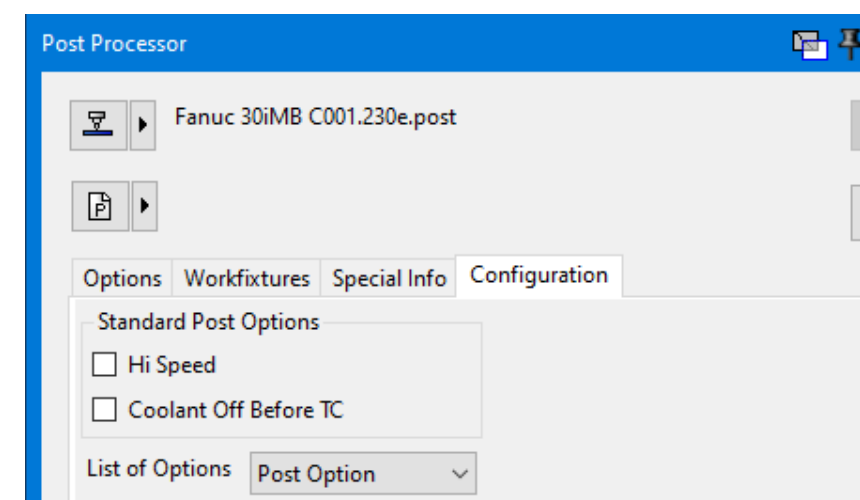
Figure 1 The active post defines the inputs shown on the Configuration tab
Source: What's New in GibbsCAM 2024, p. 19
Step 3 - Open the Restrict Workfixtures Editor
1. Select the Workfixtures tab in the Post dialog.
2. In Options, select Restrict WFOs.
3. Review the Usable WFOs and Restricted WFOs lists. Their contents are defined by the active post and machine setup.
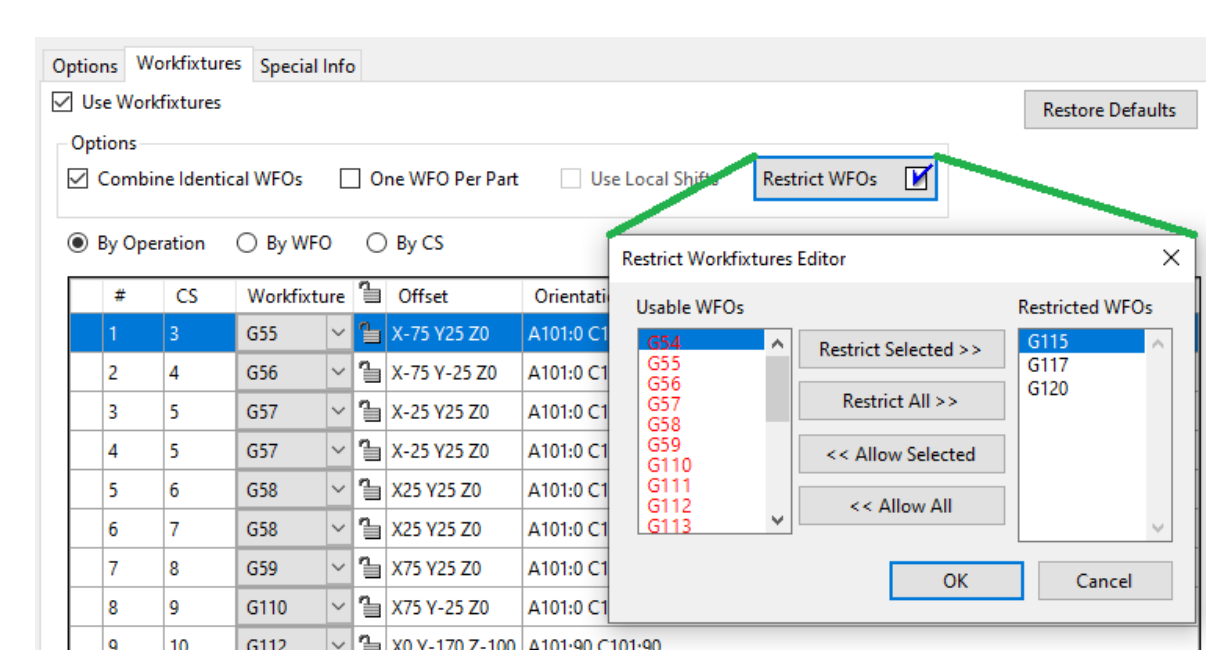
Figure 2 Move workfixture offsets between the usable and restricted lists
Source: What's New in GibbsCAM 2024, p. 20
Step 4 - Restrict or Allow Offsets
1. Use Restrict Selected or Restrict All to move offsets to Restricted WFOs.
2. Use Allow Selected or Allow All to return approved offsets to Usable WFOs.
3. Confirm that every offset required by the setup remains usable, then select OK.
4. Return to the Workfixtures tab. A checkmark on Restrict WFOs means that at least one possible offset is unavailable.
Step 5 - Verify Assignments and Output
1. Review each workfixture assignment and confirm that every operation or coordinate-system group uses an approved offset.
2. Post the controlled test file and compare all work offset calls and Configuration-driven changes with the setup sheet and baseline.
3. Complete the normal posted-code review and prove-out before production release.
Expected Result
• The Configuration tab shows the inputs defined by the active GibbsCAM 2024 post.
• The post applies the selected values when creating output.
• Approved offsets remain usable and excluded offsets appear under Restricted WFOs.
• Restrict WFOs shows a checkmark whenever at least one possible offset is restricted.
• The final NC output uses the approved post behavior and workfixture assignments.
Best Practices
• Document each exposed Configuration input, its allowed values, and its expected output effect.
• Change one input at a time while qualifying a post and compare each result with a known baseline.
• Restrict only offsets that should be unavailable for the active machine or shop standard.
• Include the part, post, machine files, and supporting details in a Pack and Go package when requesting support.
Troubleshooting
• Problem: The Configuration tab is missing, empty, or lacks the expected inputs.
Cause
• The active post was not updated for GibbsCAM 2024.
• The post does not define user-facing inputs, or a different post is active.
Resolution
Verify the post name and revision and select the approved GibbsCAM 2024 post. Contact the post developer or CAMCO if that post should expose inputs but does not.
• Problem: Changing a Configuration input does not change the output.
Cause
• The input is not mapped to output in the active post.
• The job conditions do not trigger it, or the file was posted with the previous setting or a different post.
Resolution
Confirm the active post, change one input, and create a new controlled output. Compare it with the baseline and request post-specific guidance if no documented effect appears.
• Problem: Restrict WFOs is missing or unavailable.
Cause
• The active post or machine does not support the workfixture workflow.
• Workfixtures are disabled, or a legacy or incorrect post is selected.
Resolution
Confirm the approved machine and post, enable the required workfixture setup, and use a supported WFO-capable post. Contact the post developer when the control should be available.
• Problem: A required workfixture offset is unavailable or the Restrict WFOs button is checked unexpectedly.
Cause
• The offset is in Restricted WFOs, possibly from a saved part or another programmer's change.
• The active post or machine does not define the requested offset.
Resolution
Open Restrict WFOs and return approved offsets to Usable WFOs. If the offset is absent, verify the machine and post and request an update instead of substituting an unapproved WFO.
• Problem: The posted work offset differs from the expected assignment.
Cause
• The Workfixtures table, grouping mode, or coordinate-system assignment differs from the intended setup.
• The post maps the selected WFO differently than expected.
Resolution
Stop release. Review the Workfixtures table, coordinate systems, active post, and both WFO lists. Correct the source assignment or obtain a validated post update, then repost and reverify.
Related Articles
• Create a Custom Menu of File Extensions For Your CNCs
• Error: Unable to Read Post Processor
• How to Create a Pack and Go File
Explore More from CAMCO
Visit the CAMCO website to learn more about:
• Downloads and Helpful Resources
Keywords
GibbsCAM 2024, Post dialog, Post Processor, Configuration tab, post input, custom post option, Workfixtures, workfixture offset, WFO, Restrict WFOs, Restrict Workfixtures Editor, NC output