
Summary
GibbsCAM 2024 replaces CimLM with Reprise License Manager. Local and network-license sites should use the current CAMCO procedure for their entitlement type and verify the licensed GibbsCAM options before retiring any legacy configuration.
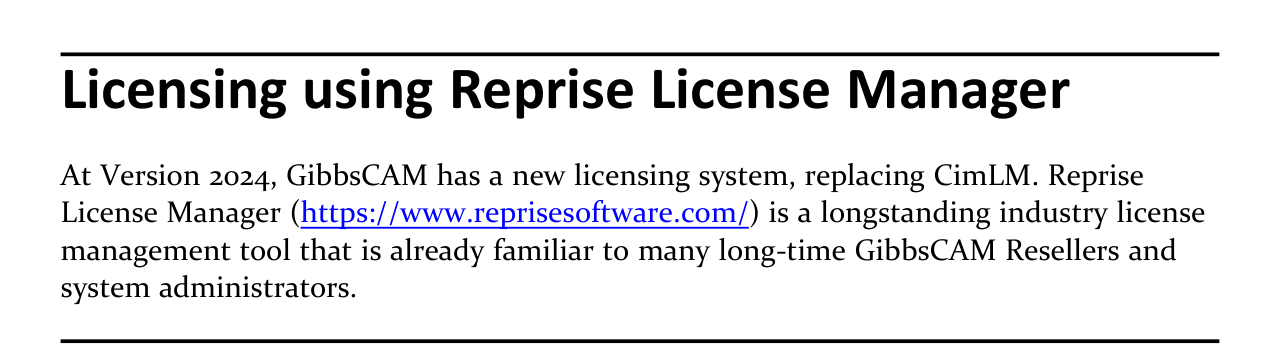
Figure 1 GibbsCAM 2024 replaces CimLM with Reprise License Manager
Source: What's New in GibbsCAM 2024, p. 21
Table of Contents
What Changed in GibbsCAM 2024
Before You Begin
• Record the GibbsCAM release and build on every workstation included in the transition.
• Identify whether the entitlement is hardware-locked or provided by a Network License server.
• Have the approved Product Code, entitlement record, license files, and hardware key available when applicable.
• For a network deployment, record the server name, configured ports, license pool, and client connection method.
• Schedule the change when users can close GibbsCAM and preserve a rollback path for required earlier releases.
Security note: Protect Product Codes, license files, and server details. Share them only through CAMCO-approved support channels.
Procedure
Step 1 - Record the Current License State
1. Record the installed GibbsCAM versions, expected modules, seat counts, and the current local or network license source.
2. For a network site, identify any earlier GibbsCAM releases that must continue to run before removing or changing legacy services.
3. Save the approved entitlement and configuration records in the site's controlled licensing documentation.
Step 2 - Obtain the Correct Reprise Components
1. Use the approved GibbsCAM download source and locate the licensing components and instructions for GibbsCAM 2024.
https://online.gibbscam.com/
2. Select the procedure that matches the entitlement: hardware-locked registration or Network License server and client setup.
3. Do not assume that a CimLM installer, license file, or client procedure applies to GibbsCAM 2024.
Step 3 - Register or Configure the License
1. Follow the current CAMCO guide for the selected entitlement type and complete the required registration or server configuration.
• Network License NLO Server Setup
• Online Registration Guide for Hardware-Locked Licenses
2. For a network license, configure the approved Reprise server and connect clients using the documented server and port values.
3. Do not manually edit an issued license file or reuse an unverified legacy configuration.
4. Restart the application or licensing service only when the approved procedure instructs you to do so.
Step 4 - Verify License Availability
1. Start GibbsCAM 2024 on a representative workstation and confirm that it obtains a license from the intended local or network source.
2. Verify that the expected licensed modules are available; an application launch alone does not confirm every purchased option.
3. For a network site, confirm that the server reports the expected pool and that a client can check out and return a seat.
4. Repeat the verification on every required workstation or managed workstation group.
Step 5 - Complete the Transition
1. Record the Reprise server or local license source, installer version, update date, and validated options.
2. Test every GibbsCAM release that the organization must continue to support.
3. Retire CimLM components only after all required releases pass validation.
Expected Result
• GibbsCAM 2024 obtains a valid license through Reprise License Manager.
• The intended local license or Network License server is active and reachable.
• The expected GibbsCAM modules and network seat counts are available.
• Required earlier GibbsCAM releases remain licensed under the site's confirmed coexistence or migration plan.
• The organization retains a controlled record of the validated licensing configuration.
Best Practices
• Use a stable server identity for Network License deployments and document any nondefault ports.
• Back up configuration records before changing server, firewall, or client connection settings.
• Test one representative workstation before deploying changes to all clients.
• Record expected modules and seat counts so verification is objective.
• Use CAMCO-approved registration and support channels for licensing changes.
Troubleshooting
• Problem: GibbsCAM 2024 reports that no valid license is available.
Cause
• Registration did not complete or the wrong entitlement information is active.
• A network client cannot reach the intended Reprise server.
Resolution
Confirm the entitlement type and repeat the matching CAMCO registration or client setup procedure. For a network license, verify the configured server and connectivity. Do not point GibbsCAM 2024 at an unverified CimLM service.
• Problem: A Network License client cannot obtain a seat.
Cause
• The Reprise service is stopped or the client references the wrong server or port.
• Network access is blocked, or all seats for the required option are in use.
Resolution
Verify the server service and license pool, test client connectivity to the documented server and ports, and confirm that a seat is available. Escalate with the server and client details when checkout still fails.
• Problem: GibbsCAM starts, but a purchased module is missing.
Cause
• The entitlement or license file has not been updated.
• The wrong local license, Product Code, network pool, or option set is active.
Resolution
Run the approved license update procedure, restart GibbsCAM, and review the available options. Confirm the entitlement and server pool, then contact CAMCO if the module remains unavailable.
• Problem: An earlier GibbsCAM release works, but GibbsCAM 2024 does not.
Cause
• The earlier release is using CimLM while GibbsCAM 2024 requires the Reprise workflow.
• The 2024 workstation has not been registered or connected to the approved Reprise server.
Resolution
Treat the releases as separate licensing requirements. Configure GibbsCAM 2024 with the approved Reprise procedure and confirm the supported coexistence plan before removing legacy components.
• Problem: The Reprise server is running, but its license pool is missing or incorrect.
Cause
• Registration or the approved license update did not complete.
• The installed license information does not match the server identity or current entitlement.
Resolution
Follow the approved Network License registration or update procedure and verify the issued information. If the pool remains incorrect, collect the server identity, entitlement details, and current status for CAMCO Support.
Related Articles
• Network License NLO Server Setup
• Online Registration Guide for Hardware-Locked Licenses
• What Options Are on My GibbsCAM License
Explore More from CAMCO
Visit the CAMCO website to learn more about: