
Summary
GibbsCAM 2024 adds At-Singularity Starting Alignment controls to the Rotate tab in Mill process dialogs and the 5-Axis Options tab. The available methods depend on the operation type and whether the active machine definition document supplies alignment vectors.
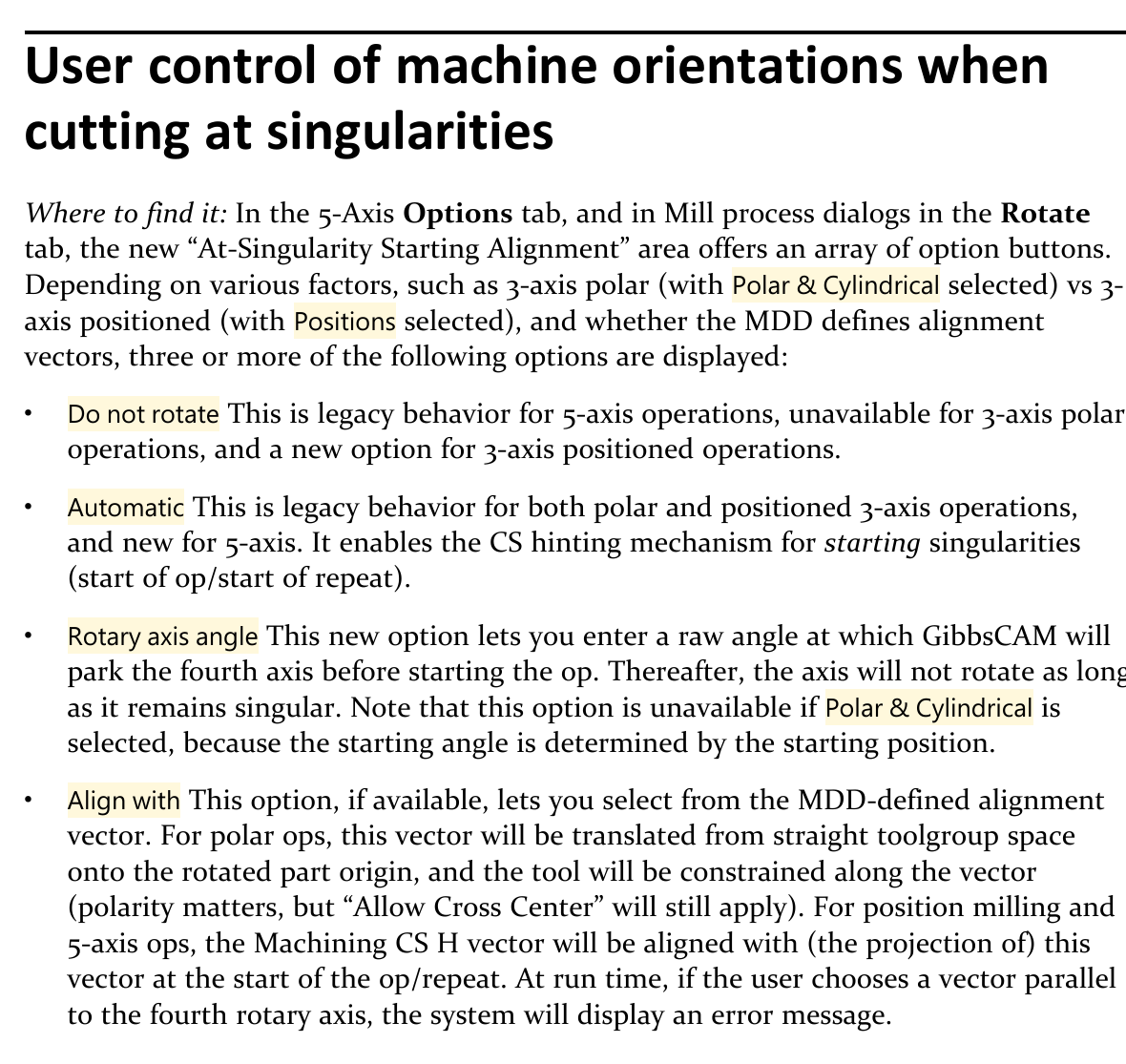
Figure 1 Four methods control the starting rotary orientation
Source: What's New in GibbsCAM 2024, p. 22
Table of Contents
Starting Alignment Options
Important: The exact buttons shown depend on the selected operation mode and active MDD. Align with appears only when an MDD-defined alignment vector is available.
Before You Begin
• Use the approved rotary-capable MDD and post for the target machine.
• Classify the operation as 3-axis Polar, 3-axis positioned, or 5-axis.
• Identify rotary limits, preferred starting range, and any unwind or clearance restrictions.
• Confirm whether the MDD defines alignment vectors and what each vector represents.
• Save a working copy and record the current operation, coordinate system, rotary position, and simulation result.
Important: A valid toolpath can still start from an unsafe rotary position. Verify the complete entry move in Machine Simulation and posted output.
Procedure
Step 1 - Open the Starting Alignment Controls
1. Open the operation that begins at the singularity and confirm its machining coordinate system and rotary axis.
2. For a Mill process, open the Rotate tab.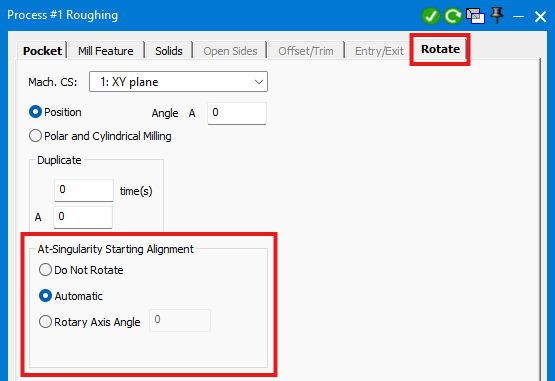
For a 5-axis process, open the 5-Axis Options tab.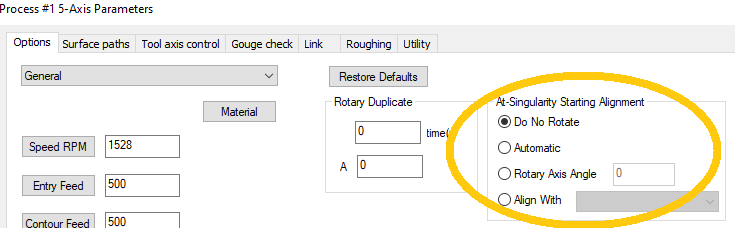
3. Locate At-Singularity Starting Alignment and note the displayed choices.
Step 2 - Choose the Alignment Method
1. Choose Do Not Rotate when the operation supports it and the current rotary orientation is the approved start. This method is unavailable for 3-axis Polar operations.
2. Choose Automatic when GibbsCAM should use coordinate-system hinting at the start of the operation or repeat.
3. Choose Rotary Axis Angle to park the fourth axis at a raw angle before the operation. It is unavailable when Polar and Cylindrical is selected.
4. Choose Align with when an approved MDD vector represents the intended machine direction.
Step 3 - Configure the Selected Method
1. For Rotary Axis Angle, enter the approved raw angle and confirm the machine and post convention used for that value.
2. For Align with, select the approved MDD-defined vector.
3. For Polar work, verify vector polarity and the effect of Allow Cross Center. For positioned or 5-axis work, verify the Machining CS H-vector alignment.
4. Do not select an alignment vector parallel to the fourth rotary axis; GibbsCAM displays an error for that condition.
Step 4 - Regenerate and Inspect
1. Regenerate after changing the alignment method, raw angle, vector, coordinate system, or repeat definition.
2. Inspect the approach, first cutting move, retract, and every repeat start.
3. When using Rotary Axis Angle, confirm the fourth axis reaches the intended start and remains fixed while the toolpath remains singular.
Step 5 - Validate Machine Motion
1. Run Machine Simulation from a known machine state with all stock, fixtures, tools, holders, and machine components present.
2. Check rotary limits, unwind behavior, and clearance during the full move into the operation and each repeat.
3. Post the test program and confirm that commanded rotary positions match the validated simulation and machine convention.
Expected Result
• The dialog shows the starting-alignment choices supported by the operation type and active MDD.
• The fourth axis begins the operation and each repeat at the intended orientation.
• Align with uses a valid, nonparallel MDD-defined vector when selected.
• Machine Simulation and posted output agree on the starting angle and rotary transitions.
• The validated motion remains within rotary limits and clears the complete machine setup.
Best Practices
• Document the approved starting-alignment method for each machine and operation type.
• Use descriptive MDD alignment-vector names that correspond to recognizable machine directions.
• Test every repeat because the selected method is evaluated at operation and repeat starts.
• Use raw rotary angles only after checking limits, clearances, and the control convention.
• Retain a validated comparison file when changing an existing operation from legacy behavior.
Troubleshooting
• Problem: The expected starting-alignment option is not displayed.
Cause
• The operation is configured for a different mode than expected.
• The active MDD does not define the required vector or capability.
Resolution
Confirm the process mode, Rotate-tab selection, and active MDD. If Align with is missing, have the machine-definition owner verify that the approved alignment vectors are present.
• Problem: GibbsCAM reports an error after selecting Align with.
Cause
• The selected vector is parallel to the fourth rotary axis.
• The vector does not match the active machine or toolgroup.
Resolution
Select a valid nonparallel MDD-defined vector and regenerate. If no suitable vector exists, request a validated MDD correction instead of substituting an unverified direction.
• Problem: Rotary axis angle is unavailable.
Cause
• Polar and Cylindrical is selected for a 3-axis Polar operation.
• The current process mode or MDD does not expose the raw-angle choice.
Resolution
For Polar work, use the starting position or another supported method. For positioned or 5-axis work, verify the process type and approved MDD.
• Problem: The operation starts at an unexpected rotary angle.
Cause
• Automatic selected another orientation through coordinate-system hinting.
• The raw angle, coordinate system, or initial machine state uses a different convention.
Resolution
Return to a known machine state, confirm the coordinate system and rotary convention, then regenerate. Compare the result with a controlled test angle or approved vector in simulation and posted output.
• Problem: A repeat or posted program uses different rotary motion than expected.
Cause
• The repeat reevaluates the selected method from another starting state.
• Simulation and the post use different machine data, limit logic, or rotary conventions.
Resolution
Simulate every repeat from the preceding machine state, regenerate the operation, and compare posted rotary values with the approved configuration. Package the part, MDD, post, and machine files for review if the mismatch remains.
Related Articles
• Polar and Cylindrical Milling
• How To Wrap or Unwrap a Workgroup
• Recommended Simulation Settings
• How to Create a Pack and Go File
Explore More from CAMCO
Visit the CAMCO website to learn more about:
• Downloads and Helpful Resources
Keywords
GibbsCAM 2024, singularity, rotary orientation, At-Singularity Starting Alignment, Do not rotate, Automatic, Rotary axis angle, Align with, 3-axis Polar, positioned milling, 5-axis, alignment vector, MDD, fourth axis, Machine Simulation