
Summary
GibbsCAM 2024 adds new controls for surface-, mesh-, and wireframe-based toolpaths: Project Curves Run tool choices, Dynamic holder collision avoidance, Wireframe 2-Axis Contouring with drive-curve mapping, and Avoid clipping for Control compensation.
Table of Contents
What Changed in GibbsCAM 2024
Important: These controls appear only in supported strategies and calculation modes. Availability can also depend on the installed options and active GibbsCAM configuration.
Before You Begin
• Use the approved machine definition, post, and licensed 5-axis or advanced-milling options.
• Inspect surface, mesh, and wireframe inputs for gaps, overlaps, damaged facets, duplicate curves, and unintended branches.
• Confirm the physical tool, shaft, holder geometry, stickout, and required clearances.
• Identify the machining surfaces, safe areas, drive curves, Z-levels, cutting side, and CRC method.
• Save a working copy and retain a baseline toolpath, simulation result, and posted program.
Important: Collision and compensation controls can change machine motion and posted output. Recalculate, simulate, review the NC program, and use a controlled prove-out.
Procedure
Step 1 - Configure Project Curves Run Tool
1. Set Calculation based on to Surfaces and select Project Curves.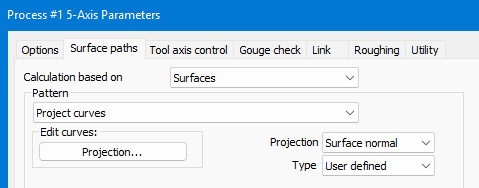
2. Open Tool axis control and choose Auto, At center, At radius, or At front from Run tool.
3. Recalculate and compare tool orientation, curve projection, and holder clearance over the complete path.
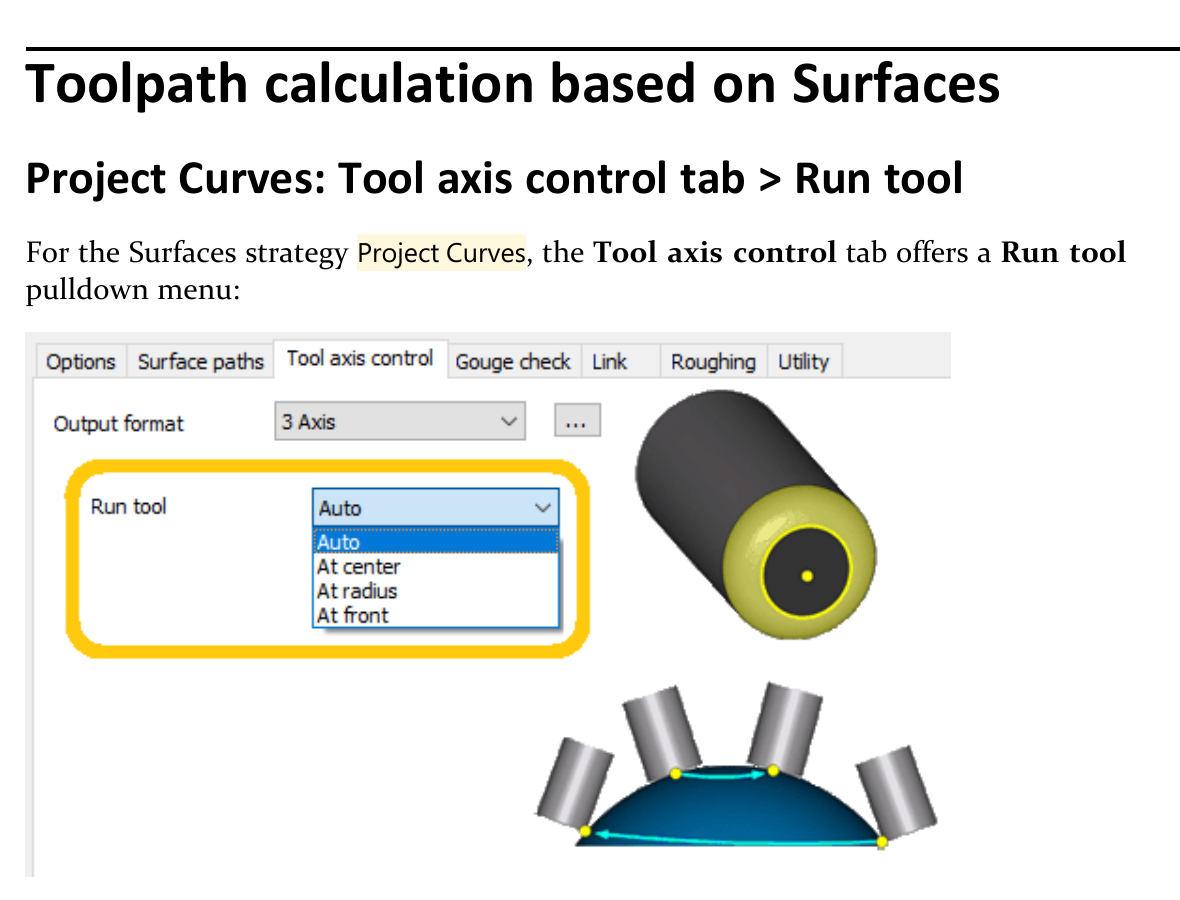
Figure 1 Project Curves adds four Run tool choices
Source: What's New in GibbsCAM 2024, p. 26
Step 2 - Configure Dynamic Holder Collision Avoidance
1. Set Calculation based on to Triangle Mesh and choose a supported strategy, or use Wireframe 2-Axis Rough.
2. Open DHC and confirm that holder geometry and stickout match the physical assembly.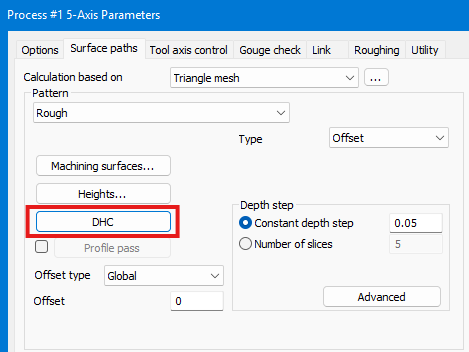
3. Select the required machining surfaces or collision-safe areas and enter approved Shaft, Holder front, and Holder back clearances.
4. Recalculate and inspect every avoidance move for safe clearance and acceptable cutting behavior.
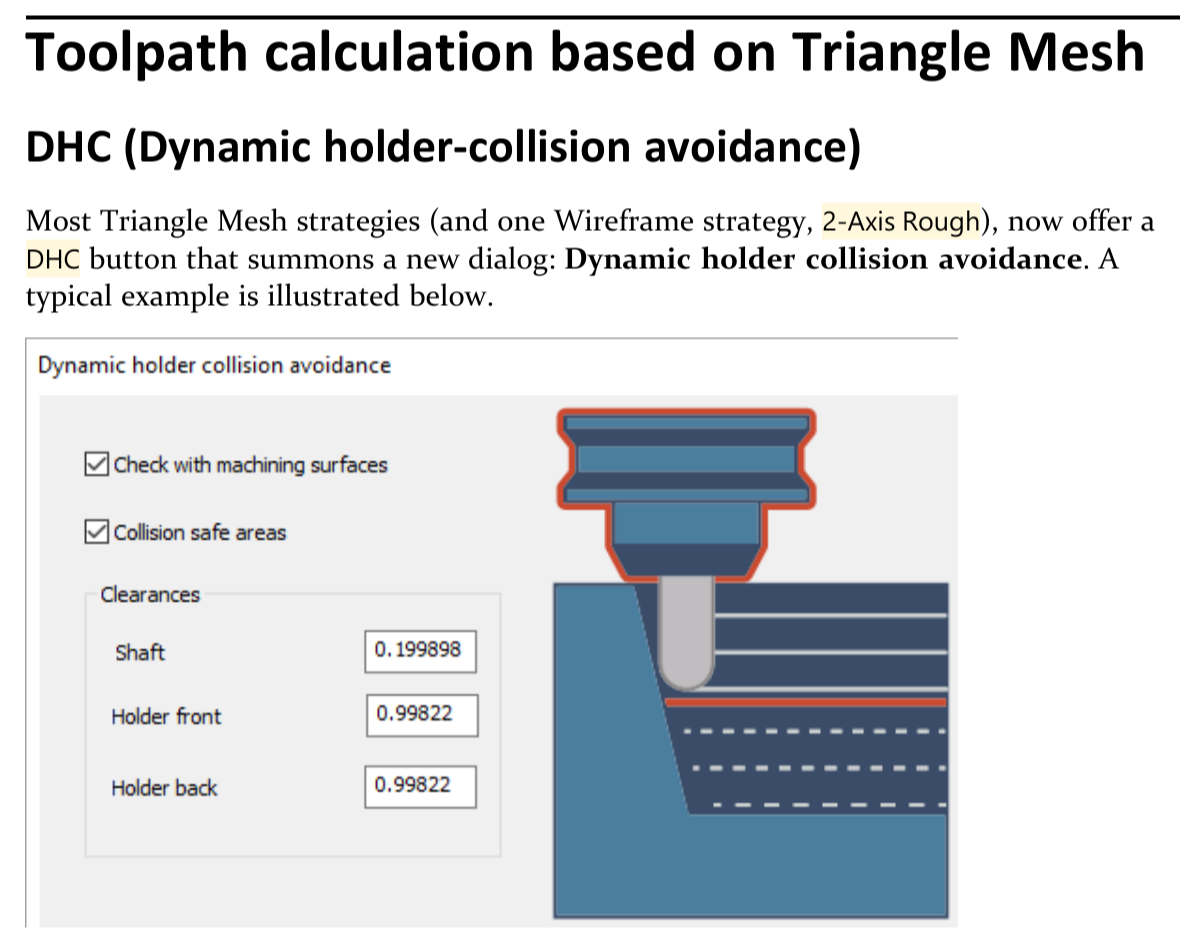
Figure 2 DHC separates shaft and holder clearances
Source: What's New in GibbsCAM 2024, p. 27
Step 3 - Create Wireframe 2-Axis Contouring
1. Set Calculation based on to Wireframe and select 2-Axis Contouring.
2. Select the drive curves, cutting side, offset, and required Z-level or height data.
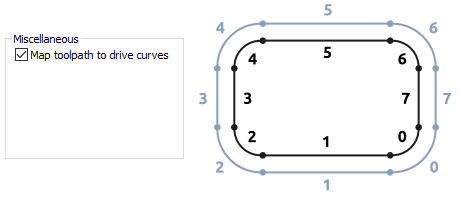
3. Use Map toolpath to drive curves on the Utility tab when process information must remain associated with individual contours.
4. Regenerate and verify contour order, start points, Z-levels, and feature-to-contour mapping.
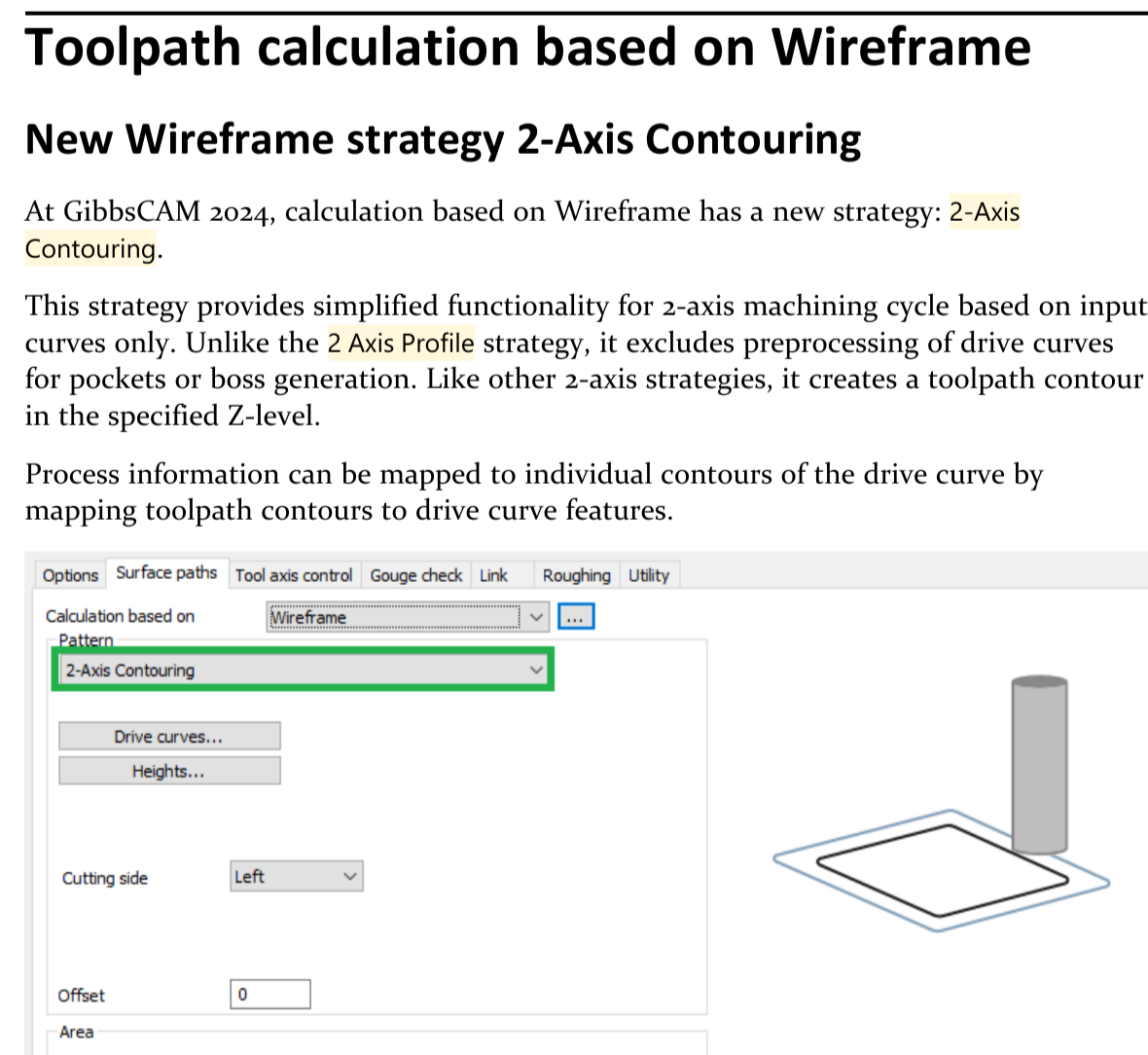
Figure 3 2-Axis Contouring follows input curves without pocket or boss preprocessing
Source: What's New in GibbsCAM 2024, p. 28
When the 2-Axis Contouring strategy is selected, the Utility tab offers a new checkbox:
Map toolpath to drive curves.
Step 4 - Enable Avoid Clipping
1. Set Calculation based on to Wireframe and select 2-Axis Profile.
2. On Surface paths, set Compensation Type to Control and enable the approved CRC workflow.
3. Select Avoid clipping, recalculate, and inspect narrow regions and overlapping contours.
4. Post the operation and verify CRC activation, offset use, compensated motion, and cancellation.
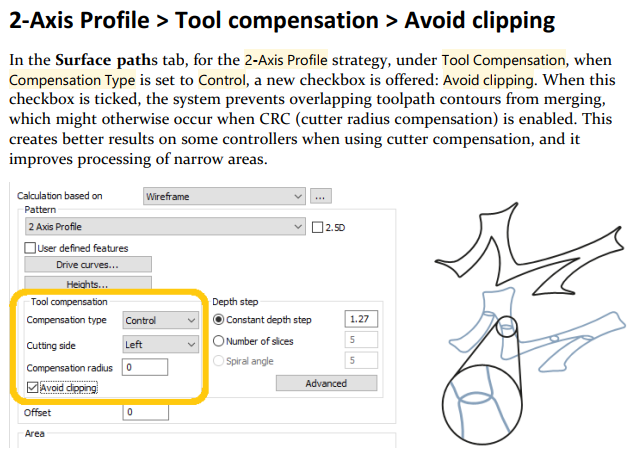
Figure 4 Avoid clipping keeps overlapping compensated contours separate
Source: What's New in GibbsCAM 2024, p. 29
Step 5 - Validate the Complete Program
1. Run Op Simulation and Machine Simulation with finished stock, fixtures, tool, shaft, holder, and machine components visible.
2. Review tool-axis changes, avoidance moves, contour order, entries, exits, and each CRC activation and cancellation.
3. Compare the result with the baseline, inspect the posted program, and complete the shop's controlled prove-out.
Expected Result
• Project Curves uses the selected Run tool mode with stable, reachable orientation.
• DHC uses accurate holder data and approved clearances to avoid selected collision targets.
• 2-Axis Contouring follows the intended input curves at the specified Z-level.
• Drive-curve mapping remains associated with the intended contours.
• Avoid clipping keeps overlapping CRC contours separate, and posted output matches the validated setup.
Best Practices
• Validate one enhancement at a time against a saved baseline.
• Repair poor surfaces, damaged facets, and disconnected or duplicate curves before adjusting toolpath settings.
• Use complete tool and holder definitions with clearances that match the physical setup and shop safety margin.
• Use 2-Axis Contouring for direct curve-following and 2-Axis Profile when pocket or boss preprocessing is required.
• Confirm CRC type, post support, controller behavior, and offset registers before production use.
Troubleshooting
• Problem: The Run tool menu is not available.
Cause
• Calculation based on is not Surfaces or the strategy is not Project Curves.
• The required GibbsCAM option or 2024 feature set is not active.
Resolution
Confirm the GibbsCAM version, license, Surfaces calculation basis, and Project Curves strategy, then reopen Tool axis control.
• Problem: DHC is missing or holder interference remains.
Cause
• The selected strategy does not support DHC.
• Holder geometry, collision targets, stickout, or clearances are incomplete or incorrect.
Resolution
Use a supported mesh strategy or Wireframe 2-Axis Rough, correct the holder assembly and protected geometry, apply approved clearances, then recalculate and simulate the entire operation.
• Problem: 2-Axis Contouring does not produce the expected path.
Cause
• Drive curves contain gaps, overlaps, duplicates, branches, or direction changes.
• The cutting side, offset, or Z-level is incorrect, or the job requires profile preprocessing.
Resolution
Repair and resequence the curves, verify the cutting side and Z-level, and regenerate. Use 2-Axis Profile when pocket or boss preprocessing is required.
• Problem: Mapped process information is assigned to the wrong contour.
Cause
• Curve selection or feature order changed after mapping.
• Curves were edited after the operation was created, or mapping is disabled.
Resolution
Enable Map toolpath to drive curves, reselect the intended curves, regenerate, and review every feature-to-contour association.
• Problem: Avoid clipping is unavailable or the posted CRC result is wrong.
Cause
• The strategy is not Wireframe 2-Axis Profile or Compensation Type is not Control.
• The post, offset register, entry or exit motion, or controller CRC convention does not match the operation.
Resolution
Confirm the supported strategy and compensation mode, enable Avoid clipping, and recalculate. Verify the posted CRC commands, offset data, and activation distance before a controlled prove-out.
Related Articles
• Using Facet Bodies for Toolpath in GibbsCAM
• How to Machine Open Shapes in GibbsCAM
• Recommended Simulation Settings
Explore More from CAMCO
Visit the CAMCO website to learn more about:
• Downloads and Helpful Resources
Keywords
GibbsCAM 2024, 5-Axis, Surfaces, Triangle Mesh, Wireframe, Project Curves, Run tool, Dynamic holder collision avoidance, DHC, 2-Axis Contouring, Map toolpath to drive curves, 2-Axis Profile, Avoid clipping, CRC