
Summary
GibbsCAM 2024 adds controls for extending roughing cuts, tilting an Adaptive helical entry, choosing a finishing start point, improving Rotary Finishing slices, and avoiding Swarf gouges by relinking or retracting.
Table of Contents
What Changed in GibbsCAM 2024
Important: These controls appear only in the documented calculation modes and strategies. Availability can also depend on the installed 5-Axis options and active GibbsCAM configuration.
Before You Begin
• Use the approved machine definition, post, and licensed 5-axis options.
• Inspect stock, ceiling surfaces, guide curves, Rotary surfaces, Swarf surfaces, and collision targets.
• Confirm the physical tool, shaft, holder geometry, stickout, and required clearances.
• Record approved ramp, stepover, depth-step, relink, retract, and gouge-check settings.
• Save a working copy and retain a baseline toolpath, simulation result, and posted program.
Important: These settings can change tool engagement, rotary motion, links, retracts, and posted output. Recalculate, simulate, review the NC program, and use a controlled prove-out.
Procedure
Step 1 - Extend Roughing Cuts to the Stock Top
1. Set Calculation based on to Multiaxis machining and select Roughing with Offset from ceiling.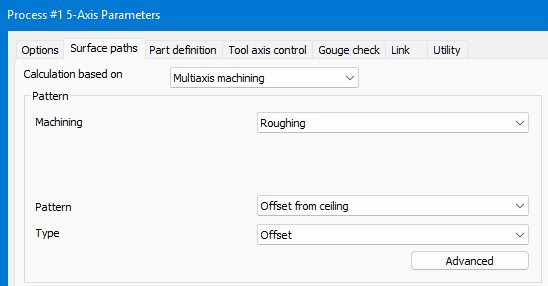
2. On Surface paths, open Advanced and enable Extend cuts for stock.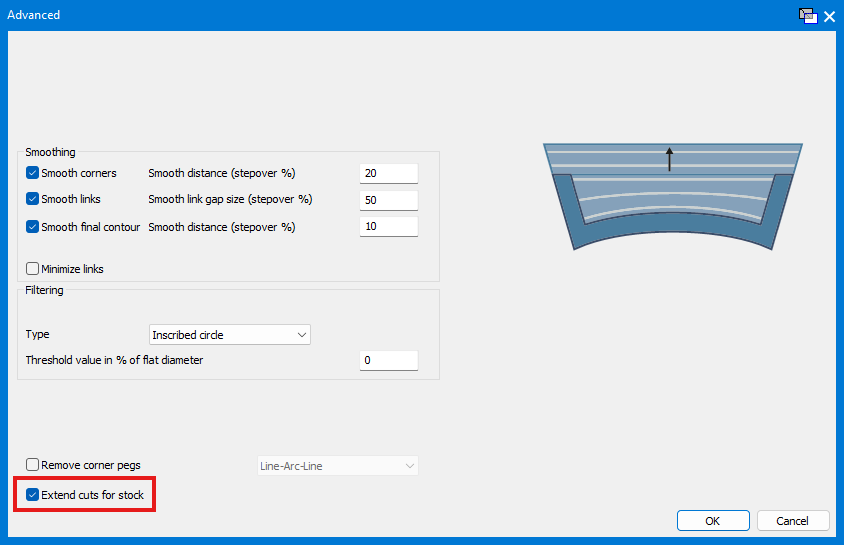
3. Confirm the ceiling and stock represent the intended limits, then recalculate and inspect the extended slices, containment, and remaining material.
Step 2 - Tilt the Tool During an Adaptive Helix
1. Use Multiaxis Roughing with Type set to Adaptive.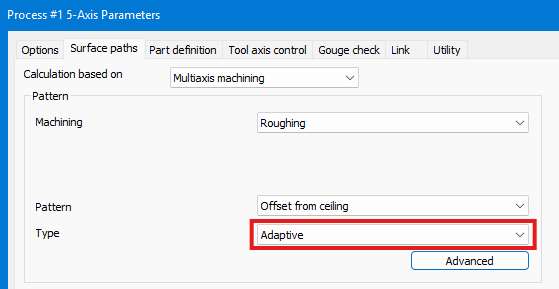
2. Open Link > Ramps and enable Tilt tool during helix.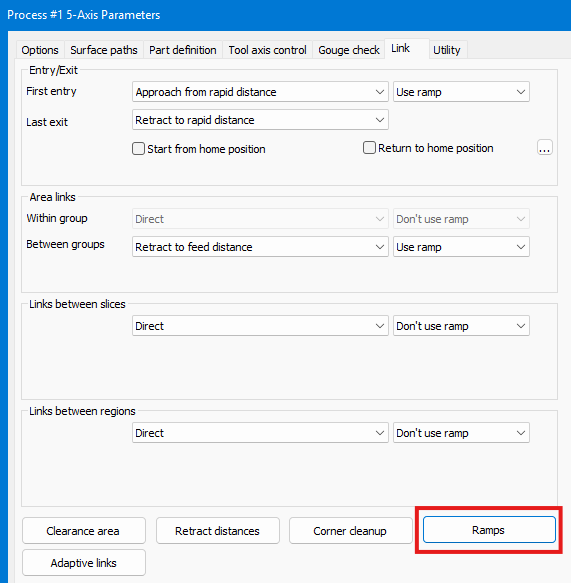
3. Set the approved ramp controls, recalculate, and verify that the tool remains normal to the slice with smooth, reachable rotary motion.
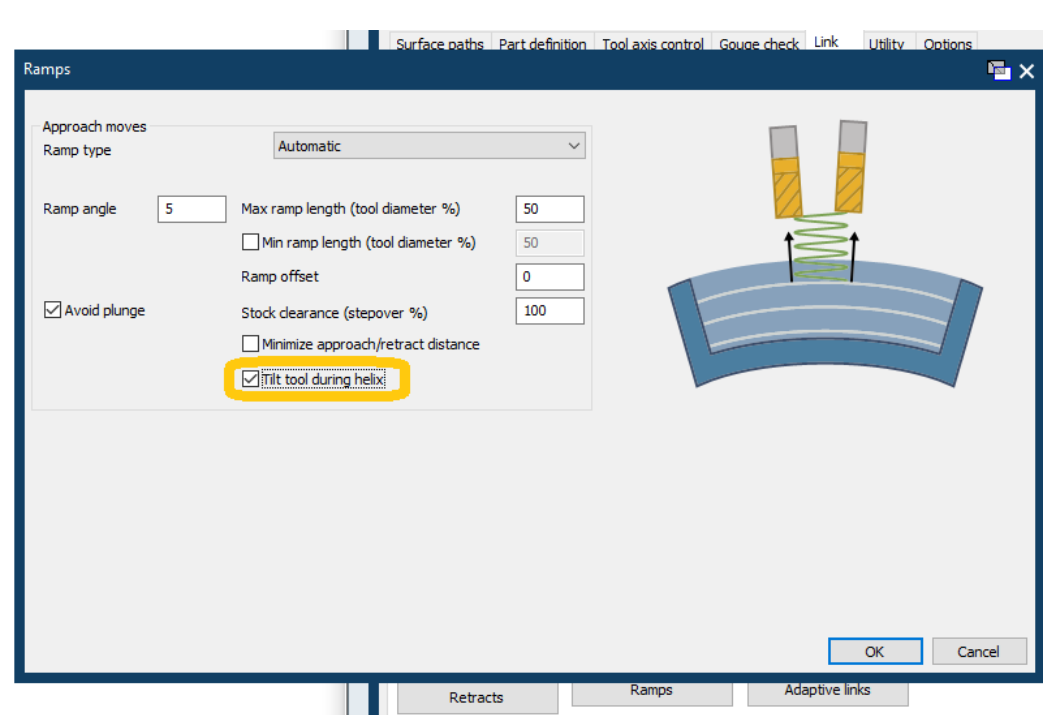
Figure 1 Adaptive roughing can keep the tool normal to the slice through the helical ramp
Source: What's New in GibbsCAM 2024, p. 30
Step 3 - Choose the Finishing Start Point
1. Create or open a Multiaxis Finishing operation that uses a closed guide curve.
2. On Surface paths, under Area, select Start point and designate an approved point on the curve.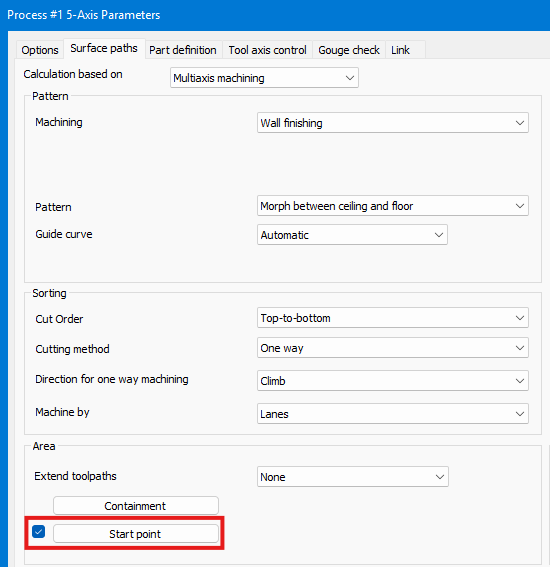
3. Recalculate and verify the first cutting move, approach, links, tool-axis motion, and surface-mark risk.
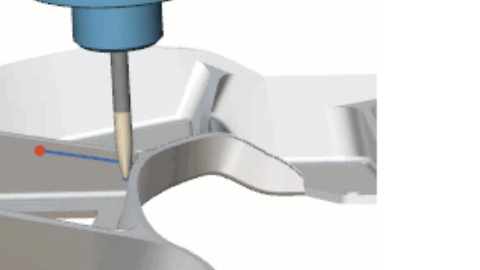
Figure 2 Start point controls where a closed guide-curve path begins
Source: What's New in GibbsCAM 2024, p. 31
Step 4 - Select a Rotary Finishing Slices Pattern
1. Set Calculation based on to Rotary machining and Machining to Finishing.
2. Select Optimized stepover for walls or Cylindrical or conical surfaces from Slices pattern.
3. For optimized stepover, set the approved maximum stepover and Minimum depth step; then recalculate and inspect trimming, coverage, pass count, and finish consistency.
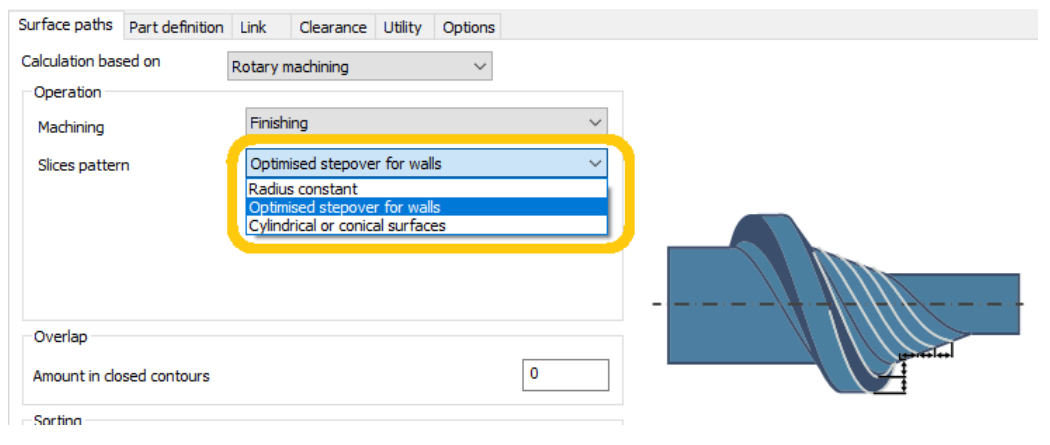
Figure 3 Rotary Finishing adds two Slices pattern choices
Source: What's New in GibbsCAM 2024, p. 32
Step 5 - Configure Swarf Gouge Avoidance
1. Set Calculation based on to Swarf Machining and open Gouge check.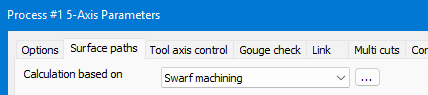
2. Under Avoid by relinking, select the surfaces, Check faces clearance, and tool parts to check.
3. Under Avoid by retracting, select the surfaces, retract Direction, clearance, and tool parts to check.
4. Recalculate and inspect every relink and retract for clearance, re-entry, air motion, machine travel, and axis limits.
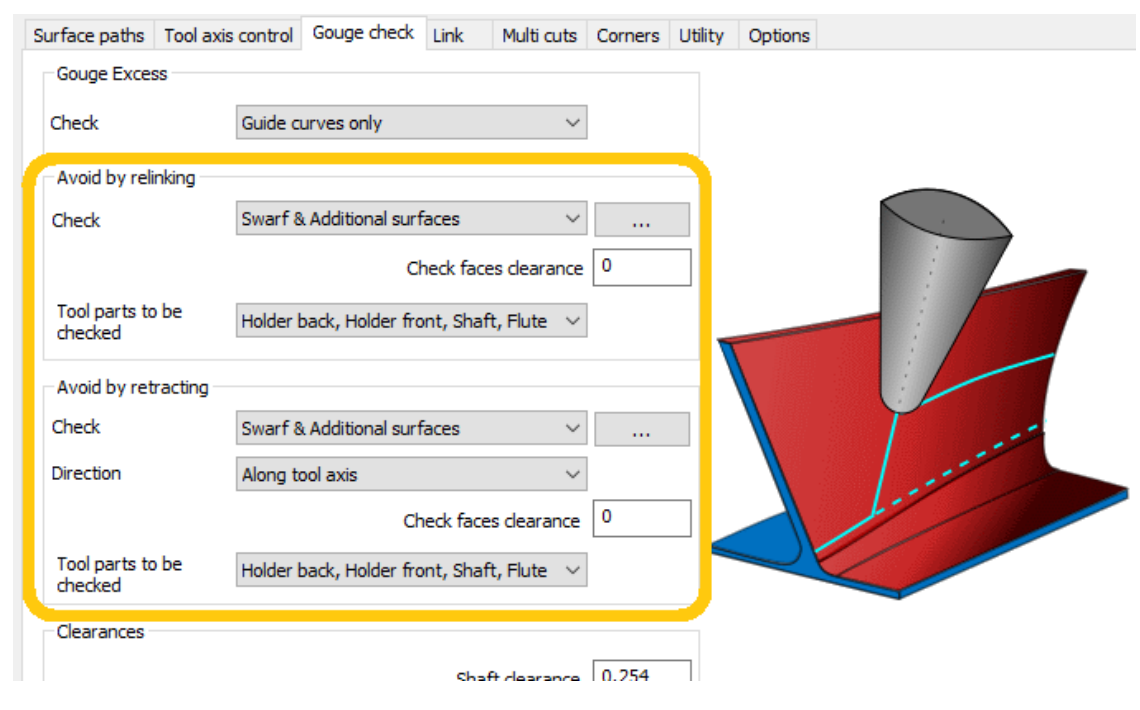
Figure 4 Swarf Machining adds separate relinking and retracting checks
Source: What's New in GibbsCAM 2024, p. 33
Step 6 - Validate the Complete Program
1. Run Op Simulation and Machine Simulation with stock, fixtures, tool, shaft, holder, and machine components visible.
2. Review engagement, tool-axis changes, entries, links, trimmed regions, relinks, retracts, clearance, travel, and axis limits.
3. Compare the result with the baseline, inspect the posted program, and complete the shop's controlled prove-out.
Expected Result
• Offset from ceiling roughing reaches the required stock top without exceeding containment.
• Adaptive helical entry maintains the intended orientation with smooth, reachable motion.
• Multiaxis Finishing begins at the designated point on the closed guide curve.
• Rotary Finishing uses the selected pattern with acceptable spacing, trimming, and coverage.
• Swarf gouges are resolved with verified relink or retract motion and posted output matches simulation.
Best Practices
• Validate one enhancement at a time against a saved baseline.
• Use accurate stock, surfaces, guide curves, tool assembly, and machine limits.
• Choose ramp, stepover, depth-step, clearance, and retract values from the approved process.
• Place finishing start points away from witness-sensitive areas when access and geometry permit.
• Compare relinking and retracting for safety, reachability, re-entry quality, and air time.
Troubleshooting
• Problem: Extend cuts for stock is unavailable or the path stops below the stock top.
Cause
• The operation is not Multiaxis Roughing with Offset from ceiling.
• The ceiling, stock, or containment does not represent the intended limit.
Resolution
Confirm the GibbsCAM version, license, strategy, pattern, ceiling, and stock. Enable Extend cuts for stock, recalculate, and inspect the extended slices.
• Problem: Tilt tool during helix is missing or produces unsafe motion.
Cause
• The operation is not Multiaxis Roughing with Type set to Adaptive.
• Ramp controls, clearance, tool data, or machine reach are unsuitable.
Resolution
Enable the control under Link > Adaptive links > Ramps, correct the setup, and recalculate. Verify the complete helix in Machine Simulation.
• Problem: The finishing path does not begin at the selected point.
Cause
• The guide curve is open, the wrong curve was selected, or the point is not on the curve.
• Geometry changed after the start point was designated.
Resolution
Verify the closed guide curve, designate a valid point again, recalculate, and inspect the approach and first cutting move.
• Problem: The Rotary path has uneven spacing, too many passes, or incorrect coverage.
Cause
• The selected pattern, stepover, Minimum depth step, surfaces, or stock is incorrect.
• The part form does not match the Cylindrical or conical surfaces pattern.
Resolution
Correct the pattern and geometry selections, apply approved spacing values, recalculate, and inspect trimmed areas, pass count, and remaining material.
• Problem: Swarf gouges remain or avoidance motion is excessive.
Cause
• Protected surfaces, tool parts, clearances, or retract direction are incomplete or incorrect.
• The chosen avoidance result exceeds machine travel or creates unnecessary air motion.
Resolution
Correct the protected geometry and tool assembly, compare relinking with retracting, and verify the selected result in Machine Simulation and the posted program.
Related Articles
• Create a Custom Stock Body for More Accurate Simulation
• Recommended Simulation Settings
• How to Create a Pack and Go File
Explore More from CAMCO
Visit the CAMCO website to learn more about:
• Downloads & Helpful Resources
Keywords
GibbsCAM 2024, 5-Axis, Multiaxis machining, Roughing, Adaptive, Extend cuts for stock, Offset from ceiling, Tilt tool during helix, Finishing, Start point, closed guide curve, Rotary machining, Optimized stepover for walls, Cylindrical or conical surfaces, Swarf Machining, Gouge check, Avoid by relinking, Avoid by retracting