
Summary
The up2parts autoCAM plug-in imports a GibbsCAM-readable .zip bundle containing the STEP model and proposed manufacturing data. GibbsCAM creates editable tools, processes, operations, and toolpath for the selected clamping approach. Review and validate all generated data before posting or machining.
Table of Contents
What Changed in GibbsCAM 2025
Important: up2parts is a third-party service. Confirm account access, licensing, supported configurations, and support ownership before use.
Before You Begin
• Use GibbsCAM 2025 with the compatible up2parts autoCAM plug-in, required machining licenses, approved machine definition, and production postprocessor.
• In up2parts, confirm the STEP model, recognized features, machine, material, tolerance, tools, operations, and clamping proposal. AP242 can include PMI and tolerance data; AP203 and AP214 do not.
• Download the GibbsCAM-readable .zip bundle and keep it intact.
• Set the GibbsCAM DCD units to match the bundle units before import. Bundles are usually metric.
• Save a new GibbsCAM part and confirm the intended top, bottom, left, right, front, or back clamping approach.
Procedure
Step 1 - Prepare the up2parts Bundle
1. Upload the STEP model to up2parts and run geometry analysis and feature recognition.
2. Confirm the machine, material, general tolerance, tools, machining steps, operations, and clamping proposal.
3. Download the confirmed GibbsCAM-readable .zip bundle without extracting or modifying it.
Step 2 - Start the Import
1. In GibbsCAM, confirm that the DCD units match the bundle.
2. Choose Plug-Ins > Main Tools > up2parts autoCAM.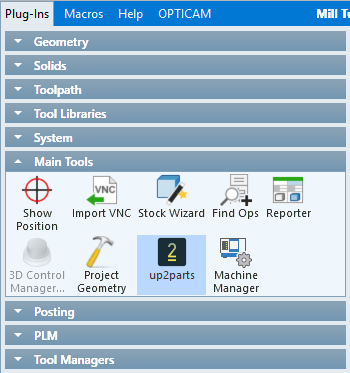
3. For Selected file, choose the downloaded .zip bundle.
4. For Select clamping, choose the folder for the intended approach, then click Import.
Step 3 - Complete the Import
1. Monitor the status bar while GibbsCAM loads the model, processes features, and creates operations.
2. When GibbsCAM reports that the part and processes or operations have been created, click OK.
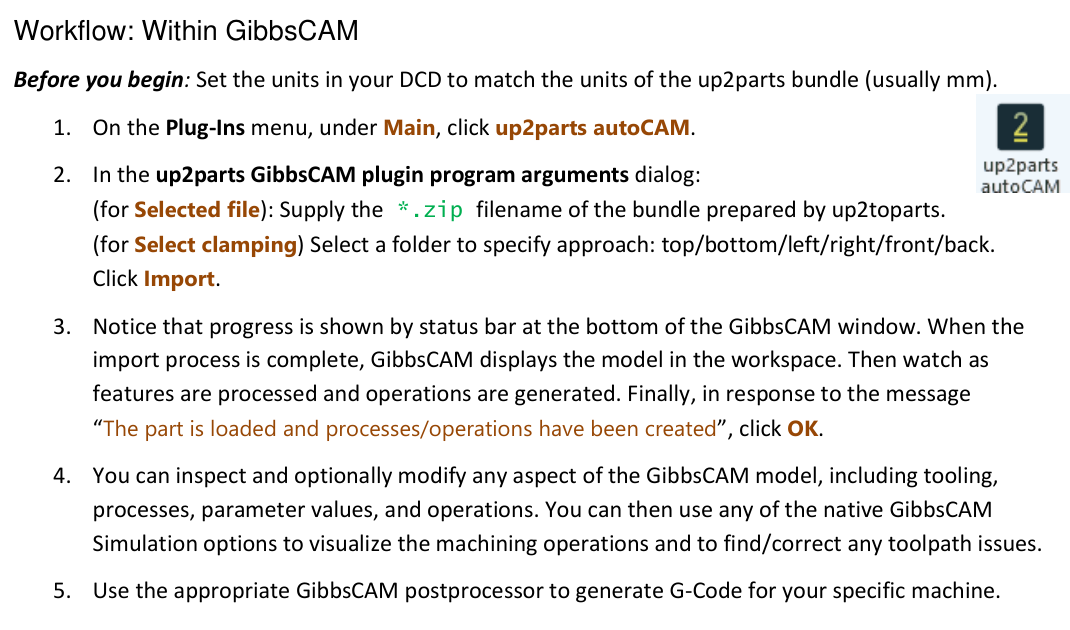
Figure 1 Import the bundle and select the intended clamping approach
Source: What's New in GibbsCAM 2025, p. 9
Step 4 - Validate the Generated Project
1. Verify the model, units, stock, orientation, coordinate system, clamping approach, tools, processes, parameters, operations, and clearances.
2. Correct unsupported or unsafe data and regenerate affected operations.
3. Run Op Simulation and Machine Simulation with accurate stock, tools, holders, fixtures, and machine components.
4. Post with the approved machine-specific postprocessor, review the output, and complete the shop's controlled prove-out before production.
Expected Result
• The intact up2parts bundle imports for the selected clamping approach.
• GibbsCAM creates editable model, tool, process, operation, and toolpath data.
• The corrected project passes simulation, posted-code review, and controlled prove-out.
Best Practices
• Keep the original bundle unchanged and retain it with the GibbsCAM part for traceability.
• Verify units before import and review one clamping orientation at a time.
• Replace generated tools, parameters, or operations that do not match CAMCO and shop standards.
• Do not release a program based only on a successful import; simulation and posted-code review are required.
Troubleshooting
• Problem: up2parts autoCAM is not on the Plug-Ins menu.
Cause
• The plug-in is not installed, enabled, or compatible with the GibbsCAM build.
• Required licensing or configuration is unavailable.
Resolution
Confirm the compatible plug-in, GibbsCAM 2025 build, required licenses, and CAMCO-approved installation. Restart GibbsCAM after correcting the configuration.
• Problem: The bundle cannot be selected or imported.
Cause
• The download is incomplete, the archive was extracted or altered, or the path is inaccessible.
• The bundle and plug-in versions are not compatible.
Resolution
Download the bundle again, keep the archive intact, move it to an accessible local path, and retry with the compatible plug-in.
• Problem: The imported model or tools have the wrong size.
Cause
• The source, bundle, and GibbsCAM DCD units do not match.
Resolution
Stop before machining. Correct the units, create a clean GibbsCAM part, and import the bundle again.
• Problem: The setup or generated operations are wrong.
Cause
• The wrong clamping folder was selected.
• The project does not match the GibbsCAM coordinate system, workholding, or machine configuration.
Resolution
Correct the clamping approach and setup data, then regenerate, simulate, post, and review the complete result.
Related Articles
• Recommended Simulation Settings
• How to Create a Pack and Go File
• How to Import a Solid Model into GibbsCAM
• How to Select a Post Processor
Explore More from CAMCO
Visit the CAMCO website to learn more about:
• Downloads and Helpful Resources
Keywords
GibbsCAM 2025, up2parts, autoCAM, STEP, AP242, PMI, zip bundle, clamping, feature recognition, operations, toolpath, simulation, postprocessor