
Summary
GibbsCAM 2025 adds three controls that make common milling processes easier to set up and sequence. Auto+ applies an incremental offset above an automatically detected Top Surface Z. From Selection lets Pocket and Contour processes follow the programmer's geometry-selection order.
When Material Only is enabled, Overlap Finish Walls extends cutting past an open material edge and recuts a short section of the finish wall. The value 0 preserves the previous no-overlap behavior. Because all three settings can change cut levels, sequence, or engagement; regenerate and validate the complete operation before production use.
Table of Contents
- What Changed in GibbsCAM 2025
- Before You Begin
- Offset the Detected Top Surface
- Machine Features in Selection Order
- Overlap Open Side Finish Walls
- Best Practices
- Troubleshooting
- Related Articles
What Changed in GibbsCAM 2025
Important: These controls appear only in supported Milling processes. Tab names and available fields can vary with the selected process, operation type, and GibbsCAM configuration.
Before You Begin
• Use GibbsCAM 2025 with the approved machine definition, post, and licensed Mill module.
• Confirm that the chosen process exposes the Mill Feature, Pocket or Contour, Open Sides, and Material Only controls required by the workflow.
• Inspect the selected geometry for gaps, overlaps, duplicates, incorrect feature membership, or unintended selection order.
• Verify the active coordinate system, units, detected material, stock, tool, holder, top surface, depth references, and clearances.
• Save a working copy and retain a baseline toolpath, simulation result, and posted program for comparison.
• Use a representative test part before applying a new offset, sequence, or overlap value to a production program.
Important: CAMCO must confirm production-safe overlap guidance. Begin with the validated shop standard for the tool, material, wall condition, and machine. A nonzero overlap creates additional cutting beyond the detected material edge.
Offset the Detected Top Surface
Step 1 - Set Top Surface Z to Automatic
1. Create or open a supported Milling process that includes a Mill Feature tab.
2. Open Mill Feature and set Top Surface Z to Automatic.
3. Confirm the detected Top Surface Z before entering an offset. Check the active coordinate system, units, stock, and depth reference.
Step 2 - Enter the Auto Plus Offset
1. Enter the approved incremental value in Auto+. The value is applied above the detected Top Surface Z.
2. Use 0 when no incremental offset is required; this matches the prior default behavior.
3. Recalculate and compare the top cut level, rapid position, entry motion, and final depth with the baseline.
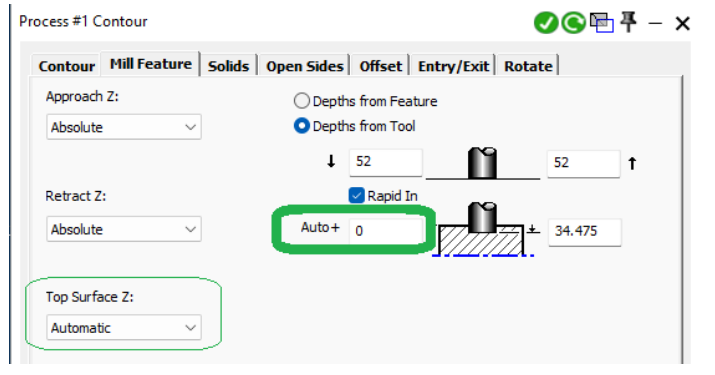
Figure 1 Auto+ adds a global incremental value above the detected Top Surface Z
Source: What's New in GibbsCAM 2025, p. 7
Machine Features in Selection Order
Step 1 - Select Geometry in the Intended Sequence
1. For Roughing, select the pocket geometry in the order it should be machined. For Contour, select the contour geometry in the intended order.
2. Confirm that every intended feature is included once and that the selection sequence is unambiguous.
3. Record the intended order when multiple programmers may need to edit or regenerate the operation.
Step 2 - Set Machining Order to From Selection
1. Open the Pocket tab for Roughing or the Contour tab for Contouring.
2. Set Mach. Order to From Selection. Use Automatic when GibbsCAM should determine the order.
3. Recalculate and confirm that the pocket or contour sequence matches the selection order.
4. Review links, retracts, rapid moves, fixture clearance, and cycle-time impact between features.
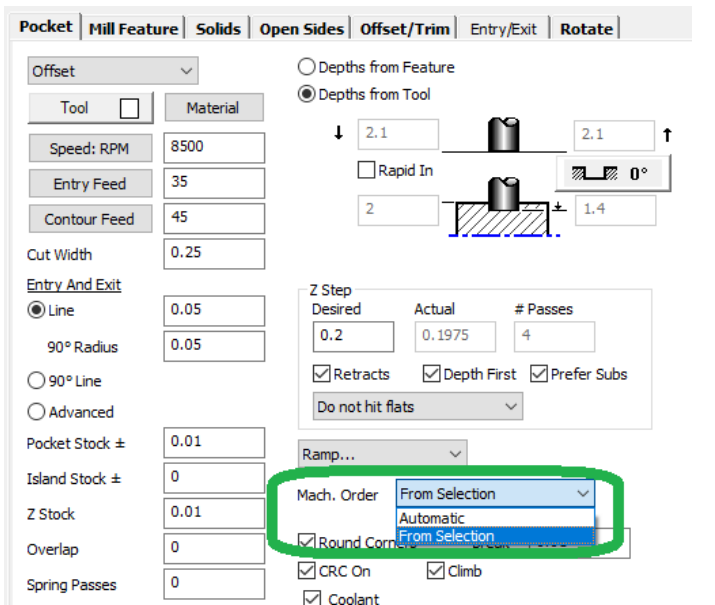
Figure 2 From Selection follows the programmer's geometry-selection order
Source: What's New in GibbsCAM 2025, p. 8
Overlap Open Side Finish Walls
Step 1 - Enable Material Only and Define Open Sides
1. Open a supported Milling process and enable Material Only.
2. Open the Open Sides tab and confirm that the intended material edges and finish walls are classified correctly.
3. Verify tool and holder clearance beyond each open material edge before adding overlap.
Step 2 - Set Overlap Finish Walls
1. Enter the CAMCO-approved overlap distance. The toolpath cuts past the material edge and recuts a short section of the finish wall.
2. Use 0 for no overlap, which is the default and previous behavior.
3. Recalculate and inspect the extra wall engagement, transition at the open edge, tool deflection, surface finish, and unnecessary recutting.
4. Reduce or remove overlap if the extension creates interference, excess dwell, poor finish, or unacceptable tool loading.
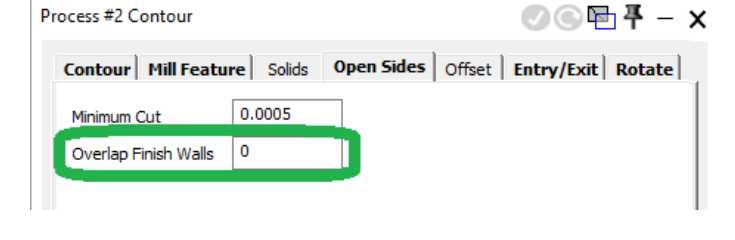
Figure 3 A nonzero value recuts a short section of the finish wall past the material edge
Source: What's New in GibbsCAM 2025, p. 8
Step 3 - Validate the Complete Operation
1. Run Op Simulation and Machine Simulation with the stock, tool, holder, fixtures, and machine components visible.
2. Review top cut levels, entries, feature order, links, retracts, open-side extensions, and finish-wall engagement.
3. Compare the result with the saved baseline and confirm that each control changes only the intended behavior.
4. Review the posted program and complete the shop's normal controlled prove-out before production release.
Expected Result
• Auto+ offsets the automatically detected Top Surface Z by the approved incremental value.
• Roughing pockets or Contour features are machined in the programmer's selection order when From Selection is active.
• Overlap Finish Walls extends cutting past open material edges by the approved amount and recuts only the intended wall section.
• Links, retracts, clearances, engagement, simulation, and posted output remain safe for the target machine and setup.
Additional Information
• Auto+ is available when Top Surface Z is Automatic in Milling processes that include the Mill Feature tab.
• From Selection is documented for Roughing on the Pocket tab and Contouring on the Contour tab. Automatic remains available when GibbsCAM should determine the order.
• Overlap Finish Walls is available when Material Only is enabled. A value of 0 means no overlap and preserves the previous behavior.
• The source states that finish-wall overlap can help combat tool deflection and increase tool life; the appropriate distance depends on the validated process.
Best Practices
• Validate one new control at a time against a saved baseline so its effect remains clear.
• Use explicit units and small, approved test values when introducing Auto+ or finish-wall overlap.
• Treat geometry-selection order as process data; document it when sequence affects workholding, tool loading, heat, or cycle time.
• Use Automatic machining order when a manual sequence has no production benefit or increases unnecessary links and retracts.
• Use complete stock, tool, holder, and fixture definitions when validating open-side extensions.
• Inspect the posted coordinates and motion after changing top level, sequence, or overlap.
• Include the part, tool and holder data, MDD, post, and supporting files in a Pack and Go package when requesting support.
Troubleshooting
• Problem: The Auto+ field is not available.
Cause
• The process does not include a Mill Feature tab.
• Top Surface Z is not set to Automatic.
• The installed version predates GibbsCAM 2025.
Resolution
Confirm GibbsCAM 2025, the licensed Mill module, a supported process, and Top Surface Z set to Automatic. Reopen the Mill Feature tab after changing the selection.
• Problem: The operation cuts above or below the intended top level.
Cause
• The detected Top Surface Z is not the intended reference.
• The Auto+ sign, value, or units are incorrect.
• Depths, stock, or the active coordinate system are not configured as expected.
Resolution
Verify the detected top surface, active coordinate system, units, stock, depths, and Auto+ value. Recalculate and confirm the resulting Z levels before machining.
• Problem: From Selection does not follow the expected sequence.
Cause
• Mach. Order is still set to Automatic.
• Geometry was reselected, edited, or regenerated in a different order.
• The selected process variant does not support the control as expected.
Resolution
Set Mach. Order to From Selection, reselect the features in the intended sequence, and regenerate. Verify each pocket or contour in toolpath display and simulation.
• Problem: From Selection creates excessive links or retracts.
Cause
• The manual sequence moves repeatedly across the part or fixture.
• The selected order conflicts with efficient depth-first or regional machining.
• Feature order was chosen without considering link and clearance behavior.
Resolution
Reselect the features in a safer and more efficient order, or return Mach. Order to Automatic. Compare both results in simulation and use the validated sequence.
• Problem: Overlap Finish Walls is not available.
Cause
• Material Only is not enabled.
• The selected Milling process does not expose the documented Open Sides control.
• The installed version predates GibbsCAM 2025.
Resolution
Confirm GibbsCAM 2025, enable Material Only, and open the supported process's Open Sides tab. Verify the active process and licensed Mill configuration if the field remains unavailable.
• Problem: The overlap recuts too much wall or creates poor finish.
Cause
• The overlap value is too large for the wall, tool, material, or machine.
• The open side or material edge is defined incorrectly.
• Tool deflection, dwell, re-entry, or holder clearance was not considered.
Resolution
Reduce the overlap toward the approved minimum or return it to 0. Correct the open-side and material definition, then recalculate and inspect engagement, finish, loading, and clearance.
Related Articles
• How to Machine Open Shapes in GibbsCAM
• VoluMill Cutting Air When Using Material Only
• Recommended Simulation Settings
• How to Create a Pack and Go File
Explore More from CAMCO
Visit the CAMCO website to learn more about:
• Downloads & Helpful Resources
Keywords
GibbsCAM 2025, Milling, Mill Feature, Top Surface Z, Automatic, Auto+, incremental offset, Roughing, Pocket, Contour, Mach. Order, From Selection, Automatic machining order, Material Only, Open Sides, Overlap Finish Walls, tool deflection, finish wall, toolpath sequence