
Summary
GibbsCAM 2025 adds OptiThreading to the Turning Thread process. Create an OptiThreading assembly in the CoroPlus Tool Library, export its GTC package, and send the tool to GibbsCAM. The imported cutting data enables From Cutting Data and the OptiThreading oscillation controls. Validate the tool, thread definition, motion, simulation, and posted output before machining.
What Changed in GibbsCAM 2025
Important: OptiThreading recommendations are application inputs, not automatic production approval. Results depend on the machine, controller, postprocessor, workholding, tool, material, and thread.
Before You Begin
• Use GibbsCAM 2025 with Turning, the compatible CoroPlus Tool Library plug-in, an approved machine definition, and an OptiThreading-capable production postprocessor.
• Have an active Coromant or CoroPlus account with access to the required tools, holders, and cutting data.
• Confirm the workpiece material, thread diameter, length, hand, tolerance class, pitch, starts, run-in, run-out, and inspection requirements.
• Verify machine travel, spindle limits, acceleration, tool orientation, workholding, and clearances for the oscillating motion.
Procedure
Step 1 - Open the CoroPlus Importer
1. Choose Plug-Ins > Main Tools > CoroPlus Tool Library. You can also open Select Tool Type and choose CoroPlus Tool Importer.
2. Sign in with the approved account and wait for the importer to initialize.
Step 2 - Create the OptiThreading Assembly
1. Choose By application > Symmetrical rotating, select the workpiece material, and choose the workpiece geometry.
2. Enter the thread diameter, length, hand, and tolerance class.
3. Expand OptiThreading and set OptiThreading enabled to ON, then click Get results.
4. Review the proposed insert, holder, cutting speed, feed per revolution, number of passes, and other recommendations.
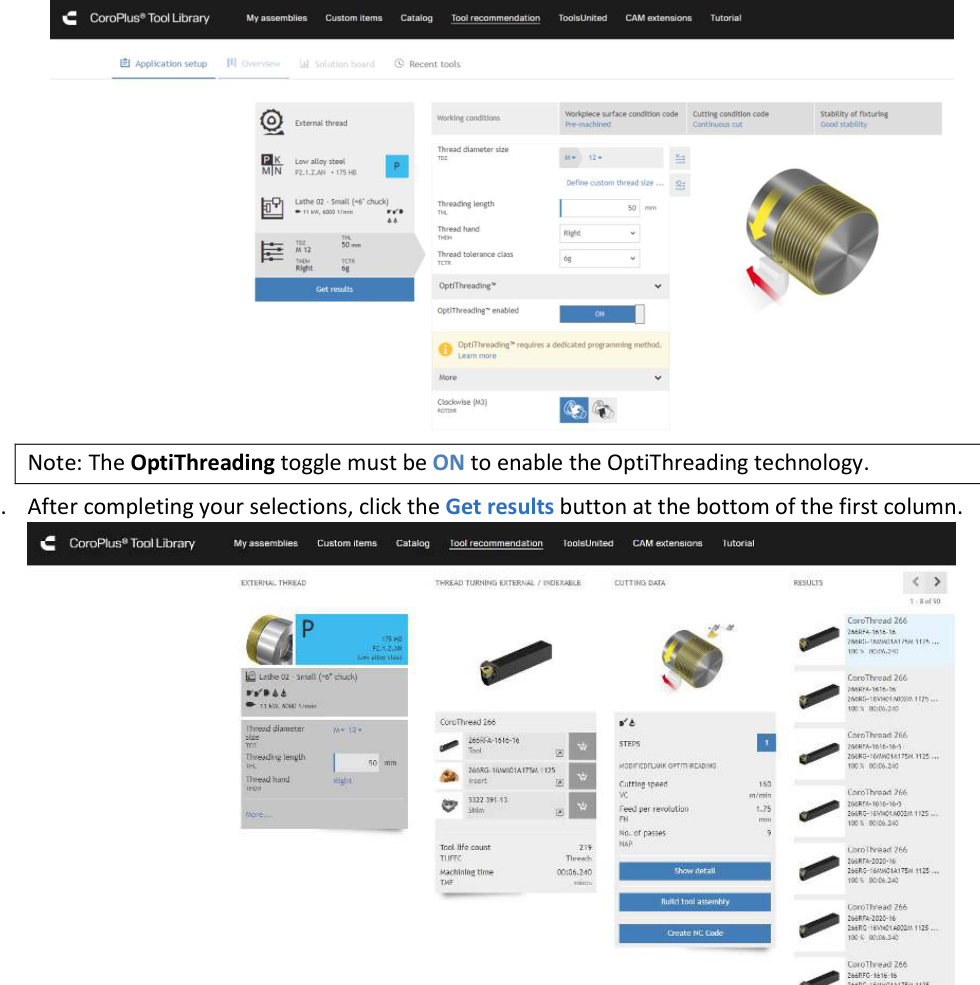
Figure 1 Enable OptiThreading before requesting results
Source: What's New in GibbsCAM 2025, p. 13
Step 3 - Export and Send the Assembly
1. Click Build tool assembly. Enter a controlled name, description, and classification, then inspect the assembly components and orientation.
2. Save the assembly and review its cutting data. Document any approved overrides.
3. Click Export GTC package. In the GibbsCAM plug-in, select the exported assembly and click Send to GibbsCAM.
Step 4 - Apply the Cutting Data
1. Create or edit a Turning Thread process and select the imported threading tool.
2. Under Definition, select From Cutting Data and choose the imported cutting-data entry.
3. Verify thread type, pitch, hand, starts, depth, passes, position, run-in, and run-out.
4. Set Oscillation Frequency to the approved Coarse, Normal, or Fine value. Verify Oscillation Extra Lift Distance and use Extra Oscillation Final Rough Pass only when required.
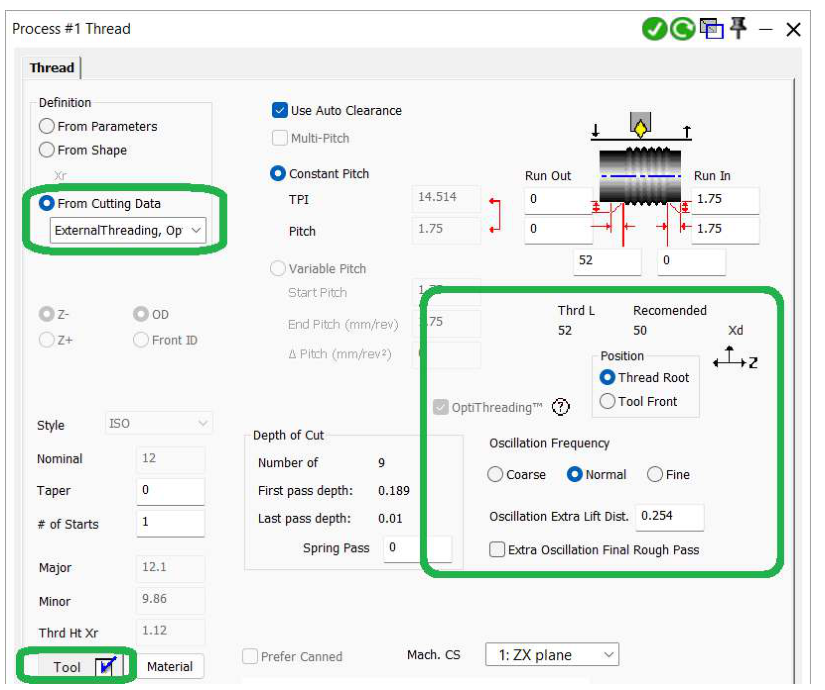
Figure 2 From Cutting Data exposes the OptiThreading controls
Source: What's New in GibbsCAM 2025, p. 10
Step 5 - Calculate and Validate
1. Calculate the operation and inspect entry, oscillation reversals, the final rough pass, run-out, and retract.
2. Run Op Simulation and Machine Simulation with accurate components. Post with the approved postprocessor, review the synchronized spindle and feed motion, then complete controlled prove-out and thread inspection.
Expected Result
• The CoroPlus assembly imports as a usable threading tool with OptiThreading cutting data.
• From Cutting Data populates the supported thread data and displays the oscillation controls.
• Simulation, posted output, controlled prove-out, and inspection meet the requirements for the target machine and part.
Best Practices
• Retain the exported GTC package and record the CoroPlus cutting-data revision.
• Change one oscillation setting at a time and record its effect on chips, finish, cycle time, and tool wear.
• Reimport the assembly when the approved tool or cutting data changes materially.
• Do not release a program based only on successful import or simulation; review the posted code and complete controlled prove-out.
Troubleshooting
• Problem: CoroPlus Tool Importer does not open.
Cause
• The plug-in is not installed, enabled, or compatible with the GibbsCAM build.
• The account, network connection, or CoroPlus service is unavailable.
Resolution
Confirm the compatible plug-in, GibbsCAM 2025 build, approved account, and network access. Restart GibbsCAM after correcting the configuration.
• Problem: OptiThreading cannot be enabled or From Cutting Data is unavailable.
Cause
• The selected application or tool does not support OptiThreading.
• OptiThreading was not enabled before the result was generated and exported, or the wrong imported tool is assigned.
Resolution
Correct the CoroPlus application, enable OptiThreading, regenerate the result, export and send the assembly again, then assign the imported tool to the Thread process.
• Problem: The thread data or simulated motion is incorrect.
Cause
• The workpiece, thread, units, tool orientation, workholding, clearance, or oscillation settings are wrong.
Resolution
Stop before machining. Correct the source data and physical setup, recalculate, and rerun full simulation until the thread definition and motion are correct.
• Problem: The posted output does not match the simulated intent.
Cause
• The postprocessor, controller, or machine definition does not support the required OptiThreading motion.
Resolution
Use the approved OptiThreading-capable post and matching machine definition. Have CAMCO or the post owner review the output before prove-out.
Related Articles
• Tool Cutting Data, CoroPlus, and Mill Form Tools in GibbsCAM 2024
• Recommended Simulation Settings
• How to Create a Pack and Go File
Explore More from CAMCO
Visit the CAMCO website to learn more about:
• Downloads and Helpful Resources
Keywords
GibbsCAM 2025, Turning, Thread, OptiThreading, Sandvik Coromant, CoroPlus Tool Library, CPTL, GTC package, From Cutting Data, Oscillation Frequency, Oscillation Extra Lift Distance, Extra Oscillation Final Rough Pass