
Summary
GibbsCAM 2025 introduces GibbsCAM Copilot, an AI-powered chat tool on the Help menu. It is trained on GibbsCAM-related sources, supports languages available in the GibbsCAM interface, and works best with specific, narrowly worded questions. Treat every reply as a starting point: verify it against GibbsCAM 2025, official documentation, CAMCO guidance, and the applicable machine configuration before taking action.
Table of Contents
What Changed in GibbsCAM 2025
Important: Copilot is disabled in some countries. Availability may also be affected by service access and organizational policy.
Before You Begin
• Use GibbsCAM 2025 in a location where GibbsCAM Copilot is available and confirm approved network access.
• Know the GibbsCAM version, module, process, and exact control or task you need help with.
• Follow organizational AI, privacy, security, export-control, and customer-data policies.
• Do not enter customer, proprietary, credential, personal, controlled, or other sensitive information unless explicitly approved.
• Keep official GibbsCAM help and CAMCO support resources available for verification.
Procedure
Step 1 - Open GibbsCAM Copilot
1. On the Help menu, click GibbsCAM Copilot.
2. Wait for the Copilot window to show that it is connected.
3. If the command is missing, confirm the GibbsCAM build, country availability, and organizational policy.
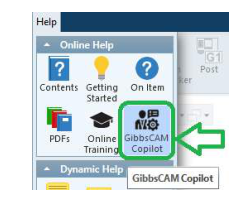
Figure 1 Open Copilot from the Help menu
Source: What's New in GibbsCAM 2025, p. 17
Step 2 - Ask One Narrow Question
1. Identify one feature, dialog, control, error, or workflow. Do not combine unrelated tasks.
2. Add safe context that changes the answer, such as GibbsCAM 2025, Milling or Turning, and the named process.
3. Request a specific result, such as a menu location, definition, prerequisite list, or verification checklist.
4. Describe the issue generically when a safe description is sufficient.
Example: In GibbsCAM 2025 Turning, what must be configured before From Cutting Data is available in a Thread process?
Step 3 - Review the Response
1. Read the complete reply and identify every menu path, prerequisite, value, or claim that could affect the part or program.
2. Compare named controls with the installed GibbsCAM 2025 interface and confirm the required module and process are active.
3. Verify the answer in official help or a CAMCO article. Escalate conflicting, licensing, post, MDD, crash, or production-safety questions to CAMCO Technical Support.
4. Before machining, regenerate, simulate, inspect posted output, and complete the shop's controlled prove-out.
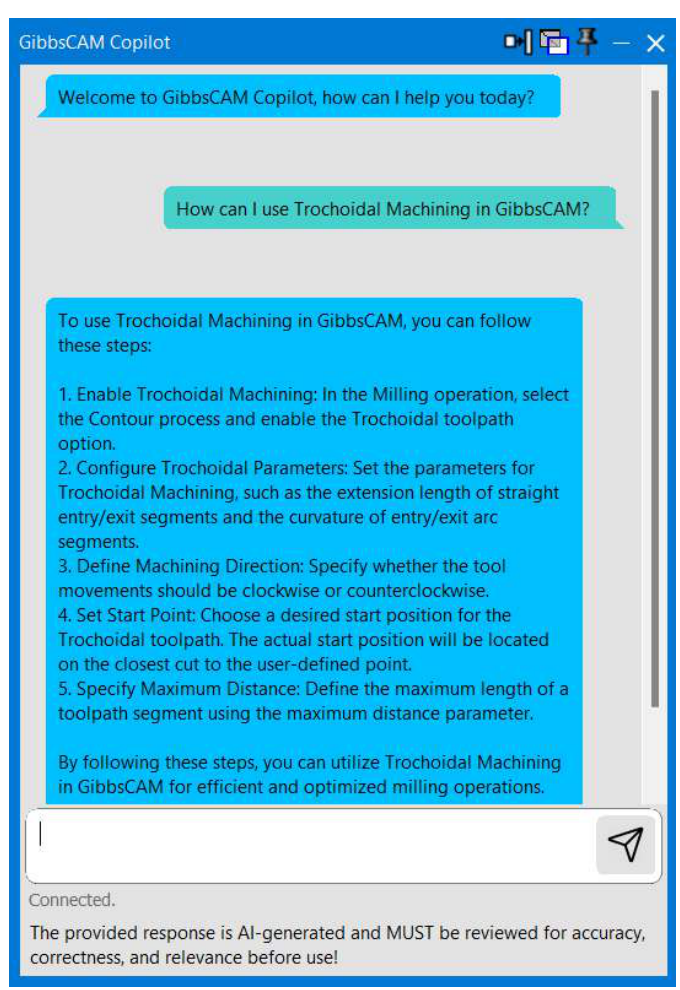
Figure 2 Review every AI-generated response before use
Source: What's New in GibbsCAM 2025, p. 17
Step 4 - Refine or Report the Reply
1. If the reply is too broad, ask one targeted follow-up about the missing menu, prerequisite, version, or verification step.
2. If the reply remains inconsistent with GibbsCAM, stop relying on it and use official documentation or CAMCO support.
3. Use thumbs-down when a reply is inaccurate, irrelevant, unclear, or otherwise unsatisfactory. Feedback does not correct the current response.
Expected Result
• Copilot receives a narrow, non-sensitive question with enough context to identify the GibbsCAM topic.
• The response provides useful orientation without being treated as production instruction; any applied change is verified in GibbsCAM 2025 and passes the normal review, simulation, posting, and prove-out process.
Best Practices
• Ask one question with one intended outcome.
• Use exact GibbsCAM control names and include the software year when version differences matter.
• Ask for prerequisites and checks before requesting parameter guidance.
• Keep sensitive information out of prompts unless policy explicitly permits it.
• Use Copilot for orientation; use verified sources and qualified reviewers for decisions.
Troubleshooting
• Problem: GibbsCAM Copilot is missing from the Help menu.
Cause
• The installed GibbsCAM build does not include the feature.
• Copilot is unavailable in the country or disabled by organizational policy.
Resolution
Confirm GibbsCAM 2025, current country availability, deployment requirements, and company policy. Contact CAMCO if the command should be available but remains missing.
• Problem: Copilot does not connect or stops responding.
Cause
• Approved internet, firewall, proxy, DNS, or service access is unavailable.
• The Copilot session or GibbsCAM application needs to be restarted.
Resolution
Confirm approved network access, reopen Copilot, and restart GibbsCAM if necessary. Escalate persistent access issues without sharing credentials.
• Problem: The response is broad or does not answer the question.
Cause
• The prompt combines several tasks or omits the version, module, process, or named control.
Resolution
Rewrite the prompt around one goal, add safe workflow context, and request a specific result such as a menu path, definition, prerequisite list, or checklist.
• Problem: The response names controls or values that do not match GibbsCAM.
Cause
• The answer applies to another version, module, process, license, or interface state.
• The response is inaccurate, incomplete, or uses an alternate translated term.
Resolution
Do not infer settings or use unverified values. Confirm the active version and process in official help, then ask one follow-up or contact CAMCO support.
Related Articles
• Recommended Simulation Settings
• How to Create a Pack and Go File
Explore More from CAMCO
Visit the CAMCO website to learn more about:
• Downloads and Helpful Resources
Keywords
GibbsCAM 2025, GibbsCAM Copilot, AI, ChatGPT, focused question, Help menu, feedback, supported languages, regional availability, privacy, verification, Technical Support