
Summary
GibbsCAM 2025 adds a Selection Filter, stackable mouse-drag selection and deselection, optional directional containment, three Op Tile flow views for MTM parts, and one-click toolpath redraw preferences. Use these controls to narrow the active selection and make operation relationships easier to review before editing.
Table of Contents
- What Changed in GibbsCAM 2025
- Before You Begin
- Selection Controls
- MTM Flow View
- Configure One-Click Toolpath Redraw
- Best Practices
- Troubleshooting
- Related Articles
What Changed in GibbsCAM 2025
Important: Selection actions can be stacked. Inspect the final highlighted set before moving, deleting, or applying a process.
Before You Begin
• Use GibbsCAM 2025 and save the part before changing a large selection or operation sequence.
• Confirm the active workgroup, coordinate system, visible entities, and current selection.
• For flow views, open an MTM part with defined flows and synchronization relationships.
• Confirm the actual selection shortcuts on the workstation; the release notes list Shift+drag and Ctrl+Shift+drag only as examples.
Selection Controls
Step 1 - Filter and Refine the Selection
1. On the Edit menu, under Selection, click Filter Selections.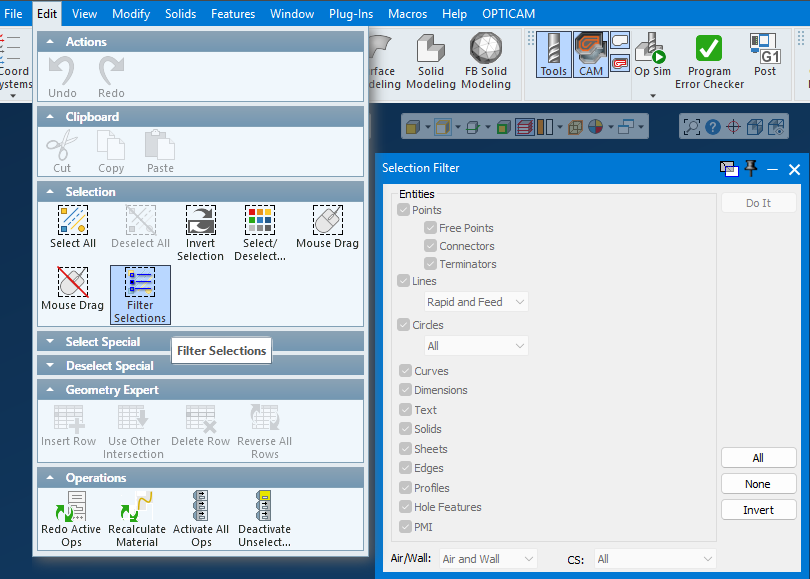
2. Choose the required entity types. Refine by line or circle type, Air or Wall status, and coordinate system when applicable.
3. Click Do It. Use Select by Mouse Drag to add entities or Deselect by Mouse Drag to remove them, then inspect the final stacked selection.
Step 2 - Set Drag Containment
1. Open File > Preferences > Interface and locate the mouse-drag containment toggle.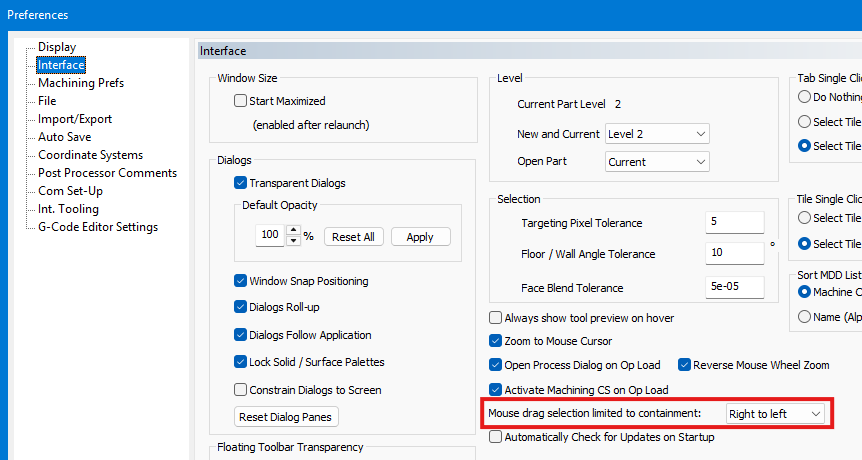
2. Keep the legacy option for left-to-right inclusive selection, or choose directional containment for right-to-left inclusive and left-to-right exclusive selection.
3. Test both drag directions on simple geometry before using the setting in a production part.
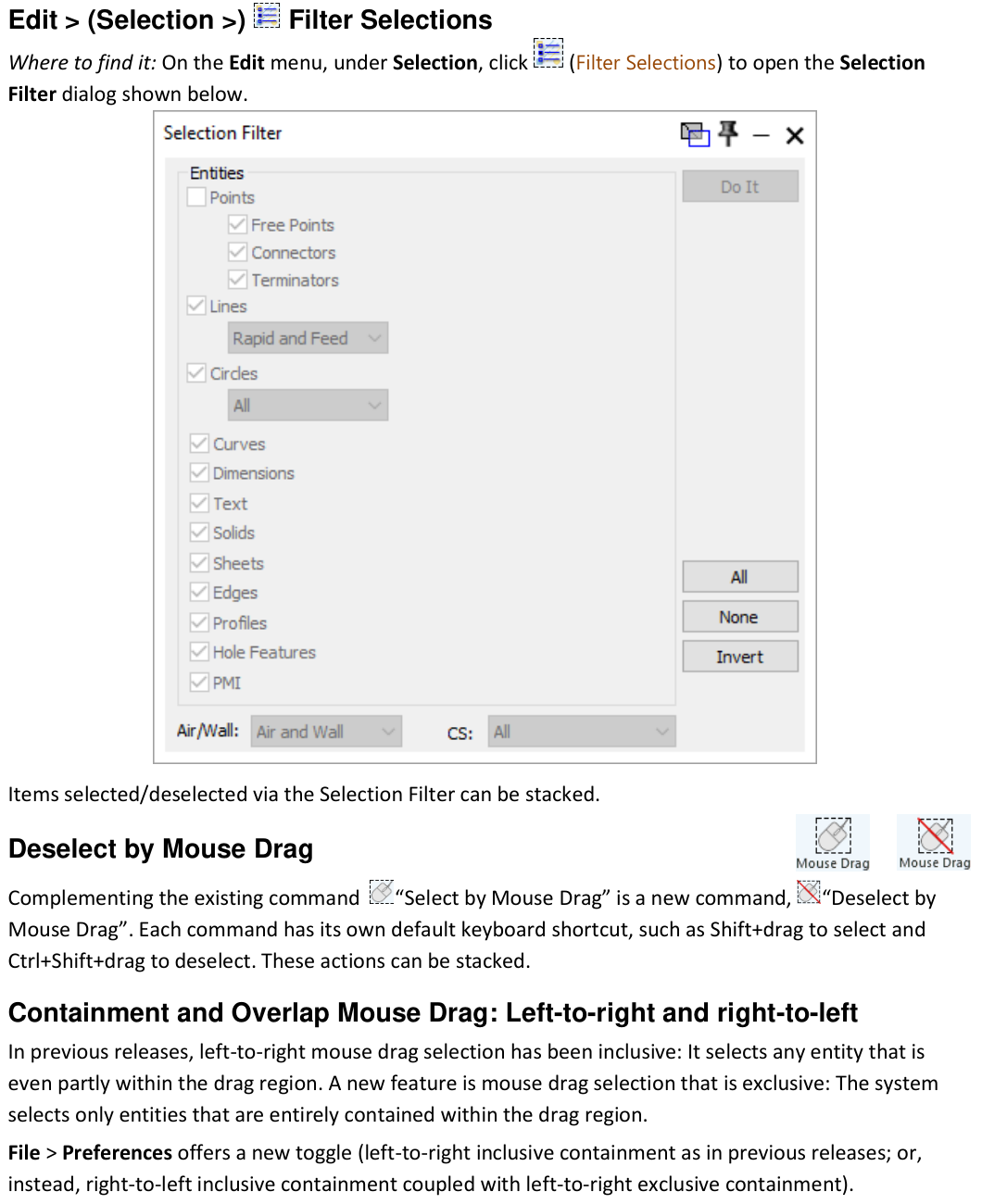
Figure 1 Filter entity types, then refine the result with mouse-drag actions
Source: What's New in GibbsCAM 2025, p. 19
MTM Flow View
1. Near the top of the Op Tile list, choose Show All Flows, Show Each Flow, or Sync Flow Mode.
2. Use Show All Flows for the combined list, Show Each Flow for separate columns, or Sync Flow Mode to review synchronized relationships.
3. Confirm the visible operations, flow assignments, and synchronization before editing or reordering operations.
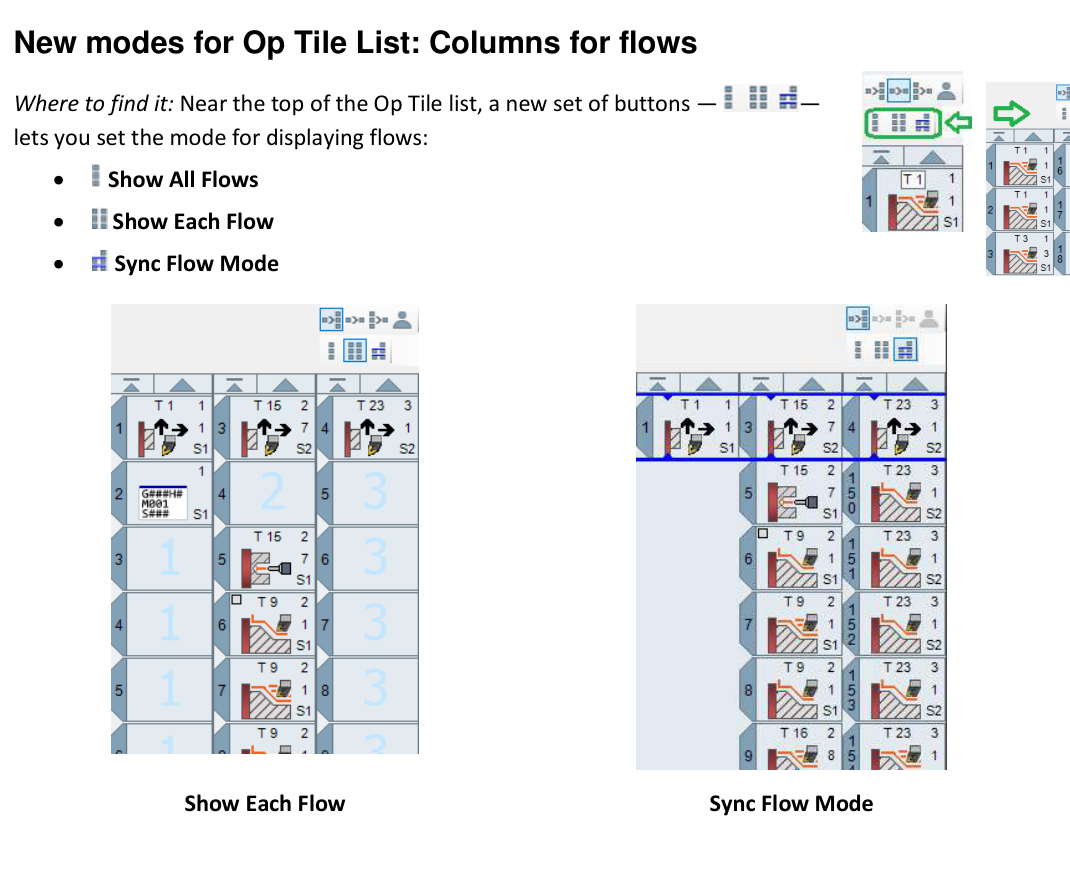
Figure 2 Choose the view that best exposes the MTM operation relationship
Source: What's New in GibbsCAM 2025, p. 21
Configure One-Click Toolpath Redraw
1. Open File > Preferences > Interface.
2. For Tab Single Click Behavior, choose Do Nothing, Select Tile, or Select Tile and Redraw Toolpath (Op List Only).
3. For Tile Single Click Behavior, choose Select Tile or Select Tile and Redraw Toolpath (Op List Only).
4. Click a test Op tile-tab and Op tile, then confirm that selection and redraw behave as intended.
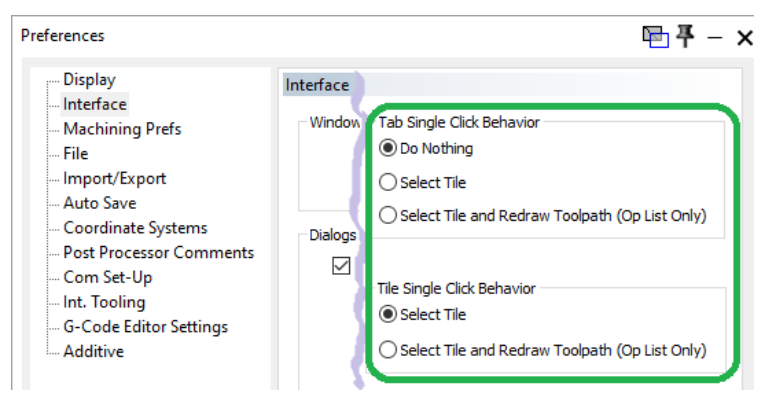
Figure 3 Set tab and tile single-click behavior independently
Source: What's New in GibbsCAM 2025, p. 22
Verify Before Editing
1. Confirm that only the intended entities or operation are selected.
2. For MTM parts, switch to Show All Flows when needed to confirm that no required operation is hidden by the current view.
3. After any process or operation change, regenerate, simulate, and review the posted output.
Expected Result
• Selection filters and mouse-drag actions produce the intended final set.
• The Op Tile list shows the selected combined, per-flow, or synchronized view.
• A single click selects the Op tile and redraws its toolpath only when the corresponding preference is enabled.
Best Practices
• Filter by entity type before using mouse drag for spatial refinement.
• Pause after stacked selection actions and inspect the model from another view.
• Use Show Each Flow for isolated sequence review and Sync Flow Mode for cross-flow relationships.
• Document customized shortcuts and preferences for consistent workstation setup.
Troubleshooting
• Problem: Filter Selections returns an empty or incomplete result.
Cause
• Required entity types, Air or Wall categories, or coordinate systems are excluded.
• The intended workgroup or object is hidden.
Resolution
Reset the filter with All, confirm visibility and the active workgroup, then add restrictions one at a time.
• Problem: Mouse drag selects the wrong entities.
Cause
• The drag direction is using inclusive behavior when exclusive behavior was expected, or the reverse.
• The preference differs from another workstation or earlier release.
Resolution
Check the containment preference, test left-to-right and right-to-left on simple geometry, then repeat the selection with the verified direction.
• Problem: The flow buttons are missing or operations appear to be missing.
Cause
• The part is not an MTM model with defined flows.
• Show Each Flow or Sync Flow Mode is separating operations from the combined list.
Resolution
Open a supported MTM part, show the Op Tile list, and switch to Show All Flows to locate and verify the operations before returning to the specialized view.
• Problem: A single click does not redraw toolpath.
Cause
• The selected tab or tile preference is set to Do Nothing or Select Tile only.
• The command applies to the Op List, or the operation has no current calculated toolpath.
Resolution
Set the applicable option to Select Tile and Redraw Toolpath (Op List Only), recalculate the operation if needed, and retest in the Op List.
Related Articles
• How to Save Settings in GibbsCAM
• How to Save and Load Process or Tool Lists
• Recommended Simulation Settings
Explore More from CAMCO
Visit the CAMCO website to learn more about:
• Downloads and Helpful Resources
Keywords
GibbsCAM 2025, Filter Selections, Selection Filter, Deselect by Mouse Drag, inclusive selection, exclusive selection, MTM, Op Tile list, Show All Flows, Show Each Flow, Sync Flow Mode, toolpath redraw, Interface preferences