
Summary
GibbsCAM 2025 adds five aids for reviewing machining behavior: Rotary Hints, collision and program-error checks enabled by default for new parts, an MTM simulation progress bar, user-set Analyze Cut Part tolerance, and Stop Before Every Operation. These controls improve visibility but do not replace accurate models, posted-code review, or controlled machine prove-out.
Table of Contents
What Changed in GibbsCAM 2025
Important: Defaults for new parts do not guarantee that an existing or migrated part uses the same settings. Verify the active simulation configuration before every review.
Before You Begin
• Use GibbsCAM 2025, save a working copy, and regenerate the operations to be reviewed.
• Define representative stock, tools, holders, fixtures, coordinate systems, and machine components.
• For rotary or MTM review, confirm spindle assignments, rotary orientation, flows, and synchronization relationships.
• Use a documented Analyze Cut Part tolerance appropriate to the active units, model fidelity, and review purpose.
Caution: Do not disable required checks only to shorten review time. Correct incomplete definitions or use an approved representative model.
Procedure
Step 1 - Show Rotary Hints
1. Open Op Sim or Machine Sim for a representative rotary operation.
2. Open the Rendering dialog title-bar context menu and enable Show Rotary Hints.
3. Run simulation and compare the cue with the intended spindle direction, operation definition, machine configuration, and posted output.
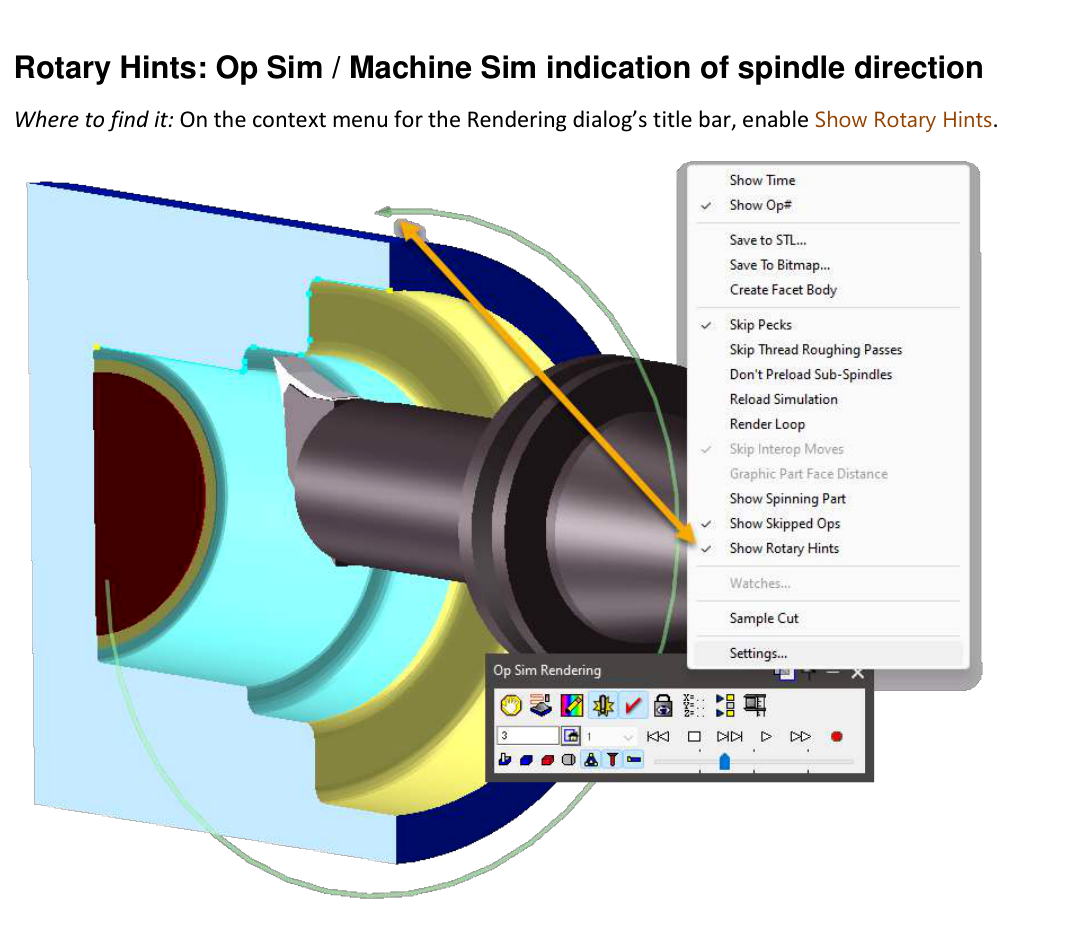
Figure 1 Enable spindle-direction cues from the Rendering title-bar menu
Source: What's New in GibbsCAM 2025, p. 18
Step 2 - Confirm Checks and Track MTM Progress
1. Open the applicable Simulation Rendering dialog and confirm that Collision Checking and Program Error Checking are enabled. New GibbsCAM 2025 parts enable both by default.
2. For an MTM part, open Sync Control in a view other than Uniform and start simulation.
3. Use the red bar to correlate simulation progress with the active flows. The bar shows progress; it does not confirm collision safety or synchronization quality.
4. Investigate every collision or program error and correct the model, operation, toolpath, or machine definition as required.
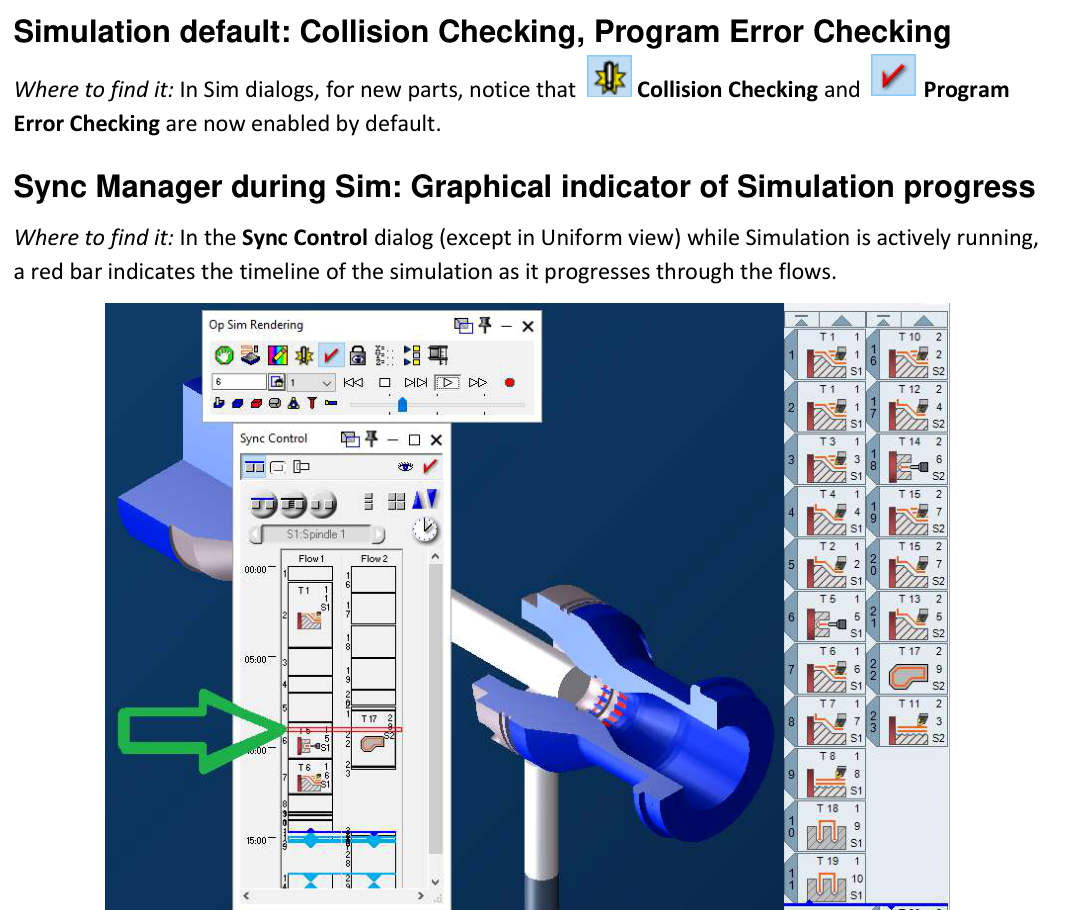
Figure 2 Confirm the checks and monitor progress through MTM flows
Source: What's New in GibbsCAM 2025, p. 20
Step 3 - Analyze the Simulated Cut Part
1. Select the nominal solid, run Op Sim to completion, and click Analyze Cut Part.
2. Choose the required result, such as undercuts, remaining material, or material change.
3. Enter the approved tolerance for the active units and review purpose. The 0.0015-inch value in the source image is an example, not a universal recommendation.
4. Review the highlighted result from several views and determine whether it reflects toolpath behavior, model limits, or an actual machining concern.
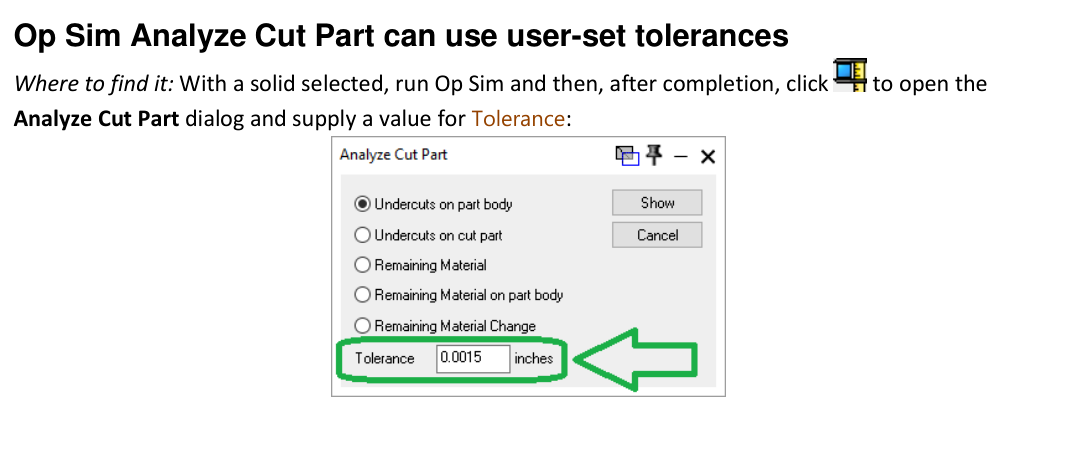
Figure 3 Enter a tolerance appropriate to the analysis and active units
Source: What's New in GibbsCAM 2025, p. 20
Step 4 - Stop Before Every Operation
1. In a Simulation Rendering dialog, click Stops and enable Stop Before Every Operation.
2. Run simulation from a known point. At each pause, verify the next operation, tool and spindle, stock and fixture state, approach and retract motion, and remaining material.
3. Continue through the required operations, then disable the stop when continuous playback is needed.
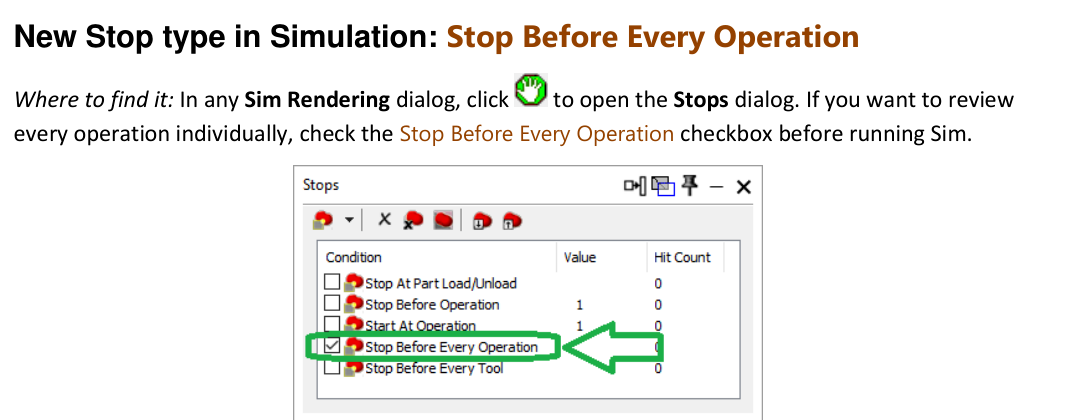
Figure 4 Pause simulation at each operation boundary for focused review
Source: What's New in GibbsCAM 2025, p. 21
Step 5 - Complete Production Validation
1. Resolve unexplained findings, regenerate affected operations, and repeat the applicable simulation and analysis checks.
2. Review posted output for tools, work offsets, spindle and rotary commands, synchronization, safe positioning, and machine-specific requirements.
3. Complete the approved machine verification and controlled prove-out before production.
Expected Result
• Rotary Hints agree with the intended spindle or rotary motion.
• Collision and Program Error Checking are active and complete without unexplained findings.
• The Sync Control bar tracks active simulation through the defined MTM flows.
• Analyze Cut Part and operation stops support a deliberate, operation-by-operation review.
Best Practices
• Verify simulation settings when opening an existing, migrated, or shared part.
• Use Rotary Hints with operation definitions and posted output, especially after spindle or transfer changes.
• Record the analysis type, tolerance, units, and result used for formal cut-part review.
• Repeat simulation after any toolpath, setup, machine, post, or configuration change that can affect motion.
Troubleshooting
• Problem: Rotary Hints are missing or unclear.
Cause
• Show Rotary Hints is not enabled in the Rendering title-bar context menu.
• The operation, machine configuration, or view does not provide clear rotary context.
Resolution
Enable the option, confirm spindle and rotary assignments, run an applicable simulation, and change the view. Validate the direction against the operation and posted output.
• Problem: Collision or Program Error Checking is disabled or reports unexpected findings.
Cause
• The part retained earlier settings, or a user changed the options.
• Tool, holder, stock, fixture, machine, or clearance definitions are incomplete, or the operation contains an unsafe move.
Resolution
Enable both checks, inspect the reported state, and correct the model or operation. Do not suppress an unexplained finding; regenerate and repeat the review.
• Problem: The Sync Control progress bar is not visible.
Cause
• Sync Control is in Uniform view, simulation is not actively running, or the relevant window is hidden.
Resolution
Choose another Sync Control view, expose the active flow display, and start simulation.
• Problem: Analyze Cut Part is unavailable or the result is not useful.
Cause
• No nominal solid is selected or Op Sim did not complete.
• The analysis type, tolerance, units, or model fidelity is unsuitable for the question.
Resolution
Select the correct solid, rerun Op Sim to completion, and use an approved analysis type and tolerance. Verify the model before accepting the result.
• Problem: Simulation does not stop before each operation.
Cause
• Stop Before Every Operation is not selected, or playback resumed without reloading the stop configuration.
Resolution
Open Stops, enable the option, and restart from a known point. Confirm the stop at the next operation boundary.
Related Articles
• Recommended Simulation Settings
• Using Facet Bodies for Toolpath in GibbsCAM
Explore More from CAMCO
Visit the CAMCO website to learn more about:
• Downloads and Helpful Resources
Keywords
GibbsCAM 2025, simulation, Op Sim, Machine Sim, Rotary Hints, Collision Checking, Program Error Checking, Sync Control, simulation progress, Analyze Cut Part, tolerance, Stop Before Every Operation, MTM