
Summary
GibbsCAM 2025 stores additional cutting parameters with supported tool records and can open the matching manufacturer catalog page from the Tool dialog; such as Ae (Cut Depth) and Ap (Cut Width). Verify the displayed labels, units, tool identity, material, and process before applying any value or using a catalog record.
Table of Contents
What Changed in GibbsCAM 2025
Important: Imported parameters are reference data. Confirm that the active process uses the intended values, then regenerate, simulate, review posted output, and follow the approved prove-out process.
Before You Begin
• Use GibbsCAM 2025 and open a working copy containing the intended tool, or import the tool from a supported catalog.
• Confirm part and tool units, work material, tool geometry, holder, stickout, flute count, and spindle direction.
• Have the current manufacturer record and shop-approved cutting limits available for comparison.
• For catalog links, confirm that the workstation can open external web pages.
Caution: Manufacturer data is a starting point. Machine capability, workholding, engagement, material condition, and shop standards may require different values.
Procedure
Step 1 - Review Stored Cutting Data
1. Open the Tool dialog or an applicable process dialog and select the intended tool.
2. Use the Tool or Cutting Data button with the stored-data indicator to open the Feeds and Speeds Table.
3. Review the available entries, including surface speed, feed per tooth, feed, Cut Width, and Cut Depth.
4. Confirm the source, units, material, and operation. Compare labels with the manufacturer's terminology before use.
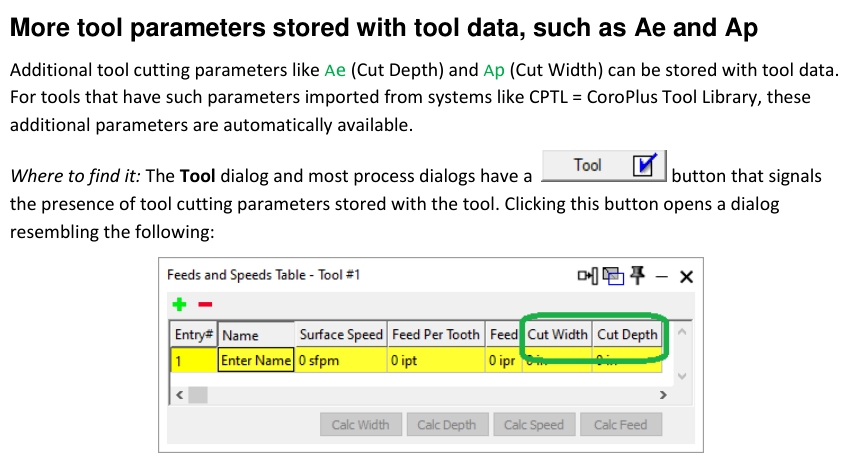
Figure 1 Open the stored data and verify each value in context
Source: What's New in GibbsCAM 2025, p. 23
Step 2 - Verify the Active Process
1. Open the process that will use the tool and compare its speed, feed, width, depth, stepover, and engagement settings with the stored entry.
2. Resolve unit, material, tool-overhang, or cutting-condition differences. Apply only values approved for the current setup.
3. Regenerate the operation and inspect the toolpath, clearances, engagement, simulation results, and posted spindle and feed commands.
Step 3 - Open the Manufacturer Catalog Record
1. In the Tool dialog, confirm the manufacturer and item or catalog number for the imported tool.
2. Click Order Tool. The link appears when the supported imported record contains the required catalog information.
3. On the manufacturer page, compare the catalog number, diameter, flute count, coating or grade, shank, reach, and other critical attributes with the GibbsCAM tool.
4. Use the organization's approved procurement process if a purchase is required. Availability, pricing, regional access, and ordering occur on the external catalog site.
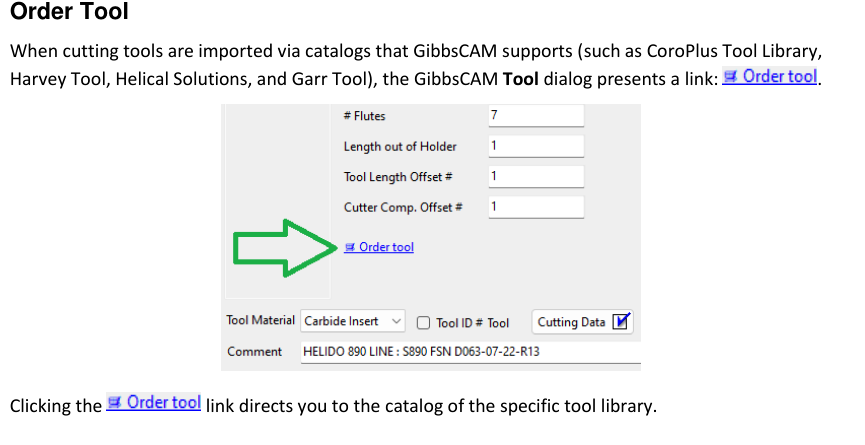
Figure 2 Open the catalog only after confirming the imported tool identity
Source: What's New in GibbsCAM 2025, p. 23
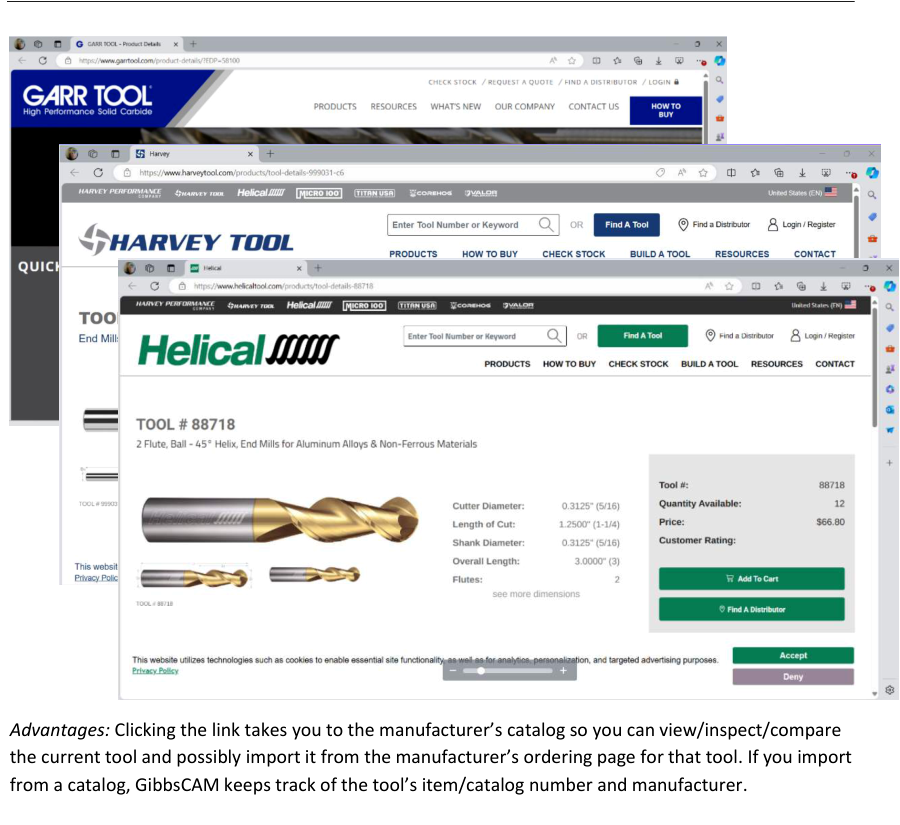
Figure 3 Compare the external catalog record with the GibbsCAM tool
Source: What's New in GibbsCAM 2025, p. 24
Step 4 - Maintain the Verified Tool Record
1. Update the shop-controlled tool record only with verified identifiers and approved cutting data.
2. Record the source, date, units, material, and cutting conditions for reusable values.
3. Save the validated tool in the approved Tool List or process library and apply normal revision controls.
Expected Result
• Stored cutting-data entries are visible and verified against the active tool, material, units, and process.
• The process uses approved values and completes toolpath, simulation, and posted-output review without unexplained findings.
• A supported imported tool opens the matching manufacturer catalog page for identity and product comparison.
Best Practices
• Preserve the manufacturer and item or catalog number as controlled identifiers.
• Record units and cutting conditions with every approved speed, feed, width, and depth value.
• Recheck the manufacturer record after a tool, coating, grade, geometry, or catalog revision.
• Use catalog links for identification and comparison; use the approved purchasing system for procurement.
Troubleshooting
• Problem: The stored cutting-data button is missing or inactive.
Cause
• The selected tool has no stored cutting parameters.
• The current dialog does not expose the control, or the tool was imported without cutting data.
Resolution
Confirm the selected tool and dialog. Reimport the correct supported catalog record or use the approved workflow to enter verified tool data.
• Problem: Cut Width or Cut Depth is blank or does not match the process.
Cause
• The imported record does not provide the value for the selected entry.
• Units, material, or cutting conditions differ from the active process.
Resolution
Verify the source, units, labels, material, and operation. Apply only a shop-approved value, then regenerate and validate the operation.
• Problem: A stored value produces excessive feed or engagement.
Cause
• Tool diameter, flute count, units, material, or entry selection is incorrect.
• The recommendation was applied outside its stated conditions or shop limits.
Resolution
Stop and correct the tool or process data. Recalculate with verified limits, then regenerate, simulate, review posted output, and prove out under controlled conditions.
• Problem: The Order Tool link is not displayed.
Cause
• The tool was not imported from a supported catalog.
• Manufacturer or catalog metadata is missing, edited, or unsupported in the current environment.
Resolution
Confirm the tool source and identifiers. Reimport the approved catalog tool or locate it on the manufacturer's site by its verified catalog number.
• Problem: The catalog page does not open or shows the wrong tool.
Cause
• Network or browser policy blocks the request.
• The vendor page changed, or the saved catalog metadata is obsolete or incorrect.
Resolution
Verify browser access and search the manufacturer's site using the confirmed catalog number. Compare all critical dimensions before reuse or procurement.
Related Articles
• How to Save and Load Process or Tool Lists
• How to Create and Use 2D Form Tools
Explore More from CAMCO
Visit the CAMCO website to learn more about:
• Downloads and Helpful Resources
Keywords
GibbsCAM 2025, tool cutting parameters, cutting data, Ae, Ap, Cut Depth, Cut Width, Feeds and Speeds Table, Tool dialog, Order Tool, tool catalog, manufacturer catalog, CoroPlus Tool Library, Harvey Tool, Helical Solutions, Garr Tool