
Summary
GibbsCAM 2025 expands four advanced workflows: full TMS work-fixture-offset support, post access to solid-operation machining tolerance, more VoluMill and 5-Axis Manager fields, and MDD maximum-RPM limits that produce a program error when exceeded. These features depend on the active post, machine definition, operation data, and licensed products.
Table of Contents
- What Changed in GibbsCAM 2025
- Before You Begin
- Procedure
- Op Manager Data
- Best Practices
- Troubleshooting
- Related Articles
What Changed in GibbsCAM 2025
Important: Use CAMCO-approved posts and machine definitions. A visible option or field does not confirm that the active post, MDD, control, or operation supports the intended result.
Before You Begin
• Identify the GibbsCAM build, machine, control, MDD, post processor, post revision, and licensed products used by the test part.
• Back up the controlled files and use a nonproduction part with representative work offsets, solid operations, Manager data, and spindle-speed tests.
• Have the approved post specification and machine or control documentation available for comparison.
Procedure
Warning: Do not alter post logic or increase an MDD maximum RPM simply to remove an error. Route those changes through the responsible post or machine-definition owner.
Step 1 - Validate TMS Work Fixture Offset Output
1. Open the nonproduction part with the CAMCO-approved post, then open Post Processor > Workfixtures.
2. Confirm Use Workfixtures and review the required organization, identical-WFO behavior, one-WFO-per-part option, local shifts, restrictions, coordinate systems, offsets, and orientations.
3. Post the complete test sequence and compare initial offsets, changes, local shifts, resets, and rotary orientation with the setup plan and control requirements.
4. Resolve mismatches through the post or MDD owner. Do not use permanent manual NC edits as the correction.
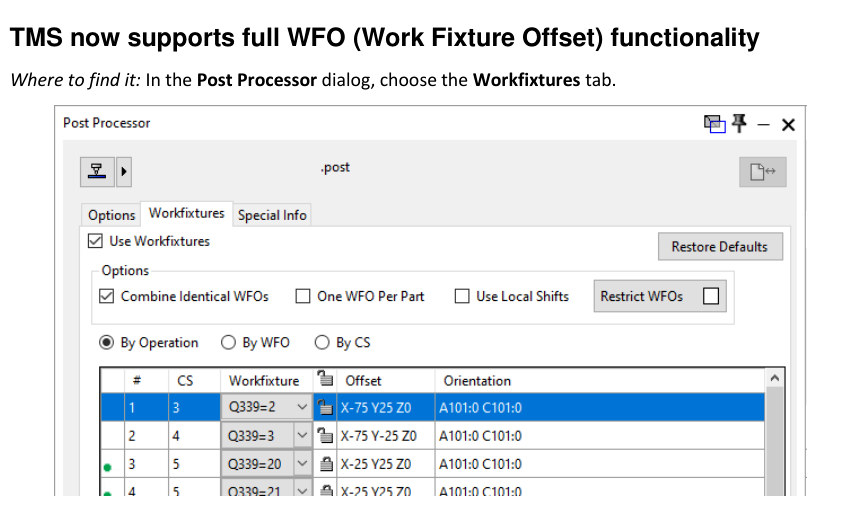
Figure 1 Review WFO organization and output with the approved post
Source: What's New in GibbsCAM 2025, p. 25
Step 2 - Validate Solid Operation Tolerance Access
1. Confirm that the active post has been upgraded for the GibbsCAM 2025 commands that query or output solid-operation machining tolerance.
2. Select a representative solid operation and record its machining tolerance and units.
3. Post the operation and verify the intended tolerance-dependent behavior, such as approved look-ahead logic, against the post specification and control documentation.
4. If the post is not upgraded or the output is unexpected, stop and provide the post owner with the sample part, post revision, MDD, NC output, and expected behavior.
Figure 2 Use an upgraded post before testing tolerance-dependent output
Source: What's New in GibbsCAM 2025, p. 25
Op Manager Data
Step 1 - Review Additional Manager Data
1. Open a part containing the required VoluMill or 5-Axis operations, then open Operation Manager or Process Manager.
2. Customize the visible headers and add only the fields needed for the review. Available fields vary by process, product, and Manager.
3. Verify each field's units, source operation or process, and whether it is read-only or editable.
4. If an edit is allowed, work in a saved test copy, recalculate affected operations, confirm the operation sequence, and review the posted result.
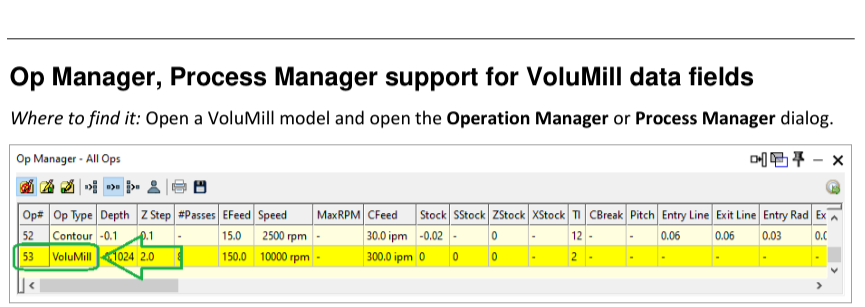
Figure 3 Expose only the Manager fields needed for the review
Source: What's New in GibbsCAM 2025, p. 29
Step 2 - Validate MDD Maximum Spindle RPM
1. Confirm the authoritative maximum RPM for each spindle role and any lower limit imposed by a driven-tool unit, workholding device, attachment, or setup.
2. In Machine Manager, review Max RPM on the Tool Station tab when Live Tool is enabled and on the Part Station tab when Spins Part is enabled.
3. In a controlled test copy, run one operation below the configured limit and a separate operation above it. The above-limit operation should produce a program error.
4. Correct the programmed RPM to an approved value, regenerate, simulate, repost, and complete the normal machine prove-out. Do not raise the MDD limit merely to clear the error.
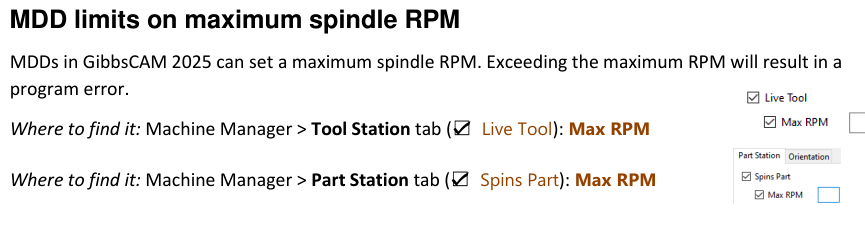
Figure 4 Maintain station limits through the approved MDD workflow
Source: What's New in GibbsCAM 2025, p. 29
Expected Result
• The approved post outputs work-fixture offsets and related changes as specified for the target control.
• The upgraded post reads solid-operation tolerance and produces only the approved tolerance-dependent output.
• Operation Manager or Process Manager displays the required VoluMill or 5-Axis fields with understood units and editability.
• Each applicable spindle station has a verified maximum RPM, and a test above that value produces a program error.
Best Practices
• Maintain a controlled record of the GibbsCAM build, post, MDD, machine, control, validation part, and approval date.
• Test workfixture output with representative coordinate systems, repeated offsets, local shifts, and rotary orientations.
• Use paired tolerance tests so any NC change can be attributed to the operation tolerance.
• Set spindle limits from authoritative machine and accessory documentation and retain the last proven configuration.
Troubleshooting
• Problem: Workfixture output is missing or uses unexpected codes.
Cause
• Use Workfixtures is disabled, or the active post does not implement the intended TMS WFO behavior.
• Coordinate systems, WFO assignments, local shifts, orientations, post, or MDD do not match the setup.
Resolution
Stop release, confirm the active configuration, and compare the Workfixtures table with the setup plan. Have the post owner correct and validate the output.
• Problem: The post ignores solid-operation machining tolerance.
Cause
• The post has not been upgraded for the GibbsCAM 2025 tolerance commands.
• The operation or post logic does not use the expected tolerance value.
Resolution
Confirm the operation and post revision. Request an approved post upgrade and test it with known tolerance values and documented expected output.
• Problem: Expected VoluMill or 5-Axis fields are missing.
Cause
• The part does not contain the required process type.
• The field is not visible in the selected Manager, or the installed product or build does not support it.
Resolution
Open a representative model, customize the headers, and check both Operation Manager and Process Manager. Confirm product and version support.
• Problem: A Manager edit affects more operations than intended.
Cause
• Several rows were selected, or an Apply Value action affected compatible operations.
• Sorting or moving rows changed the review context or operation order.
Resolution
Restore the backup or close without saving when appropriate. Reapply the change to the intended rows only, then recalculate and verify the sequence and NC output.
• Problem: Maximum-RPM behavior is unexpected.
Cause
• The programmed RPM exceeds the configured limit, or Max RPM is missing, disabled, or set on the wrong station.
• The active spindle role or MDD differs from the one reviewed.
Resolution
Confirm the active MDD, station, spindle role, and approved limit. Correct the programmed RPM or route the configuration change through the MDD owner, then repeat below-limit and above-limit tests.
Related Articles
• How to Use the Operation Summary
• Start Side Selection in VoluMill
• How to Enable Probing in GibbsCAM
Explore More from CAMCO
Visit the CAMCO website to learn more about:
• Downloads and Helpful Resources
Keywords
GibbsCAM 2025, posting, TMS, WFO, work fixture offset, Workfixtures, post processor, machining tolerance, solid operations, post upgrade, Operation Manager, Process Manager, VoluMill, 5-Axis, MDD, Machine Manager, Max RPM, spindle limit, program error