
Summary
GibbsCAM 2025 adds an FB Solid Modeling palette for facet bodies, fixture-aware collision avoidance for supported processes, and preservation of solid, face, and edge attributes during copy and paste. Validate every edited body, regenerated toolpath, and transferred attribute before production use.
Table of Contents
- What Changed in GibbsCAM 2025
- Before You Begin
- Edit and Validate a Facet Body
- Include Fixtures in Collision Avoidance
- Copy a Solid with Its Attributes
- Best Practices
- Troubleshooting
- Related Articles
What Changed in GibbsCAM 2025
Important: Command and process availability depends on the installed GibbsCAM products, license, build, and active process. Fixture avoidance also depends on accurate fixture definitions and an approved machine configuration.
Before You Begin
• Save a backup copy and preserve the original CAD or facet body before editing.
• Confirm the facet body's units, scale, position, quality, and intended machining role.
• Define accurate stock, tools, holders, Intermediate Tooling, workspace fixtures, coordinate systems, and clearances.
• Identify the body-, face-, and edge-level attributes that must remain intact after copy and paste.
Edit and Validate a Facet Body
1. Open the facet body, verify its placement and quality, and keep an untouched backup.
2. On the main tool palette, open FB Solid Modeling and select only the body or region you intend to modify.
3. Use the smallest required command. Facet-specific options include Heal Facet Body, Smooth Region, Reduce Complexity, Refacet, and Tesselate.
4. Inspect the modified region and History Tree, run Check Body Validity, remeasure critical geometry, and regenerate affected operations.
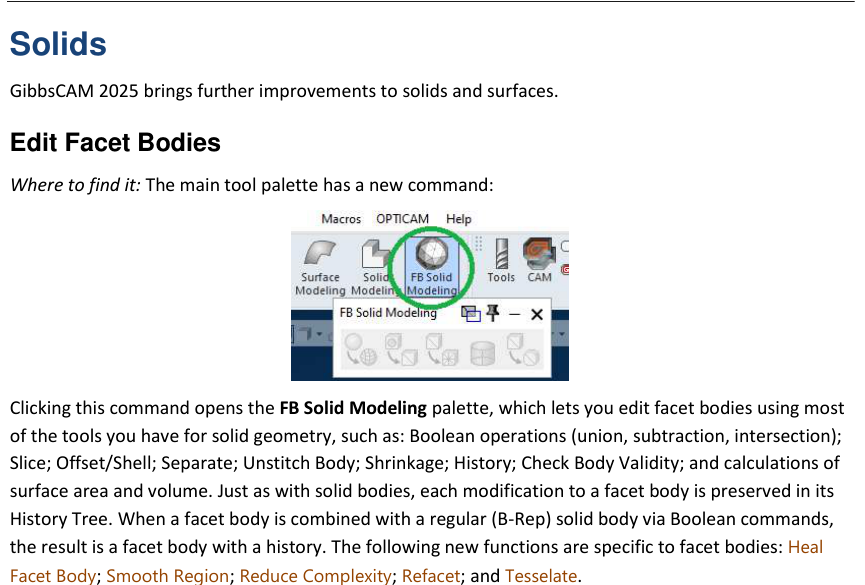
Figure 1 Open FB Solid Modeling and make one controlled change at a time
Source: What's New in GibbsCAM 2025, p. 26
Include Fixtures in Collision Avoidance
1. Display and verify every clamp, jaw, vise, jig, and other workholding body that can affect the operation.
2. Open the applicable process. Enable Avoid IT Fixtures on the Solids tab; for Advanced 3D, use the Boundary tab and enter Fixture Clearance only when required.
3. Regenerate the operation and inspect cutting, linking, approach, retract, rapid, and clearance-transition moves around both Intermediate Tooling and workspace fixtures.
4. Run Machine Simulation and review the posted output. Clearance Volume transitions avoid fixture types only when possible, so unresolved contact requires a different setup or toolpath strategy.
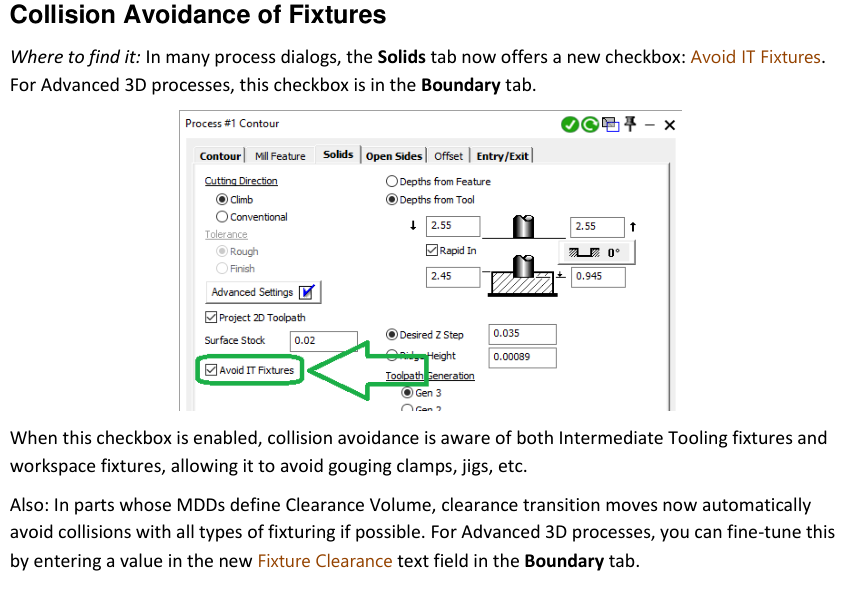
Figure 2 Include correctly classified fixtures and verify the complete regenerated path
Source: What's New in GibbsCAM 2025, p. 26
Copy a Solid with Its Attributes
1. Open the source and destination parts in two GibbsCAM sessions and record representative attribute values on the source solid, faces, and edges.
2. Copy the complete solid or intended set of solids from the source session and paste it into the destination session.
3. Verify placement and compare the preserved Color, Feature, Real, Integer, and Text attributes at the body, face, and edge levels.
4. Test any selection, PLM, reporting, process, or automation workflow that depends on those attributes.
Figure 3 Compare representative attributes after pasting into the destination session
Source: What's New in GibbsCAM 2025, p. 27
Expected Result
• The facet body contains only the intended change, remains valid, and retains usable history.
• Supported operations consider correctly defined Intermediate Tooling and workspace fixtures, with verified clearance and machine motion.
• Copied solids retain the required body, face, and edge attributes in the destination session.
Best Practices
• Edit a named working copy and compare it with the preserved source after each shape-changing command.
• Use only enough facet density to preserve the geometry needed for machining and verification.
• Keep fixture bodies complete, correctly classified, and synchronized with the physical setup.
• Repeat simulation and posted-code review after any model, fixture, clearance, process, machine-definition, or post change.
Troubleshooting
• Problem: FB Solid Modeling or a required command is unavailable.
Cause
• The active license or build does not include the required capability.
• The wrong body type or palette is active.
Resolution
Confirm the selected body, installed products, license, and GibbsCAM build. Contact CAMCO to verify the required configuration.
• Problem: A facet edit removes detail or changes the model unexpectedly.
Cause
• The selected region is too broad.
• Smoothing, simplification, refaceting, or tessellation settings are too aggressive.
Resolution
Restore the preserved source, isolate a smaller region, and use more conservative settings. Reinspect and remeasure before programming.
• Problem: Avoid IT Fixtures is missing.
Cause
• The active process does not expose the control on the expected tab.
• Advanced 3D places it on the Boundary tab, or the installed configuration does not support it.
Resolution
Check the Solids and Boundary tabs, then confirm process, product, license, and build support before relying on fixture avoidance.
• Problem: Toolpath or clearance motion still contacts a fixture.
Cause
• A fixture is missing, mispositioned, or incorrectly classified.
• The tool, holder, stock, clearance, MDD, or setup data is incomplete, or no valid avoidance path exists.
Resolution
Stop release, correct the fixture and assembly definitions, regenerate, and repeat complete simulation. Revise the setup or strategy if contact remains.
• Problem: Attributes are missing or changed after paste.
Cause
• The wrong solid or an incomplete set was copied.
• The destination version or downstream workflow does not interpret the attribute as expected.
Resolution
Compare the source and pasted model at body, face, and edge levels. Repeat the copy with the correct selection and validate the dependent workflow.
Related Articles
• Using Facet Bodies for Toolpath in GibbsCAM
• How to Use Unstitch Solid to Defeature a Solid Model
• Creating Solid Model from 2D Geometry
Explore More from CAMCO
Visit the CAMCO website to learn more about:
• Downloads and Helpful Resources
Keywords
GibbsCAM 2025, facet body, FB Solid Modeling, Heal Facet Body, Smooth Region, Reduce Complexity, Refacet, Tesselate, History Tree, Avoid IT Fixtures, Intermediate Tooling, workspace fixture, Fixture Clearance, Clearance Volume, copy paste, solid attributes, face attributes, edge attributes, Color, Feature, Real, Integer, Text