
Summary
GibbsCAM 2025 lets an authorized user borrow selected Network License Option products for a defined period and keep using them after disconnecting from the network. The borrowed seats remain unavailable to other users until they are returned or expire, so verify the required products and approved duration before leaving the server connection.
Table of Contents
What Changed in GibbsCAM 2025
Important: Roaming must be enabled for an eligible NLO license. Organization policy may restrict products, users, or duration; a roaming license checkout is limited to 30 days.
Before You Begin
• Connect the workstation to the intended Network License Server directly or through an approved VPN.
• Ask the license administrator which products and duration are approved, and confirm that the required seats are available.
• Save critical work and verify that the Windows date and time are correct.
• Plan an offline restart test before travel or a scheduled network outage.
Procedure
Step 1 - Check Out the Required Products
1. Start GibbsCAM while connected and confirm that it obtains a normal network license.
2. Choose File > Preferences > Interface, click License Options, and select Start Roaming.
3. Select only the products needed for the offline work and enter the administrator-approved period, not exceeding 30 days.
4. Complete the checkout and record the workstation, user, selected products, and expiration time.
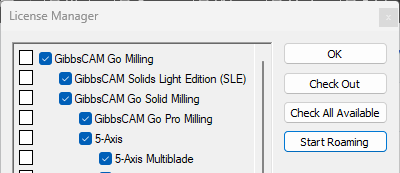
Figure 1 Open License Options and select Start Roaming
Source: What's New in GibbsCAM 2025, p. 28
Step 2 - Verify Offline Use
1. Save all work, close GibbsCAM, and disconnect from the company network or VPN.
2. Restart GibbsCAM and open a representative part that uses the borrowed products.
3. Confirm that each required operation or workflow opens without a licensing error.
4. If a product is missing, reconnect before leaving the network and repeat the checkout with the correct product set.
Step 3 - Return the License or Let It Expire
1. To return early, reconnect to the same Network License Server and choose File > Preferences > License Update > Stop Roaming.
2. Click OK, close GibbsCAM, and reopen it to confirm that the workstation can obtain a normal network license.
3. If the roaming period expires, reconnect before starting another licensed session or creating a new approved checkout. An expired checkout cannot be extended while offline.
Step 4 - Verify the Roaming Seat in RLM
1. Open the RLM Web Administration interface from an authorized system.
2. Open Status, select Gibbsnet, and locate License Pool Status.
3. Confirm the roaming count and review the available user, host, checkout, and expiration information.
4. After an early return or expiration, refresh the page and confirm that the seat is available again.
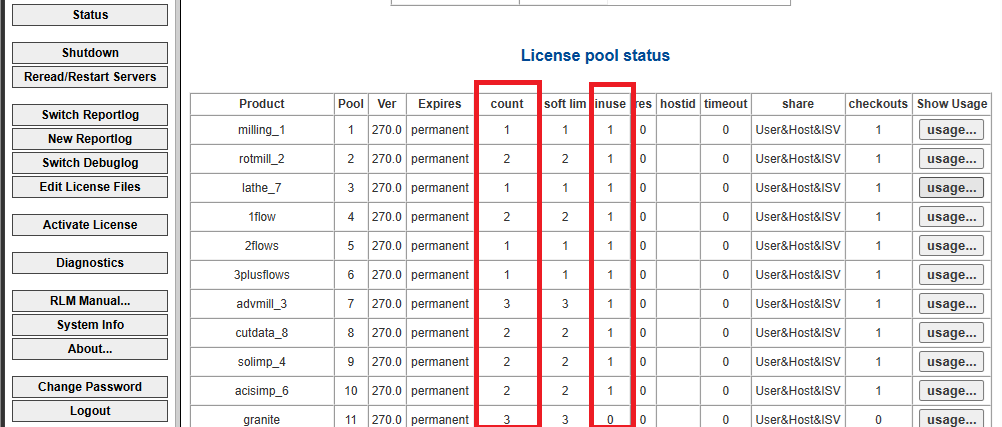
Figure 2 Use License Pool Status to monitor roaming seats
Expected Result
• The selected GibbsCAM products remain available on the borrowing workstation for the approved offline period.
• RLM reports the borrowed products as roaming, and the corresponding seats remain unavailable until return or expiration.
• Stop Roaming returns the seats after the workstation reconnects and GibbsCAM closes.
Best Practices
• Borrow the smallest product set and shortest practical period.
• Complete an offline restart test before the workstation leaves the network.
• Record the expiration time and return the seats as soon as offline work is complete.
• Do not change the workstation clock or manually edit license files to extend or repair a checkout.
Troubleshooting
• Problem: Start Roaming is unavailable.
Cause
• The workstation is not using an eligible NLO license.
• Roaming is disabled, or the client cannot reach the Network License Server.
Resolution
Reconnect to the server, confirm File > Preferences > Interface > License Options, and ask the administrator to verify license eligibility and roaming policy.
• Problem: The roaming checkout fails.
Cause
• A selected product has no available seat.
• The requested period exceeds policy, or network communication was interrupted.
Resolution
Select only required available products, use an approved period of no more than 30 days, restore connectivity, and retry.
• Problem: A required product is missing while offline.
Cause
• The product or a dependency was not selected.
• The checkout did not complete for every selected option.
Resolution
Reconnect, stop roaming if necessary, and create a new checkout that includes every required product. Repeat the offline restart test.
• Problem: Stop Roaming does not return the seat.
Cause
• The workstation is not connected to the original server.
• VPN, firewall, DNS, or server communication is interrupted, or GibbsCAM remains open.
Resolution
Restore communication, repeat Stop Roaming, click OK, and close GibbsCAM. Ask the administrator to refresh License Pool Status.
• Problem: RLM still shows a roaming seat after return or expiration.
Cause
• The status page has not been refreshed.
• The workstation is still offline, another user holds the product, or the checkout has not yet expired.
Resolution
Refresh License Pool Status and review usage by user and host. Have the user reconnect and stop roaming; contact CAMCO if the status remains inconsistent.
Related Articles
• How to Test the Connection Between an NLO Client and Server
• How to Reserve GibbsCAM Licenses for Specific Users
Explore More from CAMCO
Visit the CAMCO website to learn more about:
• Downloads and Helpful Resources
Keywords
GibbsCAM 2025, Network License, NLO, roaming license, borrow license, offline license, license checkout, Start Roaming, Stop Roaming, License Options, License Update, Reprise License Manager, RLM, License Pool Status, license expiration, remote work