
Summary
GibbsCAM 2025 adds separate multiblade controls for leading and trailing edges, new Fade and automatic-clearance linking behavior, and several 3-axis finishing and stock-aware motion options. Validate availability and exact labels in your installed build because the source release-note section identifies its descriptions and illustrations as incomplete.
Table of Contents
What Changed in GibbsCAM 2025
Important: Treat these controls as strategy-specific. Confirm the licensed module, selected cycle, tool and holder definition, current stock, machine configuration, and post before using them on production work.
Before You Begin
• Use GibbsCAM 2025 with the required 5-Axis or Advanced 3D options and an approved machine definition and post processor.
• Create backups and use controlled multiblade and 3-axis sample parts before changing production operations.
• Define the part, stock, tool, holder, fixtures, and in-process stock accurately.
• Save a baseline toolpath, simulation result, and posted output for comparison.
Procedure
Step 1 - Confirm Availability and Establish a Baseline
1. Open a representative copy of the part and confirm the required 5-axis or 3-axis strategy is licensed and available.
2. Regenerate the existing operation, run simulation with the current stock and fixtures, and save the result for comparison.
3. Change one control group at a time so its effect on motion, cycle time, and surface coverage is clear.
Step 2 - Configure Multiblade Edge Controls
1. Open the multiblade operation and review the Edges settings.
2. Set leading-edge and trailing-edge rolling independently where the geometry and machining plan require different treatment.
3. Apply the available edge feed-rate controls conservatively, then compare motion and surface quality at both edges.
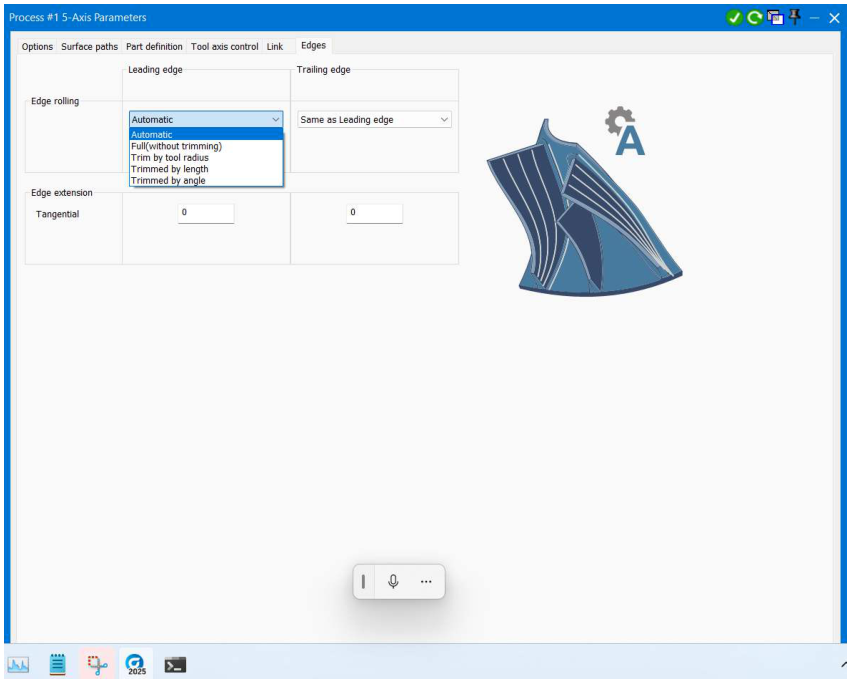
Figure 1 Review leading- and trailing-edge rolling independently
Source: What's New in GibbsCAM 2025, p. 30
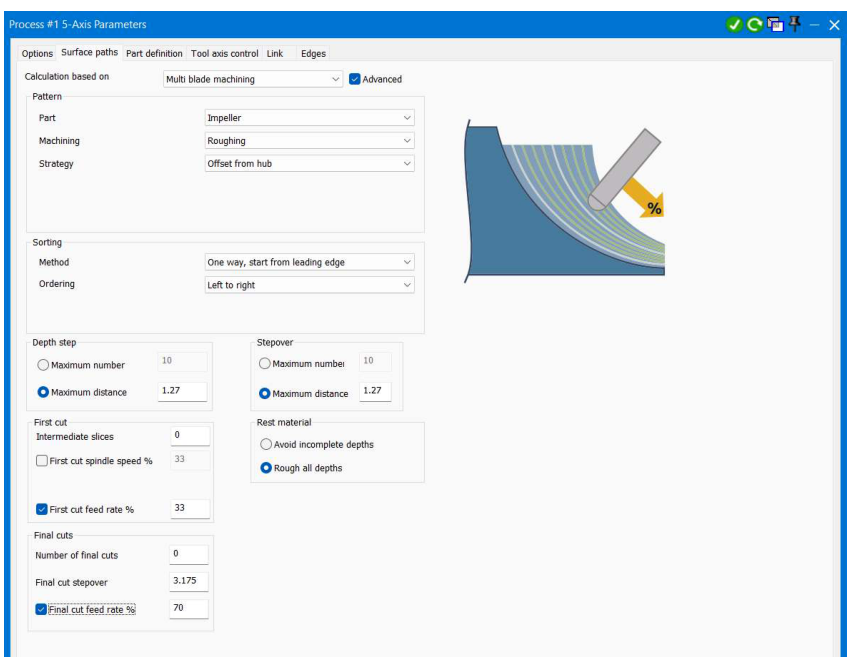
Figure 2 Multiblade feed-rate controls shown in the 2025 release notes
Source: What's New in GibbsCAM 2025, p. 31
Step 3 - Review Linking Behavior
1. Where supported, test the Fade lead type and confirm that the tool moves gradually toward and away from the machining surface.
2. Review clearance when Automatic is the default. Do not assume the generated motion is safe until simulation confirms all stock, fixtures, holders, and machine components.
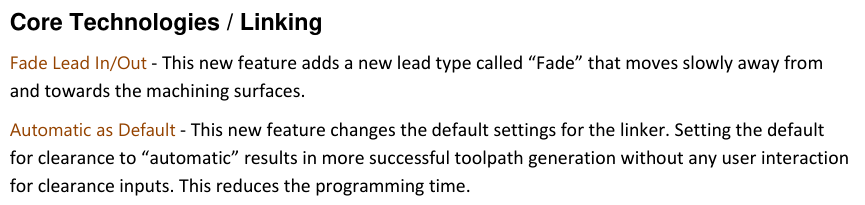
Figure 3 Fade linking and automatic-clearance behavior
Source: What's New in GibbsCAM 2025, p. 31
Step 4 - Apply 3-Axis Finishing Improvements
1. Use Machine Flatlands after Each Slice with DHC when flatlands must be cleared as the tool advances into deeper pockets.
2. Use the 3D contact-point boundary to limit finishing from the actual part containment, then inspect edge coverage for every region.
3. For flatland or parallel cuts, compare Optimal XY Angle, Ordering by Region, and Outside-In ordering with the baseline.
4. Store contact-point normals only when the downstream 3D compensation or tilting workflow requires them.
Step 5 - Optimize Stock-Aware Links and Finishing Controls
1. In Link > Retracts, test Optimize lead and link distances to minimize link and ramp heights against the in-process stock.
2. In Dynamic Holder Collision, enable Check with in-process stock when required and confirm the holder-clearance result.
3. Evaluate only the controls relevant to the selected cycle: contour smoothing, orthogonal lead extension, corner threshold, optimal machining angle, inscribed-circle filtering, spiral undercut ordering, minimum shaft-length reporting, or smooth peg loops.
4. Regenerate, compare the toolpath with the baseline, simulate the complete setup, review posted rotary and linear motion, and prove out using the approved shop process.
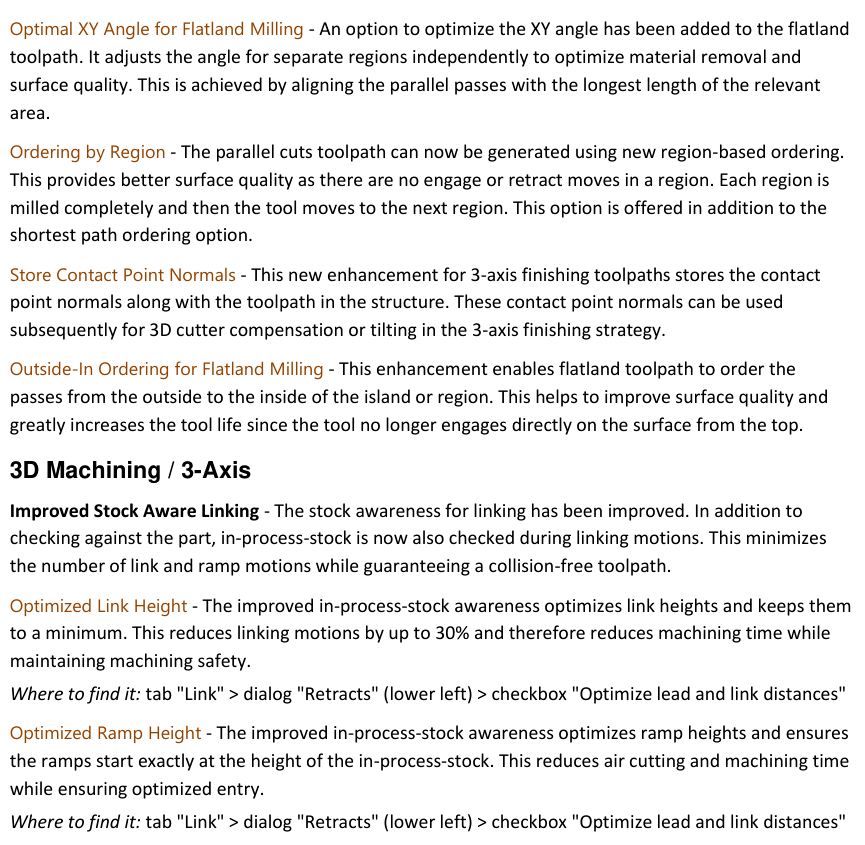
Figure 4 Representative 3-axis finishing and stock-aware linking changes
Source: What's New in GibbsCAM 2025, p. 32
Expected Result
• Leading and trailing multiblade edges use the intended rolling and feed behavior.
• Lead, link, and ramp motions remain clear while avoiding unnecessary air cutting.
• 3-axis finishing stays inside the intended containment and follows the selected angle and region order.
• Simulation and posted output match the approved setup and machining plan.
Best Practices
• Change one option at a time and retain a known-good operation for comparison.
• Keep stock, holder, fixture, and machine definitions current before trusting optimized link heights.
• Use the minimum parameter change that solves the machining requirement.
• Re-simulate and re-prove the operation after geometry, tool, stock, strategy, MDD, or post changes.
Troubleshooting
• Problem: The multiblade edge controls are unavailable or do not behave independently.
Cause
• The selected strategy, license, or GibbsCAM build does not expose the control.
• The operation is using a different edge or feed-rate control than expected.
Resolution
Confirm the build and licensed strategy, reopen the multiblade parameters, and verify the leading- and trailing-edge settings separately. Escalate the exact build and sample file to CAMCO if the documented controls are absent.
• Problem: Fade or Automatic clearance creates unexpected motion.
Cause
• The lead type or automatic result is not appropriate for the local geometry.
• Stock, fixtures, tool, holder, or machine components are incomplete.
Resolution
Restore the baseline, complete the setup definitions, and test a conservative lead or explicit clearance. Simulate the full operation before posting.
• Problem: Flatlands or the 3D contact-point boundary leave or remove unintended toolpath.
Cause
• The containment, machining area, tolerance, or tool definition is incorrect.
• Flatland or boundary behavior is being combined with an incompatible option.
Resolution
Verify the cut area on the actual part, tool geometry, tolerance, and stock. Disable the new option, regenerate the baseline, then re-enable one control at a time.
• Problem: Optimized link or ramp motion is too high, too low, or approaches stock.
Cause
• The in-process stock is stale or incomplete.
• Optimize lead and link distances or the DHC stock check is not appropriate for the current setup.
Resolution
Regenerate the stock state, verify fixtures and holders, and review Link > Retracts and Dynamic Holder Collision. Increase clearance or revert to the baseline if simulation does not confirm safe motion.
• Problem: A finishing control is missing or worsens path quality.
Cause
• The control applies only to a different strategy or parameter combination.
• Filtering, smoothing, angle, or ordering values are too aggressive.
Resolution
Confirm the selected cycle and option availability, return to baseline values, and introduce the relevant control with a small change. Compare coverage, direction changes, and posted motion after each regeneration.
Related Articles
• Create a Custom Stock Body for More Accurate Simulation
• Using Facet Bodies for Toolpath in GibbsCAM
• Recommended Simulation Settings
• How to Create a Pack and Go File
Explore More from CAMCO
Visit the CAMCO website to learn more about:
• Downloads and Helpful Resources
Keywords
GibbsCAM 2025, 5-Axis, Multiblade, edge rolling, leading edge, trailing edge, feed rate, Fade lead, automatic clearance, 3-Axis finishing, flatlands, 3D contact point boundary, Optimal XY Angle, Ordering by Region, Outside-In, stock-aware linking, in-process stock, optimized link height, optimized ramp height, DHC