
Summary
GibbsCAM 2026 adds automated deburring and chamfering to Mill Contour. Select individual edges, faces, or a solid body, choose an appropriate tool, calculate the operation, and confirm the result in Simulation. The function requires 2.5D Solids or SolidSurfacer and replaces the former Deburring plug-in.
Table of Contents
What Changed in GibbsCAM 2026
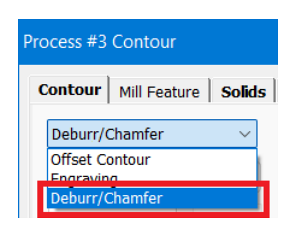
Figure 1 Select Deburr/Chamfer from the Contour tab
Source: What's New in GibbsCAM 2026, p. 9
Before You Begin
• Confirm that the workstation has a 2.5D Solids or SolidSurfacer license.
• Use a solid body. Sheets and facet bodies are ignored by this process.
• Choose a supported tool: a ball end mill or lollipop mill, a roundover tool, or a drill, spot drill, or chamfer mill with a tapered cutting edge.
• Identify whether the operation should use selected edges, edges of selected faces, or all applicable edges on one solid body.
• Save the part before changing or replacing an existing deburring workflow.
Important: Tools with arbitrary or complex shapes are not supported.
Procedure
Step 1 - Create the Mill Contour Process
1. Create or open a Mill Contour process for the part.
2. On the Contour tab, open the process pulldown and choose Deburr/Chamfer.
3. Select the supported tool that matches the required deburr radius or chamfer geometry.
Step 2 - Select the Solid Edges
1. Select the required edges directly, select faces whose edges should be processed, or select a solid body to include all applicable edges.
2. Review the highlighted result and remove any edges that should remain unchanged.
3. Set Find Internal Edges only when internal edges are intended. Follow the edge-selection rules in the GibbsCAM Mill guide for the active selection method.
Step 3 - Set the Deburr or Chamfer Controls
1. Set the cut and tool-contact values for the selected tool and required edge finish.
2. Set entry, exit, slope, normal, clearance, corner, linking, and operation-separation controls as required for the part.
3. Confirm that the Offset tab is disabled. This is expected while Deburr/Chamfer is active; inapplicable Solids controls are also suppressed.
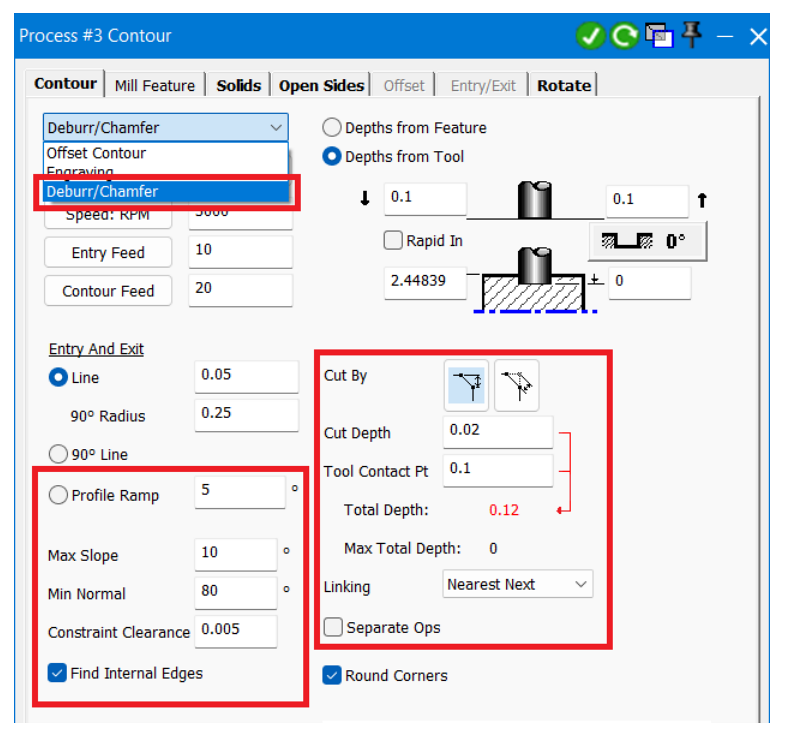
Figure 2 Configure the edge-selection and cutting controls
Source: What's New in GibbsCAM 2026, p. 10
Step 4 - Calculate and Validate
1. Calculate the operation and review the toolpath around each intended edge.
2. Run Simulation and inspect the completed edge condition, internal features, corners, clearances, and linking motion.
3. Adjust the selection, tool, or process controls when the path includes an unwanted edge or misses a required edge, then recalculate and simulate again.
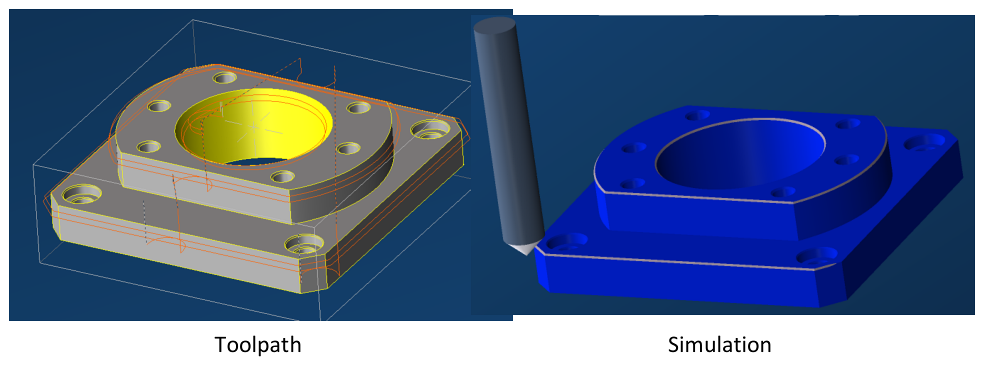
Figure 3 Verify both the calculated toolpath and simulated result
Source: What's New in GibbsCAM 2026, p. 9
Expected Result
• The operation follows only the intended applicable edges on the selected solid body.
• The tool and contact settings produce the required deburr or chamfer without unwanted marks on adjacent features.
• Simulation shows complete edge finishing with acceptable entry, exit, linking, and clearance motion.
Best Practices
• Begin with a limited edge selection, validate the path, and expand the selection only when the result is predictable.
• Use Find Internal Edges deliberately; internal features can add paths that are easy to overlook.
• Choose the tool family from the actual edge geometry and inspect the tool-contact result in Simulation.
• Replace references to the retired Deburring plug-in with the Mill Contour Deburr/Chamfer workflow.
Troubleshooting
• Problem: Deburr/Chamfer is unavailable in Mill Contour.
Cause
• The required 2.5D Solids or SolidSurfacer license is unavailable.
• The process is not a Mill Contour process or Deburr/Chamfer is not selected on the Contour tab.
Resolution
Confirm the active license, open a Mill Contour process, and select Deburr/Chamfer from the Contour tab pulldown.
• Problem: The selected model is ignored.
Cause
• The selected body is a sheet or facet body rather than a solid.
• No applicable solid edges are included by the current selection.
Resolution
Use a valid solid body and reselect the required edges, faces, or body before recalculating.
• Problem: The operation does not calculate with the selected tool.
Cause
• The tool does not have a supported spherical, concave round, or tapered cutting shape.
• The tool geometry does not match the intended edge treatment.
Resolution
Choose a supported ball, lollipop, roundover, drill, spot drill, or chamfer tool that matches the required result, then recalculate.
• Problem: Unexpected internal or additional edges are included.
Cause
• Find Internal Edges is enabled for the current selection.
• A selected face or solid body includes more applicable edges than intended.
Resolution
Review the highlighted edges, adjust Find Internal Edges, and narrow the selection to explicit edges or faces before recalculating.
• Problem: The Offset tab or some Solids controls are unavailable.
Cause
• Deburr/Chamfer intentionally disables the Offset tab.
• Inapplicable functions on the Solids tab are suppressed for this process.
Resolution
No correction is required. Use the controls available for Deburr/Chamfer and validate the calculated result in Simulation.
Related Articles
• How to Machine Open Shapes in GibbsCAM
• How to Use Unstitch Solid to Defeature a Solid Model
Explore More from CAMCO
Visit the CAMCO website to learn more about:
• Downloads and Helpful Resources
Keywords
GibbsCAM 2026, Mill Contour, Deburr/Chamfer, automated deburring, automated chamfering, solid edges, Find Internal Edges, ball end mill, lollipop mill, roundover tool, chamfer mill, 2.5D Solids, SolidSurfacer, Simulation