
Summary
GibbsCAM 2026 improves advanced turning and multi-task machining in four areas: interactive Variable B tool-angle control, Move Toolgroup subposition overrides, material calculation for multi-sided turning tools, and VoluTurn support for non-round inserts. These changes improve control and material removal but still require validated tool definitions, machine configuration, and simulation.
Table of Contents
- What Changed in GibbsCAM 2026
- Before You Begin
- Control Variable B Tool Angles
- Preserve Tool Subposition in Move Toolgroup
- Recalculate Multi-Sided Turning Toolpaths
- Use a Non-Round Insert in VoluTurn
- Best Practices
- Troubleshooting
- Related Articles
What Changed in GibbsCAM 2026
Before You Begin
• Use the approved GibbsCAM 2026 installation and the required Turning, MTM, or VoluTurn product options.
• Confirm that the active machine definition supports the toolgroup, rotary axes, orientations, and subpositions required by the job.
• Use validated tool definitions for multi-sided or non-round inserts.
• Save the part and record the current operation, subposition, and simulation result before revising an existing program.
• Plan to regenerate and simulate every affected operation after updating the workflow.
Control Variable B Tool Angles
1. Open a Turning Contour process and go to Rotate > Variable B > Based On > Interactive.
2. Specify control points along the cut path, then click Edit.
3. At each control point, drag the red angle line or enter the insert and holder angle values in the dialog.
4. Review the automatically interpolated angles between control points, then calculate and simulate the operation.
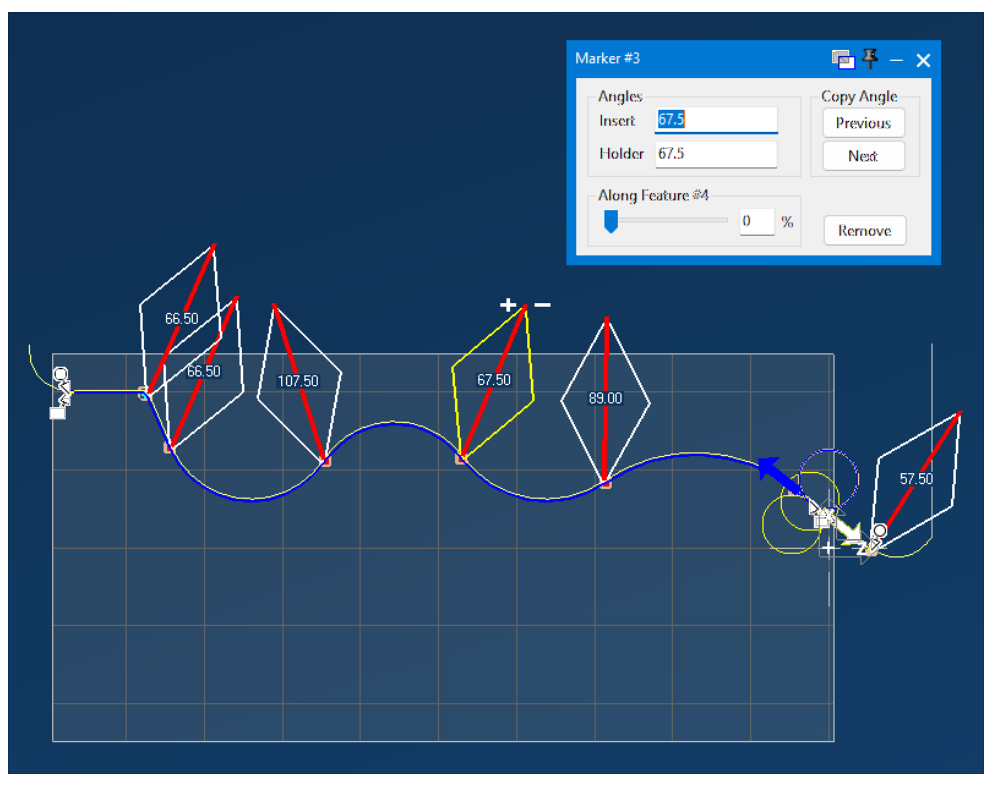
Figure 1 Set tool angles at control points and inspect the interpolation
Source: What's New in GibbsCAM 2026, p. 12
Preserve Tool Subposition in Move Toolgroup
1. Create or edit the extended Move Toolgroup utility operation that immediately follows the turning operation.
2. Open the new Rotate tab and enable Override Orientation.
3. Enable Override Subposition and select the intended tool subposition when the machine definition provides that choice.
4. Recalculate the utility operation and confirm that the move does not introduce an unintended subposition change or interop event.
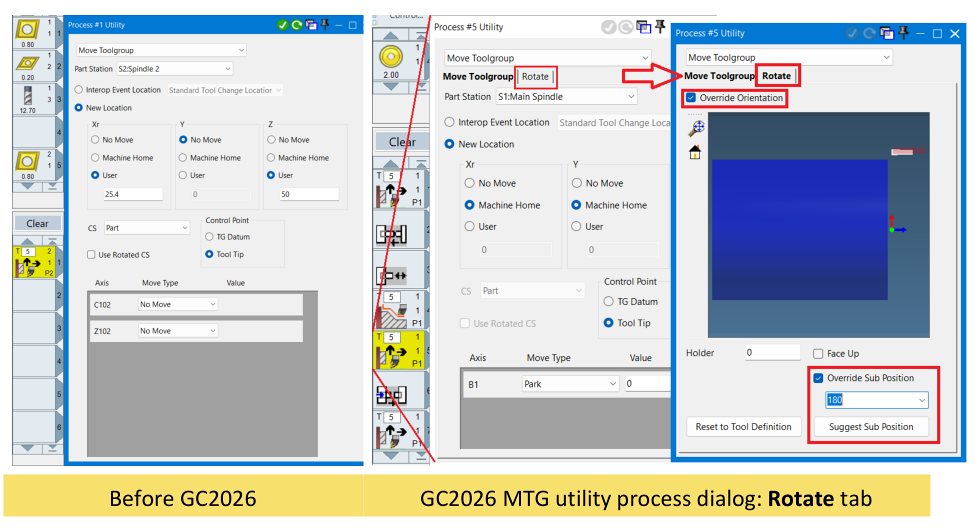
Figure 2 Use the Rotate tab to retain the required orientation and subposition
Source: What's New in GibbsCAM 2026, p. 13
Recalculate Multi-Sided Turning Toolpaths
1. Confirm that the operation uses the correct multi-sided turning tool definition, such as a supported Prime A or Prime B insert.
2. Regenerate the turning operation in GibbsCAM 2026 so the updated material calculation uses the insert shape.
3. Compare the remaining material and tool motion with the prior result, then run Simulation and collision checks.
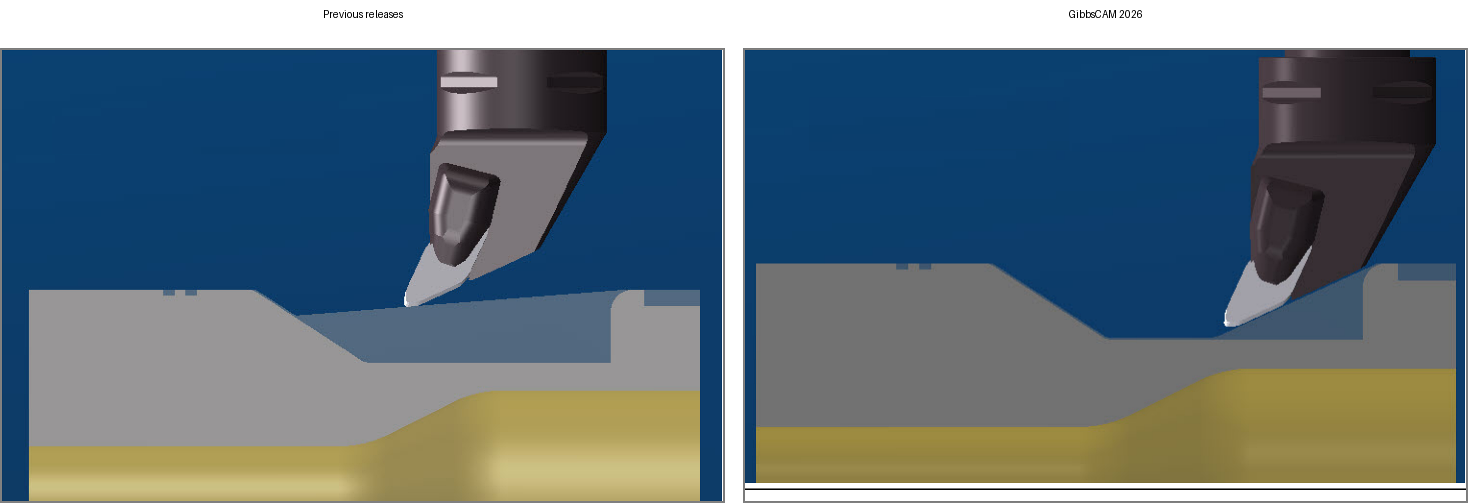
Figure 3 GibbsCAM 2026 uses more of the insert shape while preserving safety
Source: What's New in GibbsCAM 2026, p. 14
Use a Non-Round Insert in VoluTurn
1. Select a validated non-round insert definition for the VoluTurn operation.
2. Regenerate the VoluTurn toolpath in GibbsCAM 2026.
3. Simulate the operation and verify insert clearance, engagement, stock removal, and the completed profile before posting.
Expected Result
• Variable B angles follow the defined control points and transition smoothly through the interpolated regions.
• Move Toolgroup retains the intended orientation and subposition without an unintended interop event.
• Multi-sided turning toolpaths remove the expected material while maintaining safe motion.
• VoluTurn calculates and simulates with the validated non-round insert.
Best Practices
• Use the fewest Variable B control points needed to define a stable tool-angle transition.
• Verify subposition behavior with the exact machine definition and post configuration used in production.
• Do not substitute a generic insert for a multi-sided or non-round tool definition.
• Compare simulation before and after regeneration when updating an existing part to GibbsCAM 2026.
Troubleshooting
• Problem: Interactive Variable B controls are unavailable.
Cause
• Variable B is not enabled for the Turning Contour operation.
• Based On is not set to Interactive, or the active machine configuration does not support the required B-axis motion.
Resolution
Confirm the Turning Contour and machine setup, then select Rotate > Variable B > Based On > Interactive.
• Problem: The tool angle does not follow the intended Variable B transition.
Cause
• A control point is misplaced or contains the wrong insert or holder angle.
• The minimum or maximum angle limits constrain the requested orientation.
Resolution
Edit the affected control points, review the angle values and limits, recalculate, and inspect the interpolation before simulation.
• Problem: Move Toolgroup changes to the standard subposition or triggers an interop event.
Cause
• Override Orientation or Override Subposition is not enabled in the MTG Rotate tab.
• The selected subposition does not match the active machine definition or preceding turning operation.
Resolution
Enable the applicable overrides, select the intended subposition, and validate the sequence with the approved machine definition and post configuration.
• Problem: A multi-sided turning operation still leaves unexpected material.
Cause
• The operation was not regenerated in GibbsCAM 2026.
• The tool definition does not represent the intended multi-sided insert and orientation.
Resolution
Verify the tool definition, regenerate the operation, and compare the updated toolpath and simulation result before changing cutting geometry.
• Problem: VoluTurn does not calculate with the selected non-round insert.
Cause
• The active operation or product configuration does not provide the required VoluTurn capability.
• The insert definition is incomplete or incompatible with the intended operation.
Resolution
Confirm the VoluTurn configuration and replace or correct the insert definition, then regenerate and simulate the operation.
Related Articles
Explore More from CAMCO
Visit the CAMCO website to learn more about:
• Downloads and Helpful Resources
Keywords
GibbsCAM 2026, Turning, MTM, Variable B, interactive tool angle, control points, Move Toolgroup, MTG, tool subposition, Override Orientation, multi-sided turning tool, CoroTurn Prime, Prime A, Prime B, VoluTurn, non-round insert