
Summary
GibbsCAM Viewer is a license-controlled product level for reviewing GibbsCAM parts and programming. It opens VNC and GCPKG files and provides rendering, simulation, measurement, reporting, and read-only data access while preventing toolpath generation, posting, and saving/exporting. Viewer and Industrial use the same installer and Registration Tool, but the Viewer license determines the product level.
Table of Contents
- What GibbsCAM Viewer Supports
- Installation and Licensing
- Before You Begin
- Procedure
- Best Practices
- Troubleshooting
- Related Articles
What GibbsCAM Viewer Supports
Important: Viewer and GibbsCAM Industrial use the same installer, installation steps, and Registration Tool. The active license file determines the product level.
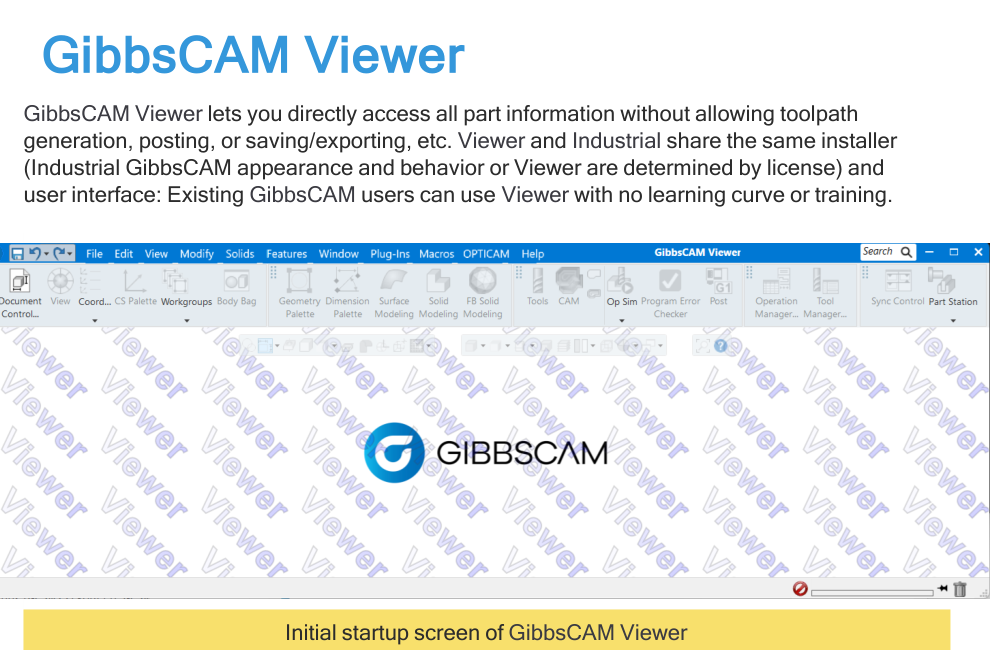
Figure 1 Viewer provides broad part access with defined read-only restrictions
Source: GibbsCAM 2026 Installation Guide, p. 23
Installation and Licensing
• Install GibbsCAM 2026 with the standard GibbsCAM installer; the base installation creates the desktop shortcut and installs the included documentation.
• Run the standard Registration Tool with the Viewer product code. The resulting license file identifies the installation as GibbsCAM Viewer.
• Viewer is not available as a Network License Option (NLO) license. Install and license Viewer separately on every computer that needs it.
• A computer normally runs either GibbsCAM Industrial or GibbsCAM Viewer, not both at the same time, because GibbsCAM uses one active license file at a time.
• The GibbsCAM 2026 Viewer license file is stored in the global data folder under LicenseData\260.0. Have CAMCO or the license administrator verify the file rather than manually replacing it.
Dealer note: Authorized resellers with a Dealer license can expose Product Options, including Viewer, by enabling Option_Limiter in PowerOpts.txt. This administrator-only demonstration workflow is not the normal customer installation method.
Before You Begin
• Use the approved GibbsCAM 2026 installation and a locally installed, registered GibbsCAM Viewer license.
• Confirm the workstation is not relying on NLO for Viewer and is not expected to run Viewer and Industrial simultaneously.
• Obtain the VNC part file or GCPKG package from a trusted GibbsCAM user.
• Confirm the review objective: setup, geometry, toolpath, simulation, dimensions, operation data, or reporting.
• Ask the file owner to include the model, stock, operations, tools, and other data needed for the review.
• Plan to return requested edits to a user with the required full GibbsCAM product level.
Important: Viewer is intended for review. It cannot generate toolpaths, post NC code, or save/export changes.
Procedure
Step 1 - Verify Installation and Registration
1. Confirm that the standard GibbsCAM 2026 base components are installed on the Viewer workstation.
2. Run the Registration Tool if the Viewer product code has not been registered on this computer.
3. Confirm that the generated license is for Viewer and that the workstation does not depend on NLO for Viewer access.
Step 2 - Start GibbsCAM Viewer
1. Start GibbsCAM from the approved GibbsCAM 2026 desktop shortcut or application folder.
2. Confirm that the title bar and available controls identify the Viewer product level before beginning the review.
Step 3 - Open the Review File
1. Open the supplied GibbsCAM part (*.vnc) or package (*.gcpkg).
2. Confirm the part name, units, orientation, stock, origin, coordinate systems, and visible geometry match the review request.
3. If required information is absent, stop and request an updated file or package from the owner.
Step 4 - Review Geometry and Toolpaths
1. Use View and Viewport controls to inspect the part from the required orientations.
2. Show the toolpath and color modes, wireframe geometry, solids, surfaces, facet bodies, stock, origin, CS grid, dimensions, and PMI as needed.
3. Use Section View and display Clearance Planes or Volumes when they clarify setup or motion.
Step 5 - Simulate, Measure, and Query
1. Run the applicable Simulation modes and inspect tool motion, stock removal, clearances, and the completed result.
2. Create supported dimensions or use View > Measure. Text dimension creation is unavailable in Viewer.
3. Use the available solid and part query tools, such as taper or curvature display, draft angle, surface normals, Solid Inquiry, Show Position, and Find Ops.
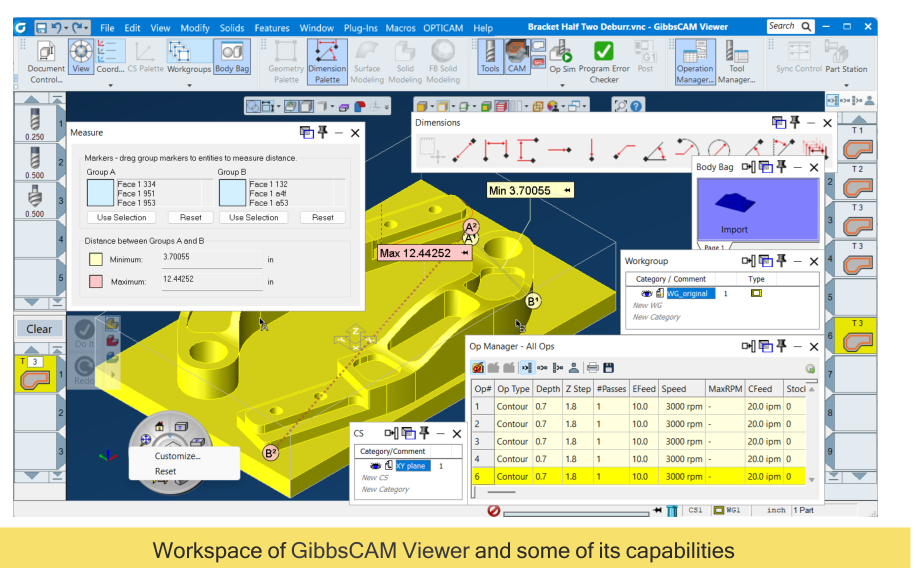
Figure 2 Viewer supports a broad set of visualization and review tools
Source: GibbsCAM 2026 Installation Guide, p. 25
Step 6 - Review Operations, Tools, and Reports
1. Review Reporter output and the Op, Tool, and Process tile lists.
2. Use Op Manager, Tool Manager, Process Manager, and Op Data for inspection; editing is unavailable.
3. Use Op To Geometry for dimensioning when needed. Review available Feature, Attribute, Hole, CS, and WG information within Viewer restrictions.
4. Use Program Error Checker, Body Bag, printing, help, or Copilot when relevant to the review.
Step 7 - Record and Return Findings
1. Record dimensions, screenshots, printed output, Reporter results, and review notes using the approved shop process.
2. Identify the affected operation, tool, process, geometry, or setup item for every requested change.
3. Return the findings to the part owner. Complete edits, regeneration, posting, and saved-file revisions in the appropriate full GibbsCAM product level.
Expected Result
• The VNC or GCPKG opens with the model, programming data, and setup context needed for review.
• Geometry, toolpaths, operations, tools, processes, dimensions, and reports can be inspected without altering the source part.
• Simulation and measurement support a clear review of motion, stock removal, and part details.
• Requested changes are documented and returned to a full GibbsCAM user for implementation and posting.
Best Practices
• Define the review objective before opening the file so the correct data and views are checked.
• Use a GCPKG when the reviewer needs packaged supporting data, and verify the package contents before review.
• Use consistent view orientation, visibility, color modes, and simulation settings when comparing findings.
• Reference operation, tool, process, coordinate-system, and geometry names in every review note.
• Treat Viewer restrictions as read-only safeguards and route all programming changes through the approved GibbsCAM workflow.
Troubleshooting
• Problem: GibbsCAM does not open in the Viewer product level.
Cause
• The registered license file is for Industrial, is missing, or is not recognized.
• Viewer was expected from NLO even though Viewer is not available as an NLO license.
• The workstation is attempting to use Viewer and Industrial simultaneously even though GibbsCAM normally uses one active license file.
Resolution
Confirm the standard GibbsCAM 2026 installation, register the Viewer product code locally, and have the license administrator or CAMCO verify the active license file. Close the other GibbsCAM product level and do not manually swap license files without authorization.
• Problem: The VNC or GCPKG opens with missing model, toolpath, or setup information.
Cause
• The source file or package does not contain the information required for the review.
• Visibility, view, section, or manager settings are hiding the needed items.
Resolution
Reset the relevant views and enable the required geometry, stock, toolpath, coordinate systems, and manager data. If content is still missing, request a complete file or package from the owner.
• Problem: Toolpath generation, posting, saving, or exporting is unavailable.
Cause
• These functions are intentionally unavailable in GibbsCAM Viewer.
• The requested task requires a full GibbsCAM product level rather than a review workflow.
Resolution
Document the required change and return it to an authorized GibbsCAM programmer. Perform regeneration, posting, and file revision outside Viewer.
• Problem: A manager or dialog opens, but editing controls are unavailable.
Cause
• Op, Tool, and Process managers are available without Edit capabilities.
• Tool and Process dialogs do not provide Do It or Redo, and other managers and lists have restrictions.
Resolution
Use the available view, query, measurement, and reporting functions to complete the review. Send requested edits to a full GibbsCAM user.
• Problem: Simulation, measurement, or report results do not answer the review question.
Cause
• The wrong items, views, simulation mode, or measurement targets are selected.
• The supplied part does not contain the operations or data needed for that result.
Resolution
Confirm visibility and selections, repeat the review with the applicable simulation or query tool, and request an updated source file when required data is absent.
Related Articles
• Create a Custom Stock Body for More Accurate Simulation
• Recommended Simulation Settings
• How to Create a Pack and Go File
• Using Facet Bodies for Toolpath in GibbsCAM
Explore More from CAMCO
Visit the CAMCO website to learn more about:
• Downloads & Helpful Resources
Keywords
GibbsCAM 2026, GibbsCAM Viewer, installation, Registration Tool, Viewer license, license file, standalone license, NLO, Industrial Edition, VNC, GCPKG, part review, read-only review, Simulation, measurement, Reporter, Op Manager, Tool Manager, Process Manager