
Summary
GibbsCAM 2026 adds four practical review improvements: minimum and maximum distance measurement, optional metallic appearance for Simulation items, selectable Undo and Redo history, and replay approximately proportional to machining time. Together, these tools shorten common inspection and review tasks without changing toolpath strategy.
Table of Contents
What Changed in GibbsCAM 2026
Before You Begin
• Open the GibbsCAM part and show the geometry, bodies, stock, tools, fixtures, operations, and Simulation items needed for the review.
• Save the part before using a multi-action Undo or Redo selection.
• For measurement, identify the two elements or element groups to compare.
• For appearance changes, note the current settings so they can be restored if needed.
• Treat By Program Time as an approximate replay scale, not verified posted machine-cycle time.
Procedure
Step 1 - Measure Minimum and Maximum Distance
1. Open View > Visibility > Measure.
2. Drag markers A and B onto the workspace, or select one or more elements and click Use Selection for Group A or Group B.
3. Reposition the markers as needed. Review the minimum and maximum values in the Measure dialog.
4. Review the yellow minimum and pink maximum textboxes in the workspace. Reposition a textbox and use its pin button to lock the display location.
5. Use Reset to clear one group, or right-click and choose Reset to clear both groups before the next comparison.
Supported elements include points, lines, circles, splines, and the faces and edges of sheet, solid, and facet bodies.
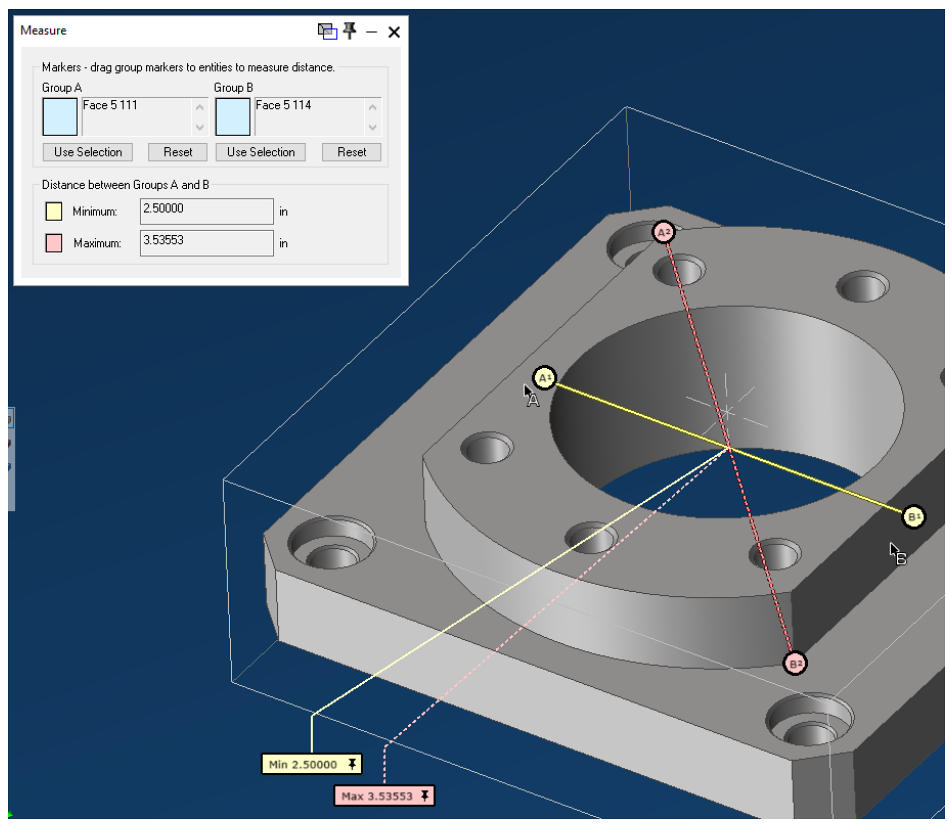
Figure 1 Measure displays both values in the dialog and workspace
Source: What's New in GibbsCAM 2026, p. 16
Step 2 - Apply Metallic Rendering
1. Open File > Preferences and select Display > Edit Appearance Settings.
2. Use the Colors tab for workpieces, cutting tools, shanks, holders, intermediate tooling, fixtures, and similar items.
3. Use the Sim tab for Simulation states such as Target, ActiveOp, Op, and Clash.
4. Assign the required color and optional metallic appearance, then review the result in Simulation.
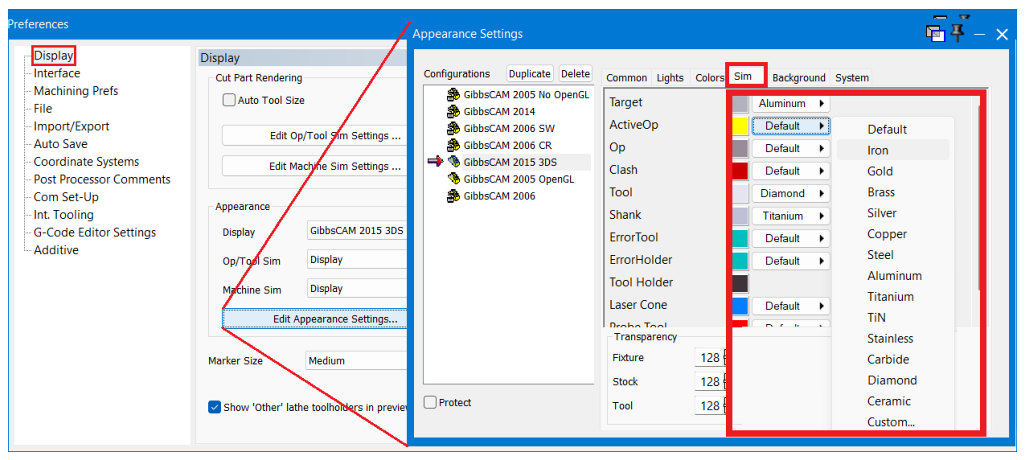
Figure 2 Assign metallic appearance from the Colors or Sim tab
Source: What's New in GibbsCAM 2026, p. 18
Step 3 - Navigate Undo and Redo History
1. Open the Undo or Redo pulldown in the Quick Access toolbar.
2. Review the listed actions and drag the cursor through the list until the required action count is highlighted.
3. Select the highlighted group to undo or redo those actions, then confirm the model and programming state.
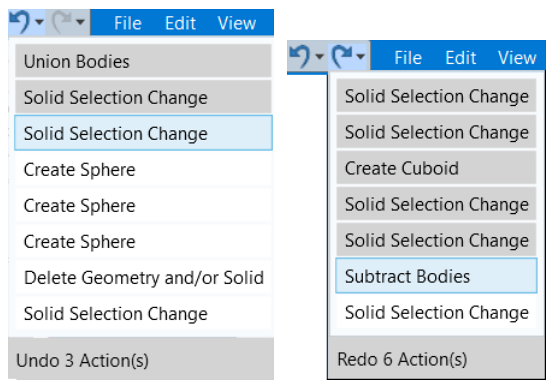
Figure 3 Select multiple history actions from one pulldown
Source: What's New in GibbsCAM 2026, p. 19
Step 4 - Replay Simulation by Program Time
1. Right-click the title bar of a Sim Rendering dialog and choose Settings.
2. In Simulation Settings, open Update Control and choose By Program Time.
3. Replay the Simulation and review how operation pacing, cutting moves, and non-cutting moves are represented.
4. Use posted output and the approved cycle-time method when production timing must be verified.
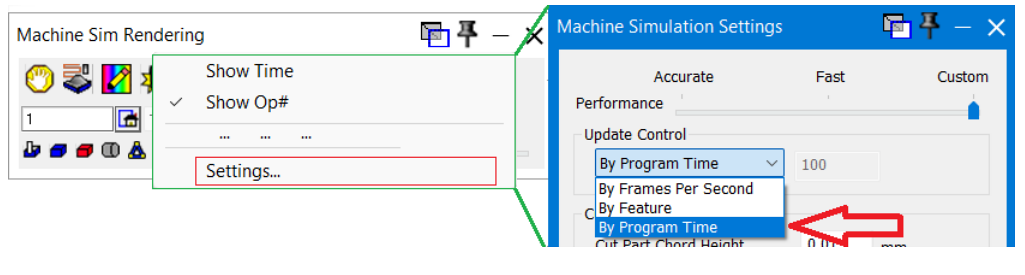
Figure 4 Choose By Program Time for approximately time-proportional replay
Source: What's New in GibbsCAM 2026, p. 19
Expected Result
• Measure reports minimum and maximum distances for the selected groups and displays both results in the workspace.
• Metallic appearance helps distinguish configured tools, stock, fixtures, or Simulation states.
• Undo and Redo history menus move directly through a selected group of actions.
• Simulation replay reflects approximate program-time proportions for review.
Best Practices
• Use descriptive, limited element groups so the reported minimum and maximum values answer a specific question.
• Pin measurement textboxes only after placing them where they do not obscure the part.
• Use metallic rendering consistently across shared workstations and review screenshots.
• Read the complete Undo or Redo action list before applying a multi-action change.
• Use By Program Time for pacing review, not as a substitute for validated cycle-time data.
Troubleshooting
• Problem: Measure does not report the expected distance.
Cause
• Group A or Group B contains the wrong element or an unintended group of elements.
• A marker was dropped on a different face, edge, or geometry item than intended.
Resolution
Reset the affected group, select the intended elements again, and use the workspace markers and listed element IDs to confirm both groups before reading the result.
• Problem: A minimum or maximum measurement textbox moves or hides part detail.
Cause
• The textbox was left at its automatic location.
• The textbox position was not pinned after it was moved.
Resolution
Move the textbox to a clear area and click its pin button to lock the display position for the current review.
• Problem: Metallic rendering does not appear on the expected item.
Cause
• The appearance was assigned on the wrong Colors or Sim entry.
• The displayed object or Simulation state is controlled by a different appearance item.
Resolution
Return to Appearance Settings, identify the active item on the Colors or Sim tab, assign the appearance there, and reopen or refresh Simulation as needed.
• Problem: Undo or Redo changes more actions than intended.
Cause
• The cursor selected a longer range in the history pulldown.
• The action count was not reviewed before the selection was applied.
Resolution
Use the opposite history command to restore the prior state when appropriate, then reopen the pulldown and select the exact action count. Confirm the result before continuing.
• Problem: By Program Time replay does not match observed machine cycle time.
Cause
• The option is intended to approximately match machining time.
• Posted control behavior, machine acceleration, dwell, tool changes, or other machine-specific factors can affect actual time.
Resolution
Use the replay for relative pacing and review. Verify production timing with the approved posted-output and machine-time process.
Related Articles
• Create a Custom Stock Body for More Accurate Simulation
• How to Save and Reuse Custom Interface Settings
Explore More from CAMCO
Visit the CAMCO website to learn more about:
• Downloads and Helpful Resources
Keywords
GibbsCAM 2026, Measure, minimum distance, maximum distance, Group A, Group B, Use Selection, metallic rendering, Appearance Settings, Colors, Sim, Undo history, Redo history, Simulation Settings, Update Control, By Program Time