
Summary
GibbsCAM 2026 lets you assign a custom PNG or JPG image to each MDD shown in the DCD. It also adds a preference to order MDDs alphabetically by name or, as in earlier releases, by machine complexity.
What Changed in GibbsCAM 2026
Before You Begin
• Open GibbsCAM 2026 and identify the MDD you want to customize.
• Prepare a PNG or JPG image that clearly represents the machine.
• If you will use the filename method, confirm that you have write access to the MDD folder.
• Record the existing Sort MDD List By setting before changing it on a shared workstation.
Procedure
Step 1 - Assign a Machine Image by Drag and Drop
1. Open the DCD and select the required MDD from the Machine pulldown.
2. Locate the PNG or JPG image in File Explorer.
3. Drag the file onto the image area to the right of the machine description parameters and to the left of the Open, New, Save, and other buttons.
4. Confirm that the image appears for the selected MDD.
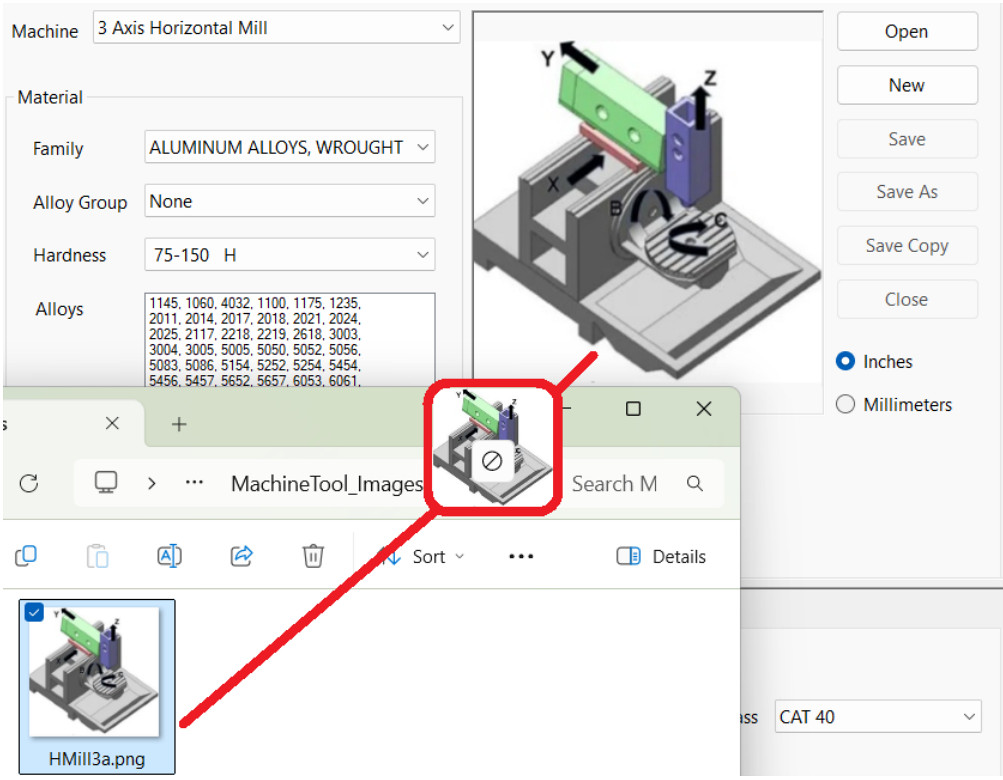
Figure 1 Drag a PNG or JPG file into the DCD image area
Source: What's New in GibbsCAM 2026, p. 20
Step 2 - Assign a Machine Image by Filename
1. Note the MDD menu name exactly as it appears in the Machine pulldown.
2. Rename the PNG or JPG so its base filename matches the MDD menu name.
3. Place the image in the MDD folder.
4. Reopen or refresh the DCD and confirm that the image appears for that MDD.
Step 3 - Choose the MDD List Order
1. Open File > Preferences and select the Interface tab.
2. At the far right, locate Sort MDD List By.
3. Choose Name for alphabetical order, or Machine Complexity for the earlier ordering behavior.
4. Close Preferences, then open the DCD > General tab and verify the Machine pulldown order.
Expected Result
• The selected MDD displays the assigned PNG or JPG image in the DCD.
• The Machine pulldown follows the selected Name or Machine Complexity order.
Best Practices
• Use a clean image that remains recognizable at the DCD preview size.
• Keep filenames and MDD menu names identical when using the MDD-folder method.
• Coordinate changes to shared MDD folders with the machine-definition administrator.
• Retain the source image until CAMCO confirms whether drag-and-drop stores or references the file.
Troubleshooting
• Problem: The image does not appear after drag-and-drop.
Cause
• The file is not a PNG or JPG image.
• The file was dropped outside the DCD image area.
Resolution
Use a PNG or JPG file and drop it directly into the image area between the machine description parameters and the DCD command buttons.
• Problem: The filename method does not assign the image.
Cause
• The image base filename does not exactly match the MDD menu name.
• The image was placed in a different folder.
Resolution
Match the image base filename to the MDD menu name, place it in the MDD folder, and reopen or refresh the DCD.
• Problem: The image cannot be copied into the MDD folder.
Cause
• The user account does not have write access.
• The MDD folder is managed or shared by an administrator.
Resolution
Ask the machine-definition or system administrator to add the image or grant the approved folder access. Do not change shared-folder permissions without authorization.
• Problem: The MDD list order does not change.
Cause
• Sort MDD List By was changed on a different Preferences tab or was not applied.
• The Machine pulldown was already open when the preference changed.
Resolution
Return to File > Preferences > Interface, set Sort MDD List By, close the Machine pulldown, and reopen it to verify the order.
• Problem: Alphabetical order is different from the expected sequence.
Cause
• The Name option sorts by the displayed MDD name.
• Prefixes, numbers, or spaces in MDD names affect alphabetical order.
Resolution
Review the displayed MDD names and their prefixes. If a naming change is needed, coordinate it with the machine-definition administrator before modifying shared definitions.
Related Articles
• How to Save and Reuse Custom Interface Settings
Explore More from CAMCO
Visit the CAMCO website to learn more about:
• Downloads and Helpful Resources
Keywords
GibbsCAM 2026, DCD, MDD, machine image, machinetool, PNG, JPG, drag-and-drop, MDD folder, Machine pulldown, Preferences, Interface, Sort MDD List By, Name, Machine Complexity