
Summary
GibbsCAM 2026 expands Scale to solids, facet bodies, and sheets; adds nonplanar Rotate and Dup+Rotate with live preview; and improves Shrink Wrap for cylindrical stock. These changes simplify common model-preparation tasks while preserving familiar menu workflows.
Table of Contents
- What Changed in GibbsCAM 2026
- Before You Begin
- Scale Geometry and Bodies
- Rotate Around a Nonplanar Axis
- Shrink Wrap Cylindrical Stock
- Best Practices
- Troubleshooting
- Related Articles
What Changed in GibbsCAM 2026
Scaled bodies and sheets retain their attributes. A scaled facet body retains the same number of facets.
Before You Begin
• Save a recoverable copy of the part before changing model size, orientation, or stock.
• Select only the geometry, solid bodies, facet bodies, sheets, or features that must change.
• For Scale, confirm the intended units and calculate the scale factor before applying it.
• For Rotate, identify a reliable axis and center point and confirm the intended direction.
• For Shrink Wrap, confirm that the part uses cylindrical stock and decide whether all bodies or only visible bodies should control the result.
Scale Geometry and Bodies
1. Select the geometry, solid bodies, facet bodies, or sheets to resize.
2. Open Modify > Transform > Scale. To keep the original and create a scaled copy, use Duplicate > Dup+Scale.
3. Enter a scale factor from 0.02x through 50x.
4. Apply the command, then measure or inspect the result to confirm the intended size and valid geometry.
5. Review body and sheet attributes. For facet bodies, confirm that the facet count remains unchanged.
Rotate Around a Nonplanar Axis
1. Select the geometry or features to rotate.
2. Open Modify > Transform > Rotate. To retain the original, use Duplicate > Dup+Rotate.
3. Choose the axis definition. With Line, select a line, hole, or straight edge from geometry or solids, then set the rotation center.
4. Enter the angle and direction. Use Live Preview to confirm the axis and rotation before applying the result.
5. Apply the rotation and verify the final orientation in the active coordinate system.
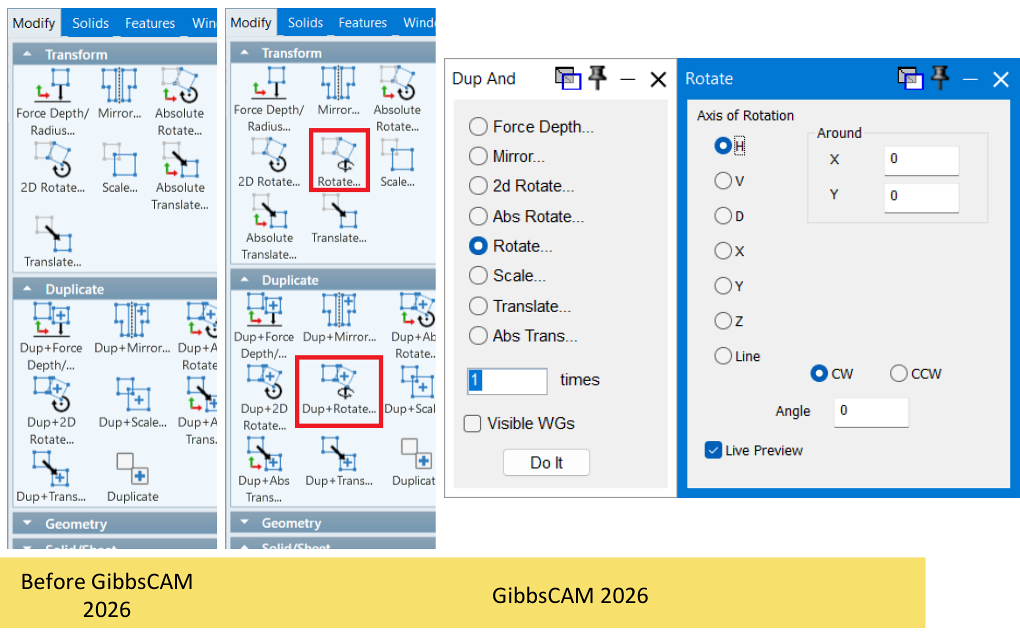
Figure 1 Define an axis and inspect the live preview before applying the rotation
Source: What's New in GibbsCAM 2026, p. 26
Shrink Wrap Cylindrical Stock
1. Confirm that the part is using cylindrical stock.
2. Show or hide bodies as needed if only visible content should control the stock envelope.
3. Open Modify > Wrap and choose Shrink Wrap or Shrink Wrap Visible.
4. Review the cylindrical stock and confirm that it fits tightly around the part instead of around the part's bounding box.
5. Verify stock orientation, clearance, and downstream operations before continuing.
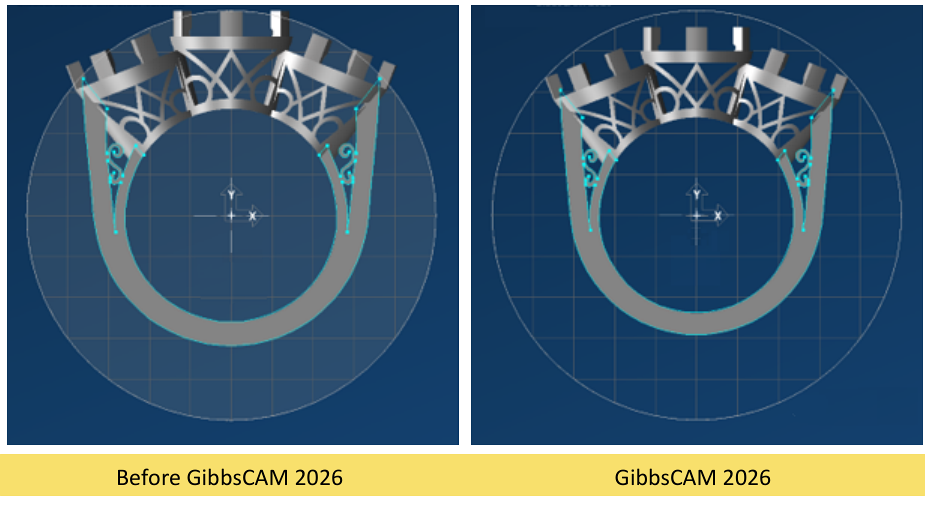
Figure 2 GibbsCAM 2026 fits cylindrical stock directly around the part
Source: What's New in GibbsCAM 2026, p. 21
Expected Result
• Selected model elements are scaled within the supported range and retain the expected attributes.
• Selected geometry or features are rotated around the intended nonplanar axis and center.
• Cylindrical stock fits closely around the part or the selected visible content.
Best Practices
• Measure a known feature before and after scaling to verify the factor.
• Use Dup+Scale or Dup+Rotate when the original model must remain available for comparison.
• Use a stable line, hole, or straight edge for the rotation axis and review Live Preview from more than one view.
• Inspect transformed bodies for invalid geometry before creating or regenerating toolpath.
• After Shrink Wrap, verify stock and fixture clearance in Simulation before production use.
Troubleshooting
• Problem: Scale displays a warning or produces invalid geometry.
Cause
• The requested factor is outside the supported 0.02x to 50x range.
• An extreme factor exposes geometry conditions that do not scale cleanly.
Resolution
Restore the saved copy, use a supported factor, and inspect the source model. If the change corrects an import-unit problem, confirm the source and target units before trying again.
• Problem: The scaled model is still the wrong size.
Cause
• The scale factor was calculated in the wrong direction.
• Some required geometry, bodies, or sheets were not selected.
Resolution
Undo the result, verify a known dimension and the unit conversion, select all required elements, and apply the corrected factor to a working copy.
• Problem: Rotate previews the wrong axis or direction.
Cause
• The selected axis or center point is incorrect.
• The clockwise or counterclockwise direction does not match the required view.
Resolution
Use Live Preview, reselect the axis and center, and reverse the direction or angle as needed before applying the rotation.
• Problem: A line-based rotation axis cannot be selected.
Cause
• The selected element is not a line, hole, or straight solid edge.
• The intended reference is hidden or difficult to select.
Resolution
Show the required reference and select a supported line, hole, or straight edge. Confirm the snapped center point before entering the angle.
• Problem: Shrink Wrap creates an unexpected cylindrical stock envelope.
Cause
• The part is not using cylindrical stock.
• Hidden or visible bodies do not match the intended Shrink Wrap or Shrink Wrap Visible input.
Resolution
Confirm the stock type, set body visibility deliberately, run the appropriate Shrink Wrap command again, and inspect the resulting stock from multiple views.
Related Articles
• Creating Solid Model from 2D Geometry
• GibbsCAM Mill Tutorial from a Solid Import
Explore More from CAMCO
Visit the CAMCO website to learn more about:
• Downloads and Helpful Resources
Keywords
GibbsCAM 2026, Scale, Dup+Scale, Rotate, Dup+Rotate, nonplanar rotation, axis of rotation, Live Preview, Shrink Wrap, Shrink Wrap Visible, cylindrical stock, solid body, facet body, sheet, model preparation