
Summary
GibbsCAM 2026 adds a Tool Usage Reporter for operation-level tool tracing, a spreadsheet-like Tool List view, and tool-group filtering in both Tool List views. These controls make it easier to audit active tools and work with larger saved tool lists.
Table of Contents
What Changed in GibbsCAM 2026
Before You Begin
• Open a GibbsCAM 2026 part that contains the tools and operations you need to review.
• Save a recoverable copy before using any delete command in Tool Usage Reporter.
• For Tool List work, confirm that the required .tlst file is available.
• Create or confirm tool groups before testing the group filter.
Procedure
Step 1 - Open Tool Usage Reporter
1. Double-click the required tool tile to open the Tool dialog.
2. Click the Tool Usage Reporter button.
3. Review the operations listed for the selected tool.
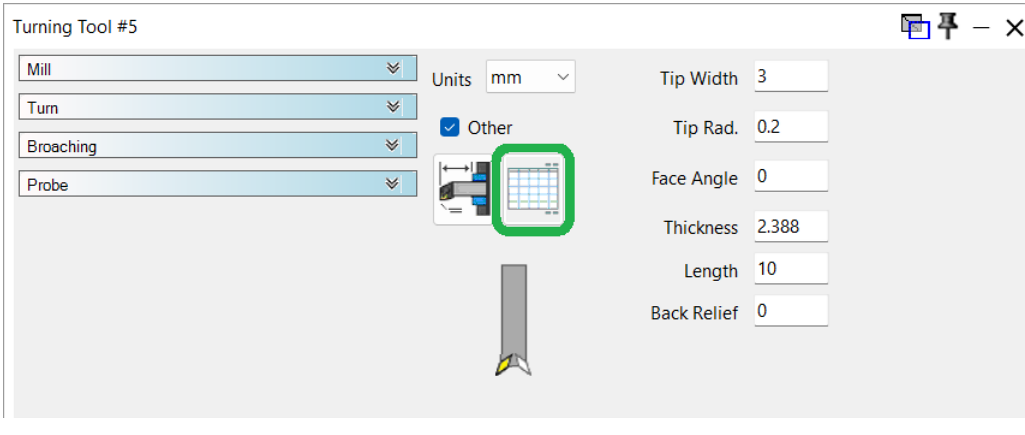
Figure 1 Open the reporter from the selected tool's Tool dialog
Source: What's New in GibbsCAM 2026, p. 28
Step 2 - Select or Manage Associated Operations
1. Click a row to select it. Double-click a row to also select the operation and affected workspace elements.
2. Use Select All or Deselect All to control the row selection.
3. Click Select These Ops to select the associated operations in the part.
4. Before using Delete These Ops, confirm every selected row and verify that the recoverable part copy is current.
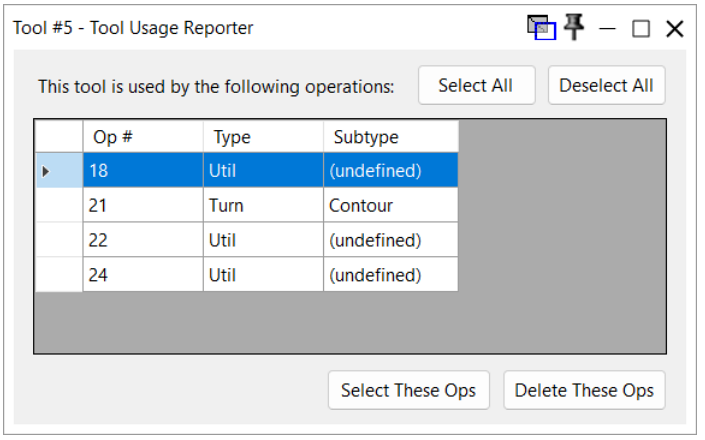
Figure 2 Review the selected tool's operations before taking an action
Source: What's New in GibbsCAM 2026, p. 29
Step 3 - Open a Tool List in List View
1. Right-click a tool tile and choose View/Edit Tool List.
2. Navigate to the required .tlst file and open it.
3. In the Tool List dialog, click the List View button to display the spreadsheet-like view.
4. Review the labeled columns and locate the required tool records.
Step 4 - Filter the Tool List by Tool Group
1. In either Tool List view, open the pulldown at the upper right.
2. Change All TGs to the required tool-group name.
3. Review the filtered tools, then return the pulldown to All TGs when the full list is needed.
Expected Result
• Tool Usage Reporter lists the operations that use the selected tool.
• The saved .tlst file can be reviewed in a labeled spreadsheet-like List View.
• The Tool List shows all tools or only the selected tool group's tools.
Best Practices
• Use Tool Usage Reporter before changing or replacing a tool used by several operations.
• Double-click a reporter row when the affected operation and workspace elements must be identified together.
• Treat Delete These Ops as a controlled change and confirm the selected rows against a saved part copy.
• Use descriptive tool-group names so filters remain clear in shared .tlst files.
• Return the Tool List filter to All TGs before deciding that a tool is missing.
Troubleshooting
• Problem: Tool Usage Reporter does not list the expected operation.
Cause
• A different tool tile was opened.
• The expected operation uses another tool or has not been regenerated with the selected tool.
Resolution
Confirm the selected tool tile, review the operation's assigned tool, and reopen Tool Usage Reporter from the correct Tool dialog.
• Problem: Double-clicking a reporter row does not identify the expected workspace elements.
Cause
• The wrong operation row is selected.
• The associated elements are hidden or difficult to distinguish in the current view.
Resolution
Select the intended row, show the required workspace elements, and double-click the row again before changing the operation.
• Problem: Operations were removed unintentionally from Tool Usage Reporter.
Cause
• Delete These Ops was used while unintended rows were selected.
• The selection was not compared with the saved part before deletion.
Resolution
Stop further edits and restore the recoverable part copy.
• Problem: The required tool list does not open.
Cause
• The wrong file was selected or the file is not a valid .tlst file.
• The file location is unavailable or access is restricted.
Resolution
Use View/Edit Tool List again, select the correct .tlst file, and confirm that the file location is accessible.
• Problem: The filtered Tool List is empty or a tool appears to be missing.
Cause
• A tool group is selected that does not contain the required tool.
• The saved tool list does not contain that tool or tool-group assignment.
Resolution
Return the filter to All TGs, verify that the tool exists in the .tlst file, then review its tool-group assignment before filtering again.
Related Articles
• How to Save and Load Process or Tool Lists
Explore More from CAMCO
Visit the CAMCO website to learn more about:
• Downloads and Helpful Resources
Keywords
GibbsCAM 2026, Tool Usage Reporter, tool tile, operation selection, Select These Ops, Delete These Ops, Tool List, List View, View/Edit Tool List, TLST, tool group, All TGs, tool filter