
Summary
GibbsCAM 2026 makes Auto CS Create modeless and adds automatic coordinate-system creation at the tops of cylinder, cone, and hole axes of rotation. A coaxial option can create one coordinate system for features that share an axis, reducing repeated setup work and duplicate results.
Table of Contents
What Changed in GibbsCAM 2026
Before You Begin
• Open the GibbsCAM 2026 part that contains the solid features you want to use.
• Confirm that Plug-Ins > Solids includes Auto CS Create.
• Identify the cylindrical, conical, or hole features whose axes will define the coordinate systems.
• Save a recoverable copy and decide whether coaxial features should receive one coordinate system or separate coordinate systems.
Procedure
Step 1 - Open Auto CS Create
1. Open the Plug-Ins menu.
2. Expand Solids and click Auto CS Create.
3. Leave the dialog open while working in the GibbsCAM interface or workspace.
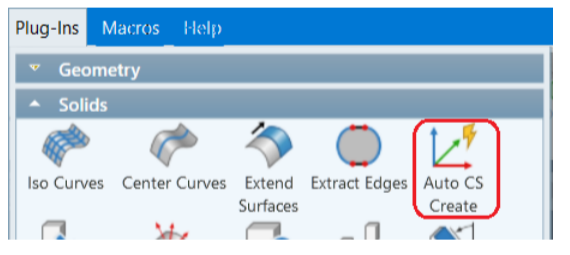
Figure 1 Open Auto CS Create from Plug-Ins > Solids
Source: What's New in GibbsCAM 2026, p. 31
Step 2 - Choose the Coordinate-System Origin
1. Select CS Origin At Face Corner or Cylinder/Cone Center.
2. In the workspace, select the required cylindrical, conical, or hole features while the dialog remains open.
3. Review the selection before creating the coordinate systems.
Step 3 - Control Coaxial Results
1. Select Create Only One CS for Coaxial Cylinders/Cones when aligned features should share one coordinate system.
2. Clear the checkbox when each selected feature requires a separate coordinate system.
3. Click Do It, then review the created coordinate systems before using them in machining operations.
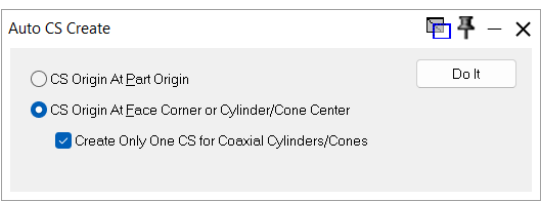
Figure 2 Choose the axis-based origin and optional coaxial control
Source: What's New in GibbsCAM 2026, p. 31
Expected Result
• The Auto CS Create dialog remains open while you select interface items and workspace geometry.
• Coordinate systems are created at the tops of recognized cylinder, cone, or hole axes of rotation.
• Coaxial features produce either one shared coordinate system or separate coordinate systems, based on the checkbox setting.
Best Practices
• Isolate or clearly identify the required faces before selecting them in a complex solid.
• Use the coaxial option for stepped bores or aligned cylindrical and conical features when one machining reference is sufficient.
• Clear the coaxial option when separate feature locations must remain independently selectable.
• Review each new coordinate system's origin and orientation before assigning operations.
• Validate results carefully on partial cylinders, cones, and imperfect imported geometry.
Troubleshooting
• Problem: Auto CS Create is not available under Plug-Ins > Solids.
Cause
• The Auto CS Create plug-in is not installed or enabled for the current configuration.
• The open GibbsCAM version or installation does not include the GibbsCAM 2026 enhancement.
Resolution
Confirm the GibbsCAM version and plug-in installation. If the command is still missing, contact CAMCO to verify availability for the licensed configuration.
• Problem: Workspace elements cannot be selected while the dialog is open.
Cause
• An earlier GibbsCAM version is running.
• The active window or selection mode is preventing workspace selection.
Resolution
Confirm that GibbsCAM 2026 is active, return focus to the workspace, and reopen Auto CS Create before selecting the required geometry.
• Problem: No coordinate system is created after clicking Do It.
Cause
• The axis-based origin option is not selected.
• The selected geometry is not recognized as a cylinder, cone, or hole.
Resolution
Select CS Origin At Face Corner or Cylinder/Cone Center, reselect a recognized feature, and run Auto CS Create again.
• Problem: The coordinate system appears at an unexpected location or orientation.
Cause
• The wrong face or feature was included in the selection.
• A partial or imperfect imported surface may not provide the expected axis definition.
Resolution
Isolate the intended feature, recreate the coordinate system, and verify its origin and orientation before programming. Escalate repeatable geometry-recognition issues to CAMCO.
• Problem: Multiple coordinate systems are created on features that share an axis.
Cause
• Create Only One CS for Coaxial Cylinders/Cones is cleared.
• The selected features are not recognized as sharing the same axis.
Resolution
Enable the coaxial checkbox and run the command again. If duplicates remain, verify the feature axes and keep only the validated coordinate system.
Related Articles
• GibbsCAM Mill Tutorial from a Solid Import
Explore More from CAMCO
Visit the CAMCO website to learn more about:
• Downloads and Helpful Resources
Keywords
GibbsCAM 2026, Auto CS Create, coordinate system, CS, modeless dialog, cylinder axis, cone axis, hole axis, axis of rotation, coaxial cylinders, coaxial cones, solid model, Plug-Ins, Solids