
Summary
GibbsCAM 2026 adds integrated access to ToolManageriQ and new ToolsUnited importer. TMiQ manages tools and related resources, while the importers connect GibbsCAM to online tool libraries. All options require internet access and may require separate vendor accounts, licensing, and approval.
Table of Contents
What Changed in GibbsCAM 2026
Before You Begin
• Use GibbsCAM 2026 with the required plug-ins available and a reliable internet connection.
• Obtain approved vendor accounts, licenses, and installation permissions before connecting or installing software.
• Confirm company requirements for external services, account data, privacy, and regional catalog availability.
• Save the part and record the current tool, holder, assembly, catalog, and unit information before importing data.
Procedure
Step 1 - Choose the Connected Tool Workflow
1. Use TMiQ when the goal is to organize tools, holders, assemblies, fixtures, and suppliers.
2. Use ToolsUnited when the goal is to find and import supported online tool-library content.
3. Confirm the account owner, licensing responsibility, and approved data source before continuing.
Step 2 - Evaluate or Open TMiQ
1. Choose Plug-Ins > Tool Managers > TMiQ.
2. If TMiQ is not installed, review/play the embedded video and click the green INSTALL NOW button at the lower right to install the fully functional 30-day version.
3. After installation, reopen Plug-Ins > Tool Managers > TMiQ and review the required tools, holders, assemblies, fixtures, or suppliers.
4. Before the trial expires, assign an owner to evaluate licensing and document any data or workflow decisions.
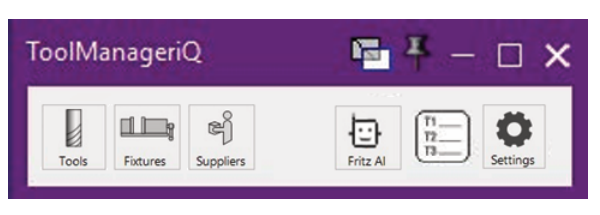
Figure 1 Open the installed TMiQ plug-in from the GibbsCAM Plug-Ins menu
Source: What's New in GibbsCAM 2026, p. 33
TMiQ vendor resources:
• TMiQ Installers and Documentation
Step 3 - Use ToolsUnited
1. Open the required ToolsUnited importer from the Plug-Ins menu.
2. Complete the vendor connection or sign-in prompts, if presented.
3. Search for and select the required supported tool or assembly using the vendor-provided workflow.
4. Review the manufacturer, catalog number, components, dimensions, units, and available cutting data before importing.
5. After import, open the GibbsCAM tool record and validate the complete assembly before assigning it to an operation.
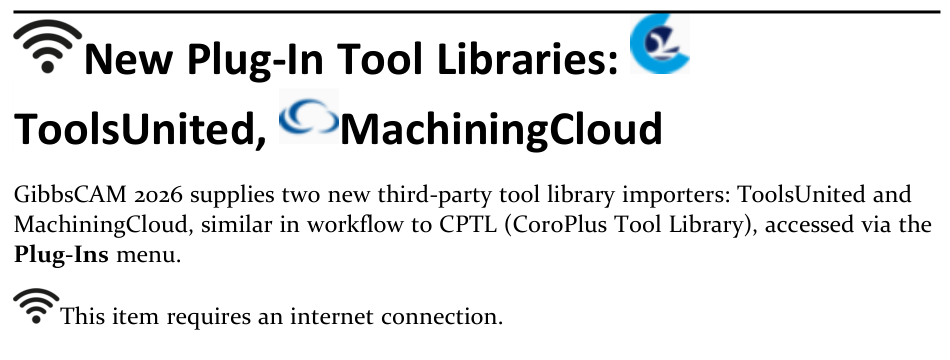
Figure 2 Use the new online tool-library importers from the Plug-Ins menu
Source: What's New in GibbsCAM 2026, p. 33
Expected Result
• Installed TMiQ opens from Plug-Ins > Tool Managers and provides access to its tool-management functions.
• ToolsUnited connects through its importer and makes supported vendor content available for selection.
• Imported tool and assembly data is reviewed in GibbsCAM before programming or machining.
Best Practices
• Assign an internal owner for each third-party account, license, trial, and renewal decision.
• Use approved company credentials and follow internal privacy and external-service policies.
• Treat third-party dimensions, assemblies, and cutting data as source data that still requires shop validation.
• Record the vendor, catalog number, revision, import date, and units with the GibbsCAM tool record.
• Use the GibbsCAM team for Tier 1 TMiQ support and CAM Solutions for advanced or in-depth TMiQ issues.
Troubleshooting
• Problem: TMiQ opens an embedded video instead of the tool manager.
Cause
• TMiQ has not been installed as an integrated GibbsCAM plug-in.
• The installation was not completed or GibbsCAM has not been restarted as required.
Resolution
With installation approval, use INSTALL NOW to install the 30-day version, complete the vendor prompts, and reopen TMiQ from Plug-Ins > Tool Managers.
• Problem: TMiQ no longer opens after the evaluation period.
Cause
• The 30-day trial has expired.
• The required TMiQ license, account, or internet connection is unavailable.
Resolution
Verify internet and account access, then purchase or activate the appropriate TMiQ license through the vendor. Escalate advanced licensing issues to CAM Solutions.
• Problem: ToolsUnited is missing from the Plug-Ins menu.
Cause
• The required GibbsCAM 2026 plug-in is not installed or enabled.
• The current installation or configuration does not expose the importer.
Resolution
Confirm the GibbsCAM 2026 build and plug-in installation. Restart GibbsCAM after any change and contact CAMCO if the importer remains unavailable.
• Problem: The importer does not connect or the required catalog content is unavailable.
Cause
• Internet access, authentication, or the third-party service is unavailable.
• The account, region, subscription, or vendor catalog does not include the required content.
Resolution
Confirm network access and sign in with the approved account. Verify regional and subscription availability with the account administrator or service provider.
• Problem: An imported tool or assembly is incomplete or has incorrect dimensions.
Cause
• The selected vendor record does not contain every required component or data field.
• The wrong catalog item, assembly, or unit interpretation was imported.
Resolution
Do not machine with the unverified record. Compare it with manufacturer data, correct the source selection or units, and reimport or complete the GibbsCAM definition before simulation.
Related Articles
• Tool Cutting Parameters and Catalog Links in GibbsCAM 2025
Explore More from CAMCO
Visit the CAMCO website to learn more about:
• Downloads and Helpful Resources
Keywords
GibbsCAM 2026, TMiQ, ToolManageriQ, CAM Solutions, tool management, ToolsUnited, tool library, tool importer, third-party account, 30-day trial, Plug-Ins, internet connection