
Summary
GibbsCAM 2026 connects the up2parts autoCAM plug-in directly to the up2parts cloud after login. Select the required CAM project in the redesigned interface and open it without transferring a ZIP bundle. The plug-in also adds Through Pocket support with Level Roughing and Wall Finishing operations.
Table of Contents
What Changed in GibbsCAM 2026
Before You Begin
• Use GibbsCAM 2026 with the compatible up2parts autoCAM plug-in, required machining licenses, approved machine definition, and production postprocessor.
• Provide a reliable internet connection and approved up2parts login credentials with access to the required CAM project.
• In up2parts, confirm the model, units, material, machine, tolerance, tools, clamping, recognized features, and proposed operations.
• Start from a saved GibbsCAM part and confirm that the source project and shop data are approved for use.
Procedure
Step 1 - Prepare the up2parts Cloud Project
1. Sign in to the approved up2parts account and open the intended CAM project.
2. Review the source model, recognized features, units, machine, material, tolerance, tools, operations, and clamping proposal.
3. Confirm that Through Pockets are recognized when Level Roughing and Wall Finishing are expected.
Step 2 - Connect from GibbsCAM
1. In GibbsCAM 2026, choose Plug-Ins > Main Tools > up2parts autoCAM.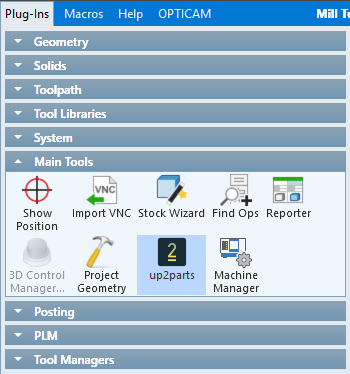
2. Supply the approved up2parts login credentials and connect to the cloud service.
3. In the redesigned plug-in interface, select the required CAM project.
4. Open the selected project directly in GibbsCAM and wait for the model and generated machining data to load.
Figure 1 Open an up2parts cloud project directly in GibbsCAM 2026
Source: What's New in GibbsCAM 2026, p. 33
Step 3 - Review the Generated Project
1. Verify the model, units, stock, orientation, coordinate systems, clamping, and workholding.
2. Review every generated tool, process, operation, parameter, clearance, and toolpath.
3. For each Through Pocket, confirm the expected Level Roughing and Wall Finishing operations and their boundaries.
4. Correct unsupported or unsafe data and regenerate affected operations.
Step 4 - Simulate and Prove Out
1. Run Op Simulation and Machine Simulation with accurate stock, tools, holders, fixtures, and machine components.
2. Post with the approved machine-specific postprocessor and review the output.
3. Complete the shop's controlled prove-out before releasing the program for production.
Expected Result
• The selected up2parts cloud project opens directly in GibbsCAM without a downloaded ZIP transfer.
• GibbsCAM contains editable project, tool, process, operation, and toolpath data from the selected project.
• Supported Through Pockets include reviewed Level Roughing and Wall Finishing operations.
Best Practices
• Record the up2parts project name or identifier, revision, import date, account, and selected setup for traceability.
• Verify the cloud project before opening it; do not assume the newest project is the intended production revision.
• Compare generated tools, parameters, and operations with CAMCO and shop standards before posting.
• Inspect both ends and the complete depth of every Through Pocket during simulation.
• Do not release a program based only on a successful cloud import; simulation, posted-code review, and controlled prove-out remain required.
Troubleshooting
• Problem: up2parts autoCAM is not available on the Plug-Ins menu.
Cause
• The compatible plug-in is not installed or enabled for the GibbsCAM 2026 build.
• Required licensing or configuration is unavailable.
Resolution
Confirm the GibbsCAM 2026 build, compatible plug-in, required licenses, and CAMCO-approved installation. Restart GibbsCAM after correcting the configuration.
• Problem: The plug-in cannot connect or the login is rejected.
Cause
• Internet access, the up2parts service, or required network permissions are unavailable.
• The credentials are incorrect, expired, or not authorized for the required account.
Resolution
Confirm network access and service availability, then sign in with the approved account. Refer credential and subscription issues to the account owner or up2parts support path approved by CAMCO.
• Problem: The required CAM project is not listed.
Cause
• The wrong up2parts account, workspace, or project filter is active.
• The project has not been completed, shared, or made available to the signed-in user.
Resolution
Verify the account and project access in up2parts, confirm the intended project revision, refresh the plug-in interface, and reconnect if necessary.
• Problem: A Through Pocket is missing Level Roughing or Wall Finishing operations.
Cause
• The source feature was not recognized as a Through Pocket.
• The project definition, feature boundaries, tools, or operation proposal is incomplete.
Resolution
Correct the feature or project definition in up2parts, reopen the updated project, and verify the Level Roughing and Wall Finishing operations before simulation.
• Problem: The generated setup, tools, or toolpath do not match the production plan.
Cause
• The wrong cloud project or revision was selected.
• The up2parts project does not match the GibbsCAM machine, units, workholding, or shop standards.
Resolution
Stop before machining. Select the correct project or correct the setup and generated data, then regenerate, simulate, post, and review the complete result.
Related Articles
• Import an up2parts autoCAM Project into GibbsCAM 2025
• Recommended Simulation Settings
Explore More from CAMCO
Visit the CAMCO website to learn more about:
• Downloads and Helpful Resources
Keywords
GibbsCAM 2026, up2parts, autoCAM, direct cloud connection, CAM project, login credentials, project selection, Through Pocket, Level Roughing, Wall Finishing, Plug-Ins, simulation, postprocessor