
Summary
GibbsCAM 2026 does not support Windows 10. Deploy it on Windows 11 or Windows Server 2022, confirm the stated hardware baseline, and prepare for new installation and data paths under Gibbs\GibbsCAM. Use the GibbsCAM Migration Tool where appropriate, then validate migrated files and every manual path reference.
Table of Contents
- What Changed in GibbsCAM 2026
- System Requirements
- Before You Begin
- Procedure
- Best Practices
- Troubleshooting
- Related Articles
What Changed in GibbsCAM 2026
System Requirements
• Operating system: Windows 11 or Windows Server 2022.
• Processor: Intel Core i9, i7, or i5 with four or more cores; or AMD Ryzen or Threadripper.
• Memory: 16 GB or more.
• Video: Nvidia video card with 4 GB or more of video memory.
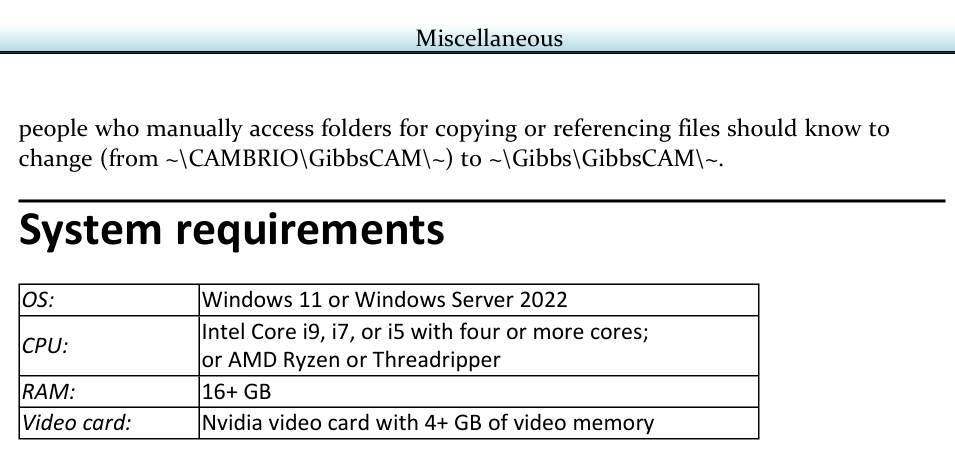
Figure 1 Confirm the supported operating system and hardware baseline
Source: What's New in GibbsCAM 2026, p. 35
Before You Begin
• Inventory every workstation or server that will run GibbsCAM 2026 and record its Windows edition, hardware, GibbsCAM release, and users.
• Plan a Windows 11 upgrade or approved replacement for every Windows 10 workstation before deploying GibbsCAM 2026.
• Back up all required user data, global data, custom settings, machine and post resources, scripts, templates, and shop-specific files.
• Document custom folders, network shares, shortcuts, scheduled copy jobs, scripts, and menus that reference CAMBRIO\GibbsCAM paths.
• Confirm administrative rights and the CAMCO-approved Migration Tool procedure for the site.
Procedure
Step 1 - Qualify the Computer
1. Confirm that the computer runs Windows 11 or the approved Windows Server 2022 configuration.
2. Compare the processor, memory, and video hardware with the GibbsCAM 2026 requirements.
3. Resolve unsupported Windows or hardware before installing or migrating GibbsCAM data.
Step 2 - Back Up the Existing Environment
1. Close GibbsCAM and create a recoverable backup of required global, user, and custom data.
2. Record the existing release, locations, permissions, custom file names, and any CAMBRIO\GibbsCAM path references.
3. Retain the backup unchanged until GibbsCAM 2026 has been fully validated.
Step 3 - Install and Migrate
1. Install GibbsCAM 2026 on the supported Windows system using the approved deployment method.
2. Use the GibbsCAM Migration Tool to migrate supported data from the prior release.
3. Launch GibbsCAM 2026 and confirm that the expected supported settings and resources are available.
Step 4 - Update Manual Path References
1. Use the new installation path: C:\Program Files\Gibbs\GibbsCAM\<release>_<locale>\.
2. Use the new global-data path: C:\ProgramData\Gibbs\GibbsCAM\<release>\.
3. Use the new user-data path: C:\Users\<username>\AppData\Roaming\Gibbs\GibbsCAM\<release>\.
4. Change manual references from ~\CAMBRIO\GibbsCAM\~ to ~\Gibbs\GibbsCAM\~.
5. Update affected scripts, shortcuts, custom menus, copy jobs, network documentation, and support procedures.
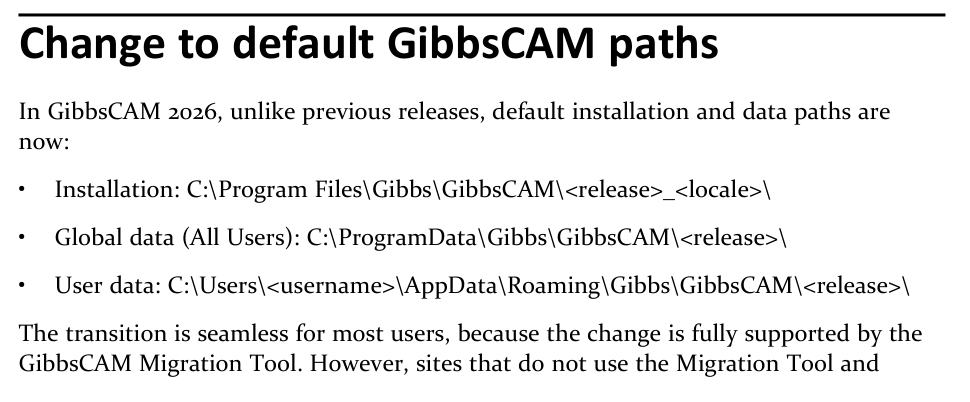
Figure 2 Replace manual CAMBRIO path references with the new Gibbs folder tree
Source: What's New in GibbsCAM 2026, p. 34
Step 5 - Validate the Migrated Installation
1. Open representative parts and verify the user interface, templates, tools, processes, machines, posts, macros, and other site-specific resources used by the shop.
2. Confirm that each user can read and write the correct new folders and that security software permits the approved GibbsCAM activity.
3. Test every updated script, shortcut, menu, and automated copy or backup task.
4. Create a new validated backup after the migration is accepted.
Expected Result
• GibbsCAM 2026 runs on a supported Windows system that meets the stated hardware baseline.
• Supported settings and resources are migrated and verified from the new Gibbs folder tree.
• Manual references, scripts, shortcuts, and copy jobs no longer depend on the old CAMBRIO\GibbsCAM path.
Best Practices
• Pilot the upgrade on one representative computer before a site-wide rollout.
• Keep the original backup read-only until users, machines, posts, and automated workflows pass acceptance testing.
• Use the Migration Tool for supported data and document every item that requires manual placement or reconfiguration.
• Avoid hard-coded release folders in new scripts when an approved configurable path can be used.
• Record the installed release, locale, Windows build, migration date, validation owner, and final backup location.
Troubleshooting
• Problem: GibbsCAM 2026 cannot be approved for the current computer.
Cause
• The computer runs Windows 10, which GibbsCAM 2026 does not support.
• The processor, memory, or Nvidia video hardware does not meet the stated baseline.
Resolution
Upgrade or replace the computer with a supported Windows 11 or approved Windows Server 2022 system that meets the hardware requirements before deployment.
• Problem: The Migration Tool does not find the previous GibbsCAM data.
Cause
• The prior release uses a custom location or the expected source folder is unavailable.
• The user does not have permission to read the source data.
Resolution
Confirm the prior release and source locations, restore access to the validated backup, and rerun the approved Migration Tool workflow. Contact CAMCO before forcing a manual migration.
• Problem: Custom files or settings are missing after migration.
Cause
• The item is stored outside the locations handled by the Migration Tool.
• The custom file was not included in the backup or was not valid for GibbsCAM 2026.
Resolution
Compare the new installation with the backup and migration checklist. Restore only verified compatible items to their intended new locations and test them before use.
• Problem: A script, shortcut, or menu still opens the old CAMBRIO folder.
Cause
• The path is hard-coded to ~\CAMBRIO\GibbsCAM\~.
• A copied configuration still contains a prior-release or prior-locale path.
Resolution
Update the reference to the correct ~\Gibbs\GibbsCAM\~ release path, then test the complete action with the intended user permissions.
• Problem: A user cannot read or write the new GibbsCAM folders.
Cause
• Windows permissions, security software, or deployment policy blocks the new location.
• The application or automation is using the global folder when it should use the user's AppData folder, or the reverse.
Resolution
Confirm the intended folder, account, and permissions with IT. Correct the approved access or security rule, then retest without granting unnecessary broad permissions.
Related Articles
• How to Save and Reuse Custom Interface Settings
• Create a Custom Menu of File Extensions For Your CNCs
Explore More from CAMCO
Visit the CAMCO website to learn more about:
• Downloads and Helpful Resources
Keywords
GibbsCAM 2026, Windows 11, Windows Server 2022, Windows 10, system requirements, Migration Tool, Program Files, ProgramData, AppData, Gibbs folder, CAMBRIO path, file migration, backup