
Summary
GibbsCAM 2026 adds a Clone command that copies a Machine Manager tool-group node and its children. It also adds Minimize Moves to Clearance Volumes, allowing eligible same-tool inter-operation moves to retract only as high as needed to avoid the defined clearance volume. Make both changes in an approved MDD copy and validate the complete machine motion before production use.
Table of Contents
- Feature Overview
- When Minimize Moves Applies
- Before You Begin
- Procedure
- Best Practices
- Troubleshooting
- Related Articles
Feature Overview
When Minimize Moves Applies
The reduced retract behavior applies only when all relevant conditions are satisfied:
• Clearance Volumes are defined in the MDD and selected as the clearance behavior.
• The move is between operations using the same tool and staying on the part.
• The tool does not rotate to a new orientation between those operations.
• The tool is aligned with a linear machine axis.
For an eligible move, the tool retracts to the highest position required to keep its traversal from intersecting the clearance volume while moving above the next operation's start point.
Before You Begin
• Confirm that you are authorized and trained to edit the applicable MDD in Machine Manager.
• Create a recoverable, versioned backup of the source MDD and work in a separate test copy.
• Use a representative VNC or part containing the tool groups, orientations, and inter-operation moves used by the target machine.
• Confirm that the MDD has accurate clearance volumes and that the GibbsCAM 2026 DCD exposes the Clearance field on the Workspace tab.
• Plan to review simulation and posted motion before replacing a deployed machine definition.
Procedure
Step 1 - Clone the Tool Group
1. Open the approved test copy of the MDD in Machine Manager.
2. Expand the machine tree and select the tool-group node to reuse.
3. Right-click the tool-group node and choose Clone.
4. Expand the cloned node and confirm that the expected child nodes were copied.
5. Rename and configure the cloned group for its intended station or location, then save a distinct test revision.
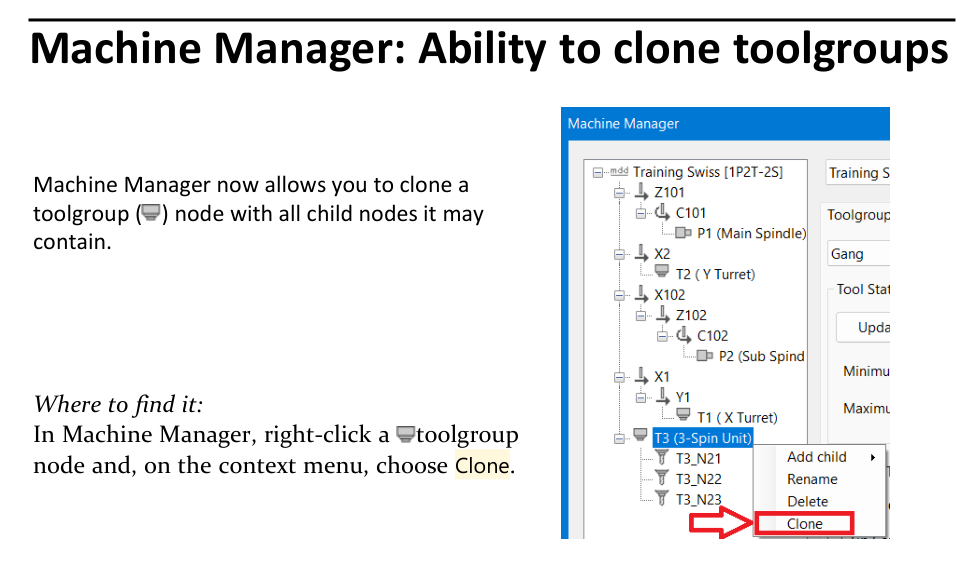
Figure 1 Clone a tool-group node together with its child nodes
Source: What's New in GibbsCAM 2026, p. 35
Step 2 - Confirm the Clearance Volumes
1. Select the Machining Prefs tab in Machine Manager.
2. Under Clearance Behavior, choose Clearance Volumes.
3. Click Volumes and verify that the defined volumes accurately represent the required machine clearance boundaries.
4. Save the test MDD and open it in GibbsCAM 2026.
5. Confirm that the Clearance field appears on the DCD Workspace tab.
Step 3 - Enable Minimize Moves
1. Return to Machine Manager, Machining Prefs, and Clearance Behavior.
2. Choose Clearance Volumes, click Volumes, and open Set Clearance Behavior.
3. Select Minimize Moves.
4. Review Straight Moves, Tolerance, and the remaining clearance settings against the approved machine configuration.
5. Click OK and save the test MDD.
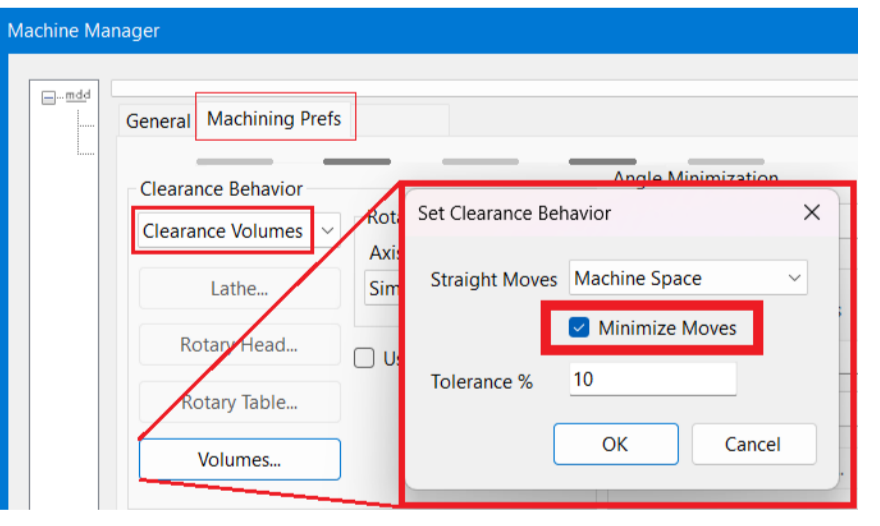
Figure 2 Enable Minimize Moves in Set Clearance Behavior
Source: What's New in GibbsCAM 2026, p. 36
Step 4 - Validate the Machine Motion
1. Regenerate a representative test part with same-tool operations that remain on the part, retain the same orientation, and align the tool with a linear axis.
2. Run machine simulation and confirm that each eligible retract clears the defined volume and stops at the highest position needed for the traversal.
3. Test tool changes, orientation changes, and operations that leave the part to confirm that all non-eligible moves remain safe.
4. Review the posted program with the assigned post or applications specialist.
5. Deploy the revised MDD only after the approved validation is complete.
Expected Result
• The cloned tool-group node contains the source group's expected child-node structure.
• Eligible same-tool inter-operation moves use only the retract height needed to avoid the defined clearance volume.
• Simulation and posted output preserve safe clearance behavior for both eligible and non-eligible moves.
Best Practices
• Never test Machine Manager changes first in the only production MDD.
• Give every revised MDD a traceable version, owner, change description, and validation record.
• After cloning, review every child node and inherited value instead of assuming the new group is production-ready.
• Use clearance volumes that model the actual machine restrictions; do not lower retracts to hide a geometry or setup problem.
• Revalidate after any change to the MDD, post, fixture, tool orientation, or controller configuration.
Troubleshooting
• Problem: Clone is not available on the context menu.
Cause
• The selected tree item is not a tool-group node.
• The MDD is not open in an editable Machine Manager session or the user lacks the approved access.
Resolution
Select the actual tool-group node in the Machine Manager tree. If Clone is still unavailable, confirm the MDD's edit state, permissions, and GibbsCAM 2026 installation with the Machine Manager owner.
• Problem: The cloned tool group does not contain the expected children.
Cause
• The expected nodes are not children of the selected source tool group.
• The cloned branch has not been expanded for review.
Resolution
Expand both the source and cloned branches and compare them node by node. Rebuild the intended hierarchy in the approved test MDD or ask CAMCO to review the source definition before deployment.
• Problem: The Clearance field does not appear on the DCD Workspace tab.
Cause
• Clearance Volumes are not defined or selected in the active MDD.
• The part is using a different machine definition or DCD than the one edited.
Resolution
Confirm the active MDD, choose Clearance Volumes in Machine Manager, define and verify the required volumes, then reopen or refresh the test part with the revised machine definition.
• Problem: The Minimize Moves checkbox is not available.
Cause
• Clearance Behavior is not set to Clearance Volumes.
• The test is using an earlier GibbsCAM release or an unmodified MDD.
Resolution
In GibbsCAM 2026 Machine Manager, open Machining Prefs, choose Clearance Volumes, and click Volumes. Confirm that the expected test MDD and release are active.
• Problem: A move still retracts higher than expected.
Cause
• The move changes tools or tool orientation, leaves the part, or is not aligned with a linear axis.
• The clearance volume or tolerance requires the higher retract to prevent intersection.
Resolution
Confirm that the move meets every Minimize Moves condition, then inspect the clearance volume and simulation. Do not force a lower retract; have CAMCO or the machine-definition owner review unexpected motion.
Related Articles
• Create a Custom Stock Body for More Accurate Simulation
Explore More from CAMCO
Visit the CAMCO website to learn more about:
• Downloads and Helpful Resources
Keywords
GibbsCAM 2026, Machine Manager, MDD, tool group, clone tool group, child nodes, Clearance Volumes, Minimize Moves, retract, inter-operation motion, machine simulation