
Summary
GibbsCAM 2026 lists AP242 explicitly in the File > Open and File > Import file-type menus as part of STEP (Spatial) AP203/AP214/AP242 for .step and .stp files. Use Open to start a new GibbsCAM file or Import to add the CAD data to an existing file. Confirm the required STEP and solids-import licensing, then validate geometry, units, orientation, and any supported PMI before creating or regenerating operations.
Table of Contents
Choose the Workflow
Supported AP242 PMI can be displayed in GibbsCAM when the file is processed through the Spatial importer. Imported PMI is visual reference information; it does not become machine-readable manufacturing data.
Before You Begin
• Obtain a valid AP242 file with a .step or .stp extension and keep the original source file unchanged.
• Confirm that the GibbsCAM license includes the required STEP import option and, for solid bodies, the required Solids Import capability.
• Ask the supplier to identify the source units, coordinate system, assembly scope, and whether PMI is included.
• If importing into an existing GibbsCAM file, save a recoverable backup before adding the AP242 data.
• Define acceptance checks for critical dimensions, body count, orientation, model integrity, and required PMI.
Procedure
Step 1 - Select the AP242 STEP Filter
1. Choose File > Open to start a new GibbsCAM file, or open the destination part and choose File > Import to add CAD data to it.
2. In the dialog, open the file-type list in the lower right, just above the Open button.
3. Select STEP (Spatial) AP203/AP214/AP242 (*.STEP;*.STP).
4. Browse to the AP242 file and select it.
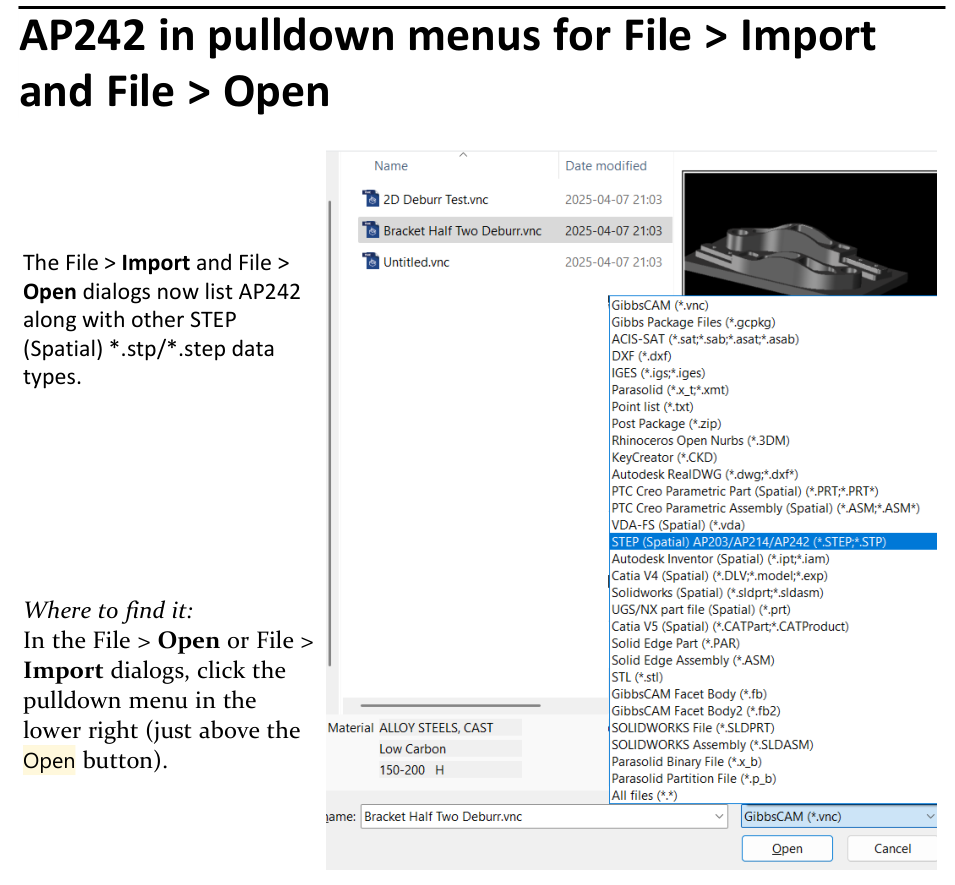
Figure 1 Select the STEP Spatial AP203 AP214 AP242 file type
Source: What's New in GibbsCAM 2026, p. 37
Step 2 - Open AP242 as a New GibbsCAM File
1. Use File > Open when the AP242 model should become a new GibbsCAM file.
2. Select the AP242 STEP filter, choose the file, and click Open.
3. Allow the Spatial importer to complete, then save the new GibbsCAM file under the approved job name.
Step 3 - Import AP242 into an Existing File
1. Open the destination GibbsCAM file and confirm that its units, coordinate systems, stock, and machine setup are correct.
2. Choose File > Import, select the AP242 STEP filter, and choose the source file.
3. Complete the import and isolate the newly added bodies or workgroups for review before combining them with existing geometry.
Step 4 - Validate the Model and PMI
1. Confirm the imported body count, assembly scope, origin, orientation, and location.
2. Measure critical dimensions and compare them with the supplier's drawing or known model values to verify units and scale.
3. Inspect solids and surfaces for missing, open, duplicated, or visibly distorted geometry.
4. If the AP242 file contains supported PMI, use the PMI toggle on the floating toolbar to display it.
5. Use PMI only as visual reference and confirm required dimensions, tolerances, finishes, and material information against the controlled source.
6. Save the validated GibbsCAM file before creating or regenerating operations.
Expected Result
• The AP242 file opens as a new GibbsCAM file or imports into the intended existing file.
• The model passes the required checks for bodies, units, scale, orientation, location, and geometry integrity.
• Supported AP242 PMI is available as visual reference when enabled, without being treated as machine-readable manufacturing data.
Best Practices
• Use the dedicated AP242 STEP filter instead of relying on All Files.
• Open a supplier model as a new file first when its units, origin, or assembly content are uncertain.
• Keep a backup before importing CAD data into a programmed GibbsCAM part.
• Measure at least one known dimension and verify the part origin before creating toolpath.
• Treat imported PMI as visual reference and retain the controlled drawing or model-based-definition source for manufacturing authority.
Troubleshooting
• Problem: AP242 does not appear in the file-type list.
Cause
• The dialog is not File > Open or File > Import, or the lower-right file-type list is not expanded.
• The workstation is using an earlier GibbsCAM release.
Resolution
Use GibbsCAM 2026, open the File > Open or File > Import dialog, and expand the file-type list above the Open button. Select the combined STEP (Spatial) AP203/AP214/AP242 entry.
• Problem: The AP242 file will not open or import.
Cause
• The required STEP import option is not available on the GibbsCAM license.
• The file is incomplete, damaged, mislabeled, or not valid STEP AP242 data.
Resolution
Confirm the licensed STEP import capability, copy the file to a local approved folder, and retry. If it still fails, request a new AP242 export or another supported format and provide the file to CAMCO for review.
• Problem: The file imports without the expected solid bodies.
Cause
• The required Solids Import capability is unavailable.
• The source export contains surfaces, an incomplete assembly, or no usable solid body.
Resolution
Verify Solids Import licensing and inspect the source export in the originating CAD system. Ask the supplier to include the required bodies and re-export a validated AP242 file.
• Problem: The imported model has the wrong size, orientation, or location.
Cause
• The source units or coordinate system differ from the GibbsCAM job setup.
• The selected AP242 assembly or occurrence has a different transform than expected.
Resolution
Compare a known dimension, origin, and orientation with the controlled source. Correct the import or source export before programming; do not scale or move the model until the discrepancy is understood.
• Problem: PMI is missing or cannot be used as selectable manufacturing data.
Cause
• The source file does not contain supported PMI, the Spatial importer was not used, or PMI display is off.
• Imported PMI is expected to be visual only in GibbsCAM.
Resolution
Verify that the source AP242 file contains PMI, import it through the Spatial workflow, and enable the PMI toggle on the floating toolbar. Use the displayed information as visual reference and verify it against the controlled source.
Related Articles
• How to Import CAD Files and CAD Compatibilities
• PMI Data
Explore More from CAMCO
Visit the CAMCO website to learn more about:
• Downloads and Helpful Resources
Keywords
GibbsCAM 2026, AP242, STEP, STP, Spatial importer, File Open, File Import, Solids Import, CAD data exchange, PMI, Product and Manufacturing Information, model validation