
Summary
GibbsCAM 2026 adds a rest-material thickness threshold, advanced barrel-tool finishing, toolpath extensions, Parallel to floor wall finishing, primitive clearance areas, new rotary controls, and improved Geodesic boundary and mesh behavior. Because the 5-Axis source chapter is under construction and contains duplicated fixture wording, confirm final labels, paths, and supported strategy combinations in the installed build and with CAMCO.
Table of Contents
- What Changed in GibbsCAM 2026
- Before You Begin
- Filter Rest Material by Thickness
- Configure Multi-Axis Surface Finishing
- Define a Primitive Clearance Area
- Configure Rotary Floor Finishing
- Configure Contour Leads
- Include Rotary Fixtures and Containment
- Configure Geodesic Boundary Passes
- Best Practices
- Troubleshooting
- Related Articles
What Changed in GibbsCAM 2026
Before You Begin
• Use GibbsCAM 2026 with the required 5-Axis and supported ModuleWorks roughing, finishing, rotary, and Geodesic strategies.
• Use an approved rotary-capable machine definition and production postprocessor for rotary operations.
• Define accurate stock, tools, holders, fixtures, chucks, containment, drive surfaces, and mesh/model data.
• Save a copy of the part and retain baseline operations, simulations, and posted output for comparison.
Filter Rest Material by Thickness
1. Open the applicable multiaxis operation and go to Surface Paths > Calculation Based On: Triangle Mesh or Multiaxis Machining > Area > Detect thicker than.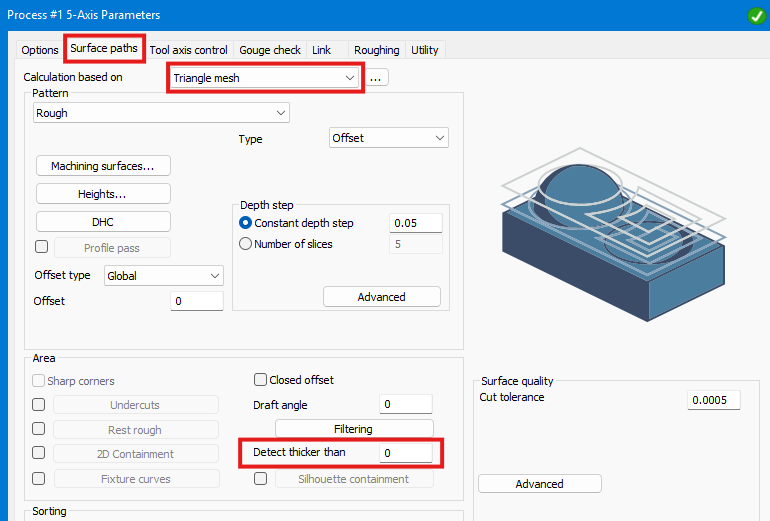
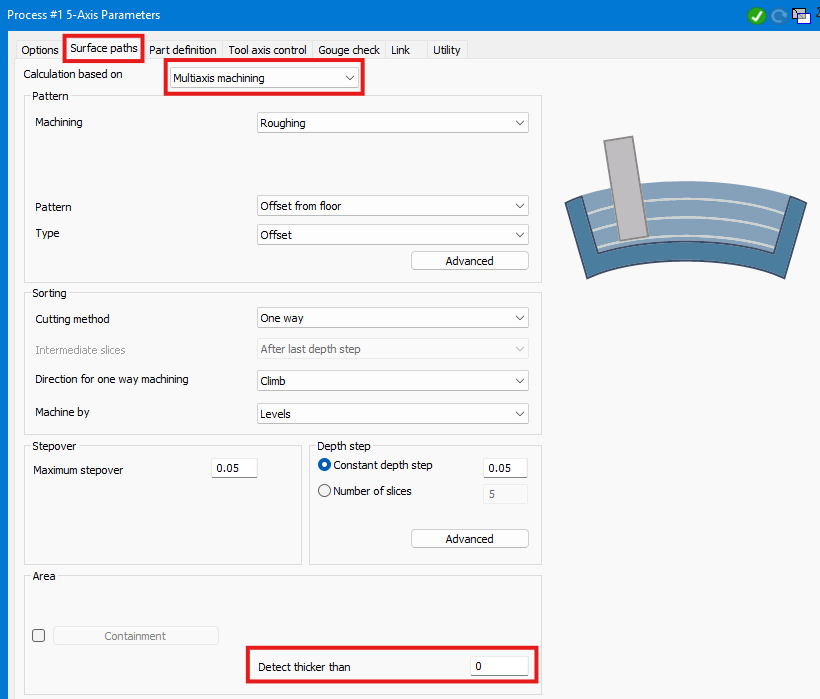
2. Enter a conservative threshold for the rest material that should be detected.
3. Regenerate and verify that the tool enters required stock while skipping areas below the threshold.
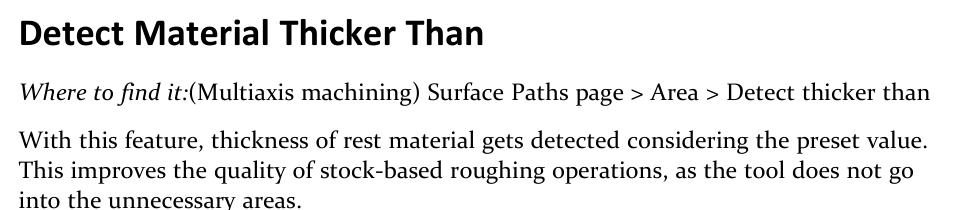
Figure 1 Use a preset threshold to exclude unnecessary rest-material areas
Source: What's New in GibbsCAM 2026, p. 40
Configure Multi-Axis Surface Finishing
1. For Wall, Floor, or Rest Finishing, define the advanced barrel tool and holder accurately.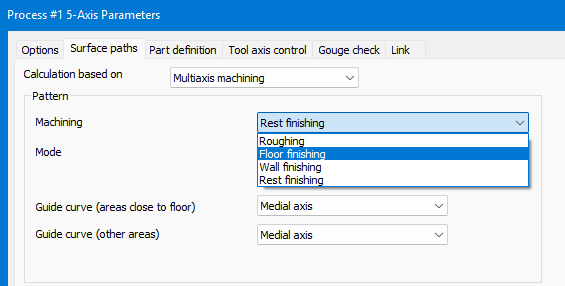
2. Under Area, use Extend Toolpaths when closed-contour start and end cusps must be reduced.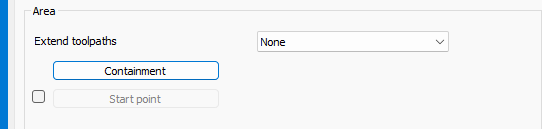
3. For Wall Finishing, select Parallel to floor when a planar floor should drive slices that avoid wall-feature disruption.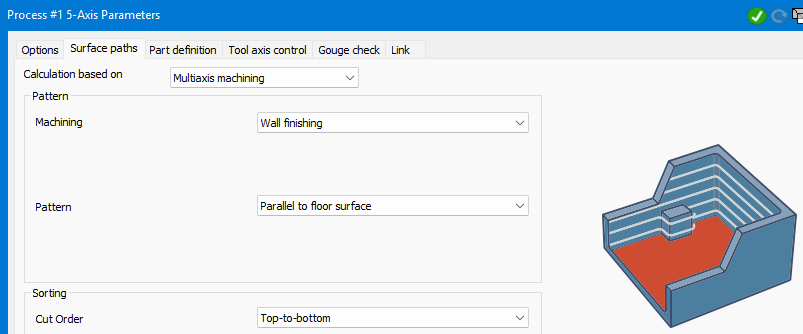
4. Regenerate and inspect contact, extension clearance, cusp size, tilting, and surface quality.
Define a Primitive Clearance Area
1. On the Link tab > Clearance area > Clearance area dialog.
2. Select Plane, Sphere, Cylinder, or Surface to match the part and machine envelope.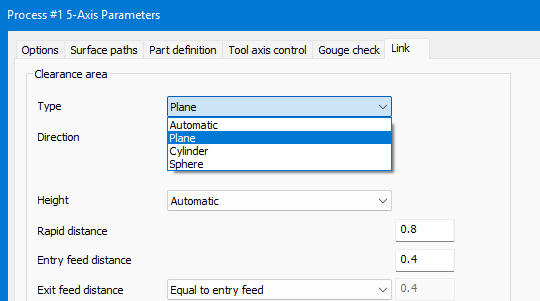
3. Define the required height and direction, radius and direction, or position as applicable.
4. Regenerate and inspect every retract, link, and approach for complete clearance.
Configure Rotary Floor Finishing
1. In Rotary Machining Finishing, use the Surface paths Tool orientation area to define the conical-floor detection angle.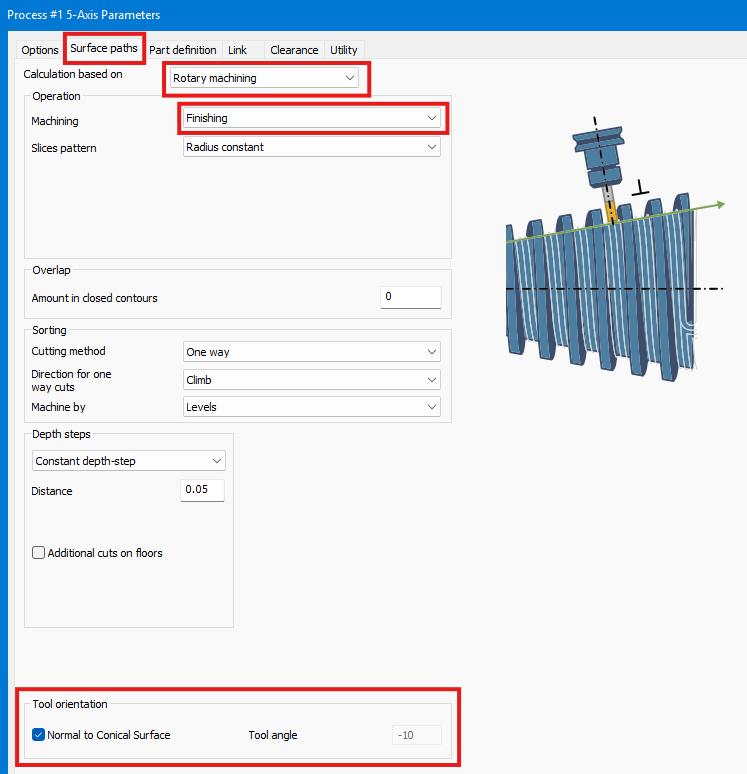
2. Choose a stationary or tilted milling-head result that suits the part, tool, and machine.
Configure Contour Leads
1. Under Part definition > Link > Contour Leads, define lead-in and lead-out for the cylindrical or conical finishing pattern.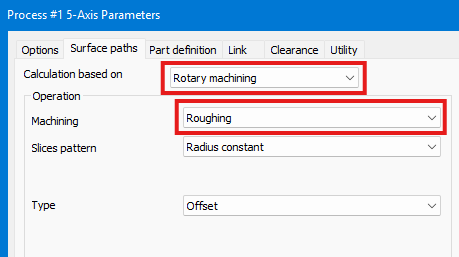
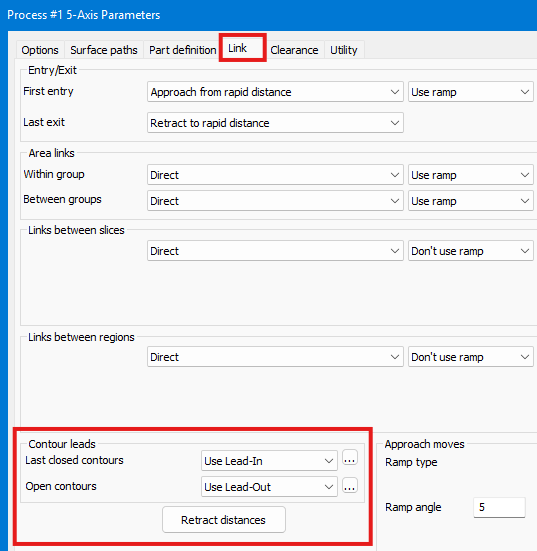
2. Regenerate and review floor detection, orientation, entry, exit, and surface marks.
Include Rotary Fixtures and Containment
1. For rotary roughing or finishing, go to Part definition > Machining surfaces > select the required fixture or chuck mesh/model.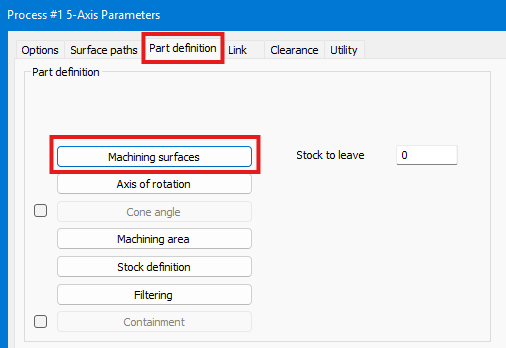
2. Set a conservative offset distance, regenerate, and confirm that the spun profile is included in collision avoidance.
3. For Rotary Finishing, use Part definition > Containment > Trim when the tool center should stop at the containment region.
4. Verify fixture clearance, boundary coverage, and removal of unwanted toolpath extensions.
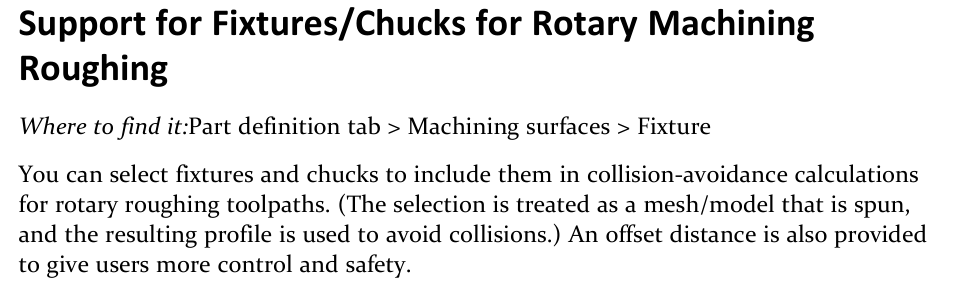
Figure 2 Include selected fixture or chuck profiles in rotary collision avoidance
Source: What's New in GibbsCAM 2026, p. 42
Configure Geodesic Boundary Passes
1. Open the Geodesic operation and go to Surface paths > Containment > Advanced > Cut along containment.
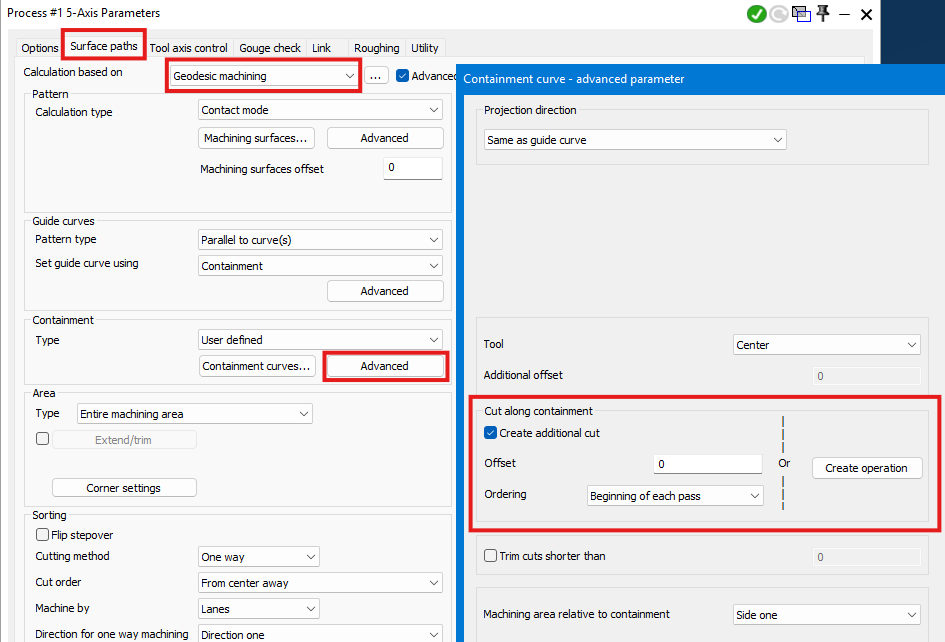
2. Create the boundary-pass operation and set its stepover, tilting, and other required values independently.
3. Regenerate and inspect the boundary finish, tool-axis motion, containment, and collision clearance.
4. When source mesh triangulation, offset, or patching changes, compare the result to confirm the improved toolpath stability.
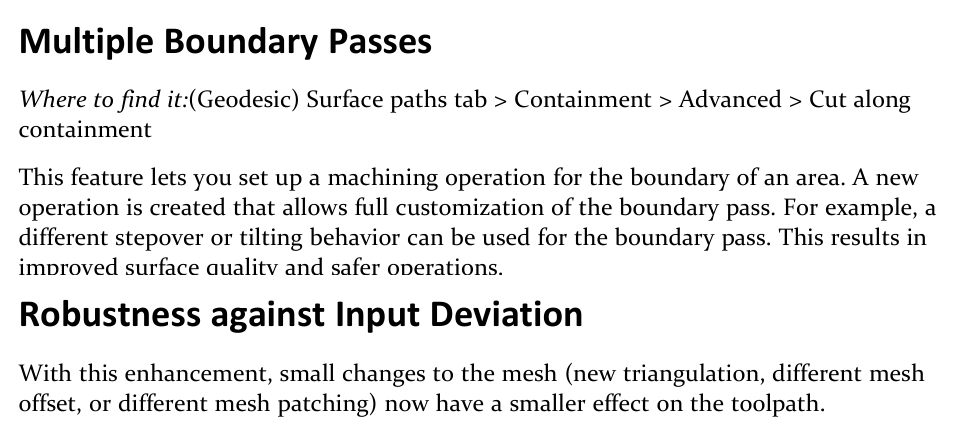
Figure 3 Customize the boundary pass and compare stability after small mesh changes
Source: What's New in GibbsCAM 2026, p. 43
Expected Result
• Roughing avoids rest-material areas below the selected threshold without missing required stock.
• Finishing extensions, barrel-tool contact, and Parallel to floor paths produce the intended surface safely.
• Primitive clearance areas and rotary fixture profiles produce safe retract and collision-avoidance motion.
• Rotary floor, lead, and containment controls produce reviewed entry, exit, boundary, and surface results.
• Geodesic boundary passes are independently controlled and remain more stable after small mesh changes.
Best Practices
• Change one control at a time and compare each result with a saved baseline.
• Use conservative offsets and clearance definitions; primitive clearance areas do not replace complete simulation.
• Recheck tool contact and holder clearance whenever barrel-tool geometry or toolpath extensions change.
• Confirm that each required fixture and chuck is selected and included in both calculated and posted rotary motion.
Troubleshooting
• Problem: Detect thicker than skips material that must be machined.
Cause
• The threshold is larger than the remaining stock or does not match the job tolerance.
• The stock model, rest-material source, or preceding operation is inaccurate.
Resolution
Reduce the threshold, verify the stock and preceding result, then regenerate. Inspect all required rest areas in simulation before posting.
• Problem: Barrel-tool finishing leaves cusps or produces unsafe extensions.
Cause
• The barrel-tool or holder geometry is inaccurate, or the extension value is unsuitable.
• The selected Wall, Floor, or Rest Finishing pattern does not match the surface geometry.
Resolution
Correct the tool assembly, reduce or disable extensions, and reconsider the finishing pattern. Recalculate and inspect contact, clearance, cusp size, and posted motion.
• Problem: Links or retracts do not clear the part or machine components.
Cause
• The selected Plane, Sphere, Cylinder, or Surface clearance does not cover the complete motion.
• Its direction, radius, height, position, or machine setup is incorrect.
Resolution
Choose a clearance type that matches the machine envelope, correct its dimensions and direction, and simulate every retract and link with the full machine setup.
• Problem: Rotary toolpath approaches a fixture, chuck, or containment boundary incorrectly.
Cause
• The fixture or chuck was not selected, its model or offset is inaccurate, or the source's duplicated fixture wording was interpreted incorrectly.
• Leads, containment trim, tool orientation, or rotary limits are unsuitable.
Resolution
Stop before machining. Verify the fixture selection and offset, review leads and containment trim, and recalculate with the approved MDD.
• Problem: The Geodesic boundary pass is missing, unstable, or unsafe.
Cause
• Cut along containment is not enabled or the boundary operation is incomplete.
• Containment, stepover, tilting, mesh quality, tool, or collision settings are unsuitable.
Resolution
Recreate the boundary-pass operation, verify containment and mesh quality, and use conservative stepover and tilting values. Regenerate, compare against the baseline, and simulate the complete operation.
Related Articles
• Create a Custom Stock Body for More Accurate Simulation
Explore More from CAMCO
Visit the CAMCO website to learn more about:
• Downloads and Helpful Resources
Keywords
GibbsCAM 2026, 5-Axis, multi-axis roughing, Detect thicker than, rest material, barrel tool, Extend Toolpaths, Parallel to floor, clearance area, rotary machining, fixture, chuck, containment trim, Geodesic, boundary pass, mesh robustness