
Summary
GibbsCAM 2024 makes saved Process Lists more reliable across parts. When the source and target parts use the same Machine Definition Document (MDD), system coordinate systems referenced by the saved processes are mapped to equivalent system coordinate systems in the target part.
This reduces manual reassignment when standardized processes are reused on compatible machine configurations. Tool Lists remain useful for moving selected tool definitions, while Process Lists retain the selected processes and their required tools. Always verify the mapped coordinate systems and regenerated toolpath before posting.
Table of Contents
- What Changed in GibbsCAM 2024
- Before You Begin
- Procedure
- Additional Information
- Best Practices
- Troubleshooting
- Related Articles
What Changed in GibbsCAM 2024
Important: Automatic mapping applies to equivalent system coordinate systems when the MDD is the same. Custom, renamed, missing, or otherwise nonequivalent coordinate systems still require manual review and reassignment.
Before You Begin
• Use GibbsCAM 2024 or later.
• Confirm that the source and target parts use the same MDD.
• Confirm that the target part contains equivalent system coordinate systems.
• Save a working copy of the target part before loading reusable content.
Important: A Process List is a reusable starting point, not a validated operation for the current job. Check geometry, stock, workholding, tools, holders, cutting data, depths, clearances, coordinate systems, simulation, and post output.
Procedure
Step 1 - Save a Process List
1. Create and fully configure the Process Tiles to reuse, including their tools, holders, speeds, feeds, depths, coordinate-system references, and other applicable settings.
2. Select one or more Process Tiles.
3. Right-click a selected nonblank Process Tile and choose Save Process List.
4. Browse to the intended library folder, enter a descriptive filename, and save the Process List.
Step 2 - Load the Process List in a Compatible Part
1. Open the target part and confirm that it uses the intended MDD.
2. Right-click a blank Process Tile and select Load Process List > Browse.
3. Browse to the saved Process List and select it.
4. Confirm that the processes and their required tools were added to the current part.
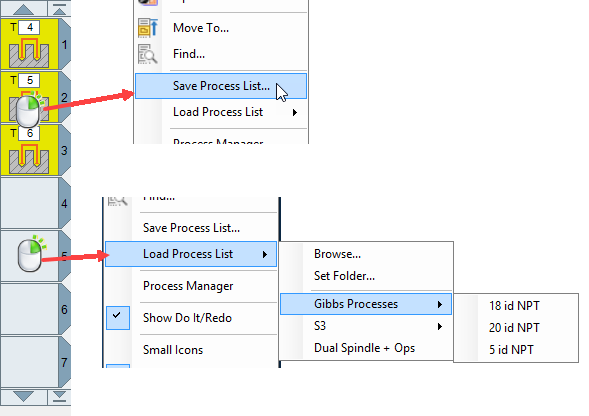
Figure 1 Save and load reusable Process Lists
Step 3 - Verify the 2024 Coordinate-System Mapping
1. Confirm that the source and target parts use the same MDD.
2. Identify each system coordinate system referenced by the loaded processes and confirm that an equivalent system coordinate system exists in the target part.
3. Open each loaded process and verify its active coordinate system, orientation, origin, work fixture, and geometry association.
4. Reassign any unresolved, custom, renamed, or questionable coordinate-system reference.
Step 4 - Validate the Result
1. Apply the loaded processes to the intended geometry and review every process parameter.
2. Regenerate the operations and run Op Simulation and Machine Simulation.
3. Inspect the posted coordinate-system and work-offset output, then complete the normal prove-out process.
Expected Result
• The saved processes and their required tools load into the target part.
• Saved system coordinate-system references map to equivalent system coordinate systems when the MDD matches.
• The programmer verifies the mapped coordinate systems, regenerated toolpath, simulation, and posted output before machining.
Additional Information
• A Process List stores selected processes and the tools used by them; a Tool List stores selected tool definitions only.
• Use Load Process List > Set Folder to make an approved Process List library available directly from the load menu.
• The GibbsCAM 2024 source documents automatic mapping only for equivalent system coordinate systems when the MDD is the same.
Best Practices
• Build Process Lists from validated shop-standard tools, holders, and process parameters.
• Organize approved lists by compatible MDD or machine family and include a revision in the filename.
• Keep the library in a backed-up location with controlled write access.
• Treat every loaded process as unverified until it has been regenerated, simulated, posted, and proved out for the current job.
Troubleshooting
• Problem: The loaded processes reference the wrong coordinate system.
Cause
• The source and target parts use different MDDs.
• The target part does not contain an equivalent system coordinate system.
• The saved process references a custom or renamed coordinate system.
Resolution
Compare the source and target MDDs and coordinate systems. Assign the approved target coordinate system manually, then regenerate, simulate, and verify the posted work-offset output.
• Problem: The Process List does not appear under Load Process List.
Cause
• The wrong Process List parent folder is configured.
• The file is stored outside the configured folder tree.
• The network or shared-library location is unavailable.
Resolution
Use Load Process List > Browse to locate the saved list. Then use Load Process List > Set Folder to assign the correct parent folder and confirm that the folder structure appears in the menu.
• Problem: Unexpected or duplicate tools appear after loading.
Cause
• A Process List includes the tools used when its processes were saved.
• The current part already contains tools with the same numbers, positions, offsets, or definitions.
• An outdated or incorrectly named Process List was selected.
Resolution
Confirm that the intended Process List was loaded, then review the Tool List and resolve duplicate or conflicting tool definitions. Update and resave the approved Process List if its embedded tool data is outdated.
• Problem: A coordinate-system reference remains unresolved.
Cause
• The target part lacks an equivalent system coordinate system.
• The reference is custom, renamed, missing, or otherwise nonequivalent.
Resolution
Create or select the approved target coordinate system, reassign the affected process, and repeat the full verification workflow.
• Problem: A loaded process creates incorrect or unsafe toolpath for the current part.
Cause
• The saved settings were created for different geometry, stock, material, workholding, machine, or coordinate-system conditions.
• Cutting data, depths, clearances, coordinate systems, tools, or holders were not revalidated.
• The active MDD, machine, or post processor does not match the saved workflow.
Resolution
Review every loaded process against the current job. Correct the setup, coordinate systems, tools, holders, cutting data, depths, and clearances. Regenerate, simulate, verify the post output, and complete the normal prove-out.
Related Articles
• How to Create a Pack and Go File
• How to Save Settings in GibbsCAM
• How to Configure Autosave and Backup Files
Explore More from CAMCO
Visit the CAMCO website to learn more about:
• Downloads & Helpful Resources
Keywords
GibbsCAM 2024, Process List, Save Process List, Load Process List, reusable processes, coordinate system, system CS, MDD, equivalent coordinate systems, process reuse, Tool List