
Summary
GibbsCAM 2025 adds controls for adaptive corner linking, strict automatic tilting, rotary and area roughing, geodesic machining, advanced-tool stepover and tilting, slot mills, and swarf gouge checking.
Table of Contents
What Changed in GibbsCAM 2025
Important: These controls are strategy-specific and may require 5-Axis, ModuleWorks-based strategies, or advanced tool definitions. Validate the active cycle, license, MDD, post, tool assembly, and stock before production use.
Before You Begin
• Use GibbsCAM 2025 with the applicable 5-axis and ModuleWorks strategies, approved MDD, and validated post processor.
• Create backups and prepare representative nonproduction operations for adaptive, rotary, area, geodesic, advanced-tool, slot-mill, and swarf testing as applicable.
• Define the part, stock, tool, shaft, holder, fixtures, coordinate systems, and in-process stock accurately.
• Save a baseline toolpath, simulation result, cycle time, and posted output before enabling new controls.
Procedure
Step 1 - Confirm the Strategy and Baseline
1. Open a copy of the part and confirm that the required roughing strategy and tool type are licensed and available.
2. Regenerate the current operation, simulate the complete setup, and record the path, entries, links, rotary behavior, cycle time, and warnings.
3. Change one control group at a time and compare every result with the baseline.
Step 2 - Tune Adaptive Corner Linking
1. Open the adaptive roughing operation and locate Surface Paths > Sorting > Zigzag threshold.
2. Enter the approved threshold as a multiple of tool diameter. Small corner regions below the threshold use one-way trochoidal connections; longer contours retain zig-zag linking.
3. Regenerate and compare corner engagement, link length, and cycle time.
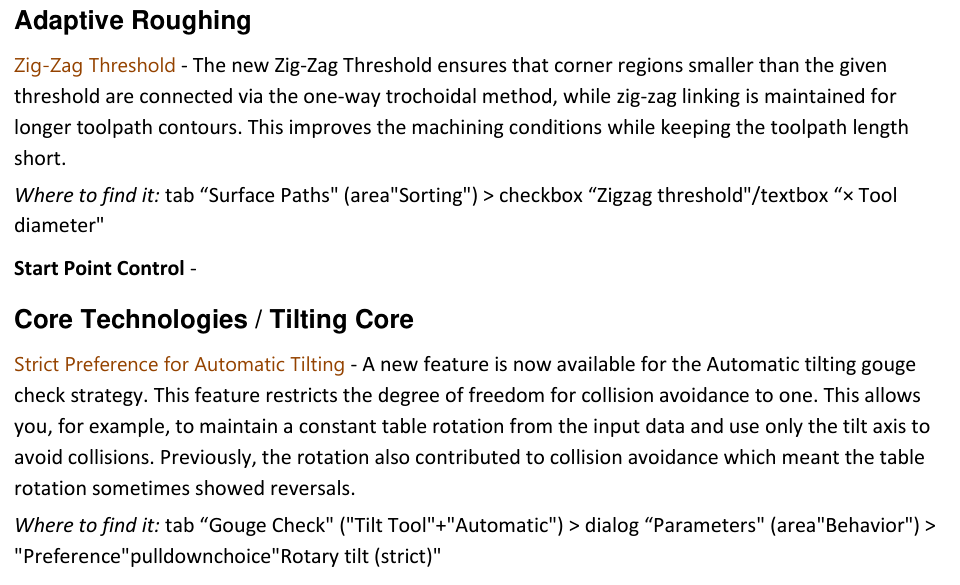
Figure 1 Compare adaptive corner linking and strict automatic tilt behavior
Source: What's New in GibbsCAM 2025, p. 34
Step 3 - Control Automatic Tilting and Rotary Leads
1. For an approved automatic-tilting operation, open Gouge Check, select Tilt Tool and Automatic, then review Parameters > Behavior > Preference.
2. Use Rotary tilt (strict) only when the machining plan requires the input table rotation to remain constant while the tilt axis performs collision avoidance.
3. For rotary machining roughing, add lead-in and lead-out motion where open pockets or rest machining need a smoother entry and exit.
4. Regenerate and inspect table rotation, tilt-axis travel, singularities, clearances, entry engagement, exit motion, and posted rotary output.
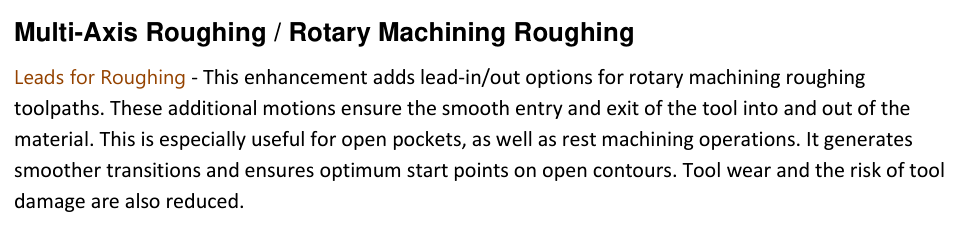
Figure 2 Add controlled lead-in and lead-out motions to rotary roughing
Source: What's New in GibbsCAM 2025, p. 34
Step 4 - Optimize Area and Geodesic Roughing
1. In area roughing, compare Minimize Links with the baseline so closed contours can reuse previously cut passes where the calculated path permits.
2. Set Avoid Small Profile Ramp conservatively for the approved tool's cutting and non-cutting geometry, and use Trim Line Ramps to limit line ramps to the available stock.
3. In geodesic machining, test Improved Corner Smoothing and additional medial-axis cuts separately. Decide whether added cuts should merge with the main cuts or act as finishing cuts.
4. Review engagement, remaining cusps, acceleration changes, ramps, links, stock contact, and cycle time after every regeneration.
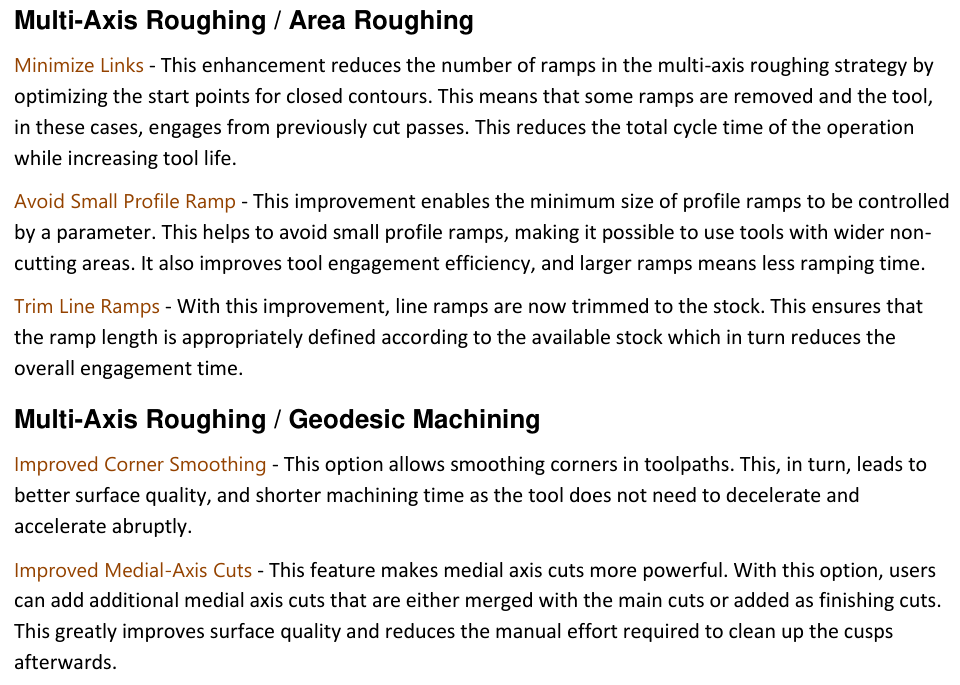
Figure 3 Review area and geodesic roughing improvements
Source: What's New in GibbsCAM 2025, p. 35
Step 5 - Configure Advanced Tools and Swarf Gouge Checks
1. For wall, floor, or rest finishing with an advanced tool, define stepover by cusp height only after the barrel or other tool geometry is complete and verified.
2. Use Tool Segment Selection for Tilting to control the allowed tool segment, tilting range, and contact region.
3. When using a slot mill, define chamfered edges only when they match the physical cutter.
4. For swarf machining, select individual tool parts for gouge checking only when the excluded portions cannot contact the part, stock, fixtures, or machine. A faster calculation is not a substitute for a complete collision model.
5. Regenerate, run full Machine Simulation, review posted linear and rotary motion, and complete the approved prove-out process.
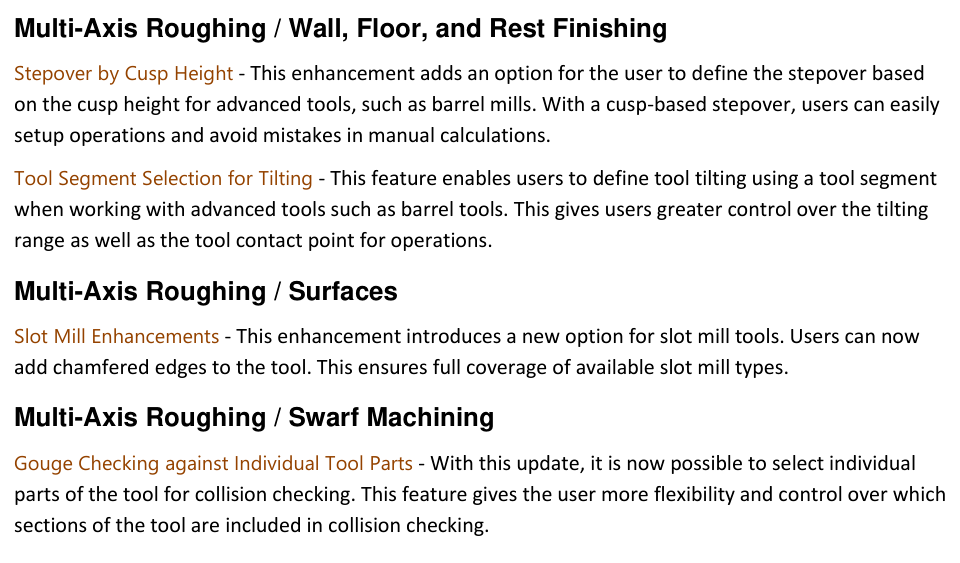
Figure 4 Use complete tool data for advanced-tool and swarf controls
Source: What's New in GibbsCAM 2025, p. 35
Expected Result
• Adaptive corner links use the intended one-way or zig-zag behavior without excessive path length.
• Strict tilting and rotary leads produce predictable, collision-free motion that matches the machining plan.
• Area and geodesic roughing reduce unnecessary ramps or abrupt motion while preserving required stock removal.
• Advanced-tool contact and selected gouge-check components match the physical tool assembly and simulated result.
Best Practices
• Change one option at a time and retain a known-good operation for comparison.
• Use actual tool, shaft, holder, and chamfer geometry; do not approximate advanced tools for collision-sensitive work.
• Keep the in-process stock current before evaluating trimmed ramps, reused passes, or link reduction.
• Re-simulate and re-prove after geometry, tool, stock, strategy, MDD, or post changes.
Troubleshooting
• Problem: Zig-Zag Threshold is unavailable or does not change the corner links.
Cause
• The active strategy or build does not expose the control.
• The corner region is not below the entered tool-diameter multiple, or another sorting setting governs the path.
Resolution
Confirm the adaptive strategy and installed build, verify Surface Paths > Sorting, then compare a controlled threshold change on geometry that contains both small corners and longer contours.
• Problem: Rotary tilt strict is missing or produces unexpected axis motion.
Cause
• Tilt Tool and Automatic are not both active, or the selected strategy does not support the preference.
• The input rotary orientation, machine limits, avoidance geometry, or tool assembly is incorrect.
Resolution
Confirm Gouge Check > Tilt Tool > Automatic and the active machine setup. Restore the baseline, correct geometry and limits, then re-enable Rotary tilt (strict) and inspect all rotary transitions.
• Problem: Rotary leads or area-roughing ramps are too short, excessive, or unsafe.
Cause
• The lead, minimum profile-ramp size, or line-ramp result does not suit the tool and available stock.
• In-process stock or open-contour geometry is incomplete.
Resolution
Correct stock and tool definitions, return to conservative entry values, and test Minimize Links, Avoid Small Profile Ramp, and Trim Line Ramps one at a time. Simulate every entry and exit.
• Problem: Corner smoothing or medial-axis cuts leave cusps or create unwanted motion.
Cause
• The smoothing or additional-cut settings are too aggressive for the geometry.
• The operation uses an unsuitable tolerance, tool, stepover, or finishing assignment.
Resolution
Restore the geodesic baseline, verify tool and tolerance, then add smoothing or medial-axis cuts separately. Compare remaining stock, surface coverage, direction changes, and posted motion.
• Problem: Advanced-tool contact or swarf gouge checking is unreliable.
Cause
• The physical tool does not match the barrel, slot-mill chamfer, tool segment, shaft, or holder definition.
• A tool component that can contact the setup was excluded from gouge checking.
Resolution
Correct the complete assembly, include every relevant tool part in collision checks, regenerate, and run full Machine Simulation. Do not release the operation until all unexplained contact is resolved.
Related Articles
• Polar and Cylindrical Milling
• VoluMill Helix Entry with an Air Wall or Void
• Recommended Simulation Settings
• How to Create a Pack and Go File
Explore More from CAMCO
Visit the CAMCO website to learn more about:
• Downloads and Helpful Resources
Keywords
GibbsCAM 2025, Adaptive Roughing, Zig-Zag Threshold, trochoidal, automatic tilting, Rotary tilt strict, rotary roughing, Leads for Roughing, Area Roughing, Minimize Links, profile ramp, line ramp, Geodesic Machining, corner smoothing, medial-axis cuts, cusp height, barrel mill, tool segment, slot mill, swarf machining, gouge checking