
Summary
GibbsCAM 2026 adds Plane, Sphere, Cylinder, and Surface clearance areas; tool-axis retract and approach motion; improved automatic clearance for cylindrical and spherical surfaces; user-defined clearance surfaces; and a Virtual Fixture Plane for Sphere Clearance.
Table of Contents
What Changed in GibbsCAM 2026
Before You Begin
• Use GibbsCAM 2026 with the required 5-Axis strategy and clearance controls.
• Use an approved machine definition and production postprocessor with verified axis limits.
• Define accurate stock, part, tools, holders, fixtures, machine components, and clearance geometry.
• Save a copy of the part and retain baseline toolpaths, simulations, and posted output.
Procedure
Step 1 - Establish the Baseline
1. Duplicate the operation that will be changed.
2. Record the current clearance geometry, retracts, approaches, links, cycle time, simulation result, and posted motion.
Step 2 - Define a Primitive Clearance Area
1. Open the applicable 5-axis operation and go to Link > Clearance area > Clearance area dialog.
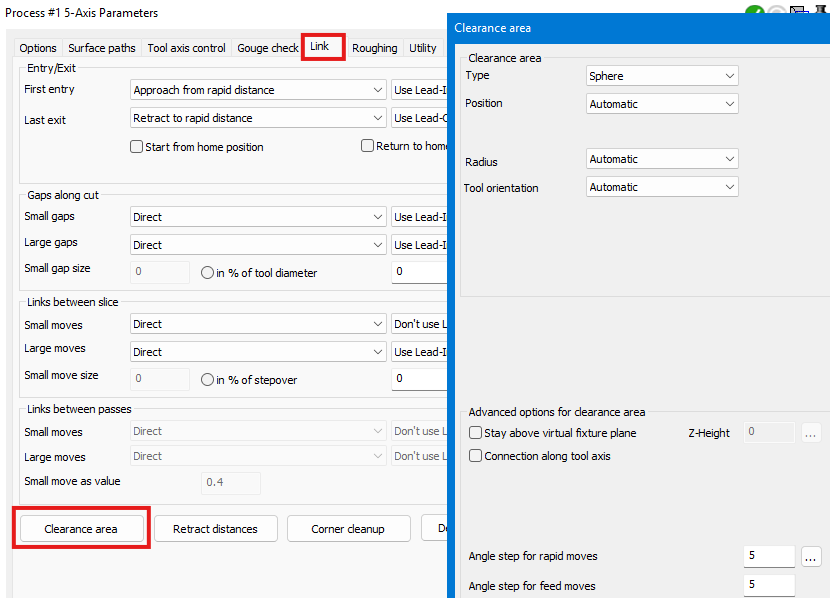
2. Choose Plane, Sphere, Cylinder, or Surface to match the part and machine envelope.
3. Set the height and normal direction, radius and direction, or position as required.
4. Regenerate and inspect every retract, link, and approach for complete clearance.
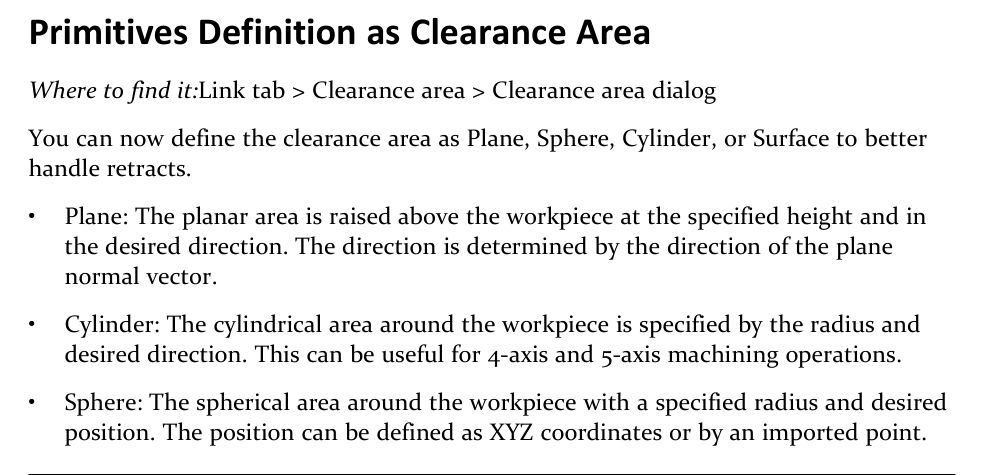
Figure 1 Choose a clearance area that matches the workpiece and machine envelope
Source: What's New in GibbsCAM 2026, p. 41
Step 3 - Control Retracts and Approaches Along the Tool Axis
1. Open the Link tab for the supported operation.
2. Enable the option to retract or approach along the tool axis until the motion connects with the clearance area.
3. Regenerate and verify the complete transition, including the tool, shaft, and holder.
Step 4 - Use Automatic Clearance for Cylinders or Spheres
1. Use an automatic clearance area, or select Cylinder or Sphere and set position and radius to automatic where supported.
2. Regenerate and compare link length, retract height, clearance, and cycle time with the baseline.
3. Reject any shorter link that reduces the required safety margin.
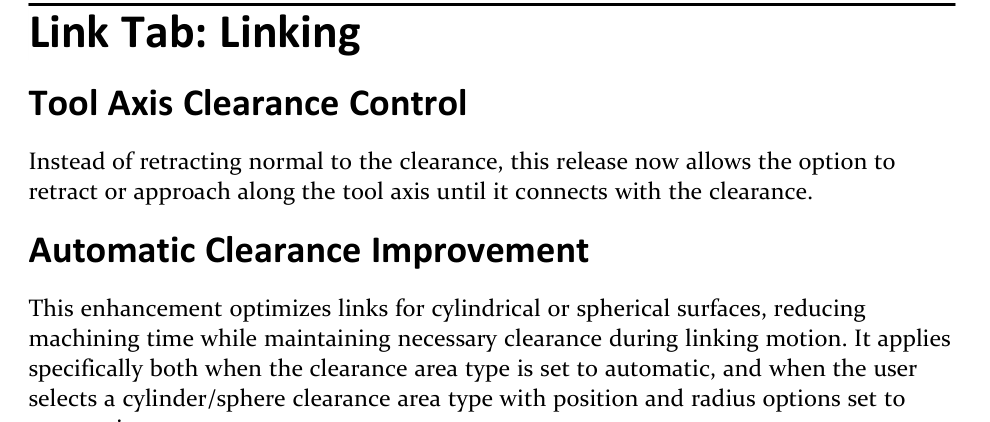
Figure 2 Control the transition direction and optimize cylindrical or spherical links
Source: What's New in GibbsCAM 2026, p. 45
Step 5 - Select User-Defined Clearance Surfaces
1. Open Link > Retracts and choose the user-defined clearance-area option.
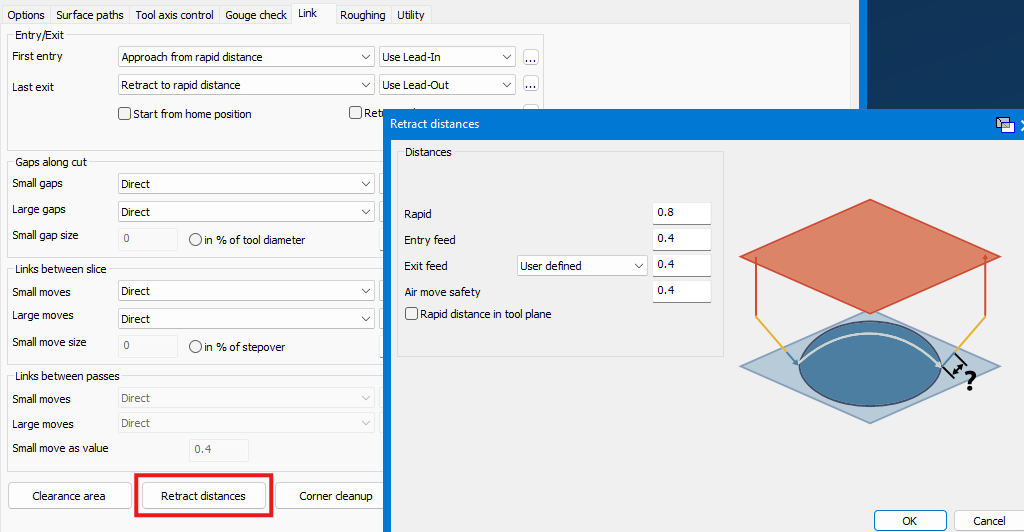
2. Select only the surfaces that define the required safe linking envelope.
3. Regenerate and verify that shorter retracts remain clear of stock, fixtures, and machine components.
Step 6 - Add a Virtual Fixture Plane
1. Use Sphere Clearance; the release notes limit Virtual Fixture Plane to this clearance type.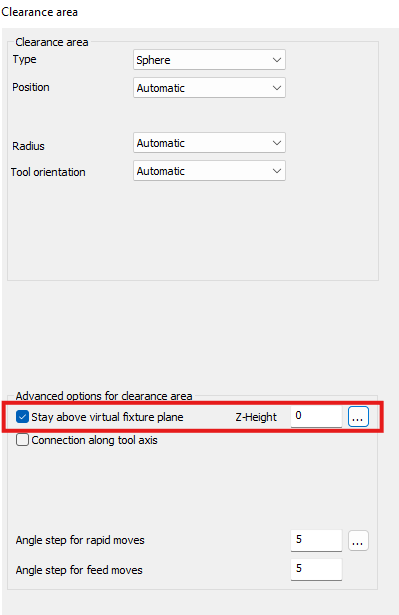
2. Enable Virtual Fixture Plane and enter the protective height.
3. Regenerate and confirm that links remain on the safe side of the plane throughout the operation.
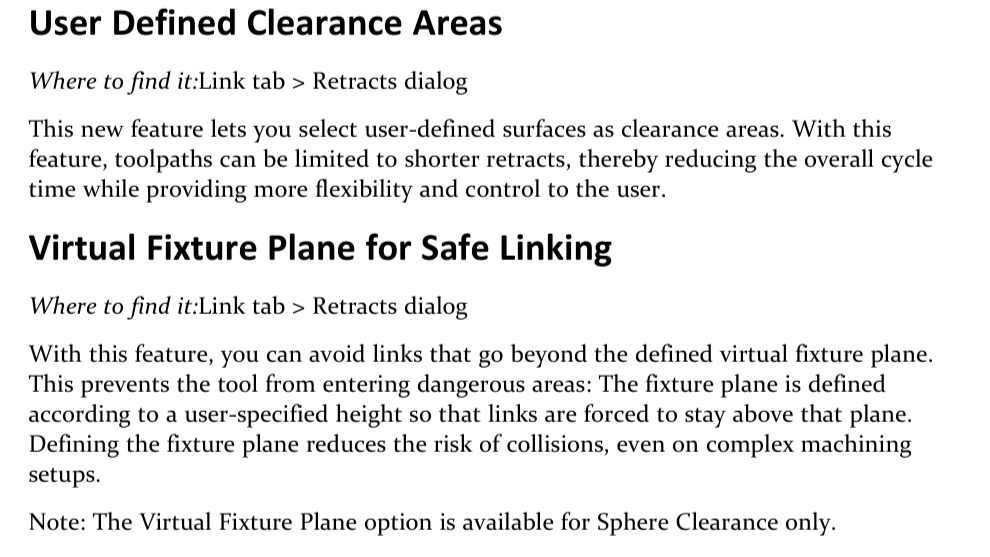
Figure 3 Use selected surfaces or a Sphere Clearance fixture plane to protect complex setups
Source: What's New in GibbsCAM 2026, p. 45
Step 7 - Approve the Result
1. Run Op Simulation and Machine Simulation with stock, fixtures, tools, holders, and machine components visible.
2. Review every retract, approach, link, axis limit, near-miss, and collision from multiple views.
3. Post with the approved postprocessor, review the complete output, and complete the shop's controlled prove-out.
Expected Result
• Clearance geometry covers the complete part, stock, fixture, and machine envelope.
• Retracts and approaches follow the intended direction without reducing holder clearance.
• Automatic or user-defined areas shorten links only where the motion remains safe.
• Virtual Fixture Plane keeps Sphere Clearance links above the defined protective height.
Best Practices
• Choose clearance geometry from the real setup envelope, not only the part shape.
• Change one linking control at a time and compare it with the saved baseline.
• Use conservative offsets and include the full tool assembly in collision checks.
• Inspect all noncutting motion; a short link is not automatically a safe link.
Troubleshooting
• Problem: Retracts or links intersect the part, stock, or fixture.
Cause
• The clearance area does not cover the complete setup envelope.
• Its height, radius, position, direction, selected surfaces, or fixture model is incorrect.
Resolution
Stop before machining. Correct the clearance definition and setup models, regenerate, and simulate every retract and link with the full tool assembly visible.
• Problem: Tool-axis retract or approach motion is unsafe.
Cause
• The tool-axis direction carries the shaft or holder toward nearby material.
• The selected strategy, tilt, or clearance connection does not suit the local geometry.
Resolution
Disable the option or revise the tool-axis and clearance settings. Regenerate and verify the full transition, not only the tool tip.
• Problem: Automatic clearance does not shorten the links.
Cause
• The strategy or installed build does not expose the improved behavior.
• Cylinder or Sphere position and radius are not automatic, or existing constraints require the longer route.
Resolution
Confirm strategy support and the automatic settings, then recalculate. Keep the longer result when it is required for safe clearance.
• Problem: The user-defined clearance surface is ignored or produces erratic motion.
Cause
• The wrong surfaces were selected or they do not form a usable clearance envelope.
• Surface orientation, gaps, stock, containment, or machine limits conflict with the requested links.
Resolution
Reselect a simple, continuous safe surface set and verify its orientation. Regenerate, inspect links from multiple views, and confirm final behavior with CAMCO if unclear.
• Problem: Virtual Fixture Plane is unavailable or links cross it.
Cause
• A clearance type other than Sphere Clearance is active.
• The plane height, orientation, or link settings do not protect the intended region.
Resolution
Select Sphere Clearance, enable Virtual Fixture Plane in Link > Retracts, and correct the protective height. Regenerate and verify every crossing before posting.
Related Articles
• Create a Custom Stock Body for More Accurate Simulation
• VoluMill Air Wall Repositioning Through the Part
Explore More from CAMCO
Visit the CAMCO website to learn more about:
• Downloads and Helpful Resources
Keywords
GibbsCAM 2026, 5-Axis, clearance area, linking, retract, approach, tool axis, Plane Clearance, Sphere Clearance, Cylinder Clearance, Surface Clearance, user-defined clearance, Virtual Fixture Plane, collision avoidance