Summary
Reprise Software reported vulnerabilities in a third-party web server component included with older versions of Reprise License Manager (RLM). GibbsCAM has updated its Network License (NLO) Server installer to use current RLM licensing technology.
Recommendation: All GibbsCAM NLO customers should install the latest GibbsCAM Reprise NLO Server available from Gibbs Online. The version available when this article was published is v24.0.21.0. If a newer version is listed, use the newer version.
At publication, GibbsCAM had not identified any impact to customers. Updating remains the recommended security practice for every NLO server.
Applies To
• GibbsCAM customers who use a Reprise Network License (NLO) Server.
• Reprise-based GibbsCAM network licensing introduced with GibbsCAM 2024.
• Physical or virtual license servers that run the GibbsRLMServer service.
This alert does not apply to standalone licenses, nor CimLM network licensing used by GibbsCAM 2023 and earlier.
Action Required
Update every GibbsCAM Reprise Network License server during the next available maintenance window. Older Reprise License Manager versions include a third-party web server component associated with reported vulnerabilities.
At publication, GibbsCAM had not identified any customer impact. This recommendation is a preventive security measure.
Security Alert Details
Before You Update
• Schedule downtime. Network licenses are unavailable while the GibbsRLMServer service is stopped.
• Sign in to the server with Windows Administrator privileges.
• Record the server name, licensing port, installed version, and active .lic file location.
• Start the Windows Firewall service before modifying the NLO Server.
• Use the GibbsCAM Reprise NLO Server installer from Gibbs Online, not a generic Reprise installer.
Install the Security Update
Step 1 Download the Current Installer
1. Open Gibbs Online.
2. Under Links, download Reprise NLO Server v24.0.21.0 or the newer version listed on the page.
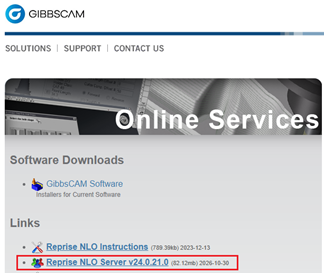
Figure 1 Download the current GibbsCAM Reprise NLO Server from Gibbs Online
The listed version at publication is v24.0.21.0. Use a newer version if available.
Step 2 Update the License Server
1. On the license server, open Windows Services and stop the GibbsRLMServer service.
2. Run the downloaded GibbsCAM Reprise NLO Server installer as an administrator.
3. Follow the on-screen instructions and complete the installation.
4. Start GibbsRLMServer and set its Startup Type to Automatic if required.
Step 3 Verify the Updated Server
1. Open https://localhost:5054/#/login on the server and sign in to the RLM administration interface.
2. Confirm that the server and Gibbsnet license service are running and that the expected license pool is present.
3. Launch GibbsCAM on a client and confirm that it checks out a license and displays the expected modules.
4. Record the installed NLO Server version, update date, and verification result.
Expected Result
• The server runs Reprise NLO Server v24.0.21.0 or later.
• GibbsRLMServer and Gibbsnet report normal status.
• GibbsCAM clients can check out and return the expected network licenses.
Reduce Future Exposure
• Check Gibbs Online for newer NLO Server builds during regular server maintenance.
• Limit RLM administration access to trusted administrators and internal networks.
• Keep the server operating system and security software supported and current.
• Do not expose the RLM administration interface directly to the public internet.
Troubleshooting
• Problem: Clients cannot obtain a license after the update.
Cause
• The GibbsRLMServer service did not restart.
• A firewall rule, server name, port, or client configuration no longer matches the active server.
Resolution
Start the GibbsRLMServer service, confirm the expected license pool, and test the client connection to the configured licensing port. Review the CAMCO NLO connectivity article if checkout still fails.
• Problem: The RLM administration page does not open.
Cause
• The GibbsRLMServer service is stopped.
• The browser is using the wrong address, protocol, or administration port.
Resolution
Confirm that GibbsRLMServer is running, then open https://localhost:5054/#/login from the server. If the page remains unavailable, review firewall and local security settings.
• Problem: The installer does not complete.
Cause
• The account lacks administrator privileges.
• The Windows Firewall service is stopped or endpoint security blocks the installer.
Resolution
Run the installer as an administrator with the Windows Firewall service running. Coordinate any security-software exception with your IT team. Contact CAMCO Support if the installer still fails.
Related Articles
• Network License NLO Server Setup
• Test Connection Between NLO Client and Server
• Reprise RLM Security Maintenance Release
Explore More from CAMCO
Visit the CAMCO website to learn more about:
• Downloads and Helpful Resources
Keywords
GibbsCAM security alert, Reprise License Manager, RLM vulnerability, Network License, NLO, license server, security update, GibbsRLMServer, v24.0.21.0
Was this article helpful?
That’s Great!
Thank you for your feedback
Sorry! We couldn't be helpful
Thank you for your feedback
Feedback sent
We appreciate your effort and will try to fix the article