Summary
GibbsCAM 2026 provides integrated access to ToolManageriQ (TMiQ), an AI-based system for organizing cutting tools, holders, assemblies, fixtures, and suppliers. Continued use after the 30-day evaluation requires separate TMiQ licensing.
Table of Contents
What Changed in GibbsCAM 2026
Important: Assign an owner for the trial, credentials, data, support, and licensing decision before installation.
Before You Begin
• Use GibbsCAM 2026 with internet access.
• Obtain company approval to install and evaluate third-party software.
• Confirm account, privacy, data, and licensing requirements.
• Save the part and record current tool-management data.
Procedure
Step 1 - Start the Evaluation
1. Choose Plug-Ins > Tool Managers > TMiQ.
2. If TMiQ is not installed, review the embedded video and select INSTALL NOW.
3. Complete the vendor installation prompts for the 30-day version.
Step 2 - Open TMiQ
1. Restart GibbsCAM if the installer requires it.
2. Choose Plug-Ins > Tool Managers > TMiQ.
3. Review the required tools, holders, assemblies, fixtures, or suppliers.
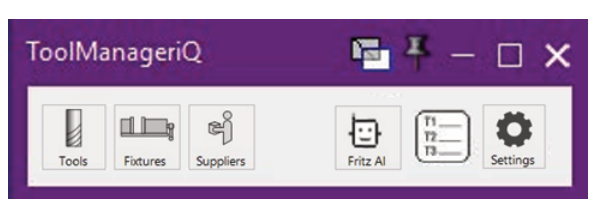
Figure 1 Open the installed TMiQ plug-in from GibbsCAM
Source: What's New in GibbsCAM 2026, p. 32
Step 3 - Complete the Evaluation
1. Document the evaluated workflow, data ownership, and support questions.
2. Before the trial expires, decide whether to purchase and activate TMiQ.
3. Use the GibbsCAM team for Tier 1 support and CAM Solutions for advanced TMiQ support.
Expected Result
• Installed TMiQ opens from Plug-Ins > Tool Managers.
• The evaluation owner records licensing, data, and workflow decisions.
• Support requests follow the documented boundary.
Best Practices
• Use approved company credentials.
• Assign one owner for the trial and renewal decision.
• Record data sources and units.
• Validate tool and assembly data before production use.
Troubleshooting
• Problem: TMiQ opens an embedded video instead of the manager.
Cause
• The integrated plug-in is not installed.
• Installation did not complete or GibbsCAM was not restarted.
Resolution
With approval, use INSTALL NOW, complete the installation, restart when required, and reopen TMiQ.
• Problem: TMiQ no longer opens after evaluation.
Cause
• The trial expired.
• The license, account, or internet connection is unavailable.
Resolution
Verify connectivity and account access, then purchase or activate the appropriate license and escalate advanced issues to CAM Solutions.
Related Articles
• TMiQ Installers and Documentation
Explore More from CAMCO
Visit the CAMCO website to learn more about:
• Downloads and Helpful Resources
Keywords
GibbsCAM 2026, TMiQ, ToolManageriQ, CAM Solutions, tool management, 30-day trial, Plug-Ins, internet connection
Was this article helpful?
That’s Great!
Thank you for your feedback
Sorry! We couldn't be helpful
Thank you for your feedback
Feedback sent
We appreciate your effort and will try to fix the article