Summary
GibbsCAM 2025 adds Overlap Finish Walls to Milling processes when Material Only is enabled. A nonzero value cuts past the material edge and recuts a short section of the finish wall. A value of 0 means no overlap and preserves the previous default behavior.
Table of Contents
What Changed in GibbsCAM 2025
Important: A nonzero overlap creates additional cutting beyond the detected material edge. Use only a CAMCO-approved value and verify engagement, finish, and clearance.
Before You Begin
• Use GibbsCAM 2025 with the approved machine definition, post, and licensed Mill module.
• Open a supported Milling process and enable Material Only.
• Confirm the material definition, open sides, finish walls, stock, tool, holder, fixtures, and clearances.
• Save a baseline path with Overlap Finish Walls set to 0.
Procedure
Step 1 - Enable Material Only
1. Create or edit the supported Milling process.
2. Enable Material Only and regenerate the operation if required.
3. Confirm that the displayed material state matches the expected in-process stock.
Step 2 - Verify the Open Sides
1. Open the Open Sides tab.
2. Confirm that the intended material edges and finish walls are classified correctly.
3. Verify tool and holder clearance beyond each open material edge.
Step 3 - Enter the Overlap Distance
1. Enter the CAMCO-approved value in Overlap Finish Walls.
2. Use 0 when no finish-wall overlap is required.
3. Recalculate and compare the extended path with the saved baseline.
Step 4 - Validate the Extra Engagement
1. Inspect the extension past the material edge and the recut finish-wall section.
2. Review tool deflection, loading, dwell, re-entry, surface finish, holder clearance, and unnecessary recutting.
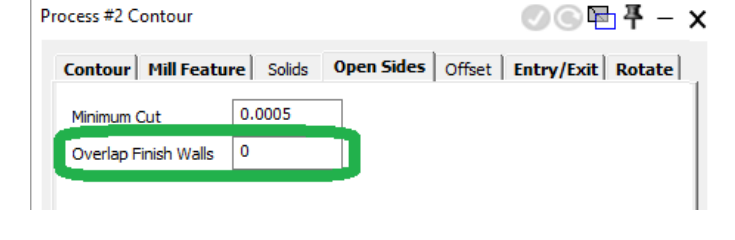
Figure 1 A nonzero value recuts a short section of the finish wall past the material edge
Source: What's New in GibbsCAM 2025, p. 8
3. Run Op Simulation and Machine Simulation, then review posted motion before a controlled prove-out.
Expected Result
• Overlap Finish Walls is available when Material Only is enabled in a supported Milling process.
• The path extends past the open material edge by the approved amount and recuts only the intended wall section.
• Simulation shows acceptable engagement, finish-wall coverage, and tool and holder clearance.
Best Practices
• Start with the validated shop standard for the tool, material, wall condition, and machine.
• Compare one overlap value at a time with the same material state and geometry.
• Use complete stock, tool, holder, and fixture definitions during validation.
• Return the value to 0 if the overlap has no verified benefit or creates excess cutting.
Troubleshooting
• Problem: Overlap Finish Walls is unavailable.
Cause
• Material Only is not enabled.
• The selected process does not expose the documented Open Sides control, or the installed version predates GibbsCAM 2025.
Resolution
Confirm GibbsCAM 2025 and the required Mill license, enable Material Only, and open the supported process's Open Sides tab.
• Problem: The path does not extend past the material edge.
Cause
• Overlap Finish Walls is 0.
• The open side or material edge is not defined as intended, or the operation was not regenerated.
Resolution
Enter the approved nonzero value, correct the material and open-side definitions, regenerate, and compare with the baseline.
• Problem: The overlap recuts too much wall or degrades the finish.
Cause
• The value is too large for the wall, tool, material, or machine.
• Tool deflection, dwell, re-entry, or finish requirements were not accounted for.
Resolution
Reduce the overlap toward the approved minimum or return it to 0, then recalculate and inspect engagement, finish, and tool loading.
• Problem: The extended motion interferes with the holder or fixture.
Cause
• Clearance beyond the open edge is insufficient.
• Tool, holder, fixture, stock, or material definitions are incomplete.
Resolution
Stop release. Correct the setup data or remove the overlap, then run complete Machine Simulation before posting again.
Related Articles
• How to Machine Open Shapes in GibbsCAM
• VoluMill Cutting Air When Using Material Only
• Recommended Simulation Settings
• How to Create a Pack and Go File
Explore More from CAMCO
Visit the CAMCO website to learn more about:
• Downloads and Helpful Resources
Keywords
GibbsCAM 2025, Milling, Material Only, Open Sides, Overlap Finish Walls, material edge, finish wall, tool deflection, holder clearance
Was this article helpful?
That’s Great!
Thank you for your feedback
Sorry! We couldn't be helpful
Thank you for your feedback
Feedback sent
We appreciate your effort and will try to fix the article