Summary
GibbsCAM 2025 adds From Selection to Mach. Order for Milling Roughing and Contouring processes. When selected, GibbsCAM creates the toolpath in the order the geometry was selected. Automatic remains available when GibbsCAM should determine the sequence.
Table of Contents
- What Changed in GibbsCAM 2025
- Before You Begin
- Procedure
- Related Video
- Best Practices
- Troubleshooting
- Related Articles
What Changed in GibbsCAM 2025
Important: A manual sequence can change links, retracts, fixture exposure, and cycle time. Review the complete path after reselecting or editing geometry.
Before You Begin
• Use GibbsCAM 2025 with the approved machine definition, post, and licensed Mill module.
• Choose a supported Milling Roughing or Contouring process.
• Inspect the pocket or contour geometry for gaps, overlaps, duplicates, and incorrect feature membership.
• Plan the desired sequence and save a baseline path with Mach. Order set to Automatic.
Procedure
Step 1 - Plan the Feature Sequence
1. Identify the pockets or contours included in the operation.
2. Choose a sequence that supports workholding, clearance, tool loading, and efficient travel.
3. Record the intended order when another programmer may edit the operation.
Step 2 - Select the Geometry in Order
1. For Roughing, select the pocket geometry in the order it should be machined.
2. For Contouring, select the contour geometry in the intended order.
3. Confirm that each intended feature is included once before completing the selection.
Step 3 - Set Machining Order to From Selection
1. Open the Pocket tab for Roughing or the Contour tab for Contouring.
2. Set Mach. Order to From Selection.
3. Recalculate and display the complete toolpath.
Step 4 - Verify the Sequence and Links
1. Confirm that the pockets or contours are cut in the intended selection order.
2. Review every link, retract, rapid move, and fixture clearance between features.
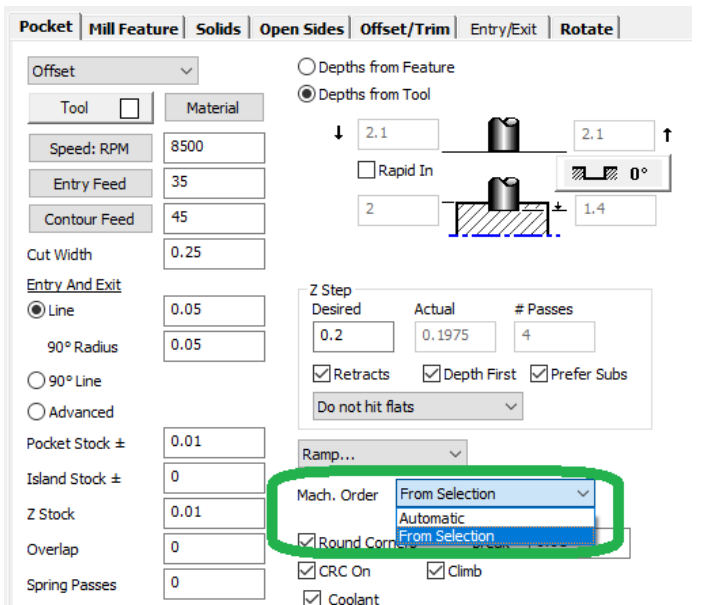
Figure 1 From Selection follows the programmer's geometry-selection order
Source: What's New in GibbsCAM 2025, p. 8
3. Compare travel and cycle time with Automatic, then simulate and review posted motion before prove-out.
Expected Result
• From Selection is available in supported Roughing Pocket and Contouring processes.
• The generated path follows the programmer's geometry-selection order.
• Links, retracts, clearances, and posted motion remain safe for the selected sequence.
Related Video
Best Practices
• Treat selection order as process data when sequence affects workholding, heat, loading, or travel.
• Use Automatic when a manual sequence provides no verified benefit.
• Compare both order modes with the same geometry, tool, and operation settings.
• Recheck the sequence after geometry is edited, replaced, copied, or reselected.
Troubleshooting
• Problem: From Selection is unavailable.
Cause
• The selected process or tab does not support the control.
• The installed version predates GibbsCAM 2025 or the required Mill option is unavailable.
Resolution
Confirm GibbsCAM 2025 and the required license, then use a supported Roughing Pocket or Contouring process and reopen its machining-order control.
• Problem: The path does not follow the expected sequence.
Cause
• Mach. Order is still set to Automatic.
• The geometry was selected, edited, or regenerated in a different order.
Resolution
Set Mach. Order to From Selection, reselect the geometry in the intended sequence, regenerate, and verify each feature in toolpath display.
• Problem: The selected order creates excessive links or retracts.
Cause
• The manual sequence moves repeatedly across the part or fixture.
• The order does not support efficient depth-first or regional machining.
Resolution
Reselect the features in a safer sequence or return Mach. Order to Automatic, then compare both results in simulation.
• Problem: A feature is skipped or machined twice.
Cause
• Geometry is missing, duplicated, or assigned to the wrong feature.
• The selection contains overlapping or unintended entities.
Resolution
Repair the geometry and feature membership, clear the selection, reselect each feature once in order, and regenerate the operation.
Related Articles
• Recommended Simulation Settings
• How to Create a Pack and Go File
Explore More from CAMCO
Visit the CAMCO website to learn more about:
• Downloads and Helpful Resources
Keywords
GibbsCAM 2025, Milling, Roughing, Pocket, Contour, Mach. Order, From Selection, Automatic, selection order, toolpath sequence, links, retracts
Was this article helpful?
That’s Great!
Thank you for your feedback
Sorry! We couldn't be helpful
Thank you for your feedback
Feedback sent
We appreciate your effort and will try to fix the article