Summary
GibbsCAM 2025 adds Filter Selections, Deselect by Mouse Drag, and an optional directional containment mode. Selection and deselection actions can be stacked so you can refine a highlighted set before editing or processing it.
Table of Contents
- What Changed in GibbsCAM 2025
- Before You Begin
- Procedure
- Related Video
- Best Practices
- Troubleshooting
- Related Articles
What Changed in GibbsCAM 2025
Important: Filter and drag actions can be stacked. Inspect the complete highlighted set before deleting, moving, replacing, or processing geometry.
Before You Begin
• Use GibbsCAM 2025 and save a working copy of the part.
• Display the intended workgroups and model entities, and confirm the active coordinate system.
• Clear or inspect the current selection before applying another filter or drag action.
• Decide whether drag selection should include crossing entities or only fully contained entities.
Procedure
Step 1 - Filter by Entity Type
1. Choose Edit > Selection > Filter Selections.
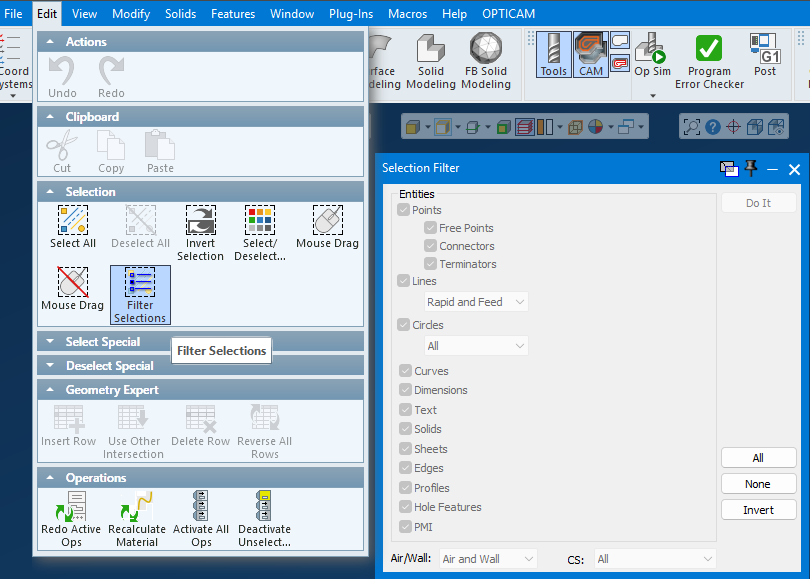
2. Select the entity categories and any available subtype, Air/Wall, or coordinate-system filters.
3. Click Do It and inspect the highlighted entities.
Step 2 - Add or Remove Entities by Dragging
1. Use Select by Mouse Drag to add entities; the default shortcut is Shift+drag.
2. Use Deselect by Mouse Drag to remove entities; the default shortcut is Ctrl+Shift+drag.
3. Repeat either action as needed to refine the current selection.
Step 3 - Choose the Containment Behavior
1. Open File > Preferences > Interface and locate the mouse-drag containment option.
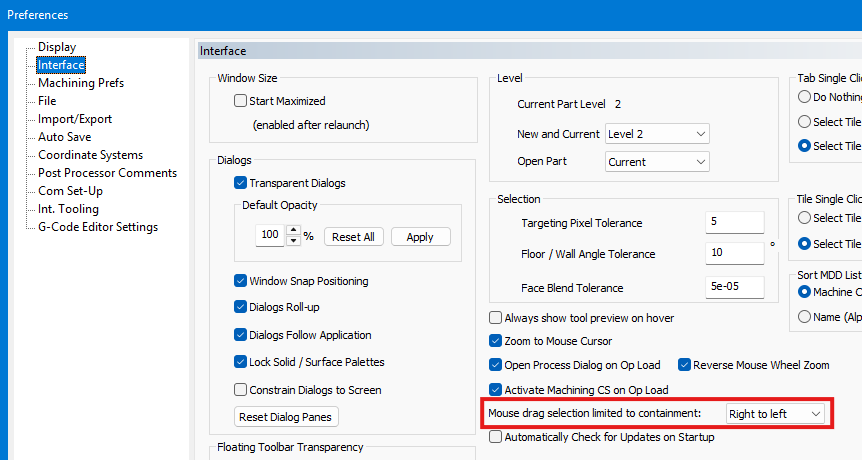
2. Keep the legacy mode for left-to-right inclusive selection, which includes entities partly inside the drag region.
3. Enable directional mode to make right-to-left inclusive and left-to-right exclusive, which selects only fully contained entities.
Step 4 - Verify the Final Set
1. Rotate or zoom the model and inspect every highlighted entity.
2. Remove unintended entities and add any omissions before continuing.
3. Save the part before making a broad edit or generating operations from the selection.
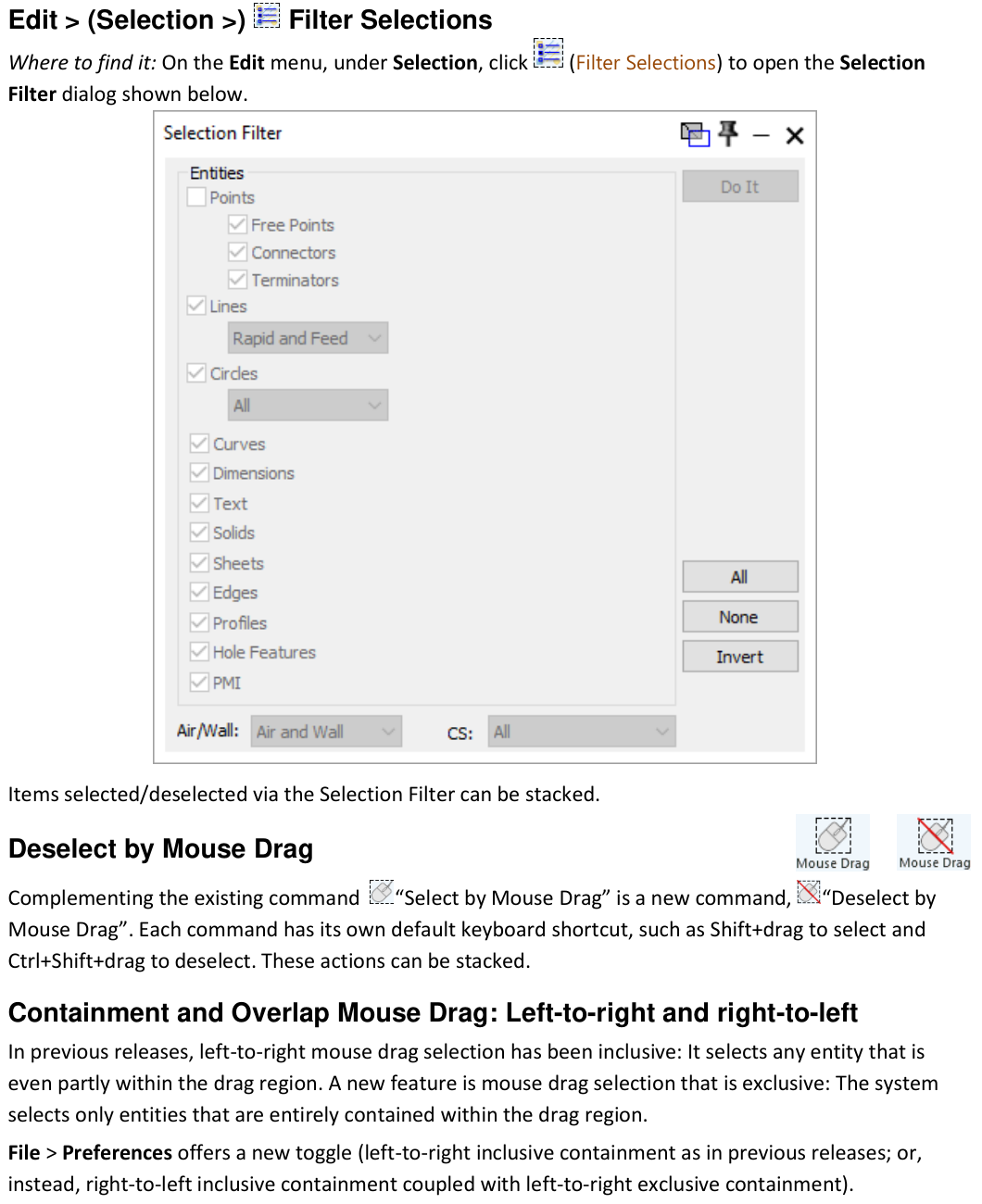
Figure 1 Filter entity types, then refine the result with mouse-drag actions
Source: What's New in GibbsCAM 2025, p. 19
Expected Result
• Filter Selections highlights only the requested entity categories and filter values.
• Drag actions add or remove entities without discarding the rest of the refined set.
• Directional containment includes crossing or fully contained entities according to the selected preference and drag direction.
Related Video
Best Practices
• Start with the narrowest useful entity and coordinate-system filters.
• Use exclusive containment when crossing entities must remain unselected.
• Inspect hidden or overlapping geometry before deleting or replacing a selection.
• Clear the selection and rebuild it if stacked actions make the final set difficult to audit.
Troubleshooting
• Problem: Filter Selections returns an empty or incomplete set.
Cause
• The required entity category, subtype, Air/Wall value, or coordinate system is excluded.
• The entities are hidden, inactive, or not selectable.
Resolution
Show the required geometry, correct the active workgroup and filter choices, click Do It again, and inspect the highlighted set.
• Problem: Deselect by Mouse Drag does not remove the intended entities.
Cause
• The Select by Mouse Drag command or shortcut is active instead.
• The drag region does not include the target entities under the current containment mode.
Resolution
Activate Deselect by Mouse Drag or use Ctrl+Shift+drag, then redraw the region using the appropriate direction and containment behavior.
• Problem: The drag box includes crossing entities unexpectedly.
Cause
• Legacy left-to-right inclusive containment is enabled.
• The drag direction is using the inclusive side of directional mode.
Resolution
Review the containment option in File > Preferences and use left-to-right exclusive selection when only fully contained entities are required.
• Problem: Unintended entities remain selected after several actions.
Cause
• Selection and deselection actions were stacked.
• Overlapping or hidden entities were not visible during review.
Resolution
Clear the current selection, expose the relevant geometry, and rebuild the set with a narrow filter followed by deliberate drag refinements.
Related Articles
• How to Create a Pack and Go File
Explore More from CAMCO
Visit the CAMCO website to learn more about:
• Downloads and Helpful Resources
Keywords
GibbsCAM 2025, Selection Filter, Filter Selections, Select by Mouse Drag, Deselect by Mouse Drag, inclusive containment, exclusive containment, coordinate system, model selection
Was this article helpful?
That’s Great!
Thank you for your feedback
Sorry! We couldn't be helpful
Thank you for your feedback
Feedback sent
We appreciate your effort and will try to fix the article