Summary
GibbsCAM 2025 preserves supported attributes when solids are copied and pasted between sessions. Preservation applies to attributes on the solid, its faces, and its edges, including Color, Feature, Real, Integer, and Text types.
Table of Contents
- What Changed in GibbsCAM 2025
- Before You Begin
- Procedure
- Related Video
- Best Practices
- Troubleshooting
- Related Articles
What Changed in GibbsCAM 2025
Important: Attribute preservation copies the source data; it does not confirm that the attributes are correct or that every downstream PLM, selection, reporting, or automation workflow interprets them the same way.
Before You Begin
• Open the source and destination parts in separate GibbsCAM 2025 sessions.
• Save both parts and retain an unchanged copy of the source.
• Record representative body-, face-, and edge-level Color, Feature, Real, Integer, and Text attributes.
• Identify any downstream workflow that depends on the copied attributes.
Procedure
Step 1 - Record the Source Attributes
1. Select the source solid and inspect representative attributes on the body, faces, and edges.
2. Record attribute names, types, values, and locations needed for the comparison.
3. Confirm that the correct part and source solid are active before copying.
Step 2 - Copy the Required Geometry
1. Select the required solid or the intended part geometry in the source session.
2. Copy the selection.
3. Avoid unrelated modeling edits between the source inspection and the copy operation.
Step 3 - Paste into the Destination Session
1. Activate the destination GibbsCAM session and paste the copied geometry.
2. Confirm that the expected solid is present and positioned as intended.
3. Save the destination part under the shop's normal revision process.
Step 4 - Compare Attributes and Dependent Workflows
1. Inspect the pasted solid at the body, face, and edge levels.
2. Compare the recorded Color, Feature, Real, Integer, and Text attributes with the source.
3. Test any PLM, selection, reporting, process, or automation workflow that uses those attributes.
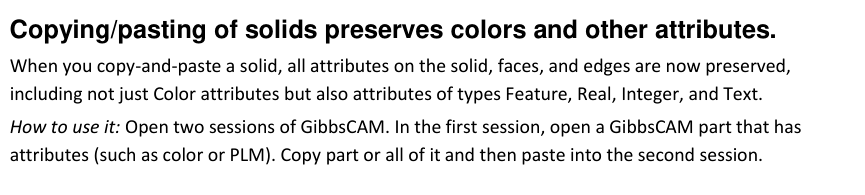
Figure 1 Compare representative attributes after pasting into the destination session
Source: What's New in GibbsCAM 2025, p. 27
Expected Result
• The selected solid is pasted into the destination GibbsCAM 2025 session.
• Representative body-, face-, and edge-level attributes match the source.
• Dependent workflows recognize the preserved attributes as expected.
Related Video
Best Practices
• Use matching GibbsCAM 2025 builds when validating attribute transfer.
• Record representative values at all three scopes: solid, face, and edge.
• Copy only the intended geometry and verify the destination immediately after pasting.
• Recheck attributes after later modeling operations that may change faces, edges, or topology.
Troubleshooting
• Problem: The pasted solid is missing expected attributes.
Cause
• The wrong solid or an incomplete set of geometry was copied.
• The source solid does not contain the expected attribute at the inspected scope.
Resolution
Return to the source session, confirm the attribute and its body, face, or edge scope, copy the correct geometry, and compare the new paste with the recorded source values.
• Problem: Body attributes are present but face or edge attributes appear missing.
Cause
• The inspection is being performed at the wrong selection level.
• The source face or edge was not the one carrying the recorded attribute.
Resolution
Use the correct face or edge selection mode, locate the recorded source entity, and compare the corresponding pasted entity before concluding that the attribute was lost.
• Problem: The destination workflow does not use a preserved attribute.
Cause
• The downstream workflow does not support that attribute type or name.
• Its mapping, configuration, or GibbsCAM build differs from the source environment.
Resolution
Confirm that the value is present in GibbsCAM, then review the dependent workflow's supported attributes and mapping. Correct that configuration without overwriting the source data.
• Problem: Attributes change after editing the pasted solid.
Cause
• A later modeling operation changed or replaced attributed faces or edges.
• The edited topology no longer corresponds to the copied entities.
Resolution
Compare with the saved post-paste version, identify the topology-changing edit, and reapply or remap required attributes through the approved workflow before using the model downstream.
Related Articles
• Using Facet Bodies for Toolpath in GibbsCAM
• How to Create a Pack and Go File
Explore More from CAMCO
Visit the CAMCO website to learn more about:
• Downloads and Helpful Resources
Keywords
GibbsCAM 2025, copy paste, solid attributes, face attributes, edge attributes, Color, Feature, Real, Integer, Text, PLM, attribute preservation, two sessions
Was this article helpful?
That’s Great!
Thank you for your feedback
Sorry! We couldn't be helpful
Thank you for your feedback
Feedback sent
We appreciate your effort and will try to fix the article