Summary
GibbsCAM 2025 adds the FB Solid Modeling palette for editing facet bodies. Most solid-modeling tools can now be used on facet geometry, and new commands support healing, smoothing, complexity reduction, refaceting, and tessellation.
Table of Contents
- What Changed in GibbsCAM 2025
- Before You Begin
- Procedure
- Related Video
- Best Practices
- Troubleshooting
- Related Articles
What Changed in GibbsCAM 2025
Important: A successful command does not prove that the edited facet body is suitable for machining. Check body validity, shape, surface area or volume as needed, and every dependent toolpath before release.
Before You Begin
• Use GibbsCAM 2025 with the products and licenses required for solid and facet-body modeling.
• Save an untouched copy of the source model for geometric comparison.
• Identify the defect or simplification goal before selecting a modeling command.
• Record any downstream toolpaths, selections, or calculations that depend on the facet body.
Procedure
Step 1 - Open FB Solid Modeling
1. Select the facet body to edit.
2. On the main tool palette, open FB Solid Modeling.
3. Confirm that the selected object is the intended facet body before making changes.
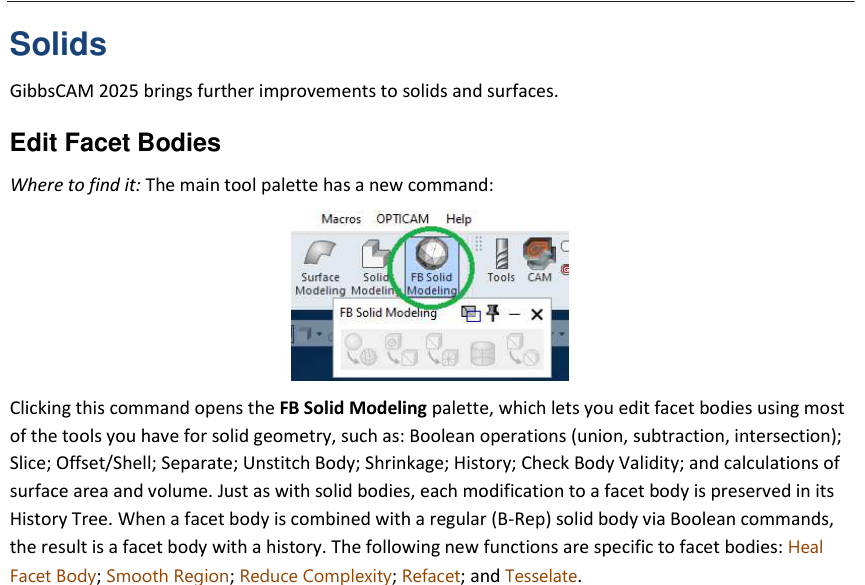
Figure 1 Open FB Solid Modeling and make one controlled change at a time
Source: What's New in GibbsCAM 2025, p. 26
Step 2 - Choose the Smallest Required Edit
1. Use standard modeling commands such as Boolean, Slice, Offset or Shell, Separate, Unstitch Body, Shrinkage, or History only when they match the required change.
2. Use Heal Facet Body to address repairable facet defects.
3. Use Smooth Region, Reduce Complexity, Refacet, or Tesselate only after defining the acceptable change in shape and facet density.
Step 3 - Review the Edited Body
1. Run Check Body Validity and review the edited body at a useful display scale.
2. Compare critical dimensions, edges, openings, surface area, and volume with the untouched source as applicable.
3. Review the History Tree and confirm that the expected modeling operation was added.
Step 4 - Validate Downstream Use
1. Recalculate every operation that references the edited body.
2. Review toolpath boundaries, remaining stock, clearances, and simulation results.
3. Post and complete the shop's normal code review and prove-out before production use.
Expected Result
• The FB Solid Modeling palette opens for the selected facet body.
• The selected edit produces a valid facet body with the intended geometry and history.
• Dependent toolpaths recalculate and pass simulation and posted-code review.
Related Video

Best Practices
• Retain an untouched source body for every repair or simplification test.
• Apply one meaningful change at a time so its effect can be evaluated.
• Use the least aggressive smoothing or complexity reduction that meets the machining need.
• Validate geometry and downstream toolpaths after every topology-changing edit.
Troubleshooting
• Problem: FB Solid Modeling is unavailable or the commands are disabled.
Cause
• The selected object is not a facet body.
• The required GibbsCAM product, license, or 2025 build is not active.
Resolution
Confirm the selected body type, GibbsCAM version, installed products, and license. Reopen the correct part and palette after correcting the configuration.
• Problem: Heal Facet Body does not correct the model.
Cause
• The defect is outside the repair command's supported scope.
• The body contains gaps, overlaps, or topology that requires a different edit or a cleaner source model.
Resolution
Compare with the untouched source, isolate the defect, and try the appropriate modeling command. Obtain a corrected source model when the repair cannot preserve the required geometry.
• Problem: Smoothing or complexity reduction changes the shape too much.
Cause
• The selected region or reduction setting is too broad.
• The source facets do not contain enough detail for the requested result.
Resolution
Undo the edit, reduce its scope or strength, and compare critical geometry with the source before accepting the result.
• Problem: A dependent toolpath changes or fails after the edit.
Cause
• The operation references faces, edges, or topology changed by the modeling command.
• The edited body is invalid or no longer satisfies the process selection.
Resolution
Repair the process selections, confirm body validity, recalculate, and review the complete toolpath. Restore the source body if the required machining definition cannot be preserved.
Related Articles
• Using Facet Bodies for Toolpath in GibbsCAM
• How to Use Unstitch Solid to Defeature a Solid Model
• Creating Solid Model from 2D Geometry
Explore More from CAMCO
Visit the CAMCO website to learn more about:
• Downloads and Helpful Resources
Keywords
GibbsCAM 2025, facet body, FB Solid Modeling, Heal Facet Body, Smooth Region, Reduce Complexity, Refacet, Tesselate, tessellate, Check Body Validity, History Tree, facet repair
Was this article helpful?
That’s Great!
Thank you for your feedback
Sorry! We couldn't be helpful
Thank you for your feedback
Feedback sent
We appreciate your effort and will try to fix the article