Summary
GibbsCAM 2026 extends Scale and Dup+Scale to solid bodies, facet bodies, and sheets. Supported elements can be scaled from 0.02x through 50x.
Table of Contents
- What Changed in GibbsCAM 2026
- Before You Begin
- Procedure
- Related Video
- Best Practices
- Troubleshooting
- Related Articles
What Changed in GibbsCAM 2026
Important: Save a recoverable copy and confirm the intended units and scale direction before applying the transform.
Before You Begin
• Use GibbsCAM 2026 or later.
• Select only the elements that must change.
• Measure a known feature and calculate the scale factor.
• Use Dup+Scale when the original must remain available.
Procedure
Step 1 - Select the Model Elements
1. Select the required geometry, solid bodies, facet bodies, or sheets.
2. Confirm that no unrelated element is selected.
Step 2 - Apply the Scale
1. Open Modify > Transform > Scale, or Duplicate > Dup+Scale.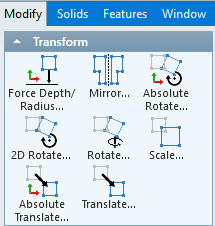
2. Enter a factor from 0.02x through 50x.
3. Apply the command.
Step 3 - Verify the Result
1. Measure the known feature and confirm the intended size.
2. Inspect the model for invalid geometry.
3. Confirm body and sheet attributes; for facet bodies, confirm the facet count is unchanged.
Expected Result
• Selected elements are resized by the intended factor.
• Attributes remain available, and facet bodies retain their facet count.
• The scaled model is valid for downstream work.
Related Video
Best Practices
• Verify unit conversions before scaling.
• Measure before and after the transform.
• Use a duplicate when comparing results.
• Regenerate and simulate downstream operations after approval.
Troubleshooting
• Problem: Scale warns or creates invalid geometry.
Cause
• The factor is outside 0.02x to 50x.
• The source model does not scale cleanly at the requested factor.
Resolution
Restore the saved copy, use a supported factor, and inspect or repair the source model.
• Problem: The model is still the wrong size.
Cause
• The factor was calculated in the wrong direction.
• Required elements were not selected.
Resolution
Undo, verify a known dimension and the unit conversion, select all required elements, and apply the corrected factor.
Related Articles
• Recommended Simulation Settings
Explore More from CAMCO
Visit the CAMCO website to learn more about:
• Downloads and Helpful Resources
Keywords
GibbsCAM 2026, Scale, Dup+Scale, solid body, facet body, sheet, unit conversion, model preparation
Was this article helpful?
That’s Great!
Thank you for your feedback
Sorry! We couldn't be helpful
Thank you for your feedback
Feedback sent
We appreciate your effort and will try to fix the article