Summary
GibbsCAM 2026 adds nonplanar Rotate and Dup+Rotate. The commands rotate geometry and features around a selected axis without first creating a construction coordinate system.
Table of Contents
- What Changed in GibbsCAM 2026
- Before You Begin
- Procedure
- Related Video
- Best Practices
- Troubleshooting
- Related Articles
What Changed in GibbsCAM 2026
Important: Use Live Preview and verify the active coordinate system, axis, center, angle, and direction before applying the result.
Before You Begin
• Use GibbsCAM 2026 or later.
• Select only the geometry or features to rotate.
• Identify a reliable line, hole, or straight edge for the axis.
• Use Dup+Rotate when the original must remain available.
Procedure
Step 1 - Open Rotate
1. Open Modify > Transform > Rotate, or Duplicate > Dup+Rotate.
2. Choose the axis definition method.
3. With Line, select a line, hole, or straight solid edge.
Step 2 - Define the Rotation
1. Set the center point.
2. Enter the angle and direction.
3. Use Live Preview to confirm the axis and rotation from more than one view.
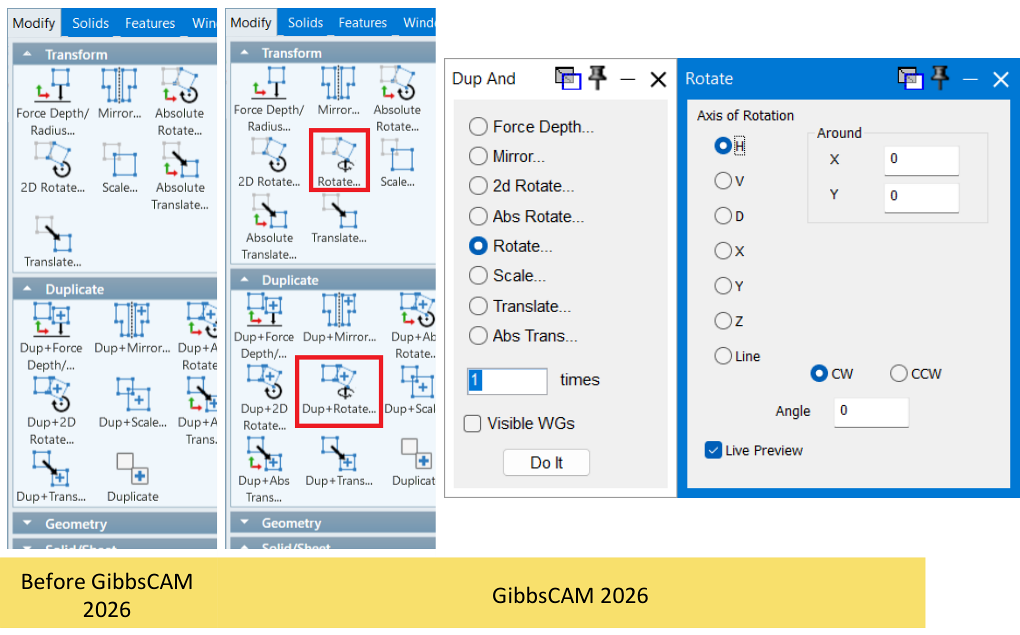
Figure 1 Define the axis and inspect Live Preview before applying the rotation
Source: What's New in GibbsCAM 2026, p. 26
Step 3 - Apply and Verify
1. Apply the rotation.
2. Confirm the final orientation in the active coordinate system.
3. Inspect the transformed model before regenerating toolpath.
Expected Result
• Selected geometry or features rotate around the intended axis and center.
• The final orientation matches Live Preview.
• The transformed model remains valid.
Related Video
Best Practices
• Use a stable axis reference.
• Review the preview from several views.
• Keep a duplicate for comparison.
• Revalidate affected setups and operations.
Troubleshooting
• Problem: The preview uses the wrong axis or direction.
Cause
• The selected axis or center is incorrect.
• The direction or angle does not match the required view.
Resolution
Reselect the axis and center, reverse the direction or angle, and confirm Live Preview before applying.
• Problem: A line-based axis cannot be selected.
Cause
• The element is not a supported line, hole, or straight edge.
• The reference is hidden or difficult to select.
Resolution
Show the reference, select a supported element, and verify the snapped center point.
Related Articles
• Recommended Simulation Settings
Explore More from CAMCO
Visit the CAMCO website to learn more about:
• Downloads and Helpful Resources
Keywords
GibbsCAM 2026, Rotate, Dup+Rotate, nonplanar rotation, axis of rotation, Live Preview, model preparation
Was this article helpful?
That’s Great!
Thank you for your feedback
Sorry! We couldn't be helpful
Thank you for your feedback
Feedback sent
We appreciate your effort and will try to fix the article