Summary
GibbsCAM 2026 makes Variable-B turning interactive. In a Turning Contour process, programmers can place control points along the cut, assign insert and holder angles, and let GibbsCAM interpolate the angle between those points.
Table of Contents
- What Changed in GibbsCAM 2026
- Before You Begin
- Procedure
- Related Video
- Best Practices
- Troubleshooting
- Related Articles
What Changed in GibbsCAM 2026
Important: The requested angles must remain within the tool, holder, workholding, and machine limits. Inspect the complete interpolated motion in Machine Simulation and posted output before prove-out.
Before You Begin
• Use GibbsCAM 2026 with the required Turning product and a machine definition that supports the intended B-axis motion.
• Define the insert, holder, part, stock, fixtures, coordinate systems, and rotary limits accurately.
• Save the original operation, simulation result, and posted program as a baseline.
• Identify the path locations where the tool angle must change for access, clearance, or cutting orientation.
Procedure
Step 1 - Enable Interactive Variable B
1. Open or copy a Turning Contour process and select the Rotate tab.
2. Enable Variable B and set Based On to Interactive.
3. Review the minimum and maximum angle limits before editing the path.
Step 2 - Add and Edit Control Points
1. Specify control points along the cut path, then select Edit.
2. At each control point, drag the red angle line or enter the insert and holder angles in the marker dialog.
3. Use only the control points needed to define the intended transition.
Step 3 - Inspect the Interpolation
1. Regenerate the operation and inspect the automatically interpolated angle between control points.
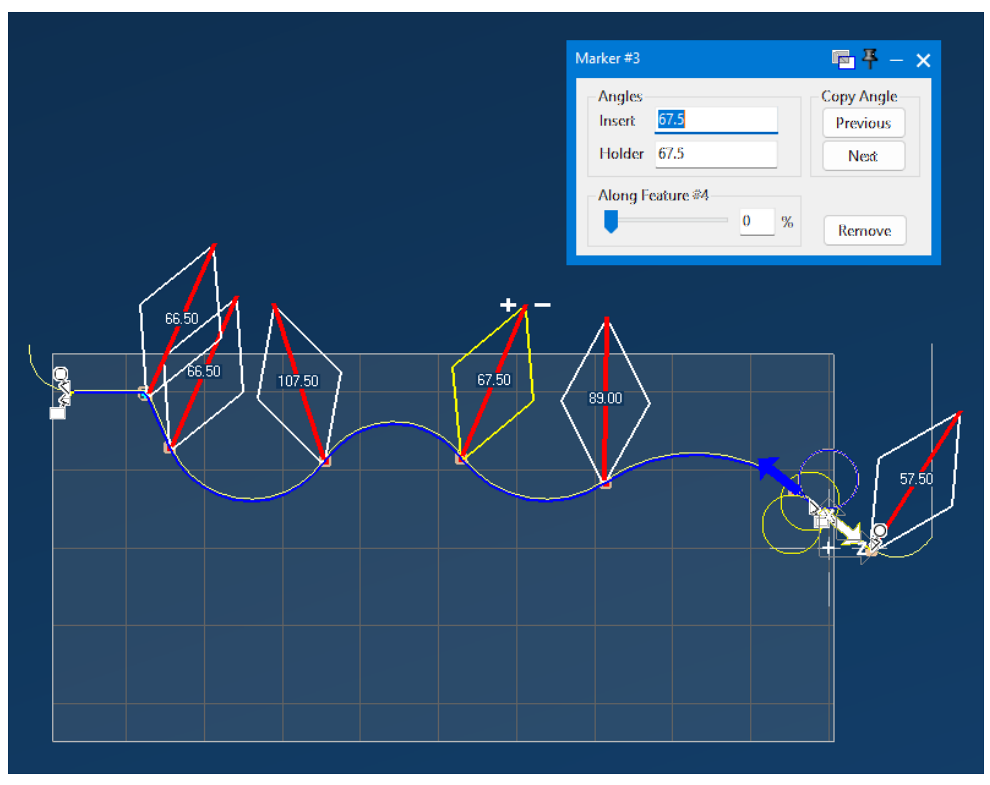
Figure 1 Set tool angles at control points and inspect the interpolation
Source: What's New in GibbsCAM 2026, p. 12
2. Check the complete insert and holder orientation through curves, transitions, and tight areas.
3. Adjust one control point at a time when the transition is not smooth or does not provide enough clearance.
Step 4 - Validate the Operation
1. Run complete Machine Simulation with current stock, fixtures, tool, holder, and machine components.
2. Post the operation and review B-axis motion, angle limits, clearances, and singularities.
3. Complete controlled prove-out before releasing the Variable-B operation for production.
Expected Result
• The tool follows the assigned insert and holder angles at each control point.
• GibbsCAM produces a smooth, reachable interpolation between control points.
• Simulation and posted output agree with the approved Variable-B motion.
Related Video
Best Practices
• Use the fewest control points needed to define a stable transition.
• Keep angle changes gradual unless the machine and process require a sharper transition.
• Review insert, holder, workholding, and rotary clearance together.
• Revalidate after changes to geometry, control points, tool assembly, MDD, or post.
Troubleshooting
• Problem: Interactive Variable-B controls are unavailable.
Cause
• Variable B is not enabled or Based On is not set to Interactive.
• The active product, operation, or machine definition does not support the required motion.
Resolution
Confirm the installed GibbsCAM build, licensed Turning product, Turning Contour process, and B-axis-capable machine definition. Then select Rotate > Variable B > Based On > Interactive.
• Problem: The tool does not reach an assigned angle.
Cause
• The control point or assigned angle is incorrect.
• Minimum or maximum angle limits constrain the request.
Resolution
Verify the control point and limits, regenerate, and inspect the result.
• Problem: The angle changes abruptly between control points.
Cause
• Adjacent points request incompatible angles.
• Excess control points reverse the interpolation.
Resolution
Remove unnecessary points, spread the remaining values, regenerate, and re-simulate.
• Problem: Simulation or posted B-axis motion is unsafe.
Cause
• The tool, holder, fixtures, machine model, or rotary limits are incomplete.
• The machine definition or post does not match the production configuration.
Resolution
Stop release. Correct the setup, confirm the MDD and post, then regenerate, simulate, and repost.
Related Articles
• Recommended Simulation Settings
Explore More from CAMCO
Visit the CAMCO website to learn more about:
• Downloads and Helpful Resources
Keywords
GibbsCAM 2026, Turning, Variable B, Variable-B turning, B axis, interactive tool angle, control point, insert angle, holder angle, interpolation
Was this article helpful?
That’s Great!
Thank you for your feedback
Sorry! We couldn't be helpful
Thank you for your feedback
Feedback sent
We appreciate your effort and will try to fix the article