Summary
GibbsCAM 2026 extends the Move Toolgroup utility process with a Rotate tab. Override Orientation and Override Subposition prevent a parked or repositioned tool from returning unintentionally to its standard subposition after a turning operation changed that setting.
Table of Contents
What Changed in GibbsCAM 2026
Important: A wrong subposition can create an unexpected interop event or unsafe move. Validate the exact sequence with the production MDD, post, and machine limits.
Before You Begin
• Use GibbsCAM 2026 with the required MTM product and an approved machine definition.
• Confirm the toolgroup, available subpositions, orientation, parking location, and axis limits in the MDD.
• Save the original utility operation, synchronization state, simulation result, and posted program as a baseline.
• Identify the turning operation whose Rotate settings establish the subposition that must be preserved.
Procedure
Step 1 - Review the Starting State
1. Review the turning operation immediately before the Move Toolgroup utility operation.
2. Record its tool orientation and subposition, including any Rotate-tab override.
3. Confirm the intended location and state of the toolgroup after the move.
Step 2 - Configure the Move Toolgroup Operation
1. Create or edit the extended Move Toolgroup utility operation.
2. Set the required part station, move location, axes, control point, and parking values.
3. Open the Rotate tab and enable Override Orientation when the move must retain a specific orientation.
Step 3 - Preserve the Tool Subposition
1. Enable Override Subposition in the Rotate tab.
2. Select the intended subposition or use Suggest Subposition when the validated MDD supports that choice.
3. Regenerate and confirm that the utility operation does not revert to the standard subposition.
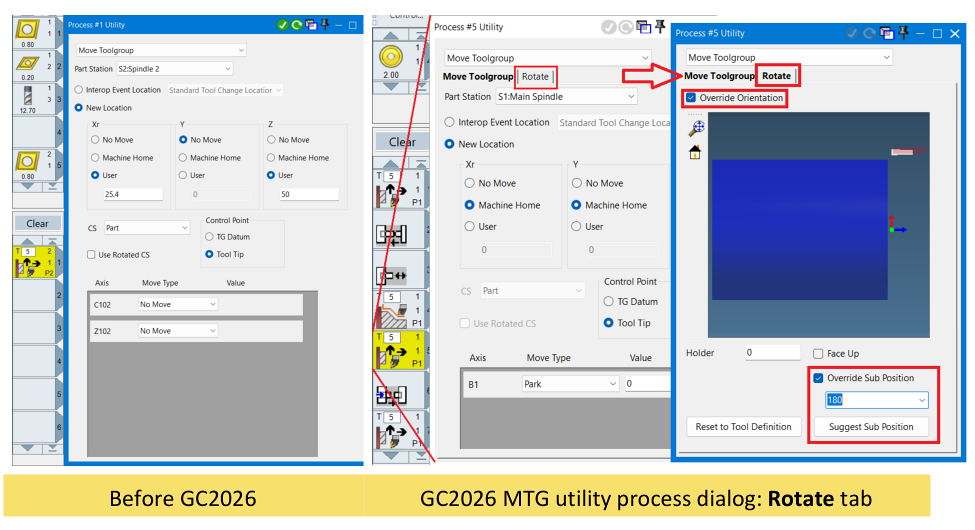
Figure 1 Use the Rotate tab to retain the required orientation and subposition
Source: What's New in GibbsCAM 2026, p. 13
Step 4 - Validate the Sequence
1. Run complete Machine Simulation across the preceding operation, utility move, and following operation.
2. Check synchronization, interop events, orientation, subposition, clearance, and all axis travel.
3. Post the sequence and complete controlled prove-out before production release.
Expected Result
• Move Toolgroup retains the selected orientation and subposition during the move.
• The sequence does not create an unintended subposition change or interop event.
• Simulation and posted output agree with the approved MTM sequence.
Best Practices
• Use the exact production MDD and post when validating subposition behavior.
• Document which toolgroup moves require orientation or subposition overrides.
• Simulate the operations immediately before and after the utility move together.
• Revalidate after changes to the toolgroup, station, synchronization, MDD, or post.
Troubleshooting
• Problem: The Rotate tab is unavailable.
Cause
• The utility process is not the supported extended Move Toolgroup operation.
• The installed build or active machine definition does not provide the enhanced workflow.
Resolution
Confirm GibbsCAM 2026, the selected utility operation, licensed MTM product, and approved MDD. Recreate the Move Toolgroup process with the supported configuration if needed.
• Problem: The move returns the tool to its standard subposition.
Cause
• Override Subposition is not enabled.
• The selected subposition was not retained when the operation was regenerated.
Resolution
Enable Override Subposition, select the approved value, regenerate, and inspect the toolgroup state before and after the utility move.
• Problem: The selected subposition is unavailable or rejected.
Cause
• The active MDD does not define that subposition for the toolgroup.
• The orientation, station, or move state conflicts with the requested subposition.
Resolution
Verify the toolgroup definition and permitted states in the approved MDD. Select a supported subposition or request a validated machine-definition update.
• Problem: The move triggers an interop event or unsafe axis motion.
Cause
• The orientation or subposition does not match the preceding and following operations.
• Synchronization, parking values, machine limits, or post behavior is incorrect.
Resolution
Stop release. Restore the baseline, correct the complete MTM sequence, confirm the qualified MDD and post, then simulate and repost the full transition before prove-out.
Related Articles
• Recommended Simulation Settings
• How to Create a Pack and Go File
Explore More from CAMCO
Visit the CAMCO website to learn more about:
• Downloads and Helpful Resources
Keywords
GibbsCAM 2026, MTM, Move Toolgroup, MTG, utility operation, Rotate tab, Override Orientation, Override Subposition, tool subposition, interop event
Was this article helpful?
That’s Great!
Thank you for your feedback
Sorry! We couldn't be helpful
Thank you for your feedback
Feedback sent
We appreciate your effort and will try to fix the article