Summary
GibbsCAM 2026 adds Minimize Moves to Machine Manager's Set Clearance Behavior dialog. For eligible same-tool inter-operation moves that remain on the part, the tool retracts only as high as needed to keep its traversal from intersecting the defined clearance volume.
Table of Contents
What Changed in GibbsCAM 2026
Important: A lower retract is valid only when the move meets the documented eligibility conditions and clears the modeled volume. Do not use Minimize Moves to compensate for incomplete machine, fixture, tool, or setup geometry.
Before You Begin
• Confirm that you are authorized and trained to edit the applicable MDD in Machine Manager.
• Create a recoverable, versioned MDD test copy and retain the current production definition as a baseline.
• Verify that the MDD clearance volumes represent the required machine and workholding boundaries.
• Prepare a representative part with same-tool operations, orientation changes, tool changes, and moves that leave the part.
Procedure
Step 1 - Confirm the Clearance Volumes
1. Open the approved MDD test copy in Machine Manager.
2. Select Machining Prefs and locate Clearance Behavior.
3. Choose Clearance Volumes, select Volumes, and verify that the defined volumes represent the required clearance boundaries.
4. Save the test MDD and confirm that its Clearance field appears on the DCD Workspace tab in GibbsCAM 2026.
Step 2 - Enable Minimize Moves
1. Return to Machine Manager > Machining Prefs > Clearance Behavior.
2. Choose Clearance Volumes and select Volumes to open Set Clearance Behavior.
3. Select Minimize Moves.
4. Review Straight Moves, Tolerance, and the remaining clearance settings against the approved machine configuration, then save the test MDD.
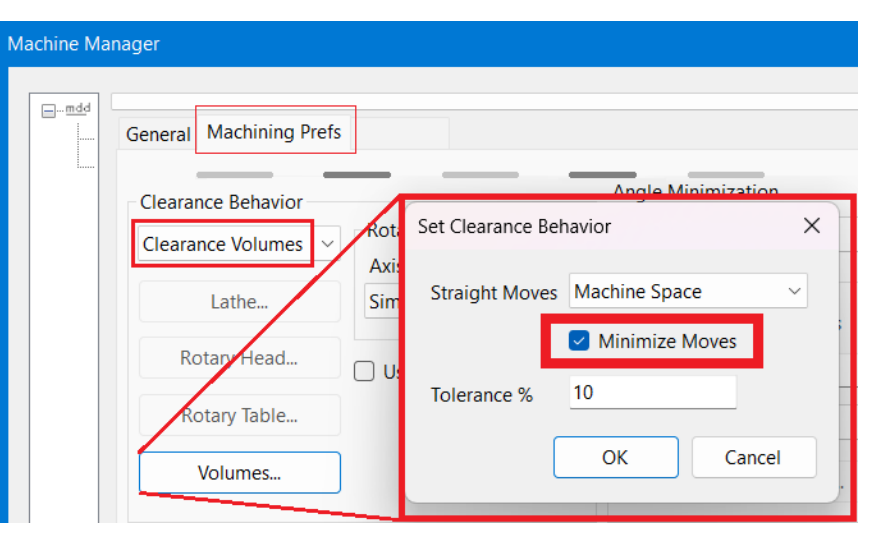
Figure 1 Enable Minimize Moves in Set Clearance Behavior
Source: What's New in GibbsCAM 2026, p. 36
Step 3 - Test Eligible Moves
1. Regenerate same-tool operations that remain on the part, retain the tool orientation, and keep the tool aligned with a linear machine axis.
2. Run Machine Simulation and inspect the retract and traversal between those operations.
3. Confirm that each eligible retract reaches the highest position needed to avoid the defined clearance volume while moving above the next operation's start point.
Step 4 - Test Non-Eligible Moves and Output
1. Simulate tool changes, orientation changes, moves that leave the part, and other non-eligible transitions.
2. Confirm that all moves remain clear of stock, fixtures, tooling, and machine components.
3. Review the posted program with the assigned post or applications specialist before deploying the revised MDD.
Expected Result
• The active MDD uses verified clearance volumes and exposes the required Clearance field.
• Eligible same-tool inter-operation moves retract only as high as required to avoid the defined volume.
• Simulation and posted output preserve safe behavior for eligible and non-eligible moves.
Best Practices
• Validate the clearance-volume geometry before evaluating retract height.
• Compare the revised MDD with a production baseline using the same representative part.
• Test both eligible and non-eligible inter-operation moves in complete Machine Simulation.
• Revalidate after changes to the MDD, post, fixture, tool orientation, or controller configuration.
Troubleshooting
• Problem: The Clearance field does not appear on the DCD Workspace tab.
Cause
• Clearance Volumes are not defined or selected in the active MDD.
• A different machine definition or DCD is active.
Resolution
Confirm the active MDD, enable Clearance Volumes, and reopen the test part with the revised machine definition.
• Problem: The Minimize Moves checkbox is not available.
Cause
• Clearance Behavior is not set to Clearance Volumes.
• The test uses an earlier GibbsCAM release or a different MDD.
Resolution
Enable Clearance Volumes in the GibbsCAM 2026 test MDD, then open Volumes.
• Problem: A move still retracts higher than expected.
Cause
• The move changes tools or orientation, leaves the part, or is not aligned with a linear axis.
• The clearance volume or tolerance requires the higher retract.
Resolution
Verify every eligibility condition and inspect the clearance volume and simulation. Keep the higher retract when clearance requires it.
• Problem: Simulation or posted motion approaches a collision.
Cause
• The clearance volume, machine, fixture, stock, tool, or holder geometry is incomplete.
• The MDD, post, tolerance, or move eligibility does not match the production configuration.
Resolution
Stop deployment. Restore the baseline, correct the setup and clearance definition, then regenerate, simulate, and repost before prove-out.
Related Articles
• Recommended Simulation Settings
• How to Create a Pack and Go File
Explore More from CAMCO
Visit the CAMCO website to learn more about:
• Downloads and Helpful Resources
Keywords
GibbsCAM 2026, Machine Manager, MDD, Clearance Volumes, Minimize Moves, inter-operation move, same tool, retract, linear axis, Machine Simulation
Was this article helpful?
That’s Great!
Thank you for your feedback
Sorry! We couldn't be helpful
Thank you for your feedback
Feedback sent
We appreciate your effort and will try to fix the article